Swyx
Step 1 - install CTI Data Connector - TAPI Link
Download at Install CTI Data Connector - TAPI Link on the local PC
Step 2 - install SwyxIt
The SwyxIt Client comes with a TAPI driver. How to install see SwyxIT documentation - Telephoning from Third Party Applications.
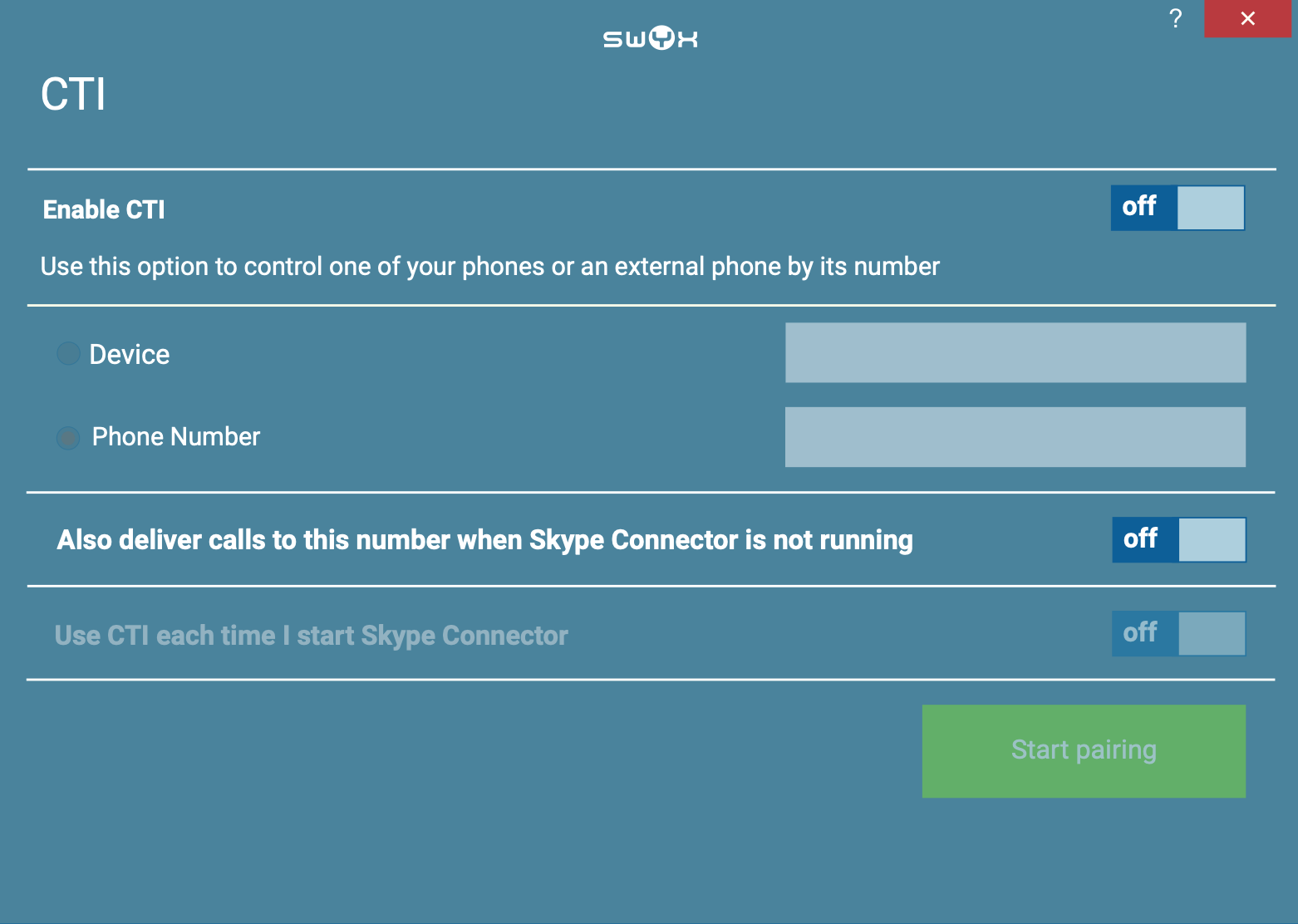
If a deskphone is used, CTI must be enabled in the SwyxIT Client (menu Settings / Select „Open CTI..“
The following functionality is supported with SwyxIt . The listed functions are synchronized between CTI Data Connector for Salesforce® and SwyxIt - e.g. call answer in CTI Data Connector for Salesforce® changes the status in SwyxIt to call active or call terminate in SwyxIt terminates the call in CTI Data Connector for Salesforce®.
Note: The Swyx mobile app is not supported.
Outbound Calls
Functions with CTI Data Connector for Salesforce®
•Dial (external number, internal number)
•Put call on hold and resume from hold
•Terminate call
Functions with SwyxIt
•Dial (external number, internal number) - the phone number is not transmitted
•Put call on hold and resume from hold
•Terminate call
Inbound Calls
Functions with CTI Data Connector for Salesforce®
•Answer call
•Put call on hold and resume from hold
•Terminate call
Functions with SwyxIt
•Answer call
•Put call on hold and resume from hold
•Terminate call
•Transfer call - Blind transfer (without announcing the call) - shows external number in CTI Data Connector for Salesforce®
•Transfer call - Consulted Transfer - shows internal number in CTI Data Connector for Salesforce®, after transfer shows external number in CTI Data Connector for Salesforce®
Tested with
•SwyxIT version 11.20.3066
•CTI Data Connector for Salesforce® version 5.7.036
•CTI Data Connector - TAPI Link version 5.7.2 (mandatory for call transfer)