Microsoft Teams - CC4ALL
Before phone calls can be made, a login with username/password from CC4ALL is required.

Click on the gear icon, then on the person icon and type in username and password you got with the CC4ALL registration. Once you successfully log in, the connection icon turns green.
There are a few things to know about how in- and outbound calls are working.
Outbound calls from Salesforce
If you dial within Salesforce, MS-Teams will ring with Guest. You need to confirm the outbound call in MS-Teams by clicking on the Answer button.
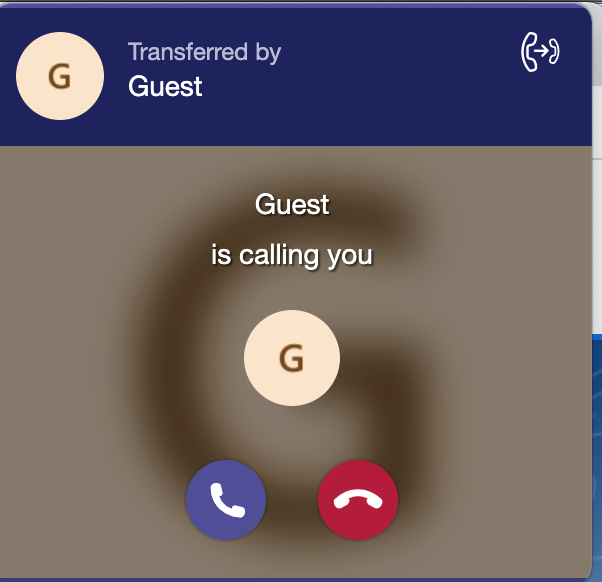
Only after clicking on Answer, the call is made. In the CTI Data Connector SoftPhone the call is instantly going to be active (no ring state). If you want to protocol a call, which was not answered (only ringing, busy), you need to check: Call Center - Call Wrap-Up / Call Results
Outbound calls from MS-Teams to landline number
Outbound calls from MS Teams are only possible with the CC4ALL Agent Pro, Supervisor, Operator, or Assistant Client. The phone number is searched in Salesforce and signaled in the CTI Data Connector SoftPhone.
Outbound calls from MS-Teams to other MS-Teams users
Calls from MS-Teams or not signaled in Salesforce as they are internal calls.
Inbound calls
Inbound calls are signaled in the CTI Data Connector SoftPhone, but they need to be answered in MS-Teams. MS-Teams will ring with Guest. For this reason, the Answer button is not available in the CTI Data Connector SoftPhone. The call can also only be rejected in MS-Teams.
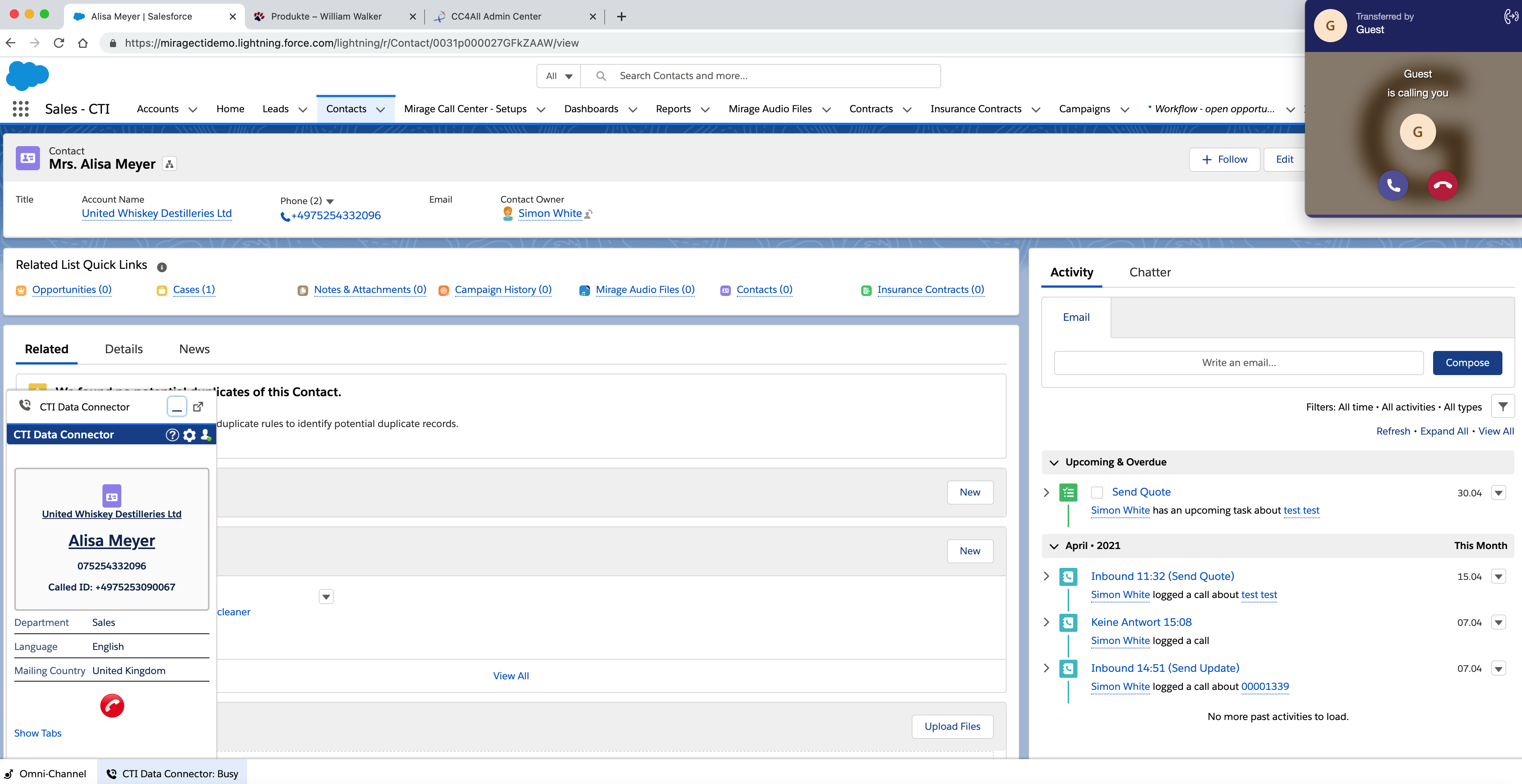
Call on hold
If the call is put on hold with the orange button, MS-Teams is still signaling the call as active, although the call is put on hold. The green button resumes back to the call.
Presence State
The standard MS-Teams presence states are available in the CTI Data Connector SoftPhone. Custom presence states can be added.
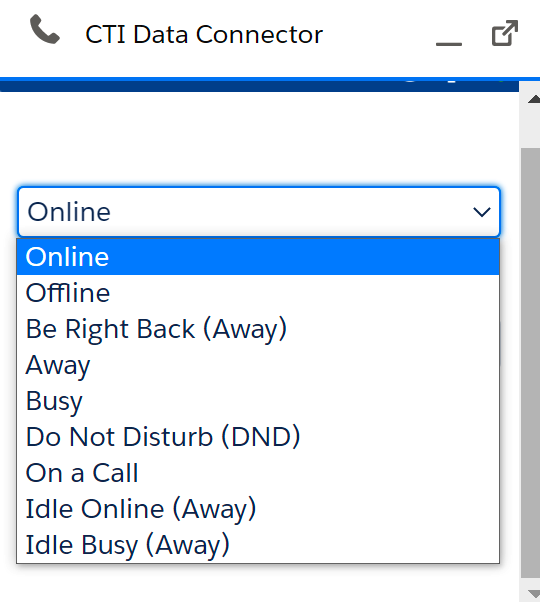
Change presence state in the CTI Data Connector SoftPhone
If the presence state is changed in the CTI Data Connector SoftPhone, it is internally applied in the phone system, but the presence state in MS-Teams is not changed and still in Available state.. This is due to a limitation of the Microsoft API for Teams.
Example
The presence state in the CTI Data Connector SoftPhone is changed to Busy while the presence state in MS-Teams is Available. No calls will come in as the presence state of cdcsfe will be considered from the phone system.
Change presence state in MS-Teams
Changing the presence state in MS-Teams will change the presence state in the CTI Data Connector SoftPhone.
Call Queues
The administrator adds the user to one or more queues. If there are several queues, there is a phone line selection for outbound calls visible in the CTI Data Connector SoftPhone.
Dial by E-Mail Address
You can call any MS Teams user with a MS Teams direct call using click to dial by E-Mail address.
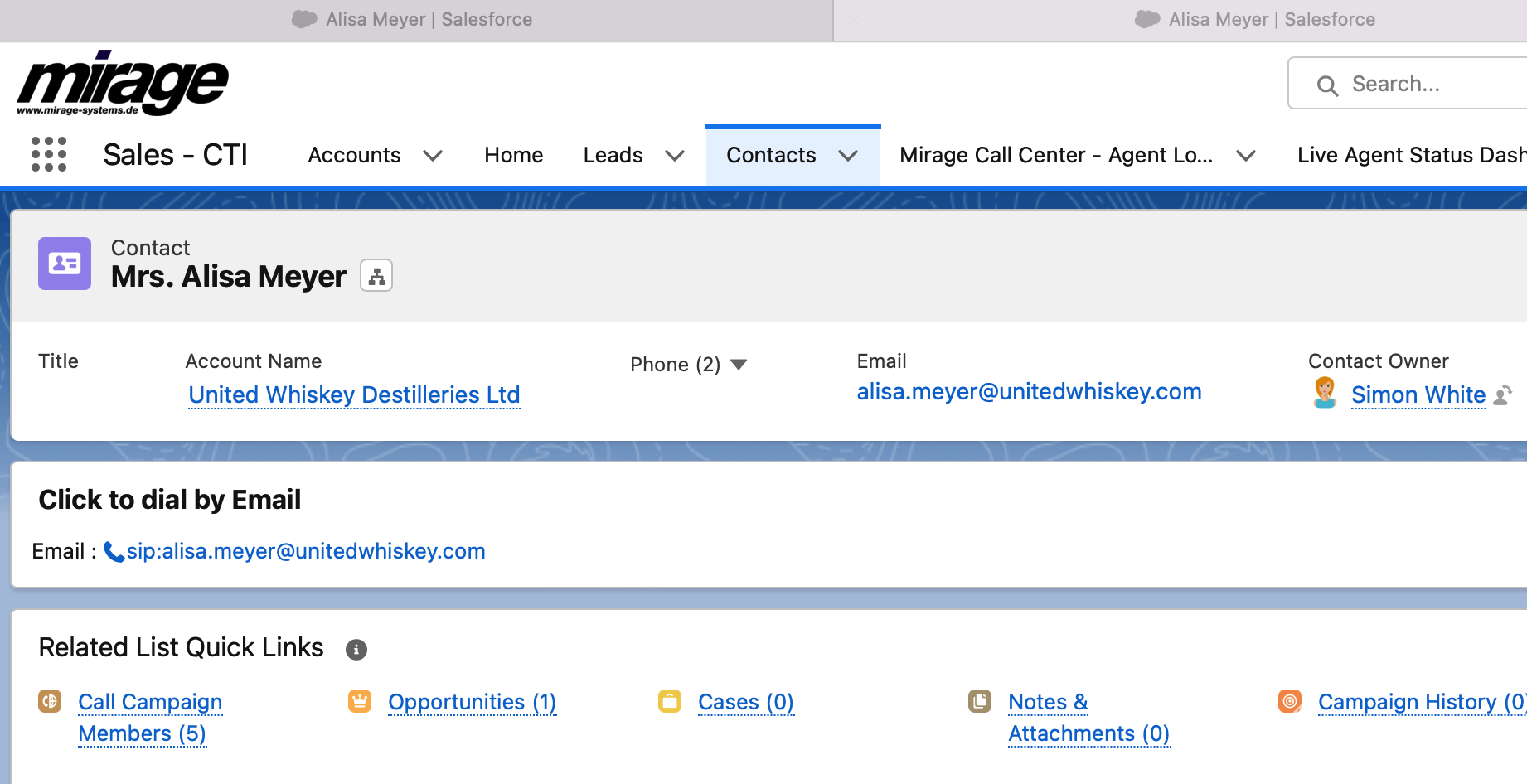
Required Configuration at Dial by E-Mail Address