Phone Simulator
If you have no TAPI-enabled phone available and you want to test CTI Data Connector for Salesforce®, you can use the simulator which works like a regular telephone. You have to install the CTI Data Connector - TAPI Link. See Install CTI Data Connector - TAPI Link on the local PC
Activating the Simulator
Start the Configuration Wizard and choose the page where you can select your telephony service provider. Choose <Telephone Simulator>. When you start CTI Data Connector for Salesforce®, the simulator will be started automatically.
Working with the Simulator
The telephone simulator acts like a normal telephone with which you can make outgoing calls and accept incoming calls.
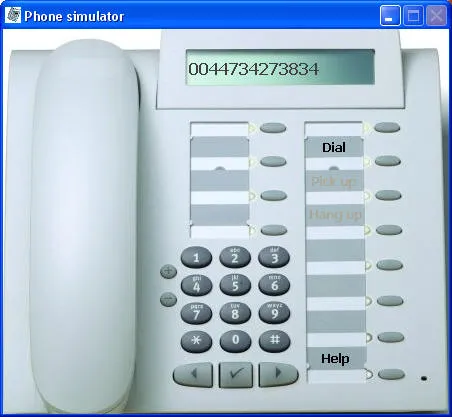
Type in phone number
Button for Dial, Pick up, Hang up
You can use the keyboard to make a call
Simulating an incoming call
•Type in a phone number (without country code and special characters) in the display. You can alternatively use the keyboard to type in the number.
•Press the button Dial
•CTI Data Connector for Salesforce® performs the caller identification and signals the incoming call in the CTI Data Connector SoftPhone
•Accept the incoming call by pressing the button Pick up
•You can disconnect the call by pressing the button Hang up
Simulating an outgoing call
CTI Data Connector for Salesforce® displays the dialed address in the CTI Data Connector SoftPhone
•Establish the call by pressing the button Pick up
•You can disconnect the call by pressing the button Hang up
Only numbers, # * + sign are accepted