Incoming calls
CTI Data Connector for Salesforce® offers a sophisticated caller identification.
Depending on the configuration, either the caller details are just displayed in the CTI Data Connector SoftPhone or a new TAB is opened and the lead, account or contact details are loaded.
•If the caller cannot be identified see Assign a call (Smart Assign).
•About the overall functionality of the CTI Data Connector SoftPhone
Configuration - Only display caller info
To just display the caller data, configure in the Softphone Layout:
•Screen pops open within: New browser window or tab
•Single-matching record: Don't pop any screen
You can at any time click on the Name to display the complete record.
Salesforce Classic
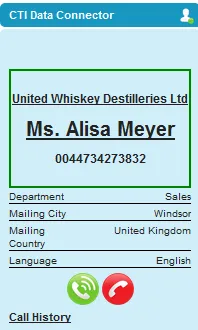
A green frame indicates an incoming call. If the caller can be identified, the account name and contact / lead name is shown.
Additional fields to display are configured in the SoftPhone layout , option: If single Account, Contact, Lead found, display
Salesforce Lightning
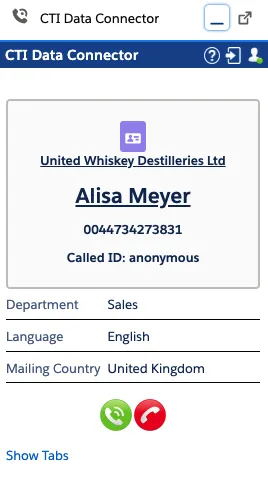
Incoming call in Lightning
Additional fields to display are configured in the SoftPhone layout , option: If single Account, Contact, Lead found, display
Duplicate records
In case the same phone number is stored in multiple objects, all objects are listed in the sort order defined in the SoftPhone Layout.
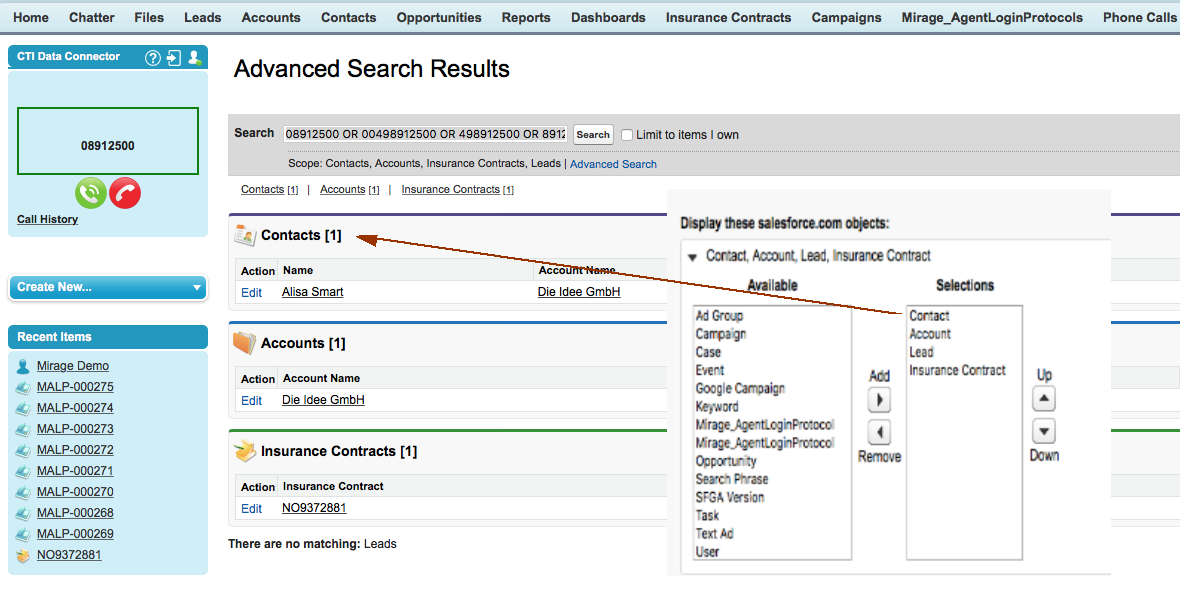
Select a record. It is automatically assigned to the call (see configuration: SoftPhone)
The sort order is only applied in Sales Classic but not in Service Cloud or Lightning
Configuration - Display caller info and open record in new TAB
To automatically load the caller details in a new TAB, configure in the SoftPhone layout
•Screen pops open within:New browser window or tab
•Single-matching record: Pop detail page
A new TAB opens and the complete Lead, Account or Contact details are displayed.
Configuration - Display caller info, open record in new TAB and create a new case
See: Cases
Configuration - Display caller info, open record in new TAB and trigger a workflow
•see configuration: Display caller info and open record in new TAB
•in the Call Center Adapter set: Incoming calls
•use Validation Rules / Workflows to trigger the workflow