Outbound Calls
Outbound call
How to make an outbound call from Salesforce see Dial within Salesforce
After clicking on the phone number, the Microsoft Teams toast notification appears. You must click on the call icon in the Microsoft Teams App to start the call.
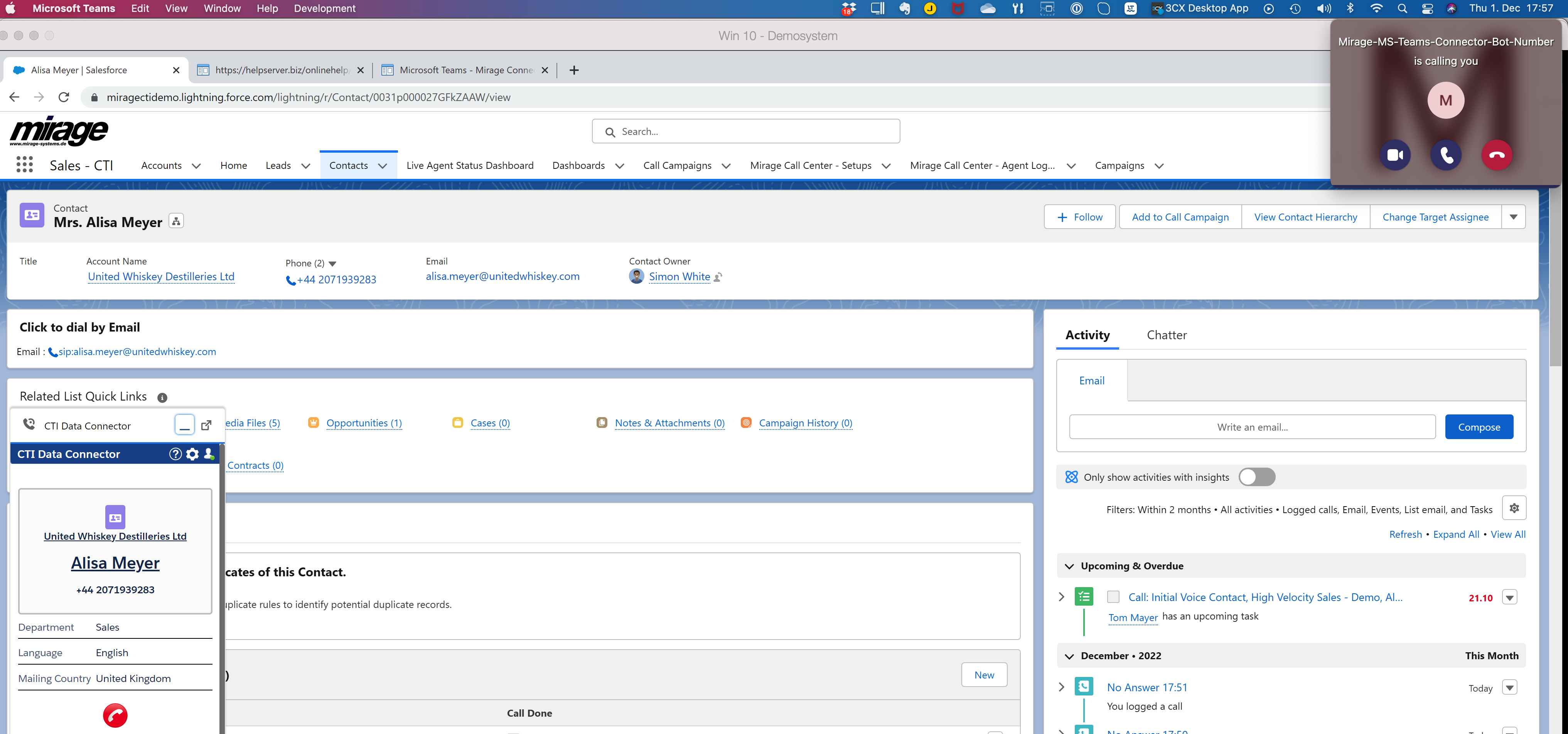
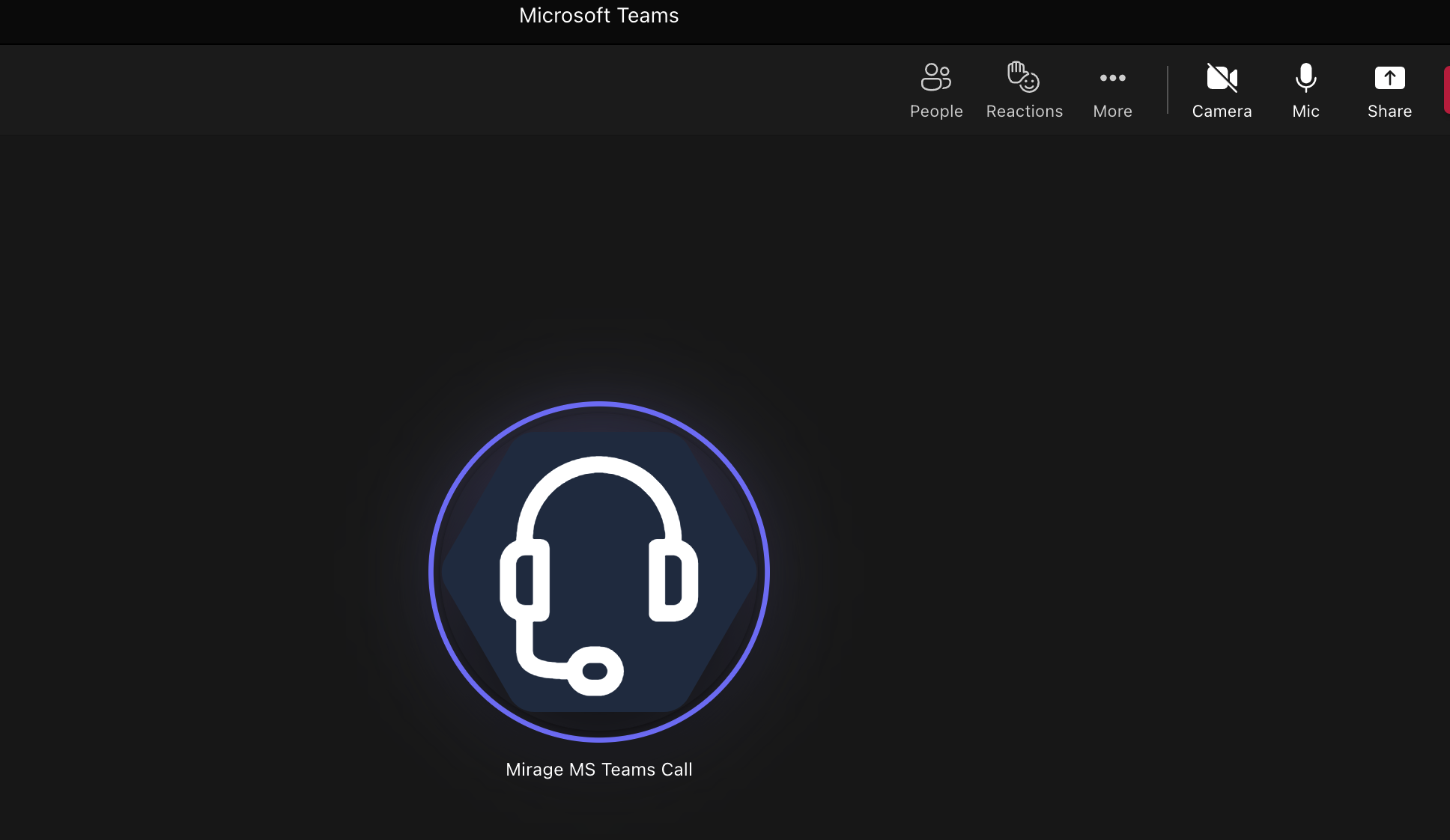
After that, the Mirage MSTeams Bot starts the outbound call. While the call is ringing, the Mirage MSTeams Bot icon appears.
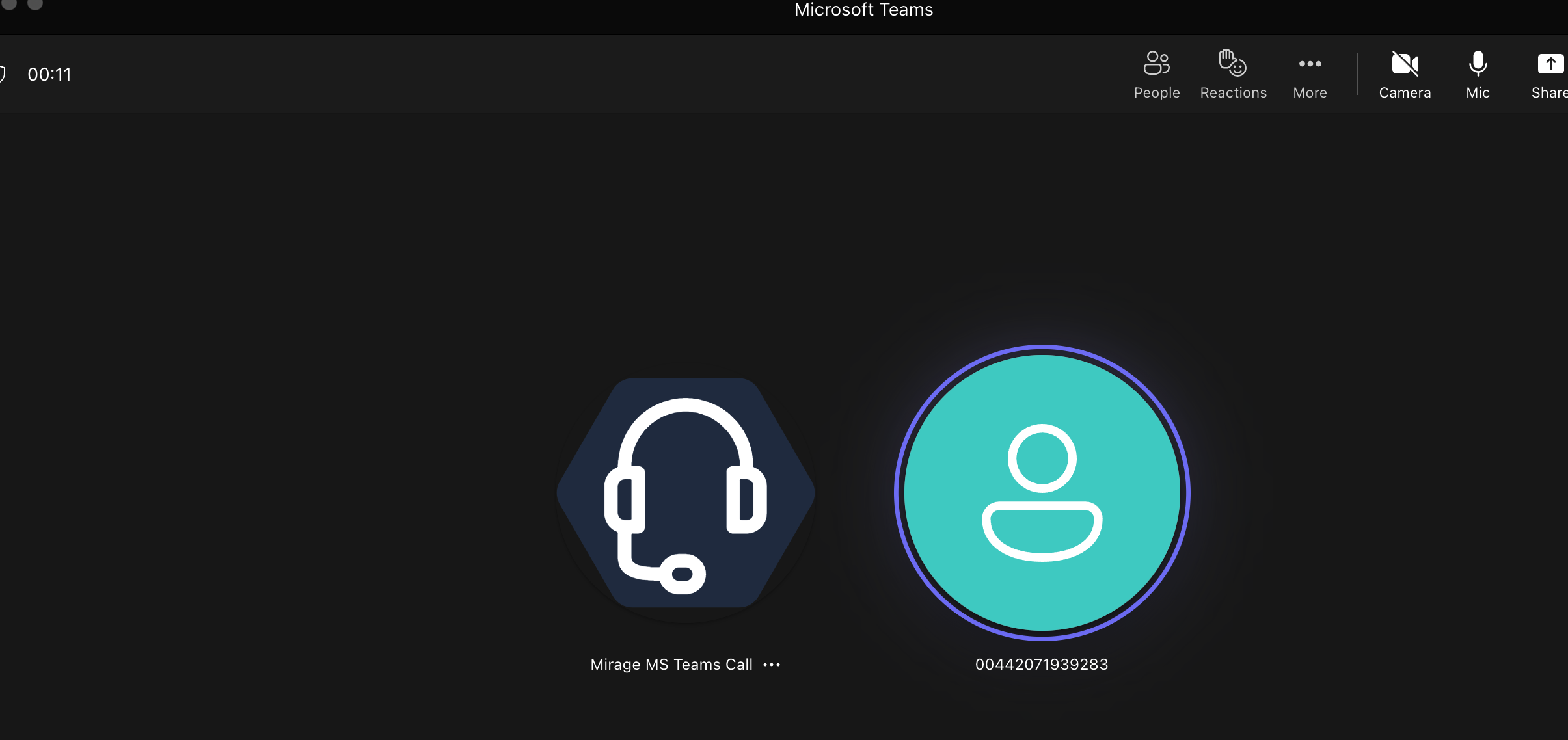
Once the other party answers the call, the Mirage MSTeams Bot and the called ID will be shown.
Call Controls
The following options to control the call are available in
Salesforce
•Put the call on hold in Salesforce by clicking on the orange button and resume from hold with the green button
•Blind Transfer
•End the call with the red button
Microsoft Teams App
•End the call
•Invite other callers to the call, e.g., another MS Teams user using the 👥 icon
•Call another Microsoft Teams user. The original call (landline call) will be put on hold. This function can also be used to briefly hold a consultation and then, if necessary, to connect further with Blind Transfer.
Presence State
An outbound call is not possible if the Microsoft Teams presence state is Do Not Disturb or Presenting. The icon is ⛔️
•Another incoming call to your direct extension is signaled when you are on a call. Only if the presence state is Do Not Disturb or Presenting, no inbound call comes in.
•Presence states are synchronized bidirectional (Salesforce to Microsoft Teams and Microsoft Teams to Salesforce). There is a delay between 3 to 7 seconds until the presence state update is shown either in the CTI Data Connector SoftPhone or MS Teams App.
Call History List Microsoft Teams
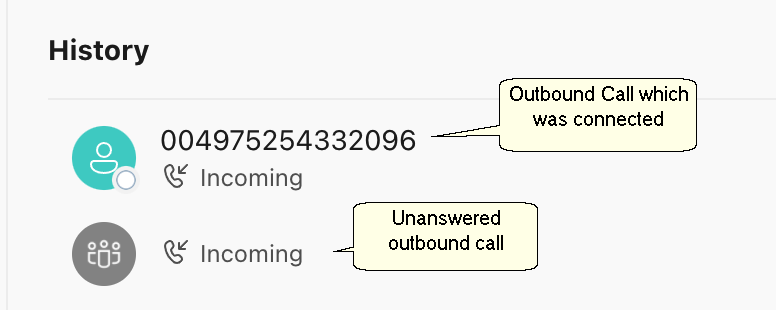
The call history list will have the caller ID as an inbound call .
•If the call was answered, the called ID is displayed
•If the call was not answered, only incoming is displayed
Making an outbound call from the Microsoft Teams App will not be signalled in Salesforce.