Features of the Live Agent status Dashboard
The Live Agent Status Dashboard is easy to use.
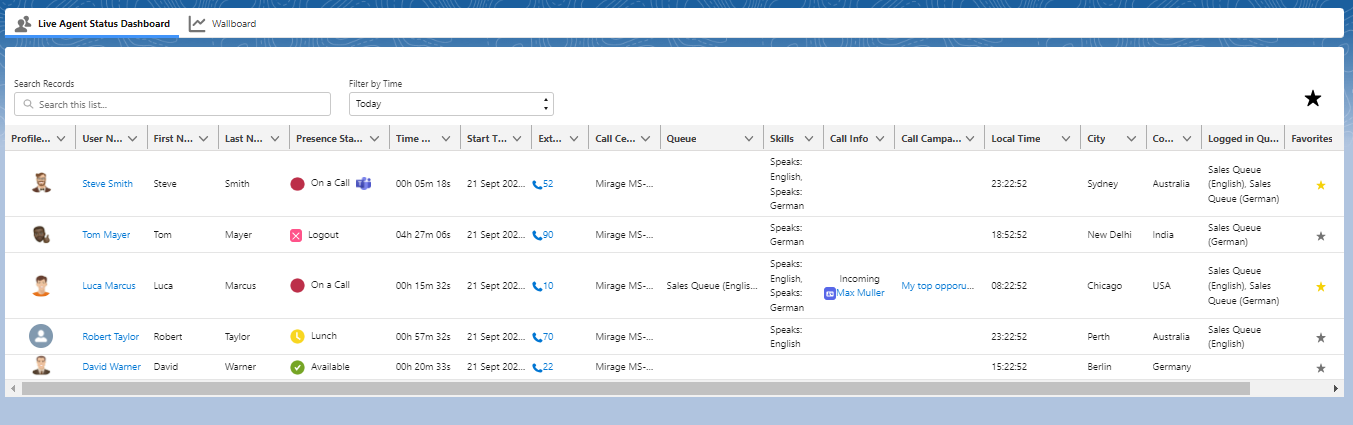
Presence state
The presence state changes automatically from
•Online / Available to
•Ringing
•On a Call (if configured) to
•Busy (if call wrap-up time is configured) back to
•Online / Available
Other presence states like DND (Do Not Disturb), Lunch can be selected manually.
Internal MS Teams call or MS Teams meeting
If an internal MS Teams call (MS Teams user to MS Teams user) or MS Teams meeting is happening, there is an MS Teams icon added to the presence state
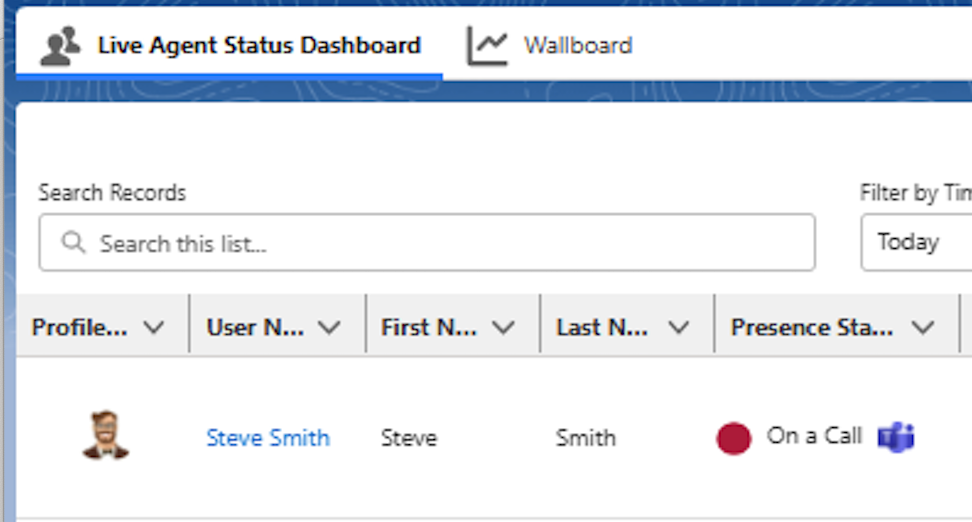
If the user is in an MS Teams meeting an presenting (shows screen), it is shown with a separate presence state.
The wallboard also show these calls in a separate counter.
This feature is only available with the Mirage Teams Connector Service.
Logout
The information in the Dashboard will only be correct if the user selects Logout.
In the CTI Data Connector SoftPhone (recommended)
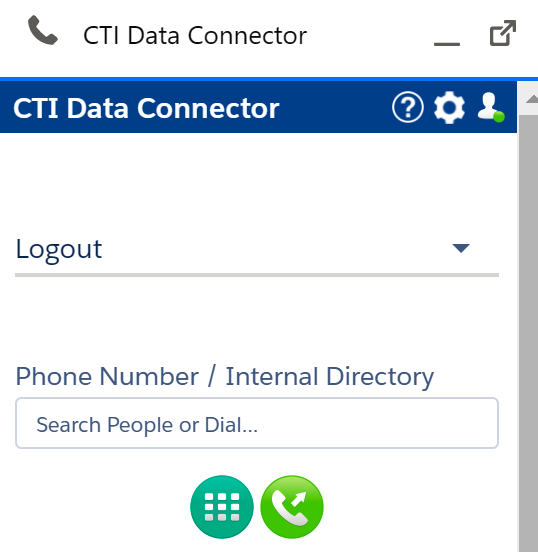
Logout in Salesforce will only update the Live Agent Dashboard but will not change the Presence State in the phone system.
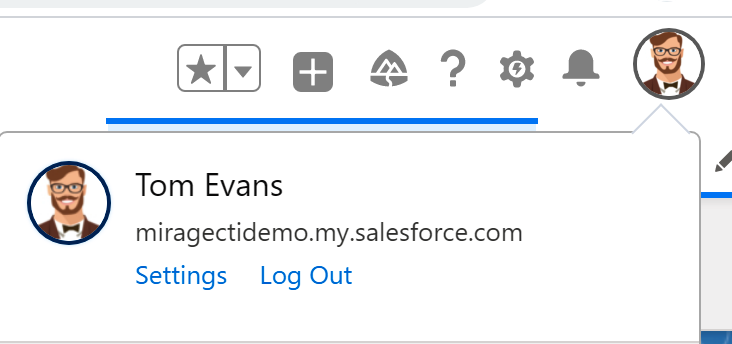
Just closing the Browser will not change the presence state, and the dashboard would keep the last presence state until the user logs in again.
Explanation of the Dashboard
The list does include only users with
•A CTI Data Connector for Salesforce® license
•Presence state feature is enabled for this user
•Salesforce user status is active
Role and Profile are retrieved from the Salesforce user record.
Start Time shows when the presence state was changed to this state. This gives valuable information, e.g., how long a user is On a Call or At Lunch state.
Call Info
This is a combined information with call type (Inbound / Outbound) and the other party of the call.
If it is a MS Teams to MS Teams call (not a landline call) and you are using the MS Teams Mirage Connector, then this field is empty.
Skills
Skills help you to find the right person for a specific task quickly. Skills can be defined on the user level, or skills from Omni-Channel can be displayed.

Display Filters
A filter is limiting the list to the selected filter criteria.
Filter by Time
Only users are displayed, where the presence status change is within the selected time frame. The default value can be defined.
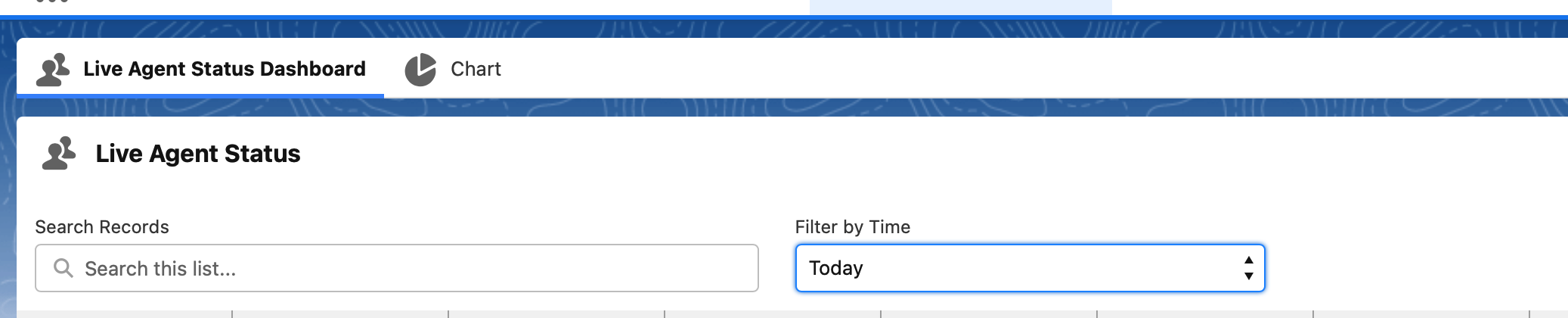
The Today filter uses the time when the presence status was last updated (typically every 60 seconds) - this covers the situation when a call from a user in another country goes past midnight.
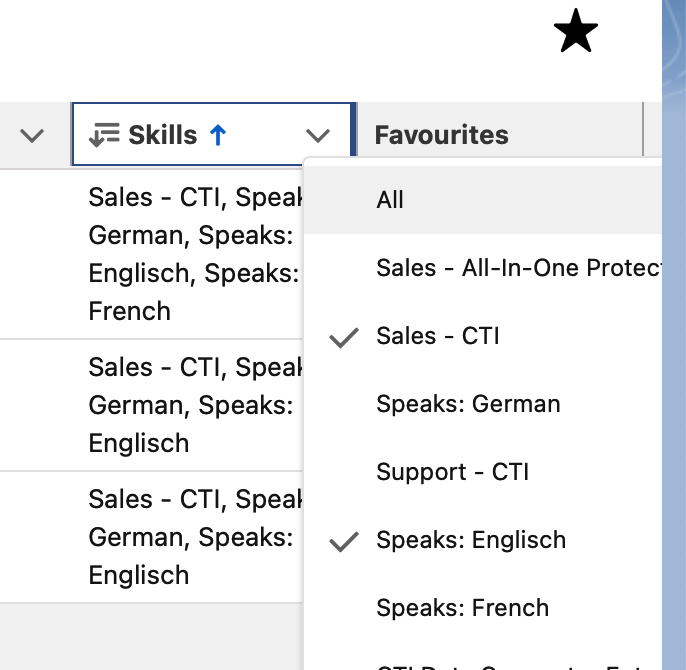
Filter by Column
You can filter columns, e.g. show only users with a specific skill
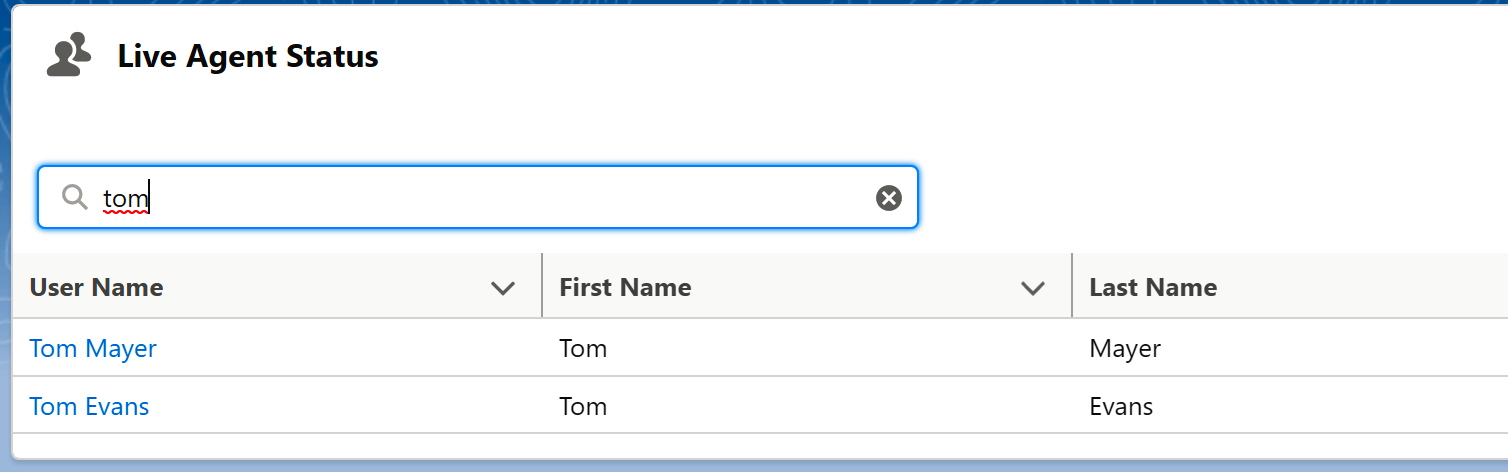
Search
You can search by First and/or Last name, Role, Extension Number and Call Center. Just type in the search term in the search field.
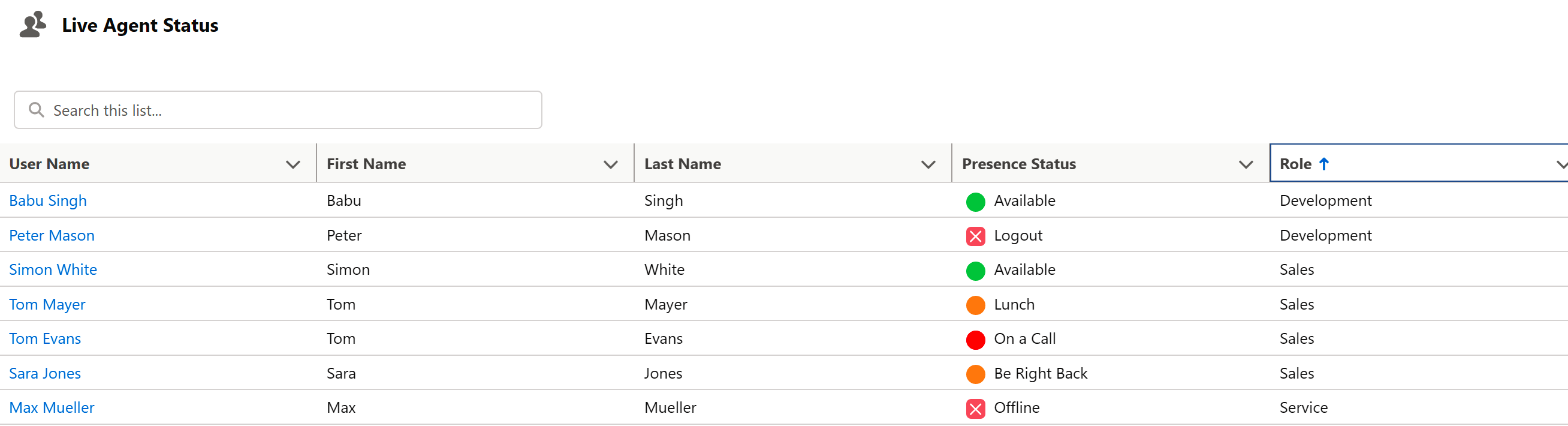
Sort column
Click on a column name to sort, e.g., by Role, Profile or Last Name
Example: Sort by Role
Extension number
If an extension number in the Salesforce user record is added, it is shown, and you can click to dial on the extension.

Favorites
If you want to show only the people you work together in your dashboard, mark them as favorites (yellow star).

Then click on the favorites icon to display only favorites
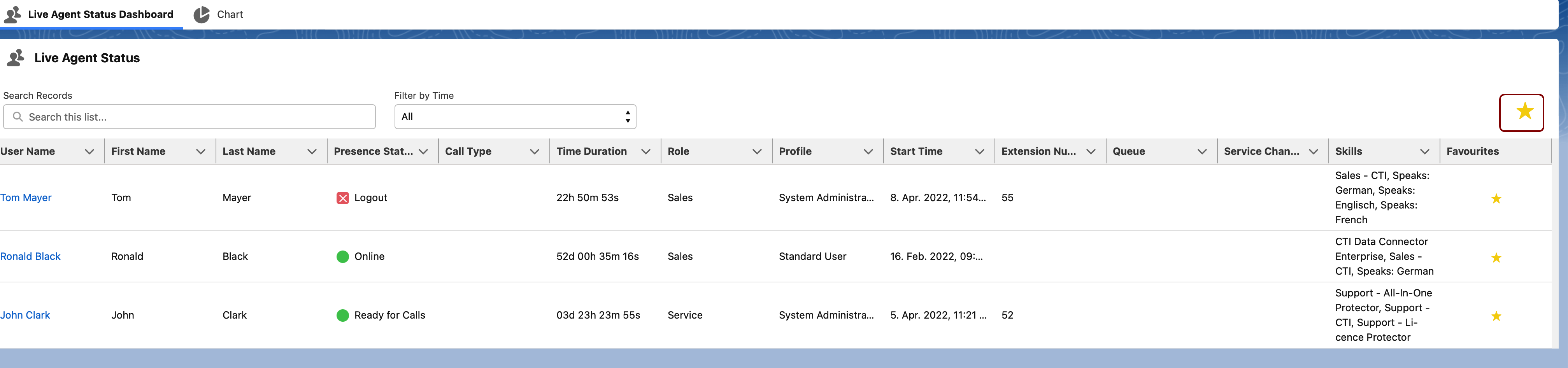
If Favourites are selected, the favorites are displayed every time the Live Agent Dashboard is opened
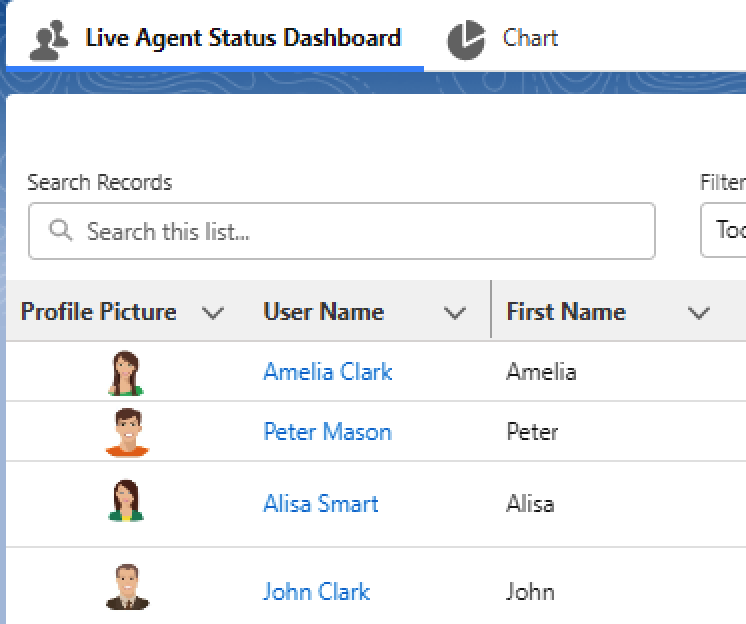
Profile Picture
The profile picture from the Salesforce user can be displayed in the Live Agent Dashboard
Things to Know
•The data is only updated when the TAB is active
•Today View is based on the user’s time zone