Next Action Screen
After the call has ended, the Next Action Screen appears.
Depending on the type of the call campaign, there are different options.
Personal Call Campaign
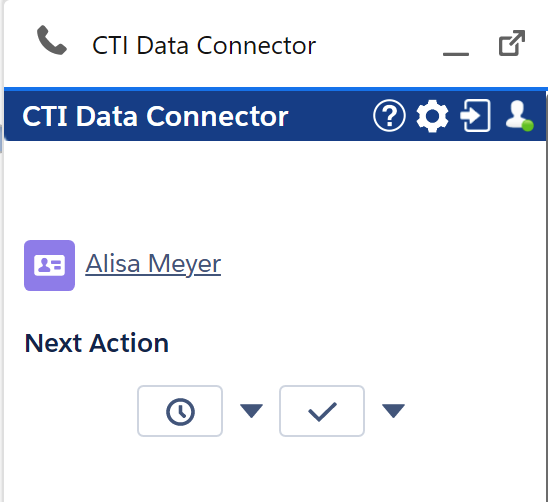
Reschedule Call
In case you did not reach the campaign member or you need to call back on another day
•Click on the reschedule icon . It will use the default value to reschedule the call (configurable at Call Center - Power Dialer)
•Click on and select an option in the list like 10 min, 1 day, 1 week (configurable list)
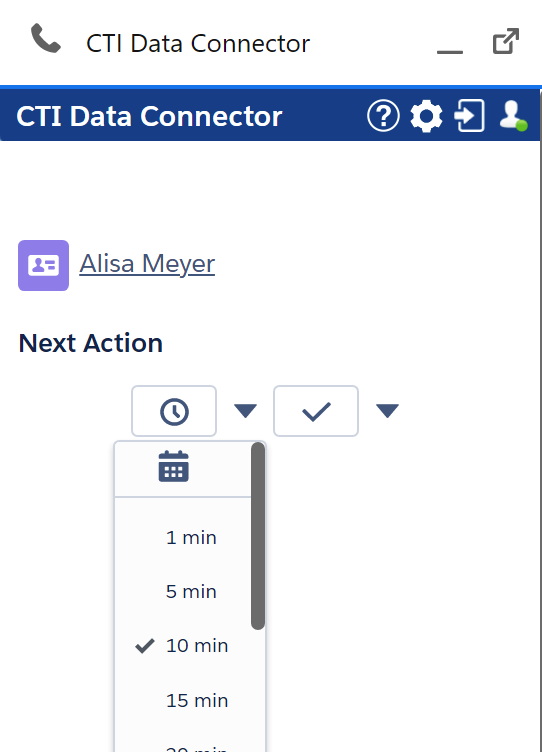
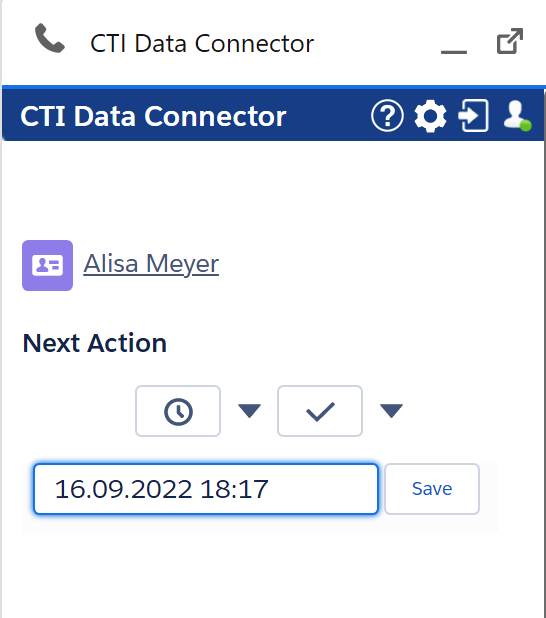
•Click on the calendar icon to select a date /time
Complete the call
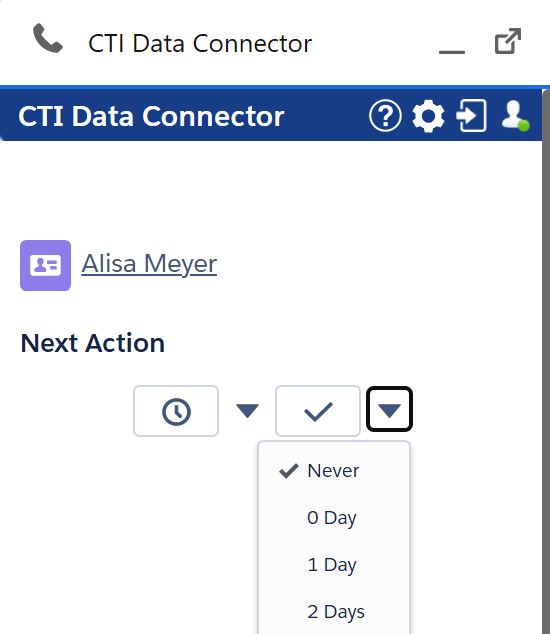
After clicking on the complete icon , you can select a campaign result. The campaign result is used in reports.
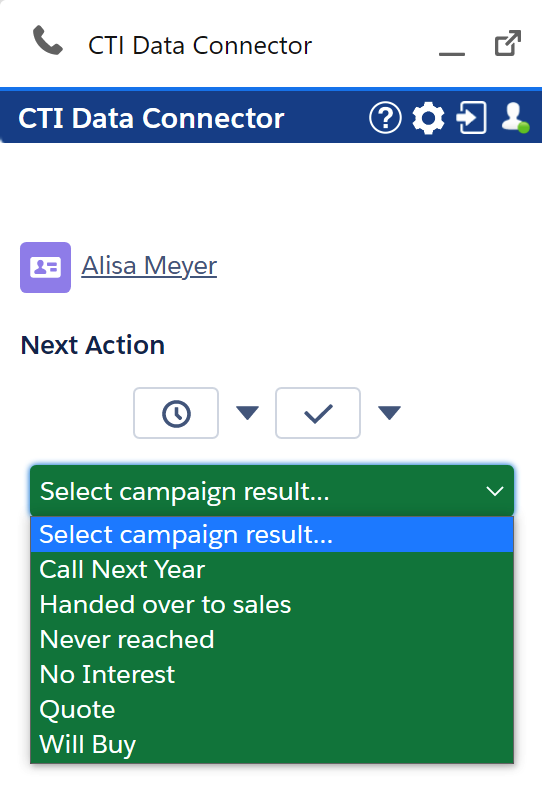
Your administrator can configure how long the completed call is visible in the completed call TAB. However, you can overwrite that value by clicking on and selecting a different time.
Group Call Campaign
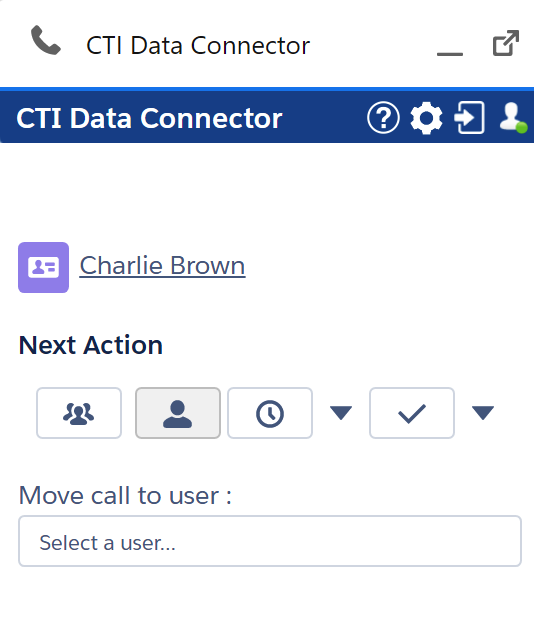
Move back to the group call list
By clicking on the icon , you can move the call back to the group call list without specifying a date/time.
Move back to your personal call list
By clicking on the icon , you can move the call back to your personal call list without specifying a date/time.
Reschedule a call
Reschedule the call - see details above.
Complete Call
Complete the call - see details above.
Move call to a user
You can assign the call to a specific user. The user must be a queue member of the campaign.
Additional Options
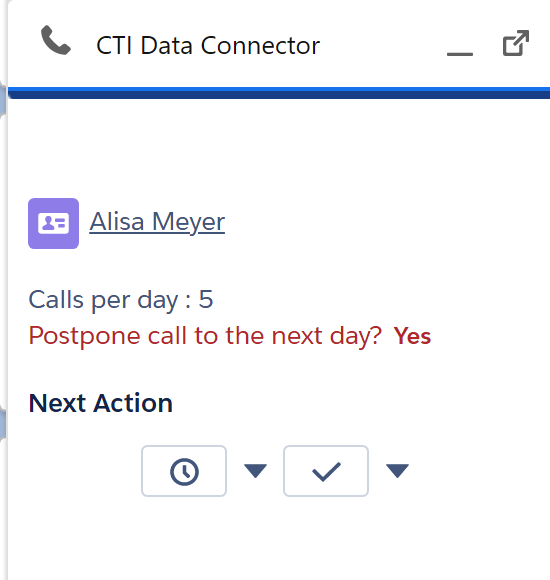
If there is a limit on how many times per day a campaign member should be called, a prompt will appear when the limit is reached: Postpone call to the next day: Yes
If Yes is selected, the next call is moved to the TAB scheduled calls and will be postponed for 24 hours.
Configure at Create a Call Campaign