Assign a call (Smart Assign)
Smart Assign
It is recommended to enable Smart Assign (automatically assign a call) The automatic assignment is active
•during a phone call
•after the phone call until the button Save is clicked
•when the button Save is clicked (console applications and Lightning)
Outgoing call
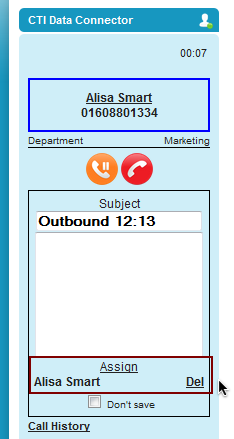
When an outgoing call is done, the call is automatically assigned to the object, where the call was started, e.g. lead or contact.
Incoming call
If the caller ID is stored only once in Salesforce, the lead, account or contact is automatically assigned to the call. Only if the caller ID is stored multiple times (e.g. the main office number is stored with every contact), then navigate to the contact who is on the phone. The record will be automatically assigned to the call.
Incoming call - phone number stored multiple times
The caller can not be identified automatically but a list of all records with the same phone number is displayed (more details)
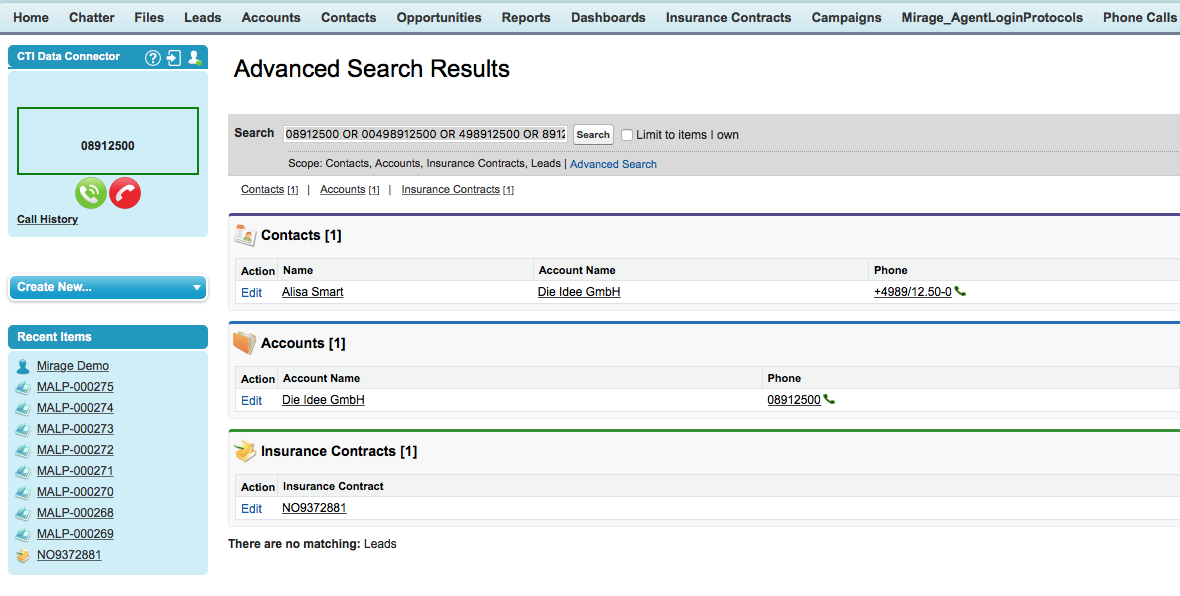
Select the account or contact and the phone call will be automatically assigned to that call.
Manual Assignment
Then click on Assign in the CTI Data Connector SoftPhone.
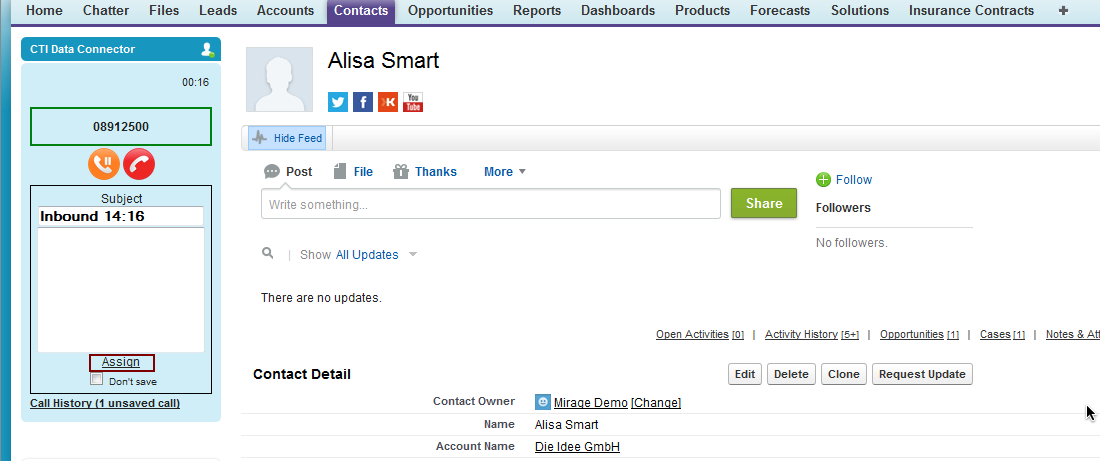
The call is now assigned to this record and the CTI Data Connector SoftPhone is displaying the contact details.
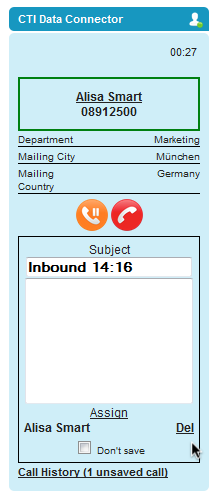
Assign additional objects
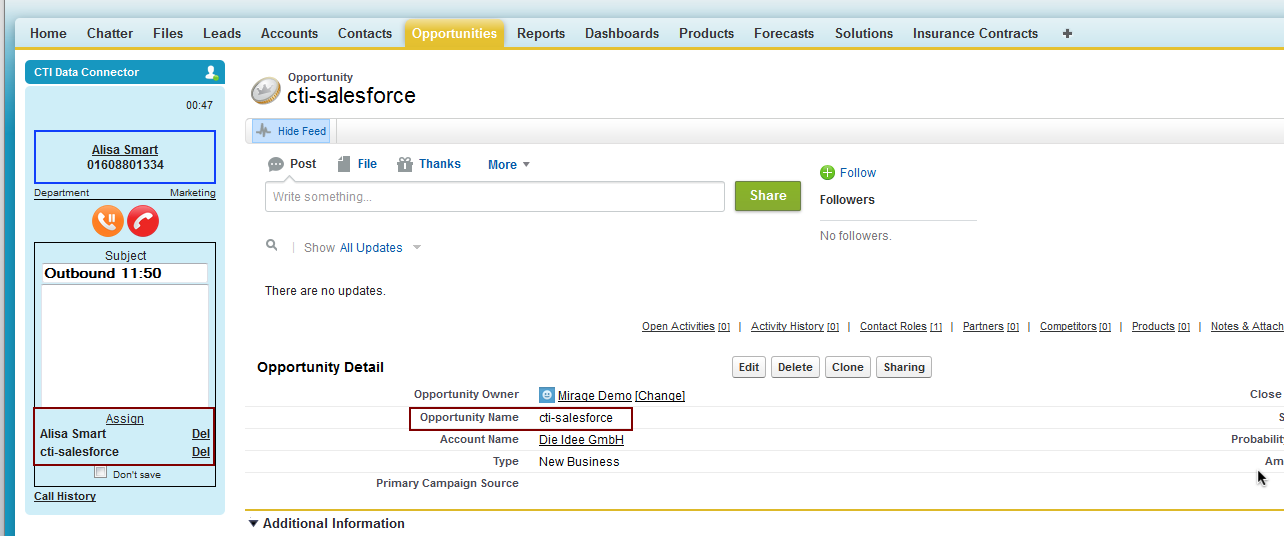
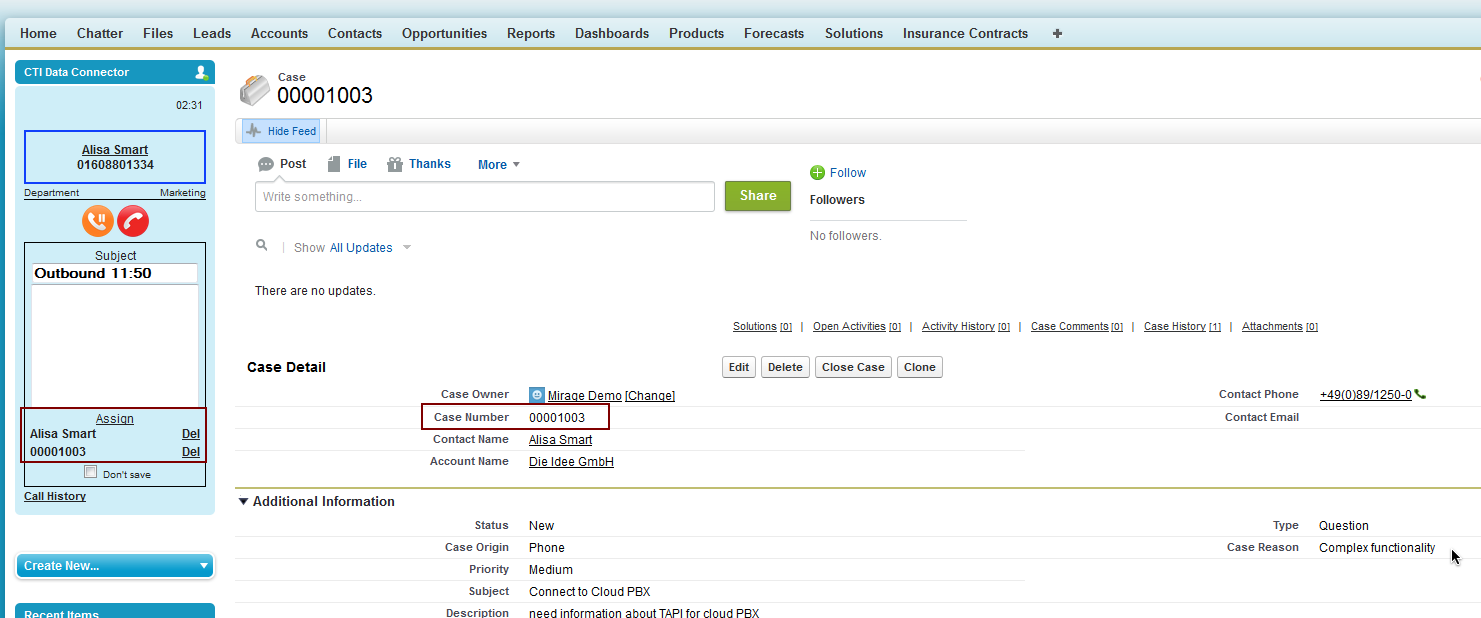
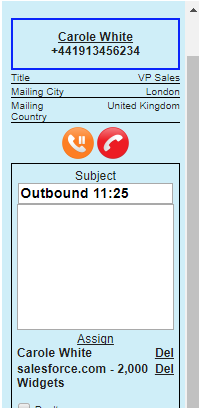
The call can additionally be assigned to another object like opportunity or case or a custom object. Either open an existing opportunity / case or create a new one while the call is active. If you click on Assign, the object which is displayed in the active Browser window is additionally added and the activity will be assigned to the contact and the additional object.
The case number or opportunity name will be displayed in the CTI Data Connector SoftPhone.
The activity has limitations regarding the objects which can be assigned
•Lead - no additional object
•Contact - 1 additional object like opportunity, case or account
•Account - contact, no additional object
If @auto Automatically assign a call is activated, the record is automatically assigned.
You can not assign a call to the Account Contact Relationship object (one contact assign to multiple accounts)
To assign a custom object, you have to enable track activities (Setup / Object Manager / Details)
Assign to an opportunity
Assign to case
Records from different Accounts
If you navigate during a phone call to a record of a different account (e.g. the opportunity is assigned to a different account), the record is shown in red.
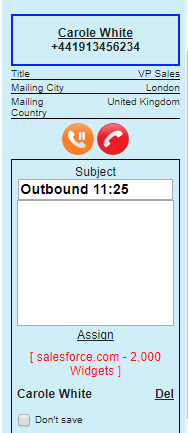
If it should be assigned to the phone call, click on Assign. It will then show in black in the list of the assigned records.
Remove an assignment
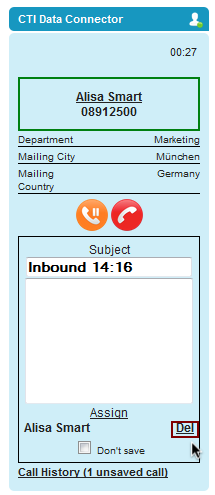
Using the Del link, you can remove an assigned object.
No records assigned
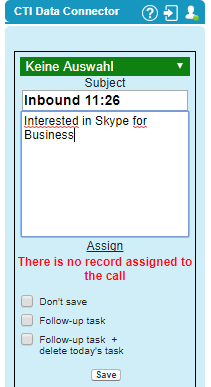
In case no record was assigned to the call (e.g. inbound call, caller not identified), then a warning message is displayed.