Main Setup Page - Call Center Configuration
The main setup page is typically used to have a configuration per country or per team. To duplicate the configuration, select Clone in the menu.
From the setup page you can access sub configuration like Dialing Option, Workflow etc. These are look-up records which can either just be changed or duplicated to have new configuration settings.
From here you also add new users to a configuration. All users appear in the Related TAB
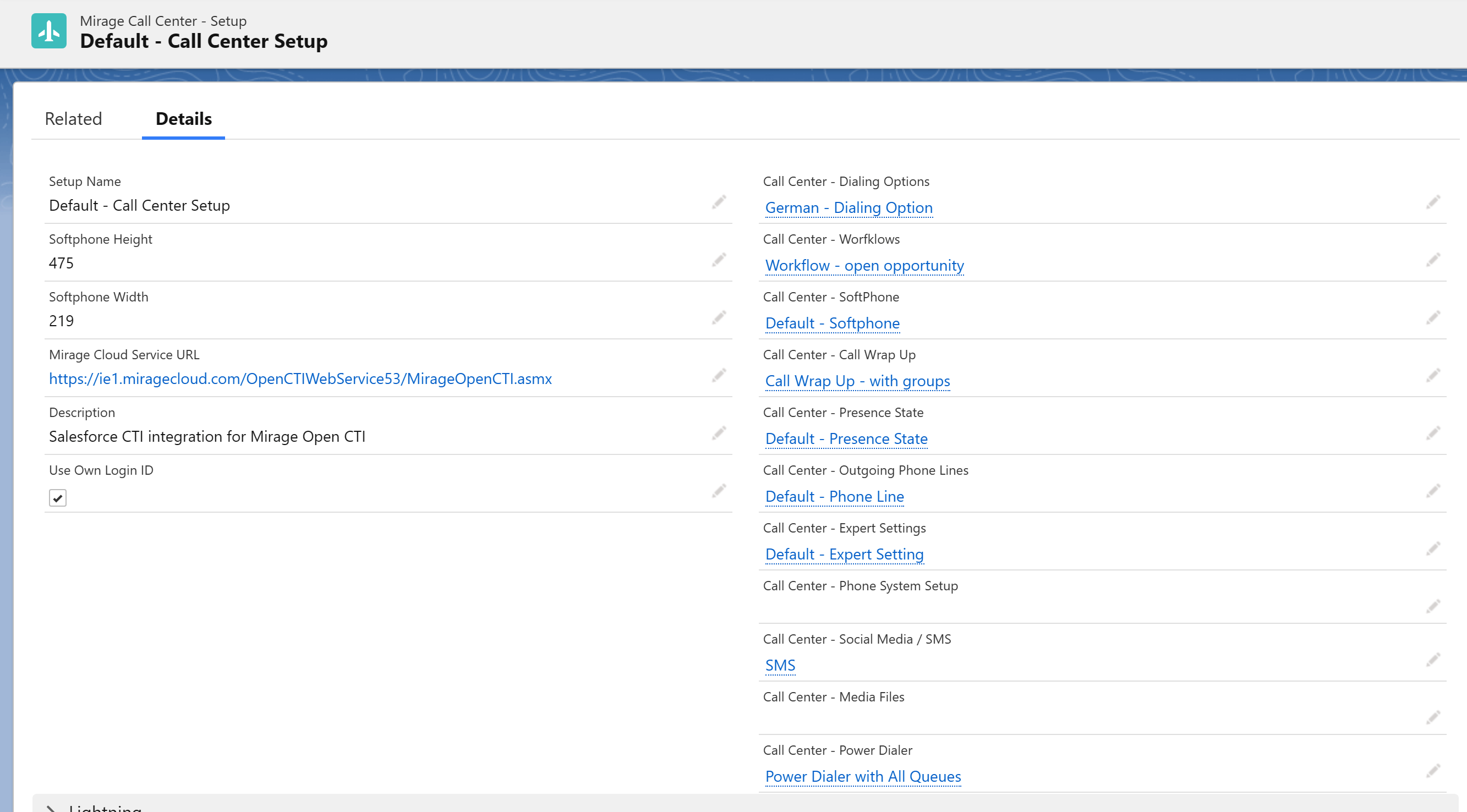
Setup Name
This name should describe the setup like Setup for Sales Team or Setup for France
Softphone Height and Width
Do not change these values
Mirage Cloud Service URL
This URL determines the data center for the Mirage Cloud Service which is used. It should be changed to your nearest data center.
Details on how to configure it in Select data center for the Mirage Cloud service
Description
More detailed text information about the configuration
Use own login ID
If you either use
•GoConnect Server
•Desk Phone with Mirage uaCSTA Cloud Connect
you have to enable that option.
It is recommended for all connectors to increase security.
For more information see Log in using your own Login ID
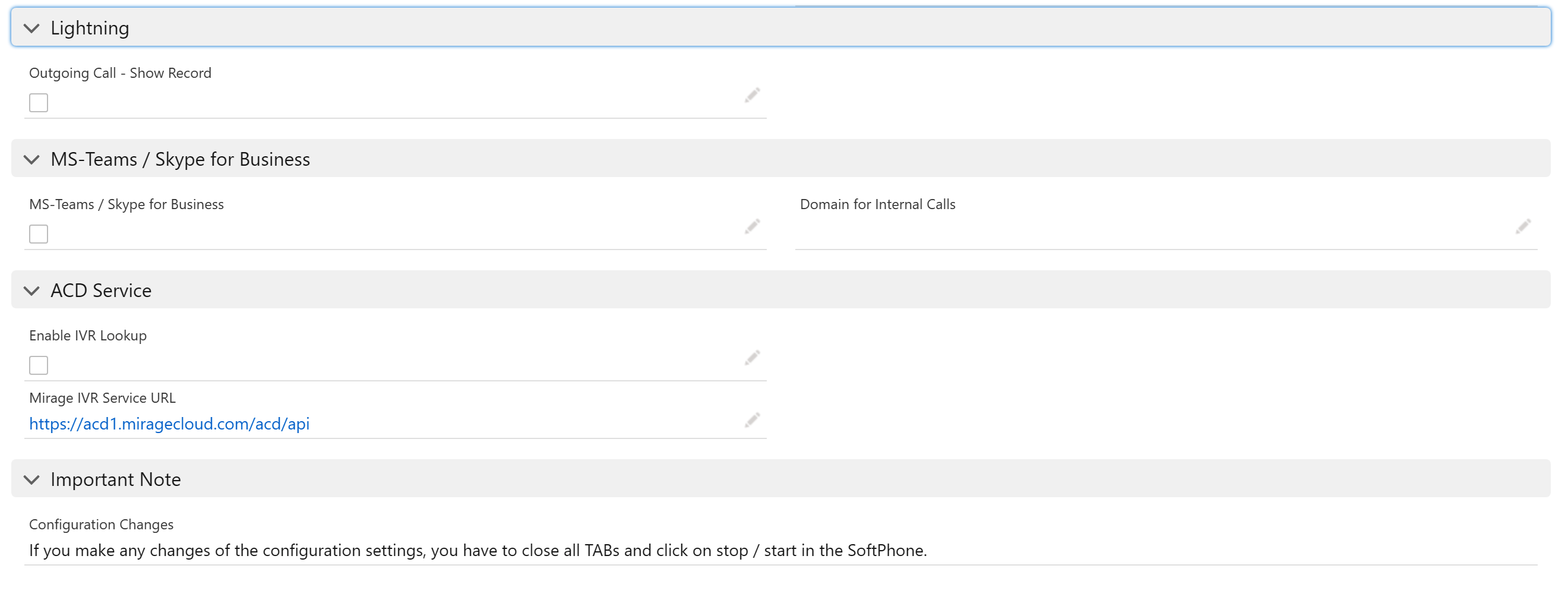
Lightning
Outgoing call - show record
If enabled the record (e.g. contact) is always shown when making an outbound call.
After clicking on the phone number in a list view or any other screen, the related record like contact is loaded.
The advantage is that the correspondent record details are shown. The disadvantage is that the screen changes e.g. from opportunity to contact.
If disabled, the screen will not change.
Also see Lightning setup for additional configuration settings
MS Teams / Skype for Business
Skype for Business specific configurations
Use Skype for Business
If Skype for Business is used, it must be enabled
Skype for Business Domain
configuration reserved for future use
ACD Service
Enable IVR Lookup
If checked, the record which a callers selects via the IVR (e.g. a case number or booking number) is automatically displayed when the caller is connected.
Requires Automatic Call Distribution for Salesforce
Access and change sub configurations
The main setup consists of several sub configurations. You can just change the sub configuration or make a clone for a new country or team.
- Call Center - Dialing Options
- Call Center - Workflows
- Call Center - SoftPhone
- Call Center - Call Wrap-Up
- Call Center - Presence State
- Call Center - Outgoing Phone Line
- Call Center - Expert Settings
- Call Center - Dial via API
- Call Center - Social Media / SMS
- Call Center - Power
Adding new users
The call center configuration is user based. Only if a user is added to a configuration the user will get the CTI Data Connector SoftPhone. All users appear in the Related TAB. See Add or Remove users to a Call Center Configuration