SMS Template Setup
To send an SMS with a template, the administrator can create templates. The templates are configured as Classic Email Templates.
Step 1 - Create a folder
The package comes with a sample folder: Mirage - SMS Templates. Alternatively, you can create your own folder.
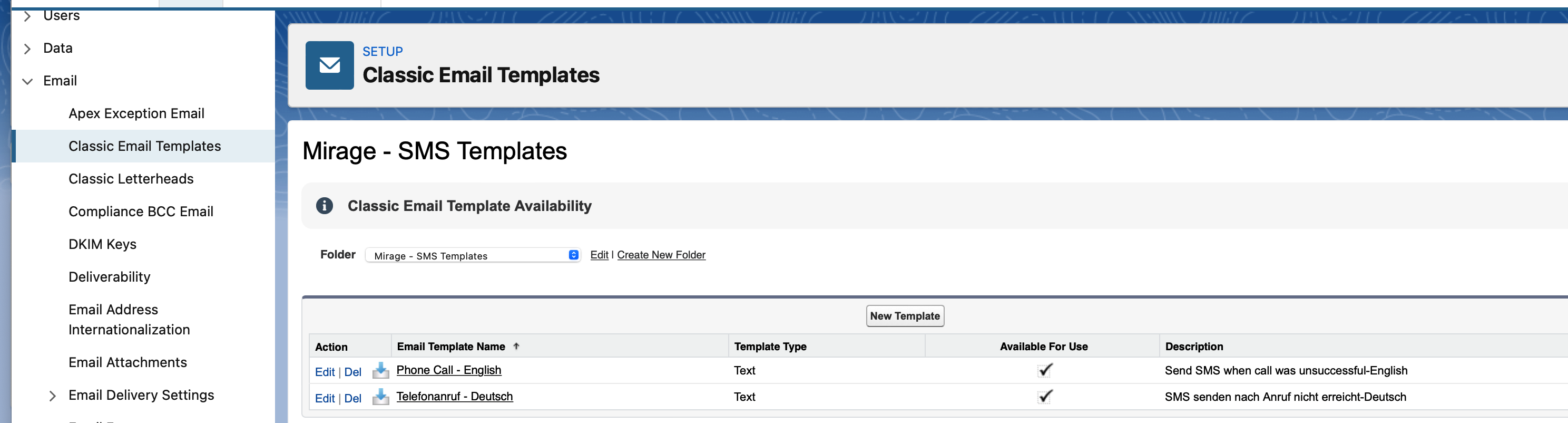
Step 2 - Create an E-Mail Template
There are already 2 sample e-mail templates included. Create a new E-Mail template for the SMS text.
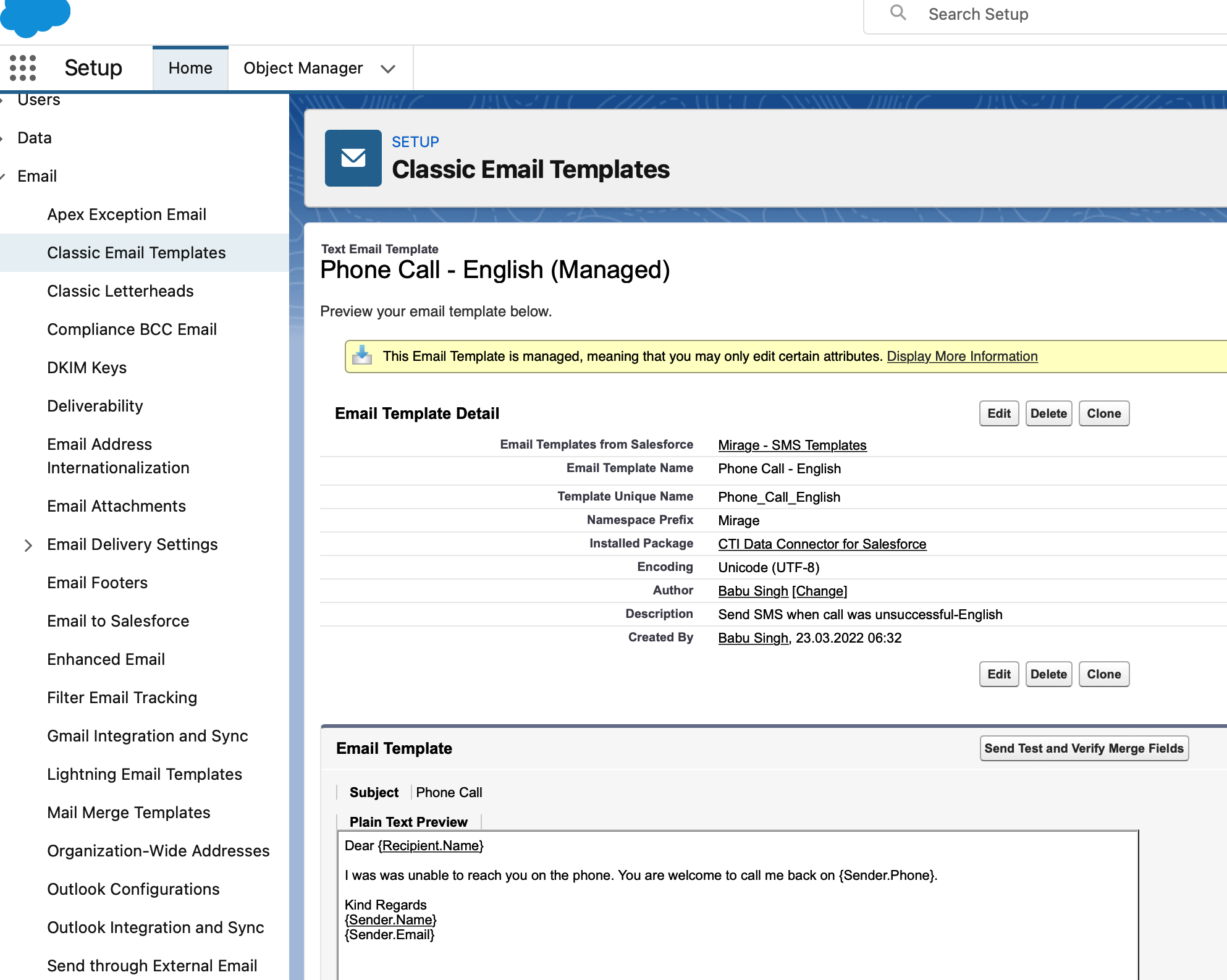
The following variables are supported.
Salesforce user variables
With these variables, you can add data from the user who is sending the SMS. It uses the data stored in the Salesforce user records. The variable must start with { and end with }.
{Sender.Name}
{Sender.FirstName}
{Sender.LastName}
{Sender.Email}
{Sender.Phone}
{Sender.MobilePhone}
{Sender.Department}
{Sender.Title}
Lead and Contact variables
You can add data from the lead or contact who will receive the SMS with these variables. It uses the data stored in the Lead or Contact records. The variable must start with { and end with }.
{Recipient.Name}
{Recipient.FirstName}
{Recipient.LastName}
{Recipient.Title}
{Recipient.Salutation}
Step 3 - Configure SMS template folder
For each call center configuration, you can have one SMS folder.