Manage Active Calls
While a call is active, the Unaric Voice for Teams call panel provides several controls to help you manage the conversation. You can place calls on hold, mute your microphone, transfer calls, or manage multiple calls at the same time.
Call actions
Action | Description | Interface |
|---|---|---|
Put a call on hold | During an active call, click Hold in the call panel. The caller is placed on hold until you resume the call. |  |
Resume calls | If a call is on hold, you can return to it at any time. Locate the call in the active call panel and click the Resume button. When you resume a call while another call is active, the currently active call is automatically placed on hold. The two calls do not stay active at the same time. |  |
Mute/Unmute | You can mute your microphone during a call if you need to temporarily stop transmitting audio. During the call, click Mute and Unmute to resume speaking. | 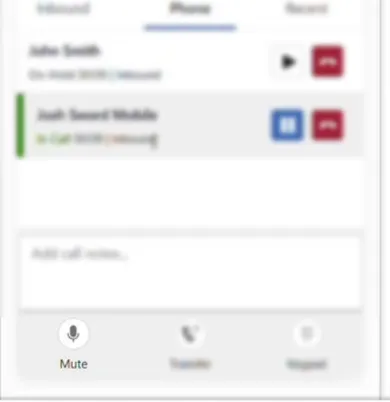 |
Send DTMF tones
During a call, you can send DTMF tones to interact with automated phone systems such as IVRs.
- During a call, open the dial pad in the call panel.
- Press the required number keys. The tones are sent to the phone system you are interacting with.
Handle multiple calls
Unaric Voice for Teams allows you to manage more than one call at the same time. If you receive another call while already on a call, you can answer the new call and manage both conversations from the call panel. The previous call will be put on hold, as both calls cannot stay active at the same time.
Answer a second call
When a second call arrives while you are already on a call, you can answer it directly from the notification. When the incoming call notification appears, click Answer. The new call becomes active, and the current call is automatically placed on hold.
Switch between calls
When you have multiple calls active, you can switch between them.
- In the call panel, locate the call you want to continue.
- Click Resume for that call.
The selected call becomes active while the other call remains on hold.
Transfer calls
Unaric Voice for Teams allows you to transfer calls to other users, phone numbers, or queues.