Reconnect & Log Off
Reconnect
The refresh icon in the top right shows the current connection status:
- Green: Connected – Click to reconnect if needed
- Red: Disconnected – Click to reconnect to the Cloud Service
- Gray: Offline – No internet connection detected
When you click the icon:
- No active call: The add-in reloads immediately.
- Active call: The call is ended cleanly first, then the add-in automatically reloads.
This prevents data loss and ensures the add-in continues to run smoothly.
Sign Out / Sign In
A menu icon (☰) in the top right of the add-in gives you quick access to:
- User Info: Shows your logged-in email address
- Help: Opens the documentation in the selected language
- Sign Out: Signs you out of the add-in and displays the sign-in screen
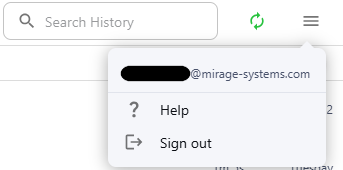
Sign out process
When you sign out:
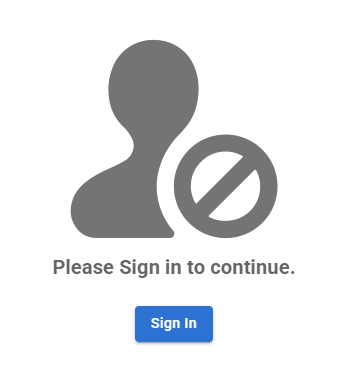
- You are redirected to the sign-out screen.
- The sign-in screen will appear on the next startup.
- If you are still active on another device and try to make a call, the process will be blocked, and the following message will appear: "You have been signed out. Please sign in again to continue."
You will then be automatically redirected to the login screen.