Initial Setup
This documentation corresponds to the legacy version of Unaric Voice for Teams. The documentation for the current version is located at Unaric Voice for Teams.
This documentation does not provide guidance for installing Unaric Voice for Microsoft Teams. If you need help installing the integration, contact Unaric Voice support.
After installation, you need to apply basic configuration settings before using the MS Teams integration. Moreover, integration with Unaric Voice introduces a few changes in Microsoft Teams's user experience you should be aware of.
Prerequisites
Your Salesforce administrator could have already provided default configuration values and made some of the adjustments detailed below.
1. Configure Office 365 email address
Your Salesforce email address must match your Office 365 email address. Otherwise, you will need to manually enter it in the softphone.
- Open the CTI Data Connector softphone and click the (gear) icon.
- Enter your Office 365 email address.
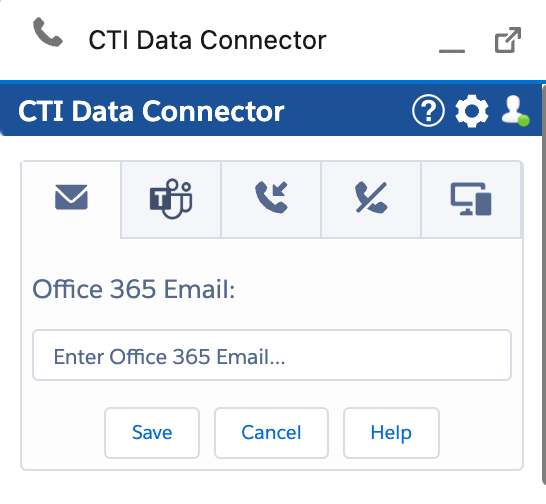
- Click Save to finish.
Multiple Salesforce users cannot use the same Office 365 email address. If you encounter a This Office 365 E-Mail address is already in use by another user message, a duplicate has been detected. Verify that the email is not already assigned to another account.
2. Link phone number
So inbound calls are signalled in Salesforce, you need to set up a telephone number from Unaric Voice on your Microsoft Teams-App.
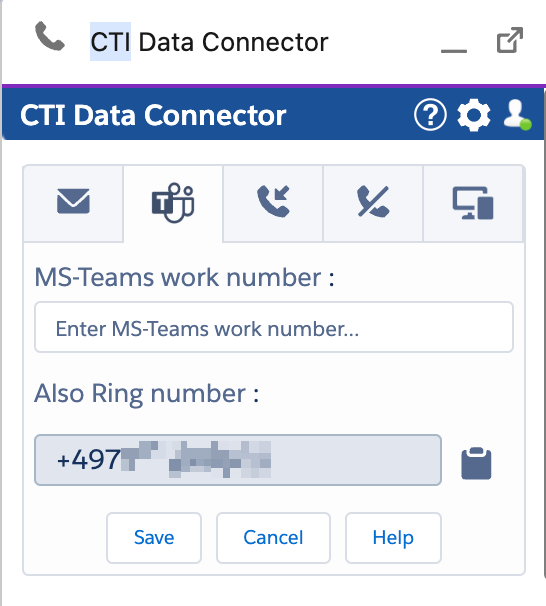
- Open the softphone and navigate to the MS Teams tab.
- Copy the Also Ring number.
- Open your Microsoft Teams app and select Settings.
- Navigate to the Calls tab.
- Select Calls ring me. In the field Also ring, select New Number or contact and add the phone number displayed in the Unaric Voice SoftPhone.
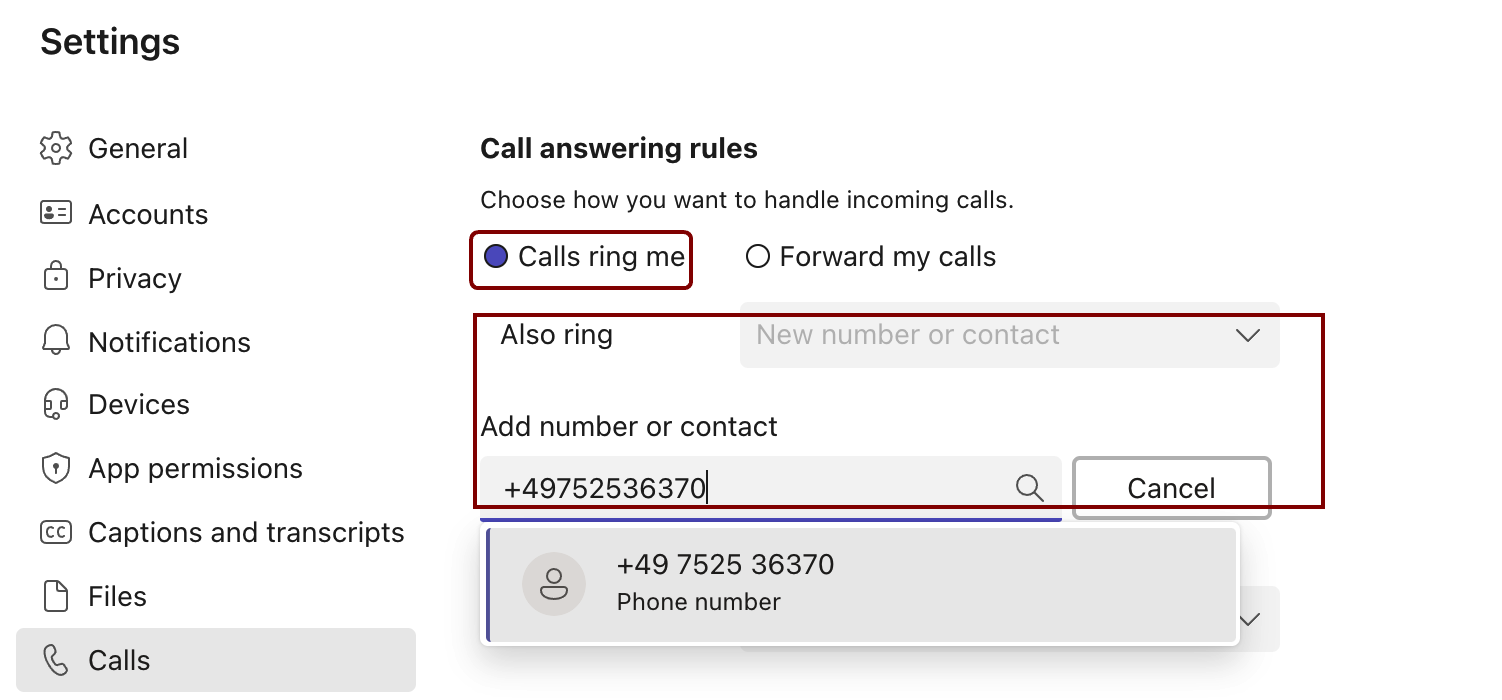
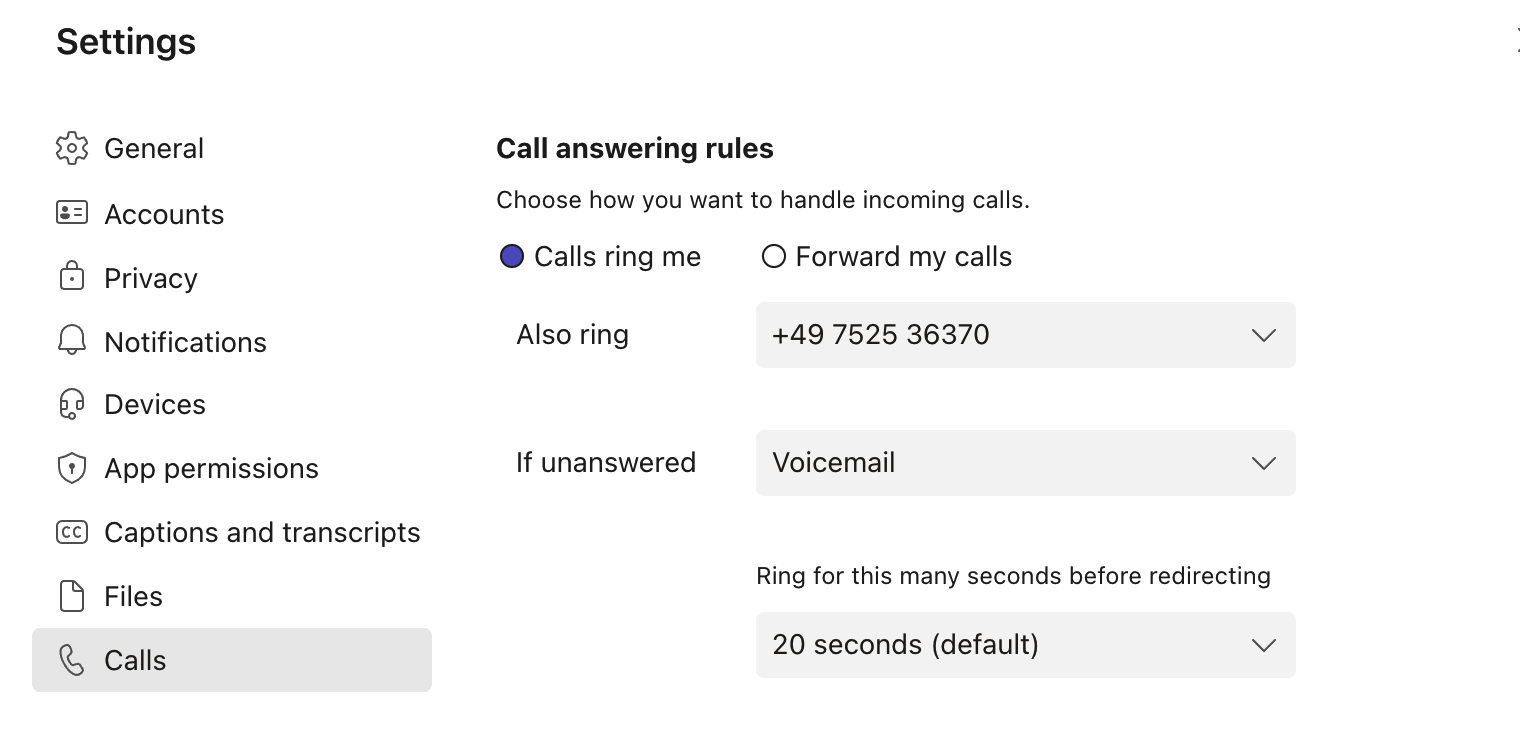
- After adding the phone number, your configuration should look like the image below (with your phone number).