Microsoft Teams Add-In
The Unaric Voice app for MS-Teams connects Microsoft Teams with Salesforce so you can log calls even when not logged in to Salesforce. Each call is automatically logged as a Task with call details on the related Salesforce contact. This setup is ideal for using the MS-Teams app in combination with Salesforce while working on the go.
The Unaric Voice MS-Teams Add-In is available for:
- Microsoft Teams desktop app
- Microsoft Teams in the browser
- Microsoft Teams mobile app (Android and iOS)
Interface
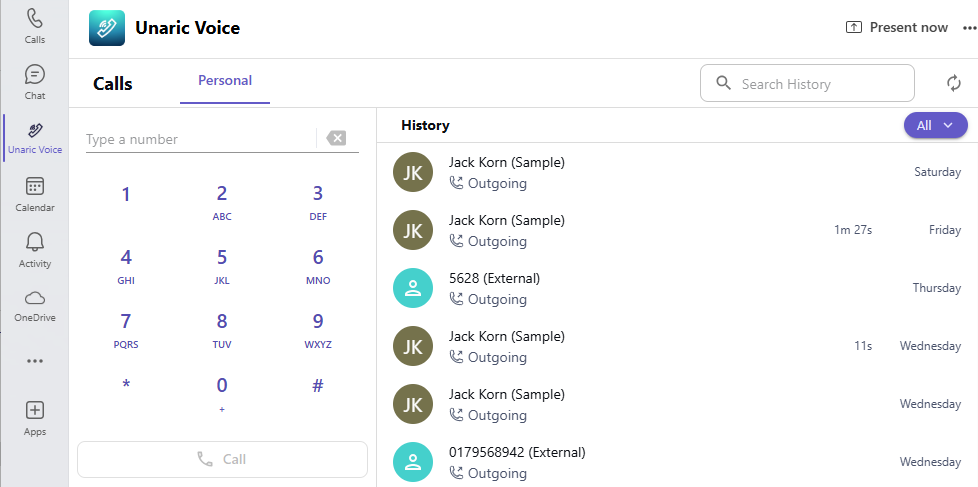
Desktop
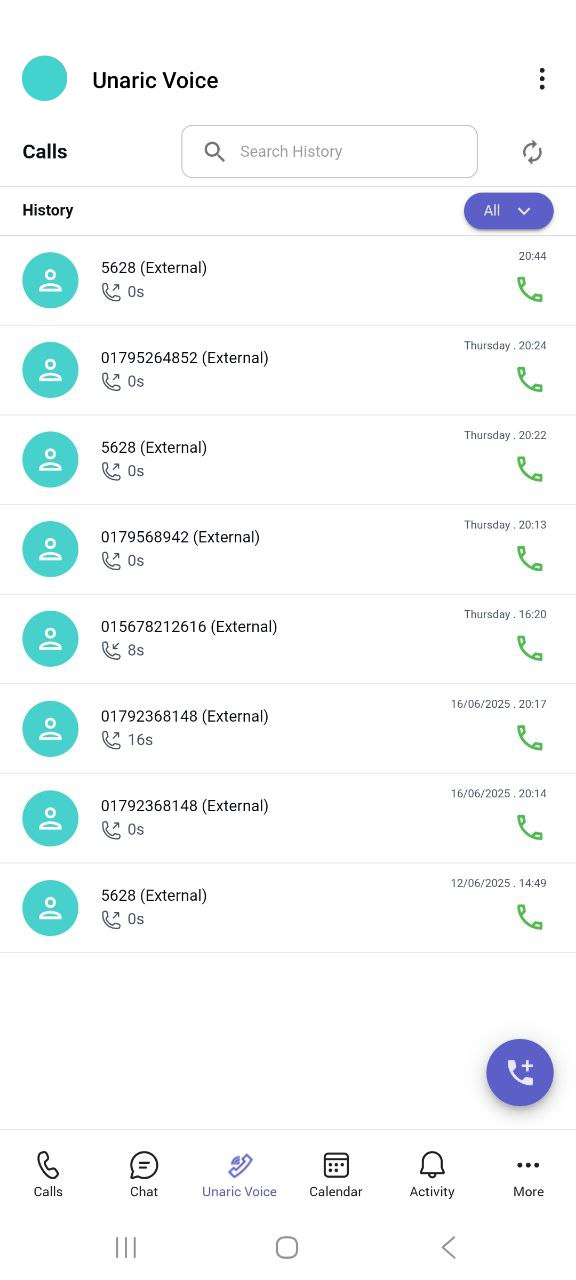
Mobile
Prerequisites
Before users can use the Unaric Voice MS-Teams Add-In, ensure that:
The Unaric Voice MS-Teams Add-In has been added to Microsoft Teams.
The user is part of a Teams setup (must be added as a Call Center User).
The MS-Teams Premium licence is active in the Salesforce org. If no valid licence is found in the Teams Add-In configuration, the fields will be disabled and the Save button will be hidden.
The Enable MS-Teams Add-In checkbox is selected in the Add-In configuration (see below).
The Scheduler for the Unaric MS-Teams Connector is active (details below).
The Presence State User Logout Check is enabled (details below).
If you want to log calls as Salesforce tasks or use caller name lookup, the ACD (Automatic Call Distribution) package must be configured.
Configure MS-Teams Add-In
If no valid licence is found in the Teams Add-In configuration, modifing fields will be disabled and the Save button will be hidden.
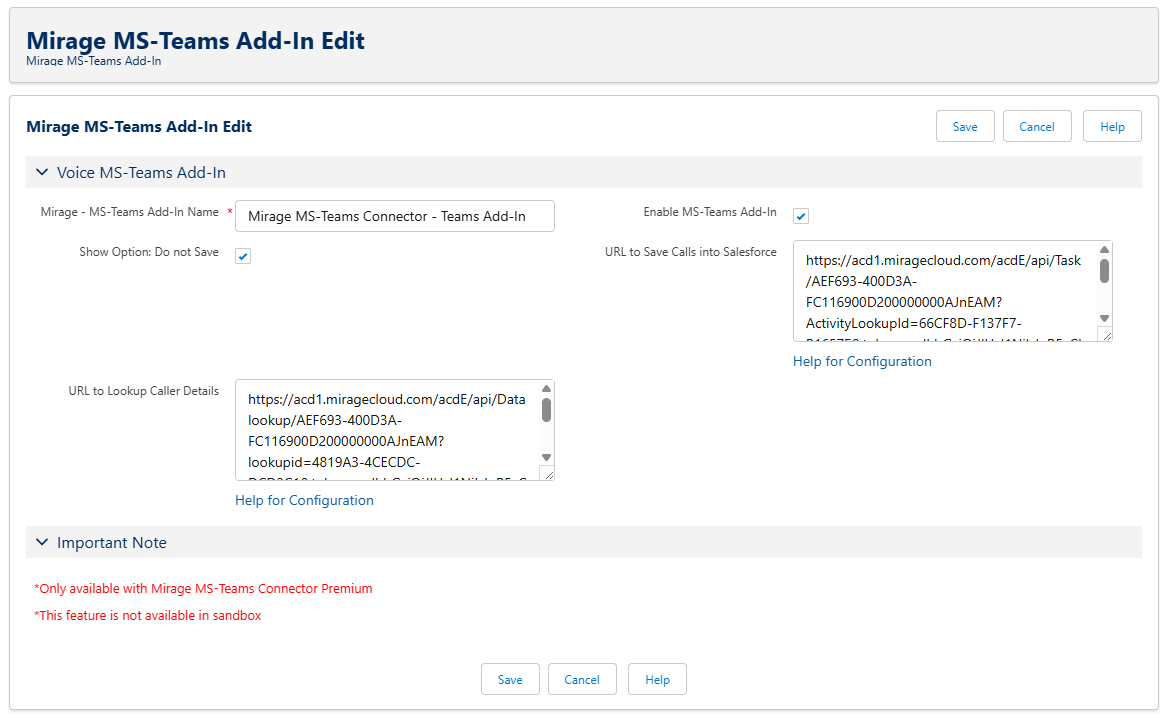
You can find the Mirage Configuration - MS-Teams Add-In in Salesforce as a separate tab (custom object). This setup is linked via a lookup field from the Phone System Setup.
Field | Description |
|---|---|
Name | Internal name of the Add-In configuration record. Example: Mirage MS-Teams Connector – Teams Add-In. |
Enable MS-Teams Add-In | Activates the Add-In for this setup. Must be enabled for any Teams-related functionality to work. |
Show Option: Do not Save | Displays a checkbox in the Unaric Voice Teams app, allowing users to opt out of logging individual calls in Salesforce. |
URL to Save Calls into Salesforce | Created via Mirage ACD Setup > Create Activities. Replace <enter_pbx_token> with the PBX token before saving. |
URL to Lookup Caller Details | Endpoint used to look up caller names or related info. Created via Mirage ACD Setup > Data Lookup. Also requires replacing <enter_pbx_token>. |
Automatically create an activity at the end of a call for | Specifies for which call types an activity should be automatically created after a call ends. This setting also controls the visibility of the checkbox “Do not log the Call in Salesforce” in the Add-In. Available options:
|
Automatically create an activity for unsuccessful / unanswered calls | Allows automatic activity creation for calls that were not successfully connected. Available options:
|
Configuration for Phone Book Search | Select a record from Unaric Cloud Service for Salesforce – Setup (restricted to the record type Unaric Voice & Meeting – MS-Teams Setup). This record defines how phone numbers are searched and matched in Salesforce. Validations:
|
Both URL fields (URL to Save Calls into Salesforce and URL to Lookup Caller Details) must start with https://. If not, a red validation error will appear, and the save will be blocked.
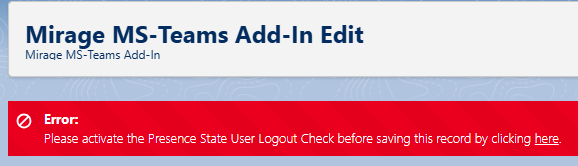
If either MS Teams Login Scheduler or Presence state user logout check are deactivated, a red error message with a link to the configuration page is displayed. You must fix these before saving.
MS Teams login scheduler
This scheduled job periodically updates the Teams Add-In configuration for all users. Without this scheduler running, changes in Salesforce won’t be pushed to the Unaric Voice app, and users may remain with outdated settings.
Run the scheduler every 15 minutes to apply updates often but without overloading the system.
Presence state user logout check
This setting ensures that if a user logs out of Salesforce while using the Teams add-in, the add-in itself takes over call logging. For this to work, the Salesforce logout event stream must be enabled in the org. If this check is not active:
- Calls may fail to be logged after the user logs out of Salesforce.
- The Add-In won’t “know” to take over logging duties.
Salesforce does not send a logout event if the session times out automatically — so this feature won’t trigger in that case.
If a user wants to stay logged into Salesforce but stop receiving calls, they should switch their Salesforce softphone presence state to Logout.
Desktop installation
- Open the Microsoft Teams Admin Center and sign in with admin credentials.
- In the left panel, navigate to Teams apps > Manage apps.
- Click Actions and select Upload new app from the dropdown menu.
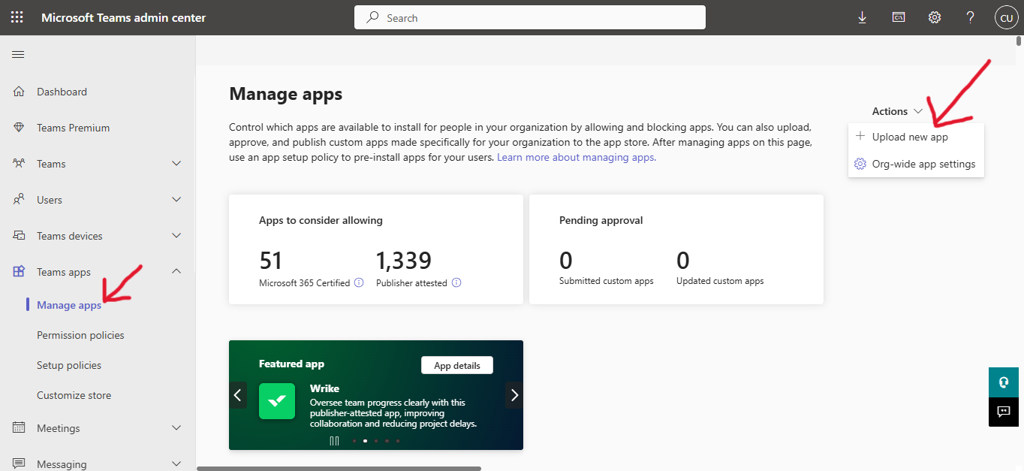
- Select and upload the Unaric Voice App zip file.
- After uploading, you can make this app available to everyone or specific members of the group. To check availability, select the Users and groups tab.
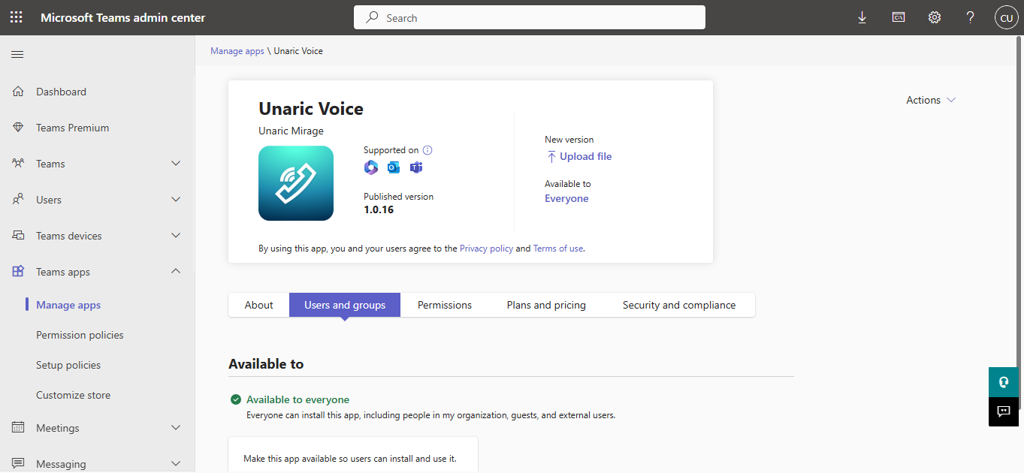
- Click Available to, then click on Edit Availability to select specific users or groups. Click Apply to save changes.
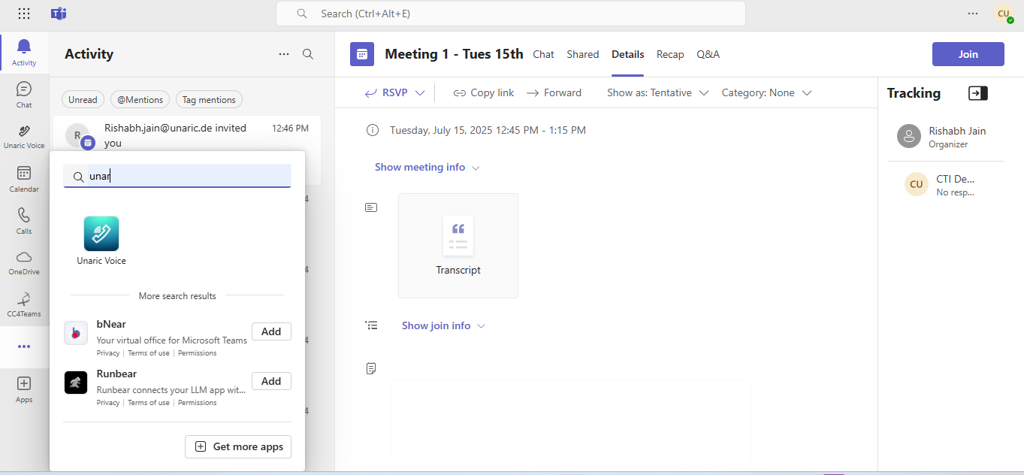
- To open the app, open the Microsoft Teams client (desktop or web or mobile phone), click on the Apps tab in the left panel, and search for Unaric Voice.
Add Unaric Voice Add-In to Mobile MS Teams app
Once installed, you can add the Unaric Voice add-in to the Microsoft Teams mobile app.
- On the Microsoft Teams mobile app, click the More button (three dots) in the bottom menu bar.
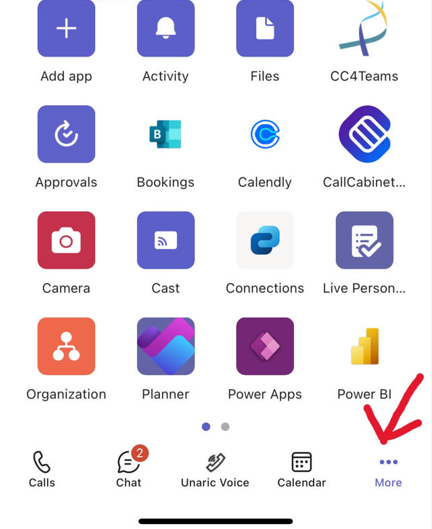
- Click the + icon to add apps.
- Search for the Unaric Voice app and click Add. The Unaric Voice app will now be added to your Teams mobile client.
Sandbox installation
The Unaric Voice MS-Teams Add-In can be configured for a Salesforce Sandbox org. This configuration requires a special configuration of the Unaric Voice scheduler, the service in charge of background tasks, to work properly. Reach out to support for assistance on this setup.
Enabling the scheduler in both production and sandbox orgs without separate configuration (especially if both connect to the same Teams tenant) can result in a variety of errors, including missing calls, incorrect logging, and inconsistent behaviour while using the app.