Inbound Calls
When you receive a call, you see notifications from both the Unaric Voice Add-In and the standard Microsoft Teams interface.
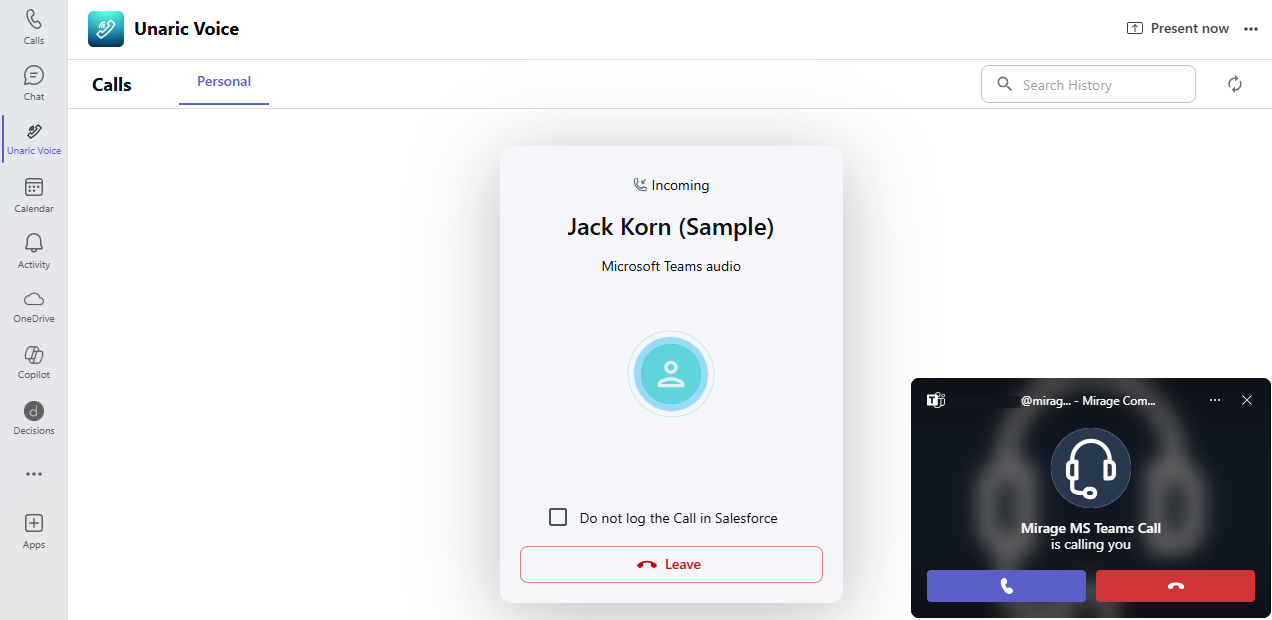
Interface
Desktop and mobile incoming call flows are almost identical. The only real differences are:
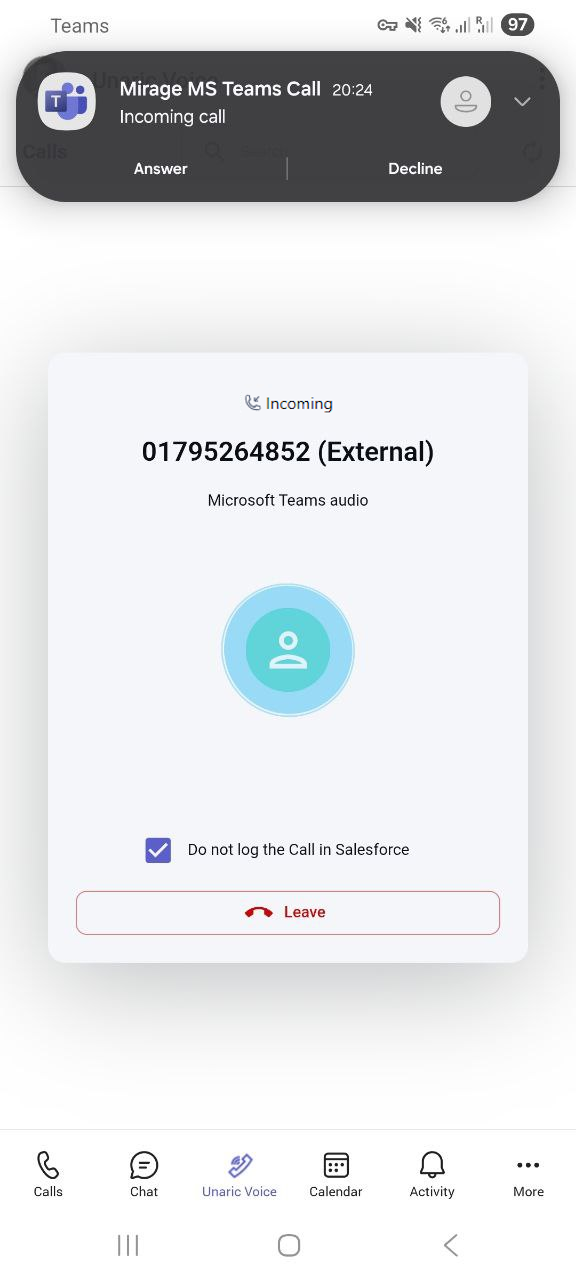
- On desktop, the Unaric Voice modal shows call direction and contact name/number, while on mobile it shows incoming number and call type (e.g., External).
- On desktop, you click Accept in the Teams pop-up; on mobile, you tap Accept.
- The control bars look different because of the platform UI, but the actions (Hold/Resume and Leave) are the same.
Desktop UI
Mobile UI
Inbound calls flow
A call comes in
When you receive a call, two things happen simultaneously:
- Unaric Voice modal window appears, showing:
- Desktop: Call direction and contact name (if known from Salesforce) or phone number + (External)
- Mobile: Incoming number and call type (e.g., External).
- Leave button to decline the call.
- Microsoft Teams call pop-up appears.
You can accept the call from the Teams pop-up or leave/decline from either the Unaric Voice modal or the Teams pop-up. Optionally, check Do not log the Call in Salesforce to skip creating a Salesforce Task.
You cannot accept the call from the Unaric Voice modal.
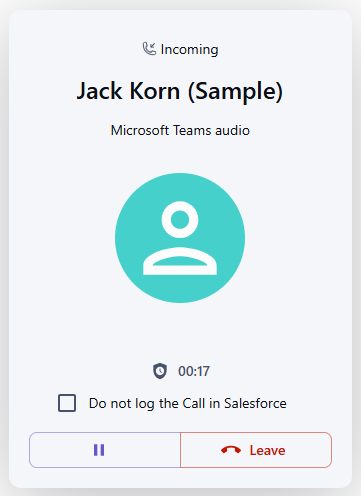
After accepting the call
After accepting the call, the Active Call Screen appears in the Unaric Voice Add-In, showing:
- Call direction
- Contact name or number
- Call timer
- Checkbox to skip Salesforce logging (Do not log the Call in Salesforce)
From the control bar, you can Hold/Resume or Leave. The rest of the interface is dimmed to prevent starting another call.
Anonymous numbers
If the caller’s number is unavailable, Unaric Voice displays Anonymous instead of leaving the field blank.
You may see Anonymous when:
- The number is missing
- The number is blocked or hidden
This applies to:
- Call modal during an active incoming call
- Call history list (including missed calls)
- Pop-ups and notifications showing caller information