Live Transcription
This documentation corresponds to the legacy version of Unaric Voice for Teams. The documentation for the current version is located at Unaric Voice for Teams.
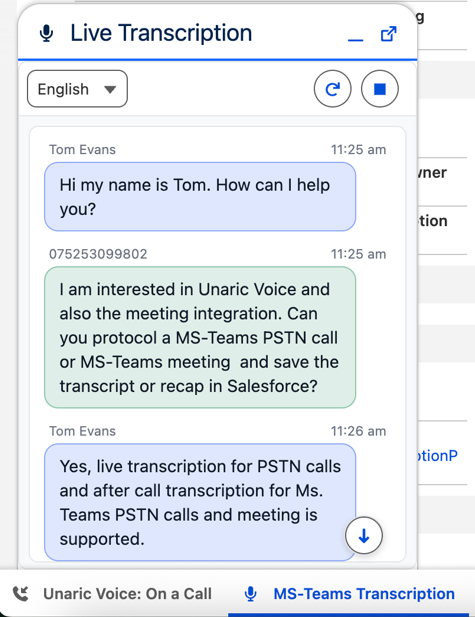
With Live Transcription, you can read along during an active MS Teams call from the Salesforce window.
How it works
Live transcription for Microsoft Teams calls is available in the Salesforce utility bar, giving users real-time voice-to-text during active calls. After the call ends, the saved transcription can be viewed again in the related Salesforce Task.
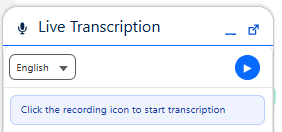
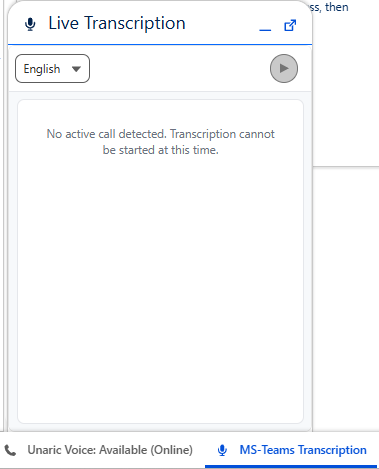
Live Transcription only works during active MS Teams PSTN calls. When a call is active, the Start button becomes available. Otherwise, a message indicates that no active call is detected and the Start button is disabled.
If you reload the browser tab while using Live Transcription, the tool will reconnect and continue working automatically and previous transcriptions will be restored.
New messages always appear at the bottom and will scroll down as the conversation continues. If you scroll up, auto-scroll pauses. Use the downward arrow to return to the live view.
Switching between tabs while transcription is running might cause delays. To re-sync transcription, refresh it using the Refresh button ( icon).
Start Live Transcription
Live Transcription is available as its own item in the utility bar:
- When on a call, click MS-Teams Transcription in the Salesforce utility bar. The panel will open as a small tab.
- Click the Start button (blue icon) to start transcription. Spoken words will be converted to text in real time.
- Click the button again to pause or resume transcription.
If you encounter a License missing or live transcription disabled for this user message, contact your Salesforce administrator.
Switch languages
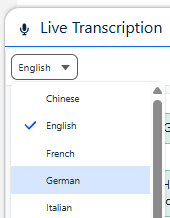
Use the dropdown at the top to select your preferred language at any time. Your selected language will be saved for the next session.
View past transcription
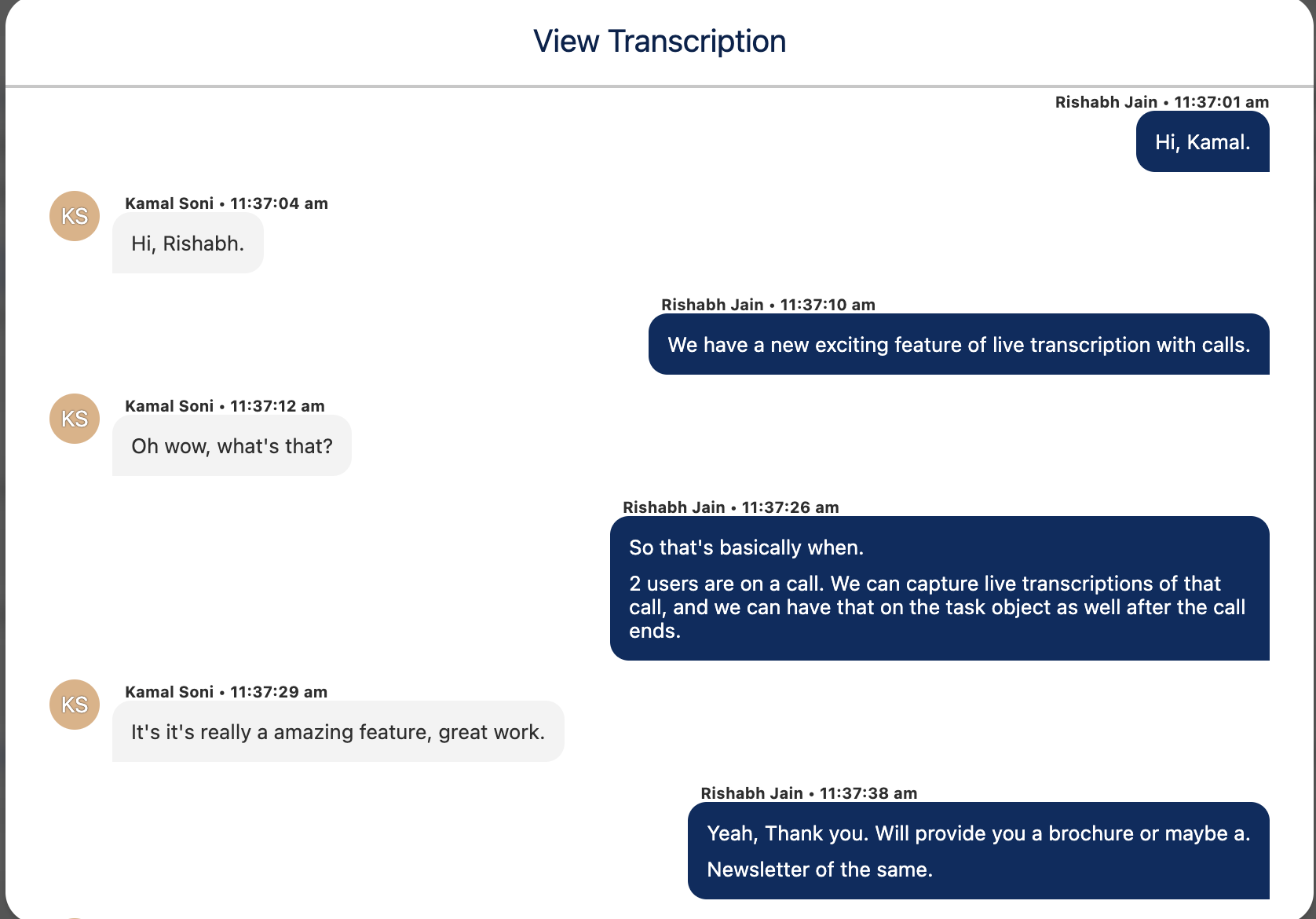
Once the call ends, the transcription in the panel is cleared. If configured by the admin, the transcription can be accessed again in the Salesforce Task created for the call.
Setup
The full installation and Azure setup required for Live Transcription in version 7.9 must be performed by Unaric. Contact [email protected] to schedule the setup.
Live Transcription currently works only for users who have access to the softphone.
To enable Live Transcription for MS Teams PSTN Calls in Salesforce:
- Enable the Unaric MS-Teams Connector Premium license.
- Enable media file in Mirage Configuration.
- Configure transcription settings in Call Center - Recording/Transcription.
- Add a Mirage Call Center - Recording/Transcription record of record type MS-Teams Azure Recording/Transcription.
- Check Active.
- Check Use Call Transcription.
- Select the transcription type Live Transcription.
- Add values for AI Foundry Speech Services Key, AI Foundry Speech Services Region and Transcription Service Url.
- Set the default language.
- Enable Save Call Transcription in Salesforce to store the completed call transcription in a Salesforce Task after the call ends.
- Select the Recording/Transcription configuration that defines how call transcriptions should be saved in Salesforce.
If you need different configurations for specific users, clone the media file record so that the record type, AI Foundry Speech Services Key, AI Foundry Speech Services Region, and Transcription Service URL remain the same for all users in a tenant.
- Add call center users to this setup and assign them a Voice licence so that they can use softphone.
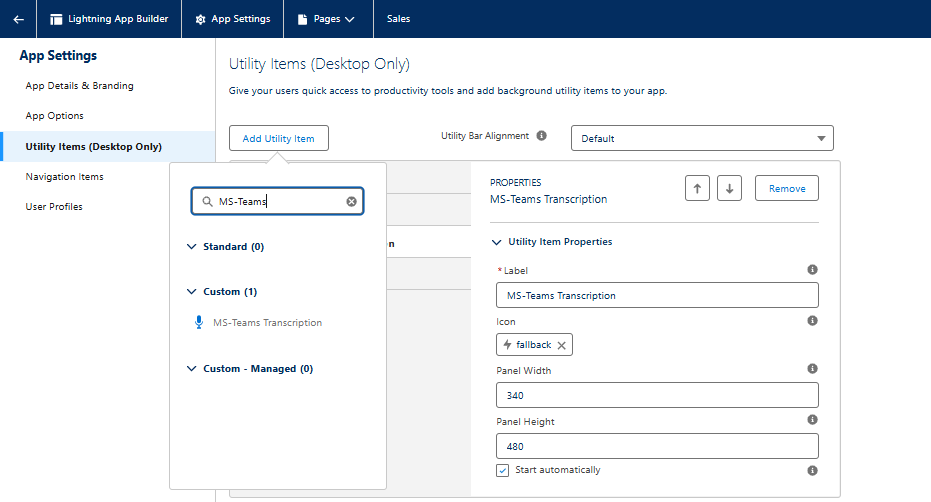
- Add the utility item MS Teams Transcription in the Lightning App Builder.