Queues
This documentation corresponds to the legacy version of Unaric Voice for Teams. The documentation for the current version is located at Unaric Voice for Teams.
Set queues to manage and distribute incoming calls to a group of users (agents) according to predefined rules.
How it works
- In case an available agent is a member of several queues and multiple callers are waiting in several of them, the agent will get several calls signalled to select a call in the most important queue. After accepting a call, his presence state will be 🔴 In a Call, and he will no longer receive calls from other queues.
- Even if you are logged in to a queue and answering queue calls, you can still receive calls made directly to your number.
- If one agent transfers a queue call to another, the queue name goes missing in the Unaric Voice SoftPhone.
For more information on MS Teams queues, see Use the Queues app for Microsoft Teams.
Manage call queues
Call queues are activated in the Microsoft Teams App.
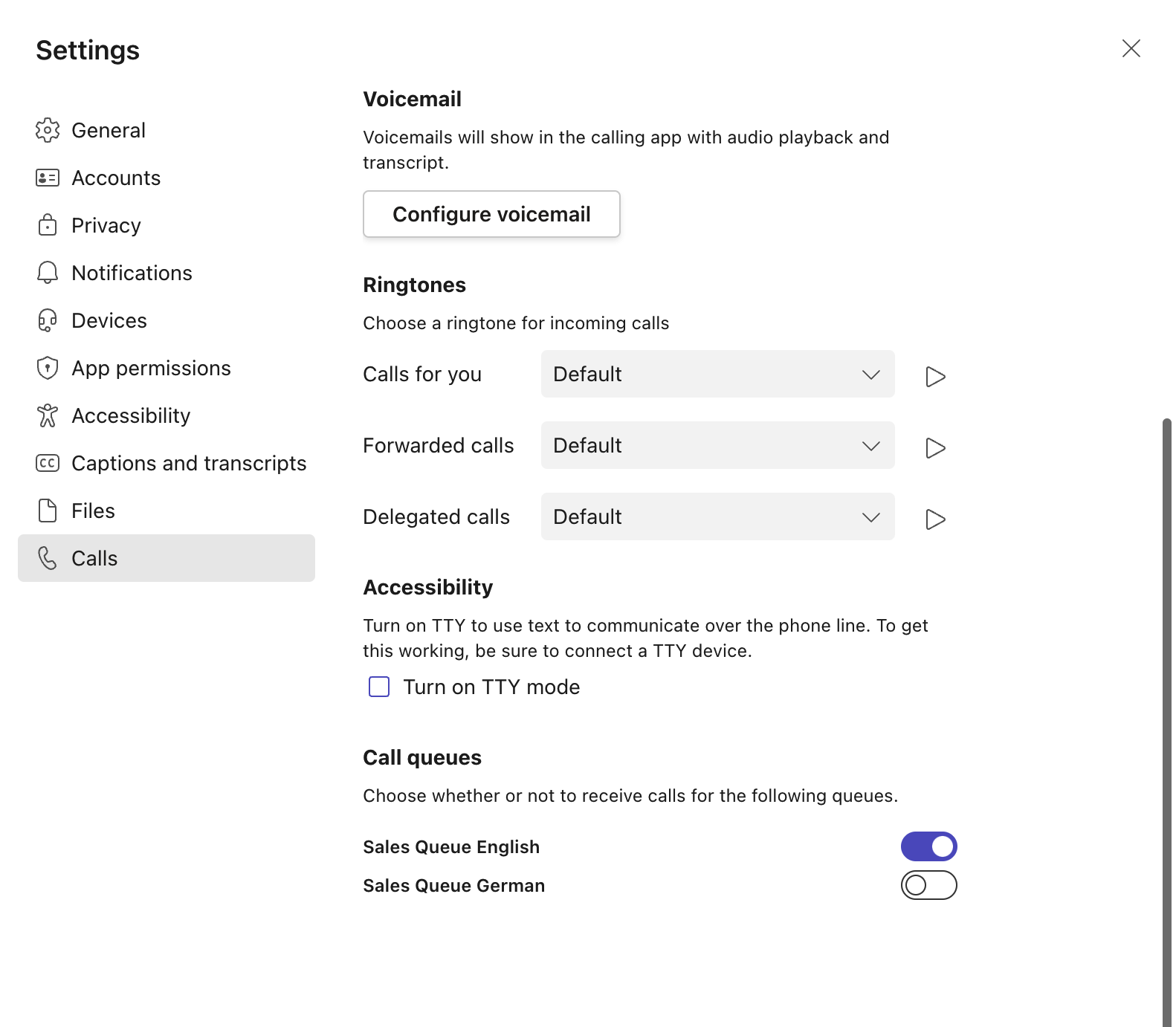
- In the Microsoft Teams App, go to Settings > Calls.
- Under Call queues, toggle queues on or off to start or stop receiving calls respectively.
- After updating settings, the queue information will be visible in Unaric Voice SoftPhone within one minute. The queues where you are logged in are marked with the icon.
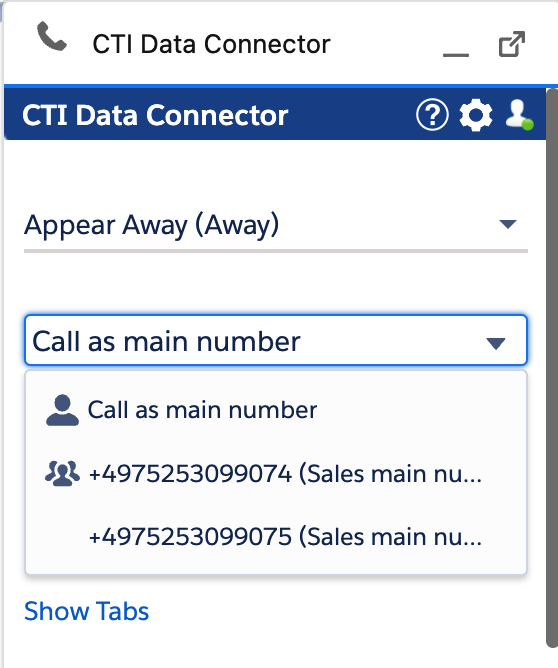
- You can see which users are logged in queues by looking at the Live Agent Dashboard (Logged in Queues column).
Select outbound phone number
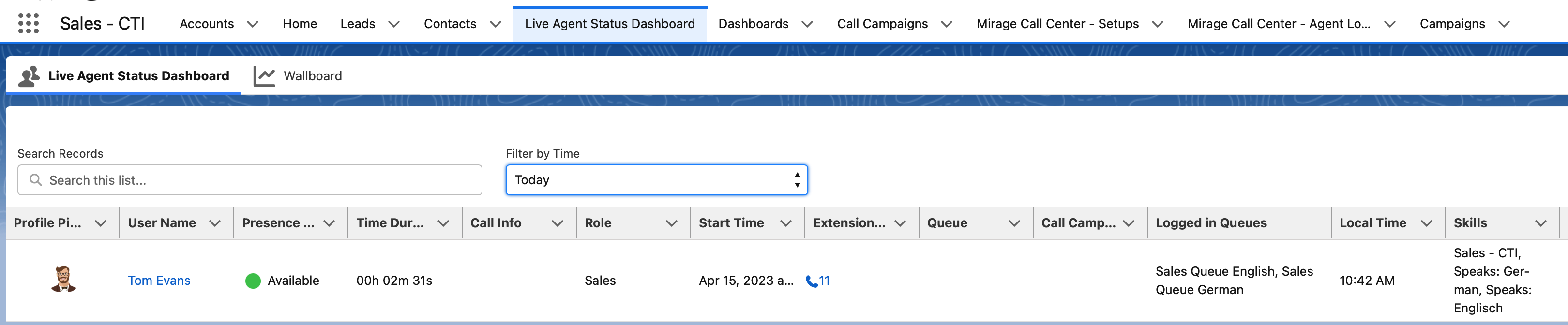
In the Unaric Voice SoftPhone you get a list with all queues you are a member of and the available outbound phone numbers for these queues. Each queue can have multiple phone numbers. When you hover over a queue number, you will see the queue name and the resource account name, which typically gives additional information if you have more numbers per queue.
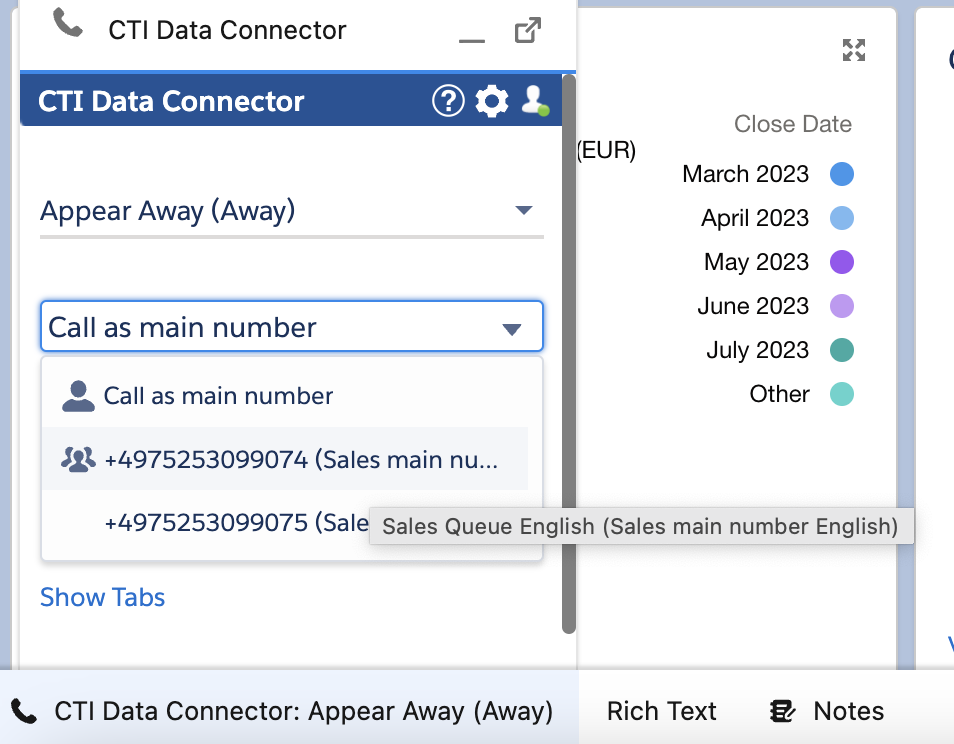
Option | Description |
|---|---|
| Will call from your main number, either the main office number or your direct extension number. |
| Will call from the queue phone number that you are logged in. |
You can always make outbound calls with a queue number even if you are not logged into a queue.
Reject a queue call
You can reject a call with the red button in the Unaric Voice SoftPhone or in the Microsoft Teams App. Once rejected, the call is signalled to the next available user in the call queue. The system's behaviour depends on the number of users in the queue:
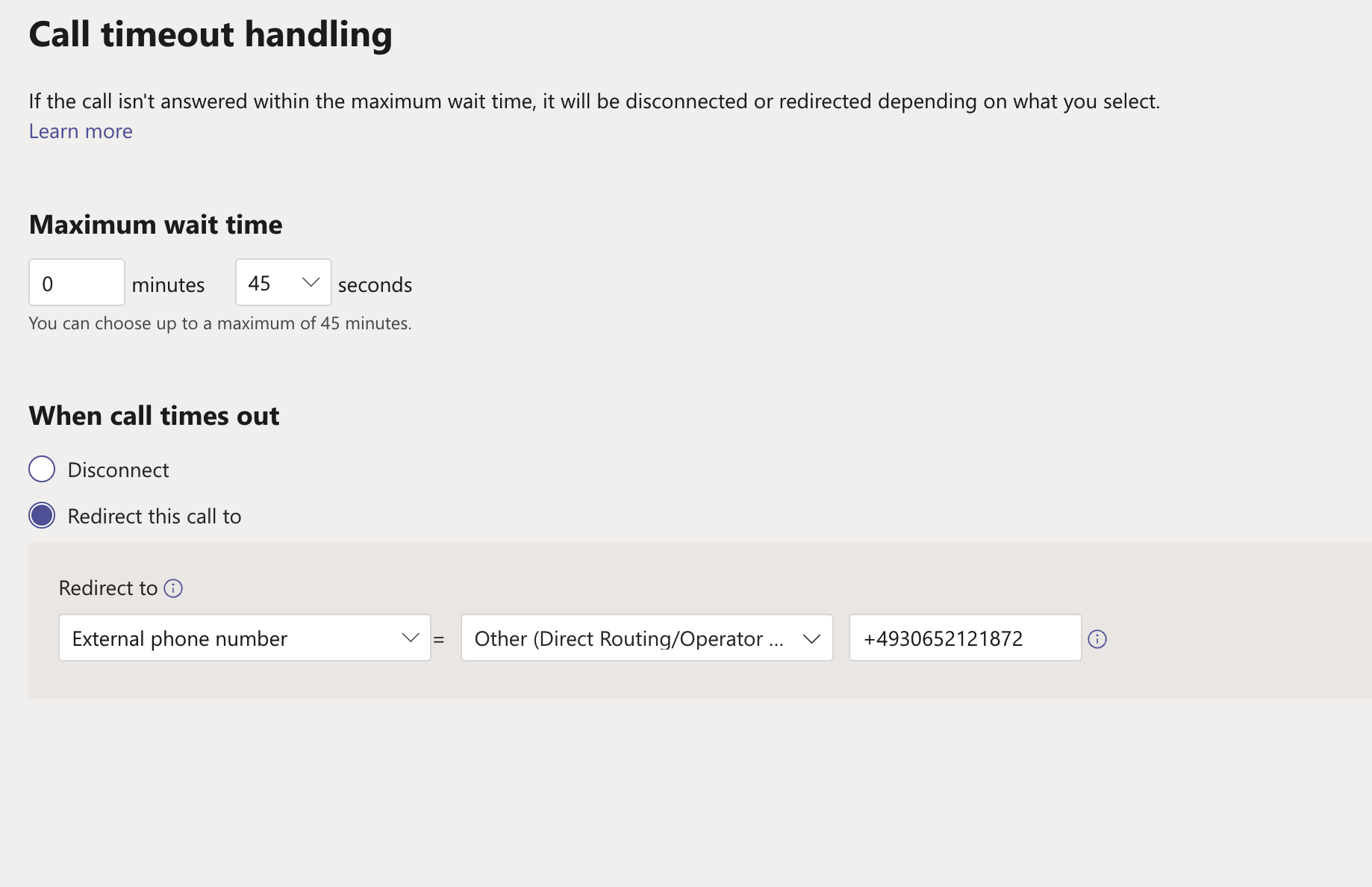
- Multi-user queue: The call is immediately signalled to the next available user in the queue according to the routing method configured for that queue (e.g., Attendant, Serial, or Round-robin). This process continues until the call is answered or the Maximum wait time is reached. If all users in a queue reject the call, it will instantly apply the setting When the call times out. In case user A transfers the call to user B (instead of rejecting it), and user B rejects the call, then the call does not go back to the queue. The call answering rules from agent B are used.
- Single-user queue: If the call queue contains only one user and that user rejects the call, the system will apply the settings configured under When call times out immediately. The call will not be re-offered to the same user. The call will either be disconnected or redirected, as defined in your Call timeout handling settings.
To configure these settings:
- Log in to the Microsoft Teams admin center.
- Navigate to Voice > Call queues.
- Select the specific call queue you want to edit.
- Scroll to the Exception handling section to find the Call timeout handling settings.