Outbound Calls
Start Microsoft Teams calls via the Unaric Voice Add-In using the dial pad, call history, or your synced from Salesforce (Contacts, Accounts, Leads, or Users) and Office 365 contacts.
After typing a name and clicking the search icon, matching records appear, and the call can be started by selecting the desired phone number.
Interface
Desktop
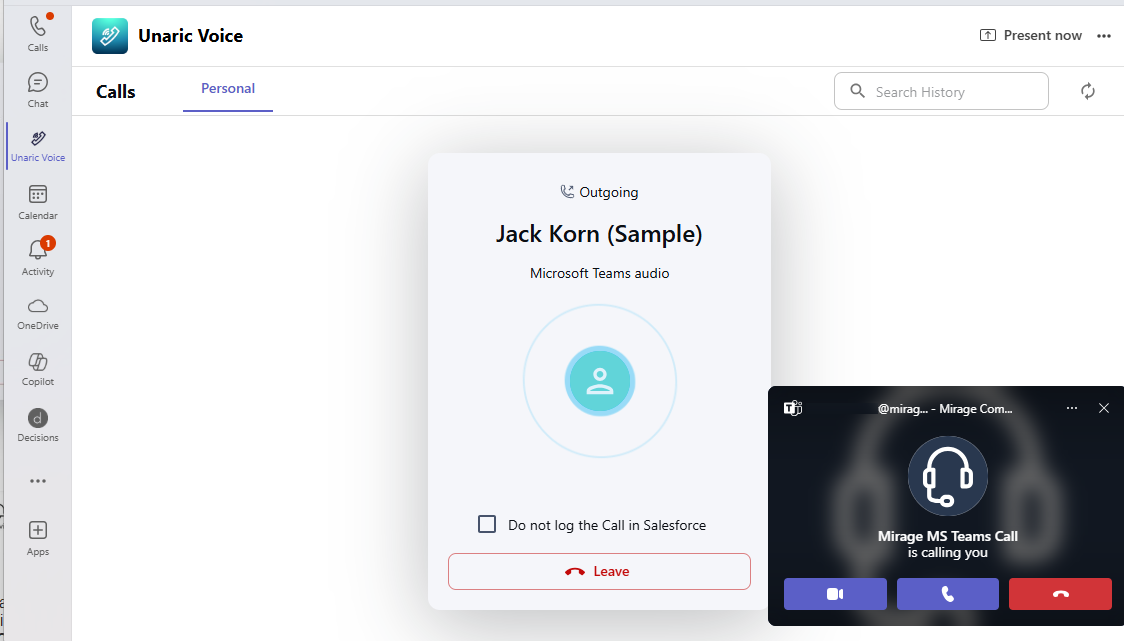
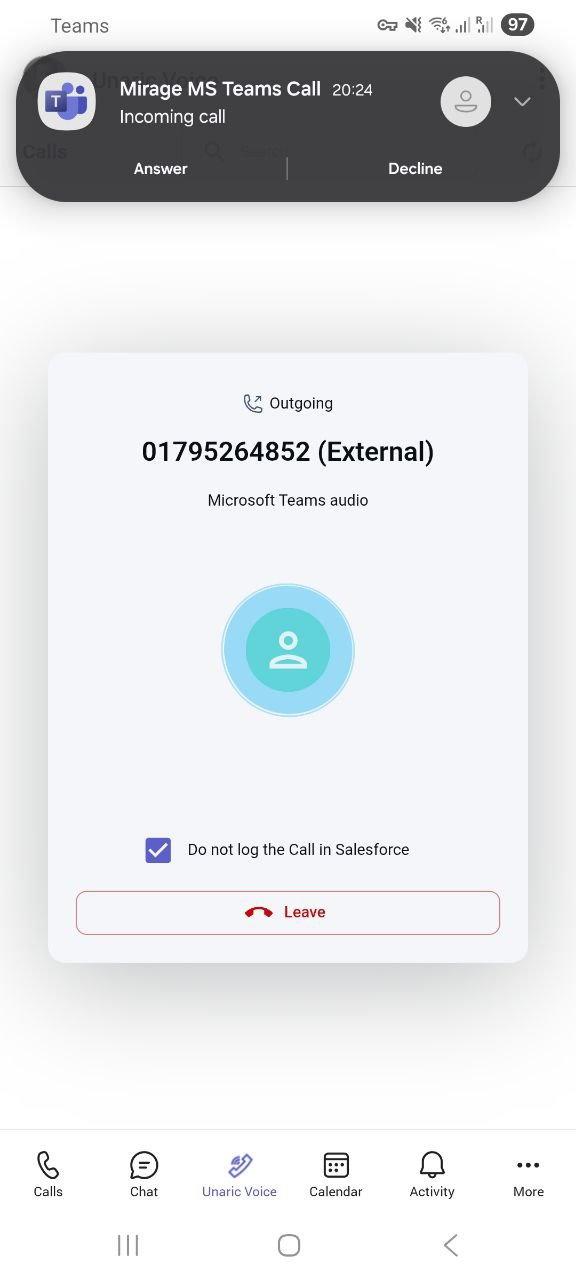
Mobile
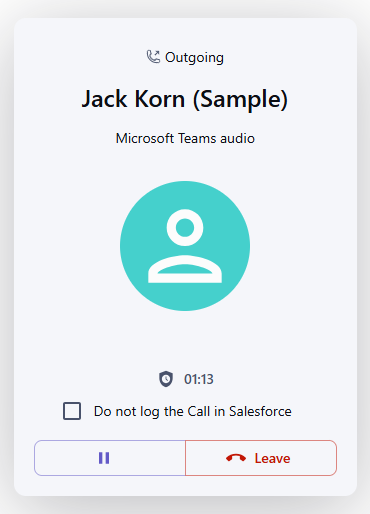
During the call, the Active Call Screen appears in the Unaric Voice Add-In:
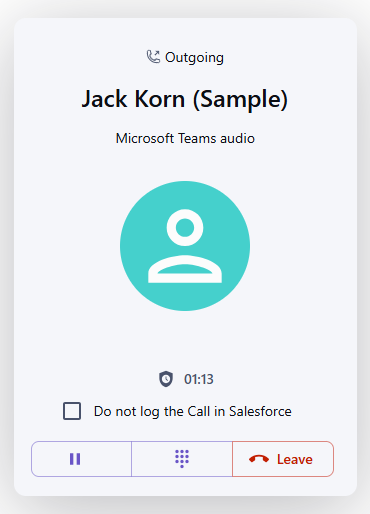
This screen shows call direction, contact name or number, and call timer. Moreover, it allows you to toggle Do not log the Call in Salesforce. Control bar options include:
- Hold/Resume
- Leave
The rest of the interface, including dialing in, is dimmed to prevent starting another call.
Make a call
- Open the Unaric Voice Add-In in Microsoft Teams desktop or in the Microsoft Teams mobile app.
- To choose which number will be shown to the call recipient, select the Outbound Caller ID. The currently active Outbound Caller ID is displayed directly below the Call button; you can hover options for more details.
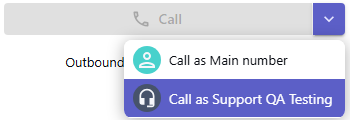
- Use the dial pad to enter a phone number manually or type a number in the input field above the dial pad. You can also search for a record by typing a name (at least 3 characters) and then clicking the magnifying glass icon to search.
Search categories:
- Contacts (Salesforce)
- Accounts (Salesforce)
- Leads (Salesforce)
- Users (Salesforce)—Only active users with valid licence
- Office 365 contacts
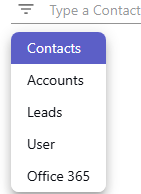
If the selected record contains multiple phone numbers, you can choose the correct one before placing the call by looking at the search key highlighted in the results. If the Salesforce contact has no phone number, the account phone number, if available, will be displayed instead.
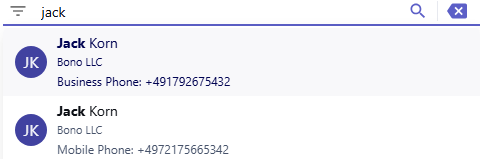
- To start the call, click or tap the Call button. An Unaric Voice modal window will appear, showing:
- Call direction
- Contact name (if known from Salesforce) or phone number + (External)
- Optionally, check Do not log the Call in Salesforce to skip creating a Salesforce Task.
- Once you have started the call, a Microsoft Teams call pop-up appears.
- Accept the call from the Teams pop-up. You cannot join the call from the Unaric Voice modal.
- You can Leave/Decline the call from either the Unaric Voice modal or the Teams pop-up.
- Once the call is accepted, the Active Call Screen appears:
- The screen shows the call direction, the contact or number and the call timer.
- If you do not want to log the call in Salesforce, check the checkbox Do not log the Call in Salesforce.
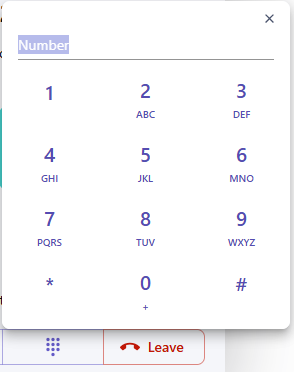
- A control bar allows you to:
- Hold/Resume the call
- Open/Close a dial pad to send DTMF tones during the call
- Leave the call
- The rest of the interface is dimmed to prevent starting another call
Make a call from call history
- Open Call History in the Unaric Voice Add-In.
- In Desktop, hover over a call entry to reveal the green Call button. If you're using mobile, tap the green Call icon next to the entry.
- Click or tap the button to start the call.