Call History
The History section in the Unaric Voice MS Teams Add-In (desktop and mobile) shows up to 200 recent calls. You can search, filter, view details, and redial from this list.
Interface
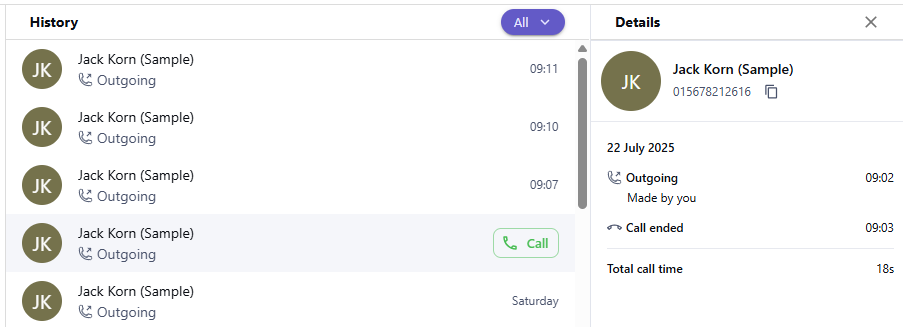
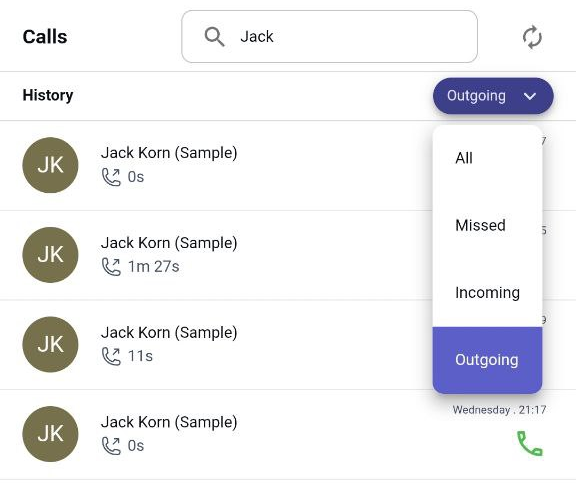
The mobile and desktop interfaces are nearly identical. Desktop includes a details panel that is missing in mobile.
Desktop UI
Mobile UI
How it works
Active call persistence and history sync
The add-In keeps call events accurate even when inactive:
- Active calls stay tracked in the background if you switch Teams tabs (Chat, Calendar, Activity) or minimize the Add-In.
- Auto-restore: Returning to the Add-In shows the ongoing call’s current status (ringing, answered, on hold).
- Up-to-date history: All call events are mapped.
- 24-hour sync: If the Add-In was inactive, calls are synced for up to 24 hours after the nightly server reset. The 24-hour period is based on server reset time, not a fixed hourly range.
- Cross-device logging: If you receive calls on both desktop and mobile, the call is logged only on the device where it was answered.
Missed calls during Do Not Disturb (DND) or busy states
If you are in Do Not Disturb, already on a call, or presenting:
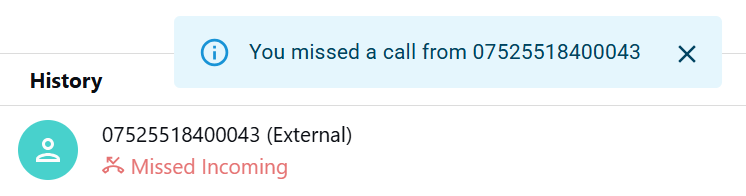
- Incoming calls are not delivered, but are still logged as Missed Incoming Calls.
- You receive a notification:
- These missed calls are not logged as Salesforce Tasks, unless they are queue-based calls.
View and filter call history
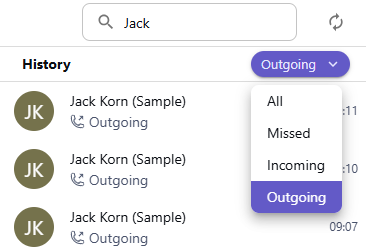
- In the Search History field, enter a number or name to find matching calls.
- Each call entry shows:
- Contact icon
- Contact
- If known from Salesforce: Contact Name or Call Queue name
- If unknown: Phone number + (External)
- Call direction (shown as text in desktop and icon in mobile)
- Duration
- Call time
- You can filter calls by All, Missed, Incoming, and Outgoing.
Additional features
- Quick call back: Hover over an entry to display the green Call button (not available for anonymous callers). In mobile, the green Call button appears next to the entry. Click this button to call that contact again with the currently selected Outbound Caller Id.
- View call details: Click a history entry to open the Details panel on the right, which shows:
- Contact icon
- Contact info (name or phone number)
- Phone number
- Click the number to start a call
- Click the Copy icon to copy it
- Date of the call
- Call direction (e.g. Outgoing, Incoming, Missed) and the used Outbound Caller Id
- Who initiated the call
- Start and end time
- Total duration
- Icons in details:
- Open record in Salesforce (only visible when a Salesforce record exists for this number).
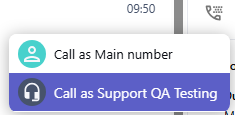
- Selection of outbound caller Id and direct call.
- Create a new contact or lead for the number in Salesforce. Existing information is pre-filled.
- Create a new case for the number in Salesforce. Existing information is pre-filled.