Email Panel Actions
Located on the right side of the screen, Unaric Sidebar email panel blends with the look and feel of Gmail. When opened, the email panel automatically detects the sender of a message and offers you to save it in your CRM. Also saves sent messages with a single click.
Main panel actions
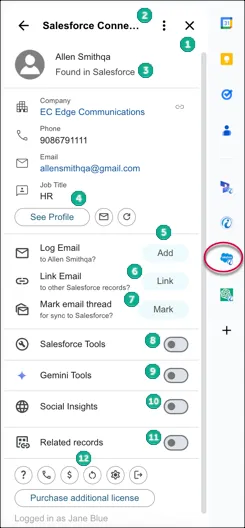
Panel interface
- Click to close the panel.
- Click to open the Manage add-on menu or refresh the app.
- The sender if a matching email address is found on the CRM. Some details for this contact or lead will be displayed.
- Click See Profile to open the contact record directly from the CRM. This button displays if this email is not yet added to the CRM.
- Click this button to add this email to CRM automatically associating it to the contact.
- Click Link to associate the email to other objects on the CRM.
- Use Mark to sync this email tread with the CRM. This option appears if Automatic Sync is enabled. See Enable Sync.
- Enable CRM Tools such as View records, create Tasks/Calls and access Auto Sync.
- Enable Gemini Tools to enable AI for your emails. See Gemini Tools.
- Enable Social Insights to display Social Media presence of lead/contact.
- Enable Related records to display other objects associated to contact/lead.
- Action icons such as opening the Billing Page "$", open Settings page and logout from the connector.
More Actions menu
The More Actions menu can be found on the right side of the panel, it is the vertical ellipses.
Refresh
Select this option to refresh the sidebar. This will also get the latest updates to the add-on.
Manage Add-on
Select this option if you want to display the related products by Unaric Sidebar in the GSuite Marketplace.
Logout from Unaric Sidebar
1. Open Unaric Sidebar.
2. Click the Logout icon at the bottom.
3. Click Logout to confirm.