Getting Started
Setting up Unaric Sidebar requires installing the corresponding Google add-on for your CRM.
1. Installation
- In Gmail, click the Get Add-ons button ( icon) on the right sidebar to open the Google Workplace Marketplace, search iEnterprises in the search bar, and the add-on for your specific CRM. Alternatively, choose the link for your CRM:
2. On the product page, click the Install button.
3. A permission Get Ready to Install dialogue box will appear, click Continue.
4. Select an Email Account you want to add the connector to.
5. You will be asked to request access permission to the connector. Click Allow.
6. Once installation is complete, click Done to finish. Go to the Email Account you selected. The Connector icon will appear. If not, refresh the page.
2. Login
- In Gmail, open the Unaric Sidebar connector located at the right toolbar.
- Click the Connect button. The login screen for your CRM will open.
- Enter your CRM account credentials (username and password).
- For Salesforce, you will be asked to provide the login URL you use for your org. E.g. https://login.salesforce.com/.
- For Dynamics 365 Connector, provide your Dynamics 365 URL. This is the URL shown after logging. E.g. https://org1234567.crm.dynamics.com/.
If using an on-premise Microsoft Dynamics 365 environment, additional configuration is required before connecting. See Dynamics 365 (On-Premise).
- For Zoho CRM Connector, you will need to select your Data Center.
- Grant the connector access to your account to finish.
Allow pop-ups in your browser if you don't see any login screens.
If you see an OAuth2 authentication error with the message OAUTH_APPROVAL_ERROR_GENERIC while trying to log in to your Salesforce org, you need to install our application in your Salesforce environment to grant login access. For more information, see Salesforce OAuth2 Error.
3. Installation testing
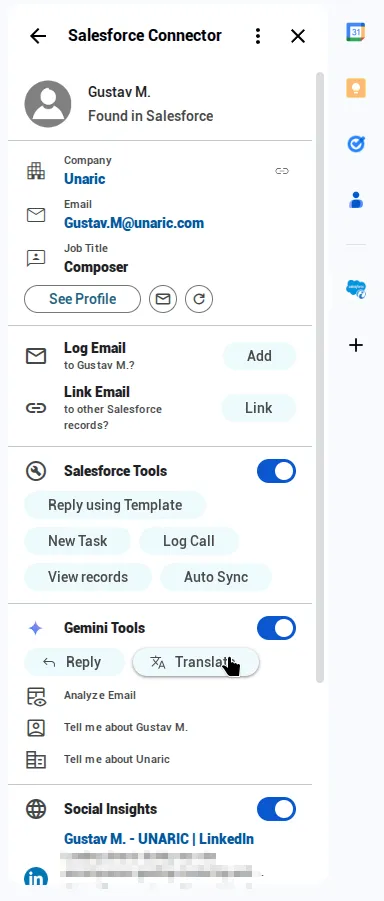
To test that the installation has been successful, open an email in Gmail. Sender details will display if they are already a contact/lead in your CRM or if there is an open Opportunity/Case and other related objects for this sender, they will also be displayed. Open the Contact/Leads forms to see more details directly from your mailbox.
User permissions
There are two type of user designation with their corresponding permissions:
- Administrator has the right to Add/Edit/Delete users or update Licences.
- User only has access to their profile.
Next steps
A 7-day free trial is initially offered upon installation. Once the trial period ends, you can use Unaric Sidebar free version with limited features or keep using all the features with a subscription. For more information, see Subscription Management.
Uninstall
You can uninstall Unaric Sidebar from the Google Workspace Marketplace.
- In Gmail, click the Unaric Sidebar at the right sidebar to open it.
- Click the three vertical dots at the top of the add-on panel.
- Select Manage add-on.
- A Marketplace window will pop up; click Uninstall and confirm.
If you can't uninstall the add-on and find the "This application was installed by your administrator" message in the Google Workplace Marketplace, it means that only an administrator can uninstall it. For more information, see Marketplace app installation messages.
The installation, management, and removal of the Unaric Sidebar add-on is entirely managed by Google, not Unaric.