Consulted Transfer
Agents can consult with another internal Teams user or a PSTN number before transferring a customer call to them. This ensures that the receiving party is prepared for the call.
How it works
This feature involves three distinct call legs:
- Call 1: The initial PSTN call between the customer and Agent 1.
- Call 2: A Teams-to-Teams (internal) or Teams-To-PSTN (external) call between Agent 1 and Agent 2 (the consult leg).
- Call 3: The final PSTN call between the customer and Agent 2 after the transfer is completed.
Salesforce chains these calls together. The initial call record (Call 1) will remain in an in Progress status until the final call (Call 3) is ended to ensure all captions are correctly logged.
Internal consult calls initiated from Salesforce will ring in the Omni-Channel utility for the receiving agent. Calls initiated directly from the Teams client will not appear in Salesforce.
Consult call UI
- Swap: Use the Swap button to toggle between the customer and the consulted party. Resuming one call leg will automatically place the other on hold.
- Mute/Keypad: Standard call controls are available for the active leg of the call.
- Captions: Live transcriptions are captured for both legs. When the transfer is complete, captions from the consult are merged into the final record.
Consult & transfer calls
- While on an active call (Call 1), click the Add Caller button in the Omni-Channel utility.
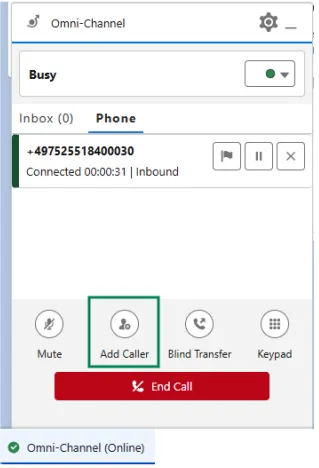
- Call Agent 2.
- For internal transfer, use the search field to find an internal Agent 2 (by name or Teams ID).
Directory search requires at least 3 characters to return results.
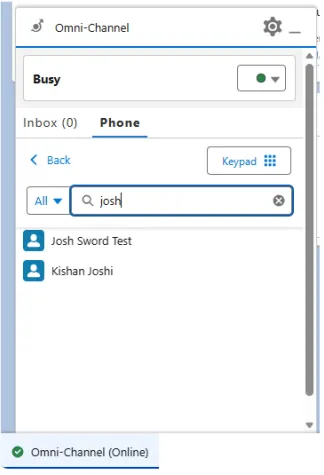
- For PSTN or external transfer, click the Keypad button and type the number.
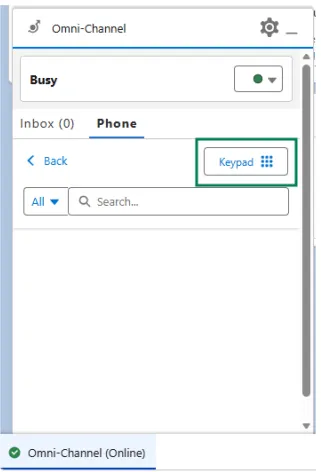
- Click the Call button. Call 1 will automatically be placed on hold, and Call 2 (the consult leg) begins dialling.
- Once you have finished consulting with Agent 2, click the Leave Call button (which replaces the End Call button during a consult). You will be removed from the conversation and the costumer call (Call 1) will be blind-transferred of the customer to Agent 2.
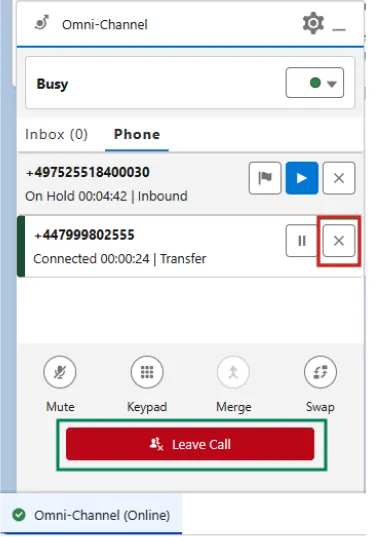
You must be actively talking to the person you are consulting with (Agent 2) at the moment you click Leave Call. If you use the Swap button to go back and talk to the customer (placing Agent 2 on hold) and then try to click Leave Call while Agent 2 is still on hold, the transfer will fail.
Cancel the transfer
If Agent 2 does not answer, or you decide not to transfer, click the X (Cancel) icon on the consult leg (Call 2). The consult leg will end, and you can resume the original call with the customer.