Call Transcription
Call transcriptions are available as real-time speech-to-text closed captions during calls. Moreover, captions are saved as a transcript on the Voice Call record.
How it works
If set up to auto-start, transcription begins when agents answer a call. If not, they can start it by clicking the recording button. Likewise, they can turn transcription off with the same button at any point during the call.
When the call ends, the transcript is saved in Salesforce as Conversation Entries linked to the Voice Call record. On transferred calls, all entries are linked to the parent Voice Call record.
Right after a call ends, the Conversation component is empty for a few minutes while Salesforce links the messages to the Voice Call. If not available, refreshing the page will show the transcript.
Supported languages
The live captions language is automatically mapped to the users Language preference in Salesforce:
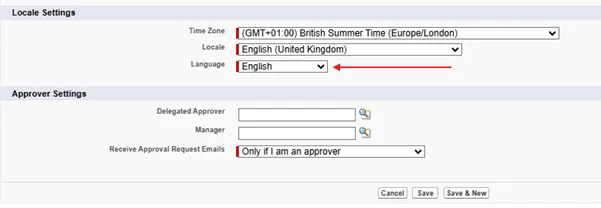
Call transcription supports over 30 languages. These include: Chinese (Simplified and Traditional), Danish, Dutch, English: (GB and US), Finnish, French, German, Italian, Japanese, Korean, Norwegian, Portuguese (Brazil and European) Russian, Spanish, Swedish, Thai, Arabic, Czech, Greek, Hebrew, Hungarian, Polish, Romanian, Slovak, Turkish, Vietnamese, Hindi, Welsh.
Transcripts retention policy
Unaric Voice for Teams doesn't store call transcripts. During a call, Azure Communication Services (ACS) generates live captions but doesn't store them. Unaric sends each caption to Salesforce as soon as it's generated, and Salesforce saves it with the call record.
Transcripts are stored in your Salesforce org as Conversation Entries linked to the Voice Call record. When a call is transferred, all entries are linked to the parent Voice Call record.
Your Salesforce data retention and compliance settings decide how long transcripts are kept. Unaric doesn't keep a copy, so it can't make that period longer or shorter.
Transcription settings
You need to be an administrator to apply this configuration.
Enable captions
Captions can be toggled on or off. You can also specify if you want it to autostart on call answer or let agents decide if they want to start transcriptions.
- Navigate to Setup > Feature Settings > [...] > Partner Telephony Contact Centers.
- Find your Unaric Voice for Teams Contact Center and click Edit.
- Under Live Transcription Settings, check Enable Transcription to allow call transcriptions.
- On Auto Start Transcription on Call Answer, select Yes to auto-start live captions once calls have been answered or No to allow the agent to manually start live captions at a time of their choosing.
- Click Save to finish.