Customization & Settings
Customize layout
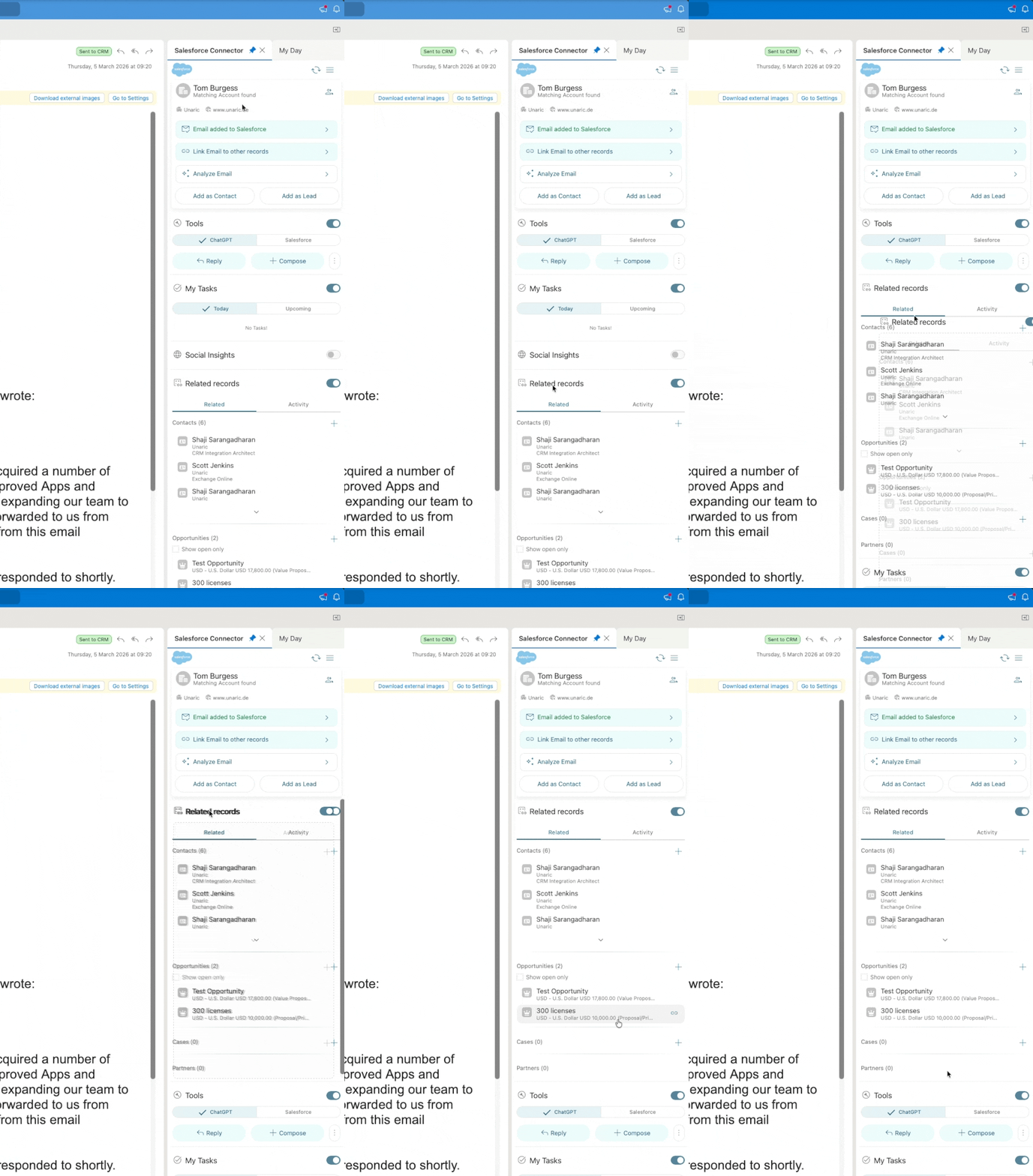
You can customize the order of sections on by dragging and dropping the available sections into their preferred order.
Reorderable sections include Tools, Tasks, Social Insights, and Related Records, depending on which features are enabled for the user and CRM configuration.
After a user changes the order, the add-in saves the preference and restores the same section order the next time Unaric Sidebar is open
Hidden sections are ignored.
Settings menu
Settings control how Outlook and the CRM exchange and store email, contact, calendar, and attachment data. To open settings, click the menu icon at the top right of Unaric Sidebar and select Settings. You will find the following settings:
Setting | Description |
|---|---|
Language | Controls the language of the Unaric Sidebar interface and sets the default language for ChatGPT responses. |
Send attachments to CRM | Determines whether email attachments are included when logging an email to your CRM. You can choose from Always send, Ask every time, or Never send. |
Follow Outlook Theme | Adjusts Unaric Sidebar's theme to match Outlook's. |
Edit event after adding | A preference that, when enabled, automatically opens a new tab to edit an event immediately after you create it using the sidebar. |
Debug mode | Active debug mode for troubleshooting. |
Show/Hide homepage sections | Allows you to customize which sections appear on the sidebar's homepage. Options include People involved, Tools, Social insights, My Tasks, and Related Records. |
Show/Hide Objects | Allows you to select which objects (e.g., Contacts, Accounts, Opportunities) are visible within the sidebar. |
Selective attachment upload
Pick which specific email attachments are uploaded to the CRM when logging an email from Outlook.
This feature is directly controlled by the Send attachments to CRM setting:
Setting Behavior | Detailed Action |
|---|---|
Always send | All email attachments are uploaded automatically to the CRM when the email is logged. |
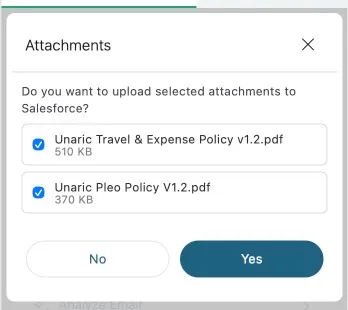
Ask every time | When you log an email, the add-in displays an attachment selection dialog listing all files, allowing you to manually choose which ones to keep. |
Never send | No attachments are uploaded to the CRM when logging emails. |
When Ask every time is enabled, the add-in displays a detailed list of all attachments found on the email, including each attachment’s file name and size.
If no attachments are selected in the dialog, the email/activity logging process will continue normally, but no attachment upload is performed.