Associate Emails
Link incoming emails to their corresponding Contacts and Leads records within your CRM to show relevant details directly within Outlook. Further, you can associate emails with other CRM objects (such as Opportunities or Cases).
- On Outlook's inbox, open an email.
- Open the Email Connector panel. It will run a search to check if the sender address corresponds to a Contact or Lead in your CRM.
- If a match is found: The details of the Contact or Lead will be displayed on the panel, along with any related objects (such as Opportunities, Cases, or custom modules). Click Log Email to... If the email is already logged, the status will show as Email added to….
- If no match is found: You can add the sender as a Contact or Lead first if desired. See Create a Contact or Lead for instructions.
- If the email has not yet been logged to the matching Contact or Lead in your CRM:
- Click the Add button next to Log email to....
- The status will update to Email added to....
- An Open button will display on the sidebar, allowing you to view the logged email directly in the sidebar.
- Click Open in Fullscreen to launch and view the email record directly inside your CRM.
Once you associated an email with a CRM object, the email will automatically receive a Sent to CRM tag that can be used to view all linked messages.
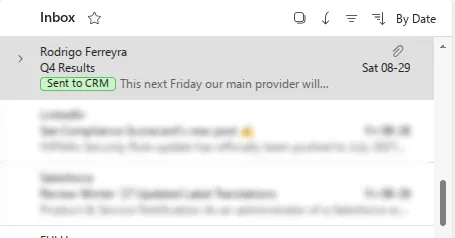
To remove this tag, open the email and click the icon next to the tag. This will not unlink the email to the CRM record.
Email attachments
If your email contains attachments, these will be uploaded to the record. You can open the record to see the existing attachments, download them, and upload new ones.
The upload behavior for attachment s is controlled by your Send attachments to CRM settings. To configure this feature, see Selective attachment upload.
Associate to other CRM records
You can also associate the email with other records, such as Opportunities, Cases, or custom modules:
- Click Link Email to other CRM records.
- From the dropdown menu, select from the list of available CRM modules (e.g., Opportunities, Cases).
- If the module is already selected, enter the search term for the record's main field (such as the Opportunity name) in the search bar.
- Select the correct record from the search results. You can filter the search results by toggling My records only. Some modules, like Opportunities, can also be filtered by status.
- The Email Connector panel will refresh, and the linked object will be displayed at the bottom of the sidebar.