Simple Burst
In this example, you will implement a solution which emails to each Contact a report containing only their open cases.
Reports setup
You will set up two reports: a Burst report and a Regular report. The Burst report is used to determine who we are going to send to and the Regular report is the actual report we want to send.
Burst report
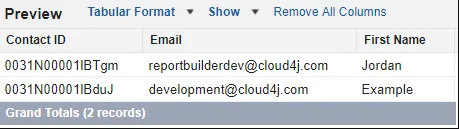
Set up a report in Salesforce that contains all your Contacts and name it Recipients. This report will include just three fields: Contact ID, Email, and First Name.
- The Contact ID will be used to filter the Regular report.
- The Email field will be used to send the email.
- The First Name field will be used personalize the email, e.g., Hello Bob: Attached is your list of open cases.
Regular report
Next, create a report in Salesforce that contains a list of open Cases and name it Case Details.
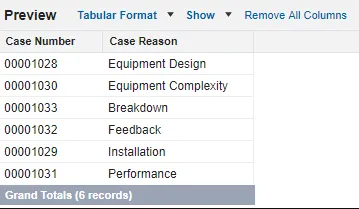
This report doesn't need to include the Contact ID. However, the Contact ID must be included in the Salesforce Report Type so it is used to filter the report. You can check to make sure the Report Type for this report includes the Contact ID field by searching for it in the Fields search on the customise report page in Salesforce:
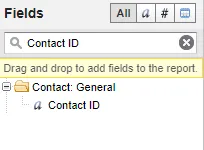
If the field you need doesn't exist on the Report Type, add it to the Report Type in Salesforce. For more details on how to do this, see How to Add Fields to a Custom Report Type.
Solution creation
Now that both reports are set up, you need to create the Solution.
- Log in to Unaric Reports, click the Solutions tab and then click the Add button.

- In General Info, provide a name and keep the default for the running user.
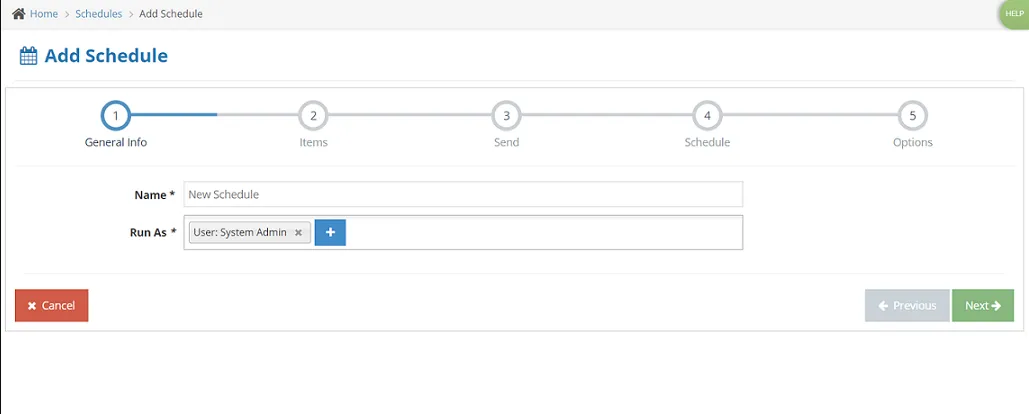
- In Items, click Yes under Do you want to add items?, select Report and click the Next button.
- You will need to add two items: the burst report and the regular report. Add the Burst report first.
- Burst report
- Select the Recipients report and set the Report Type to Burst.
- Set the Filter Value Field to the field that will be used to filter the Regular report. For this example, set this to Contact ID.
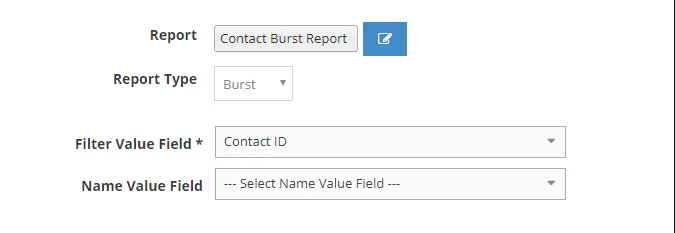
- Set the Name Value Field to the field from the Burst report that will be used to identify the activity record. For this example, select Email.
- Click Next.
- Regular report
- To add the second report, click Yes under Do you want to add items?, select Report and click the Next button.
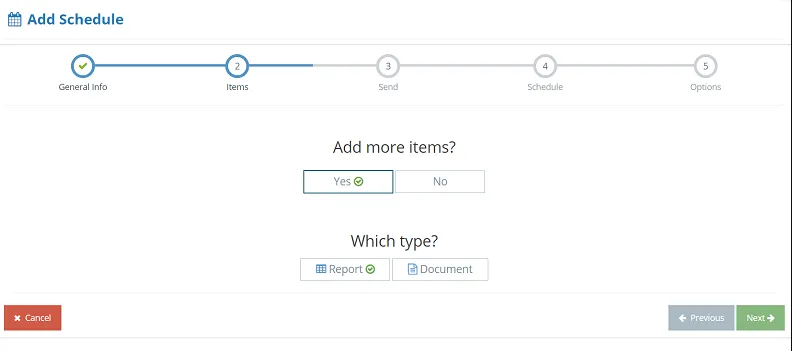
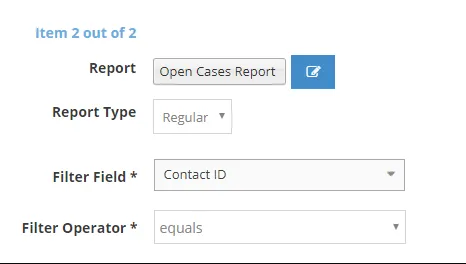
- Select the Case Details report and set the Report Type to Regular.
- Set the Filter Value Field to the field from this report that will be used to filter the data. In this case, set Contact ID.
- Set the Filter Operator field to equals. In this way, when the Solution runs, it will add a filter for each of the Contacts from the Burst report of WHERE Contact ID = CONTACT_ID_VALUE.
- For this report, you need to select a file type for the report included in the email. For this example, select PDF. Keep the defaults for the other options and click the Next button to advance to the next step.
- On the Send step, select Email as delivery option and click the Next button.
- On the email configuration, set To Fields to Email. To customise the message, copy in the variable for first name into the email body.
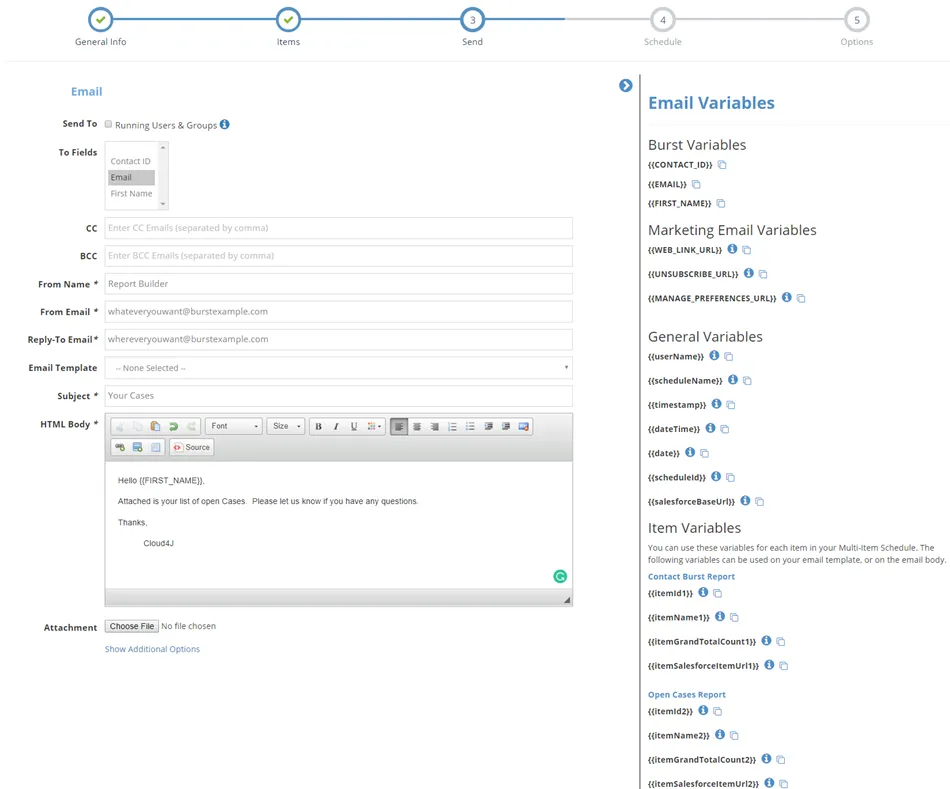
- Click Next to continue.
- For the Schedule step, set it up to send an email every Monday at 10 am. This way, emails will be sent automatically each week. Click Next to continue.
- In the Options step, check the Don't Send Report if Empty checkbox to only send reports to Contacts with open Cases in the last 7 days. Keep defaults on the other options and click the Finish button to save the Solution.
Solution preview
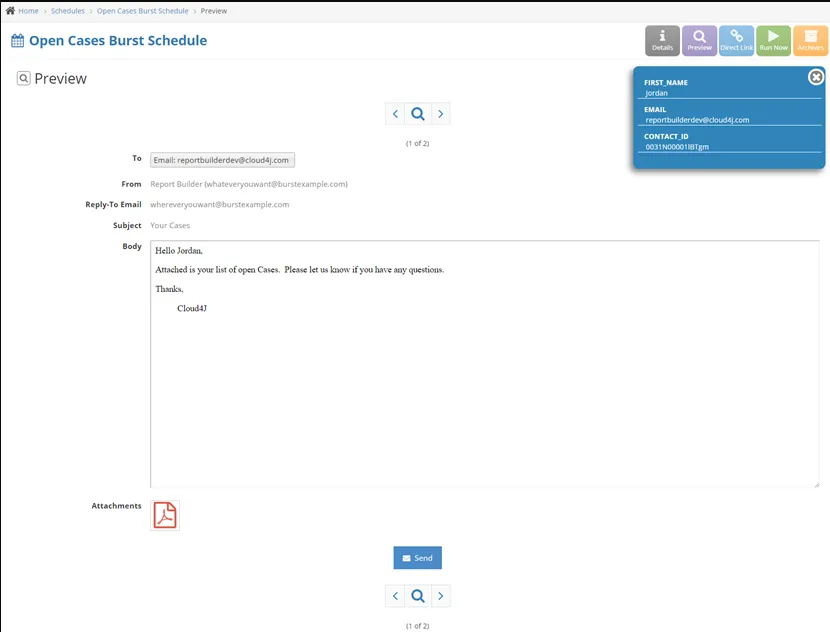
Now that the Solution has been created, you want to test it to make sure it's correct. To do this, click the Preview button for this Solution.
The preview will enable you to see what the email and report will look like for each recipient.
Run the Solution
After confirming everything looks correct, let the Solution run on the schedule you have set up (every Monday at 10 am). Once the Solution has run, you can review its activity to see if there were any issues.
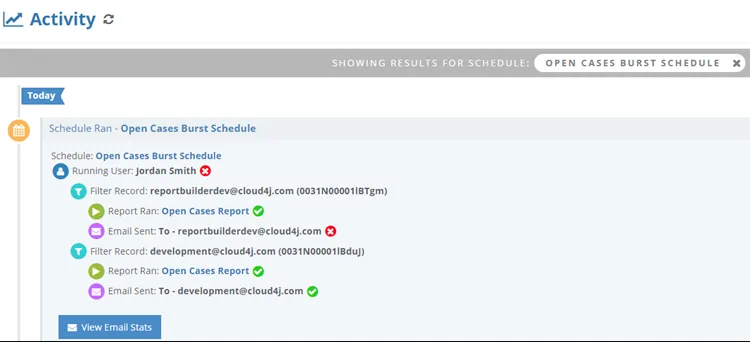
In this example, you can see that the Solution attempted to send to everyone on the Burst report. The green checkbox means that the email was successfully delivered. The red means that there was a problem. In this example, invalid emails were purposely added to show you that you can see when an email fails. Also, note that the Filter Record shows the email address.