HTML & Email Templates
HTML and email templates are built using a browser-based HTML editor. They support attachments, as well as dynamic variables to pull in dynamic data. Each of these templates serve a distinct role:
- HTML Templates are used to create interactive web pages that consolidate multiple reports and AI-driven insights into a single view, typically accessed instantly via a Salesforce button.
- Email Templates are designed for outbound delivery, enabling you to send personalized communications, reports, and summaries directly to a recipient's inbox through automated solutions or schedules.
HTML templates
HTML Templates enable you to bring multiple reports into a single page that can be easily accessed by your users using a button on a Salesforce record.
Unlike email templates, HTML templates are used to build web pages that serve up content from Report Builder, often to provide a single view of multiple reports accessible via a Salesforce button.
HTML templates are typically triggered by a Salesforce button to provide an instant, single view of multiple reports (like an account summary) without sending an email.
Key features
- Bring reports, dashboards, documents, and even AI analysis into a single view.
- Design directly in the browser using our HTML editor.
- Make use of all standard variables and include additional attachments.
- Initiate directly from a button on a Salesforce record.
Create HTML template
- Navigate to Templates > HTML.
- Click Add.
- Complete the template:
- Name
- Description
- HTML body (you can use the rich text editor or source)
- Attachments. This can be any supplementary document or presentation for your solution.
- Click Save to finish.
Email templates
Email templates are pre-configured blueprints built and styled directly in the browser using an HTML editor. They are primarily used for sending out communications, reports, and AI-driven analysis to an inbox via solutions or schedules.
While HTML templates are for browser viewing, the "HTML output type" in solutions allows email templates to include advanced features like conditional formatting or record handlers directly in the body of an email.
Key features
- Dynamic Customization: You can use standard variables to pull in specific data, such as a recipient's first name, to personalize the message.
- Media and Attachments: They can include attachments like PDFs or Excel files and can also incorporate agent analysis directly in the body of the email.
- Advanced Formatting: By using the "HTML output type" in a solution, email templates can display advanced features like conditional formatting or record handlers (e.g., displaying data as blocks instead of rows) directly within the email.
- Automated Tracking: When used for marketing campaigns, they can be configured to update the status of a record (such as a campaign member) once an email is opened or sent.
While similar to HTML templates in design, email templates are specifically for outbound delivery rather than building internal web pages for browser viewing.
Create email template
- Navigate to Templates > Email.
- Click Add.
- Complete the template:
- Name
- Description
- HTML body (you can use the rich text editor or source)
- Attachments. This can be any supplementary document or presentation for your solution.
- Click Save to finish.
Variables
General variables
You can include these variables for use in your email. These can be used to personalize each message you send. Advanced features include Burst Report variables and Marketing Email variables.
Variable Token | Description |
|---|---|
{{userName}} | Name of the Running User. |
{{solutionId}} | ID of the Solution. |
{{solutionName}} | Name of the Solution. |
{{timestamp}} | Timestamp when the Solution ran. |
{{dateTime}} | Formatted date and time when the Solution ran. |
{{date}} | Formatted date when the Solution ran. |
{{dateValue}} * | Date value when the Solution ran. |
{{yesterdayTimestamp}} | Timestamp of previous day's date when the Solution ran. |
{{yesterdayDateTime}} | Formatted previous day's date and time of when the Solution ran. |
{{yesterdayDate}} | Formatted previous day's date of when the Solution ran. |
{{yesterdayDateValue}} * | Previous day's date when the Solution ran. |
{{currentMonthName}} | Current month name when the Solution ran. |
{{currentMonthFirstDayOfMonth}} | Formatted first day of the current month when the Solution ran. |
{{currentMonthFirstDayOfMonthDateValue}} * | First day of the previous month date value when the Solution ran. |
{{currentMonthLastDayOfMonth}} | Formatted last day of the current month when the Solution ran. |
{{currentMonthLastDayOfMonthDateValue}} * | Formatted last day of the current month date value when the Solution ran. |
{{previousMonthName}} | Previous month name when the Solution ran. |
{{previousMonthFirstDayOfMonth}} | Formatted first day of the previous month when the Solution ran. |
{{previousMonthFirstDayOfMonthDateValue}} * | First day of the previous month date value when the Solution ran. |
{{previousMonthLastDayOfMonth}} | Formatted last day of the previous month when the Solution ran. |
{{previousMonthLastDayOfMonthDateValue}} * | Formatted last day of the previous month date value when the Solution ran. |
{{nextMonthName}} | Next month name when the Solution ran. |
{{nextMonthFirstDayOfMonth}} | Formatted first day of the next month when the Solution ran. |
{{nextMonthFirstDayOfMonthDateValue}} * | Formatted first day of the next month date value when the Solution ran. |
{{nextMonthLastDayOfMonth}} | Formatted last day of the next month when the Solution ran. |
{{nextMonthLastDayOfMonthDateValue}} * | Formatted last day of the next month date value when the Solution ran. |
For any date value variables, you can apply a custom format to this value using the dateTool. Examples:
$dateTool.format("dd-MM-yyyy", $dateValue) = 31-12-2024 $dateTool.format("EEEE, MMMM d", $yesterdayDateValue) = Thursday, December 1
Item variables
These variables enable you to decide where you would like place item information when you have than one item in your Solution. For example, if you include two reports you could use the following variables:
Report 1
Variable Token | Description |
|---|---|
{{itemId1}} | ID of the first report. |
{{itemName1}} | Name of the first report. |
{{itemGrandTotalCount1}} | Total records in the first report. |
{{itemHtml1}} | HTML of the first report. |
Report 2
Variable Token | Description |
|---|---|
{{itemId2}} | ID of the second report. |
{{itemName2}} | Name of the second report. |
{{itemGrandTotalCount2}} | Total records in the second report. |
{{itemHtml2}} | HTML of the second report. |
Available variables include:
Variable Token | Description |
|---|---|
{{itemId1}} | ID of the first report. |
{{itemName1}} | Name of the first report. |
{{itemGrandTotalCount1}} | Total records in the first report. |
{{itemHtml1}} | Enables you to control where to put the report content. |
{{itemAgentPrompt1}} | Agent prompt for the first item. |
{{itemAgentHtml1}} | Enables you to control where to put the item agent analysis. |
{{agentPrompt1}} | Enables you to control where to put the agent prompt. |
{{agentHtml1}} | Enables you to control where to put the agent analysis. |
{{itemFilePassword1}} | Password for the attachment (if configured) |
Marketing email variables
These variables can be used to in conjunction with a Solution that is set up to send a marketing email.
If you include these variables in a transactional Solution (so one that includes a report, dashboard, or document), then these variables will be ignored.
Variable token | Description |
|---|---|
{{WEB_LINK_URL}} | URL for a view in a browser window. It will open in a new window. |
{{UNSUBSCRIBE_URL}} | URL for an unsubscribe link. Placing this link on your email template enables your recipient to click the link and opt out of receiving future emails. |
{{MANAGE_PREFERENCES_URL}} | Placing this link on your email template enables your recipient to choose which kind of email categories they would like to be a part of, or opt out of. |
Burst variables
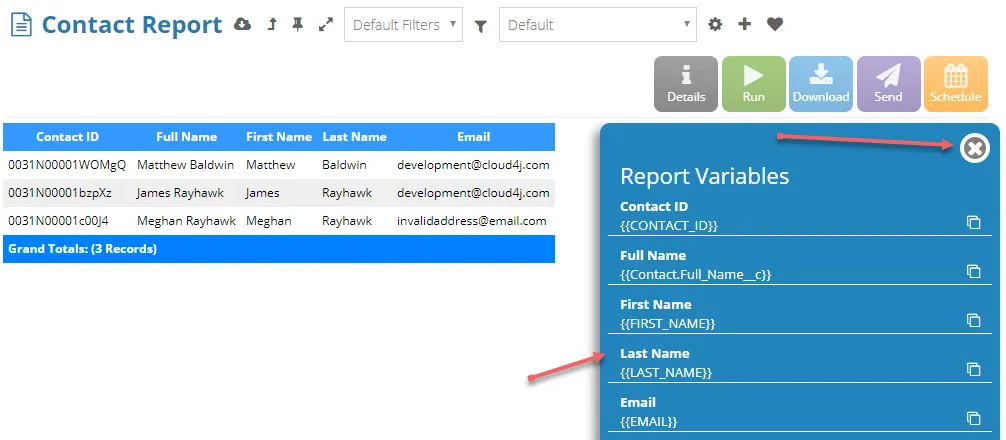
When you include a burst report in your solution, all fields from that report are available as variables. The format for the variables is {{FIELD_API_NAME}}. For example, if you had a field ACCOUNT.NAME, then the variable name would be {{ACCOUNT.NAME}}. To get a list of all variables, run your burst report and open the variables window: