Email Settings
Use company email server
By default, Unaric Reports uses SendGrid to send all email. However, you can send emails using your company's email server.
When using your own email server, the following features will not work:
- Activity Email Tracking (indicating that the email has been delivered)
- Email Stats (delivered, opened, clicked, etc.)
- Suppression List Management (being able to review and manage email bounces, blocks, etc.)
- Navigate to Configure > Settings.
- Check Use Company Email Server.
- Complete the required fields:
- SMTP Server Host: Domain of the SMTP server; e.g., smtp.gmail.com
- SMTP Server Port: Port of the SMTP Server; usually 587, 465, or 25
- SMTP Server Username
- SMTP Server Password
- Click Save to finish.
Email From Address Type
You can control which email details the sender uses when sending email and whether users can edit them.
By default, all users have fully customisable email fields and enter their own From Address, From Name, and Reply To Address values. You can adjust this behaviour and enforce a standard From Name, From Email and Reply To email fields for an entire organization. This is particularly helpful if you have clients who disallow an email going to an email from the same email.
- Navigate to Configure > Settings.
- On Email From Address Type, use the dropdown list to select the preferred configuration:
- Default: The default behaviour granting users the ability to enter their own From Address, From Name, and Reply To Address values.
- User: Email details automatically use the user’s information. The user cannot edit these fields.
- From Name: User’s Name field
- From Address / Reply-To: User’s email address
- Account: Email details are taken from the organization-level account settings instead of individual users. This option is useful when you want a consistent sender identity across the organization or when recipients restrict emails sent from personal addresses. The user cannot edit these fields. This option requires setting up domain authentication. See Email authentication.
- From Name: User's account Email From Name field
- From Address: User's account Email From Address field
- Reply-To: User's account Email Reply-To Address field
- Click Save to finish.
Email forwarding
You can configure email forwarding addresses to monitor delivery issues for emails sent from Unaric Reports and stay informed about bounced or flagged emails.
Specify an email address to receive notifications when an outgoing email fails to deliver.
Use this to:
- Monitor invalid recipient addresses
- Identify delivery failures
- Take corrective action quickly.
Unsubscribe settings
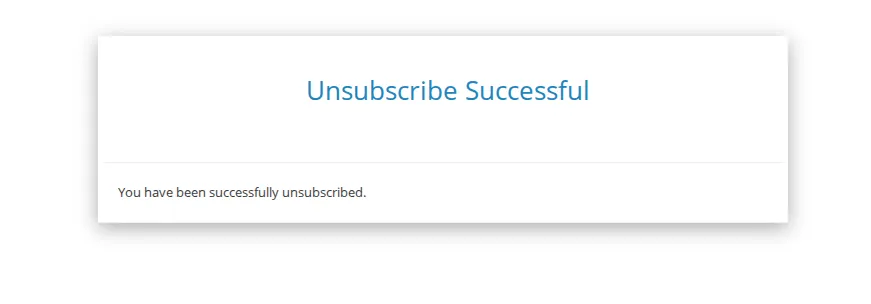
These settings control what recipients see after clicking the unsubscribe link included in emails sent from Unaric Reports.
You can either create a custom confirmation page within the system or redirect recipients to an external webpage.
Setup
- Navigate to Configure > Email > Settings.
- Under Unsubscribe Confirmation Page Email Body, select:
- Rich Text for the visual editor, or
- Source for HTML editing.
- (Optional) Enter a URL in Unsubscribe Confirmation Page URL if you want to redirect users externally. Recipients will be redirected to this URL after clicking the unsubscribe link instead of seeing the internal confirmation page.
- Click Save.
Manage Preferences Settings
These settings control the appearance and content of the dynamic Manage Preferences page that recipients see when updating their email subscription preferences in Unaric Reports.
You can customize branding, messaging, and button labels to align with your organization’s communication style.
Setting | Description |
|---|---|
Logo | Upload an image to display at the top of the Manage Preferences page. |
Title | The main header displayed when recipients manage their preferences. |
Instructions | Guidance shown to recipients explaining how to update or unsubscribe from email categories. |
Unsubscribe Link Text | Custom text for the link that allows recipients to unsubscribe from all communications. |
Save Preferences Button Text | Custom label for the button used to save updated preferences. |
Font Colour | Sets the colour for the page title, instructions, and Save Preferences button. Choose via the colour picker or enter a hex value (e.g., #000000). |
Setup
- Navigate to Configure > Email > Settings.
- Locate the Manage Preferences Settings section.
- Update the desired fields.
- Click Save.
- Click Preview Manage Preferences Page at the bottom of the section to preview the page.
Email status mappings
Update activity statuses based on email events (such as delivered, opened, bounced, etc.). Each email event is automatically assigned a default status value (for example, Processed or Dropped). However, you can override these values to match your organization’s terminology or reporting standards.
Available email events
Event | Description |
|---|---|
Sent | Triggered when the email is first sent to SendGrid. |
Processed | Occurs when SendGrid receives the message and prepares it for delivery. |
Deferred | Occurs when the email cannot be delivered immediately but has not been rejected. |
Delivered | Triggered when the receiving server accepts the email. |
Opened | Occurs when the email is viewed with images enabled. |
Dropped | Triggered when the email is dropped and not delivered. |
Bounce | Occurs when a server cannot or will not deliver the message. |
Spam Reported | Triggered when an ISP reports a spam complaint. |
Unsubscribed | Occurs when a recipient unsubscribes from your mailings. |
Setup
- Navigate to Configure > Email > Settings.
- Locate the Email Status Mappings section.
- Update the status values as needed.
- Click Save.
Email authentication
Setup email authentication to prove your inbox provider your ownership of the domain you're emailing from.
Prerequisites
To set up authentication, you will add DNS records provided by Unaric Reports to your DNS or hosting provider (for example, GoDaddy, Hover, CloudFlare, etc.).
Ensure your Salesforce profile has view all data permissions, as this is required to access authentication settings.
Add authentication
- Navigate to Configure > Email > Authentication.
- Click the Add button.
- Complete the required fields:
- Domain: The domain from which to send emails. Only enter the root domain, e.g. if you wanted to send an email from [email protected], set this to companyabc.com.
- Return Path: This setting allows you to provide the name value of a CNAME record required for setup. We recommend something like unaricreports or reports so it doesn't overlap with any of your existing CNAME records and for you to put in a value you can use to help recognize that it is for Unaric Reports.
- Custom DKIM Selector (Optional): To set up this option, click Show Advanced Options. Similar to the Return Path, we will create two more CNAME records that you will need to add for the DKIM selectors. We can auto-generate the CNAMEs but they could overlap with CNAMEs you already have set up on your domain. Hence, use this field to provide the name value for these CNAME records. Usually this configuration is not required. If in doubt, ask your system admin in charge of your domain. The value must be 3 characters, e.g., c4j or rb1.
- Click Save
- Select the created domain from the list to validate authentication.
- Add all provided CNAME records to your domain. This change is made outside of Salesforce and should be completed wherever you have your domain registered, such as with GoDaddy or Namecheap. When adding the CNAME records, don't include the domain in the Name value. For example, if the Host is rb.test.com, enter rb as the CNAME name, not rb.test.com.
- Come back to Unaric Reports and click Validate to finish. Once the validation is successful, you can set the authentication to be the default for all emails from the domain. If the validation fails for any reason, the error will be displayed and you will need to resolve the issue.
Email categories
You can setup email categories to Solutions to handle recipient's email receiving preferences. Like an unsubscribe feature, email categories provide a way to update a specific checkbox field on an object (like a Contact or Lead) when a recipient opts out of a specific type of communication.
In this way, if a recipient chooses to opt out of communications in a given email category, the chosen checkbox field on the chosen object will change to true. Once that checkbox is marked true in Salesforce, your reports (like burst reports) can be filtered to exclude those individuals from future runs of that specific category.
The email categories feature is relevant for marketing-type emails where you would expect an unsubscribe feature.
Create category
- Navigate to Configure > Email > Categories.
- Click the Add button.
- Complete fields:
- Name
- Description
- Object To Update: This must be set to a valid object that is tied to the recipient of the email. The recipient's info will determine the correct record of the object that you pick here.
- Field To Update: The field must also be set to a valid Salesforce field or custom field on the object to update. It must be a checkbox type so that the update can switch for the recipient triggering the record to update.
- Click Save to finish.
Email suppression lists
Unaric Reports has different email suppressions lists with email that has been restricted. Each entry shows the email address, reason, and date.
Suppression list types
Type | Description | Common cause |
|---|---|---|
Bounces | The email could not be delivered or was rejected by the receiving server. You can configure bounce report forwarding in Email Settings. | Misspelled address, non-existent email, domain issues. |
Blocks | The message was rejected due to content or sending reputation, not the recipient address. | Content flagged by filter, IP blacklisted by the recipient's email account or server. |
Invalid Email | The email address does not meet internet formatting standards or does not exist on the recipients intended email server. | Missing “@”, invalid characters, formatting errors. |
Spam Reports | A recipient marked your email as spam in their email client. Only available from ISPs that provide feedback loops. You can configure spam report forwarding in Email Settings. | User action via spam button or spam folder. |
Forward bounce & spam reports
Specify an email address to receive copies of spam or bounce reports when a recipient marks an email as spam.
- Navigate to Configure > Email > Settings.
- Enter the appropriate email addresses in Forwarding Spam Email Address or Forwarding Bounce Email Address for spam and bounce email forwarding respectively.
- Click Save.
After fixing the error that caused the email server to bounce the delivery of the message, remove the email address from the bounce list by checking one of the row checkboxes next to the address you have fixed. See Remove supressions.
Remove suppressions
After fixing the issue that caused the suppression, you can remove email addresses from the list.
For bounce and spam emails, removing emails from lists will not change the validity of the email if it still does not meet the email format standards. Before removing any emails from this list, make sure you check any of your outgoing emails from Unaric Reports by checking the recipients for any typos or mistakes.
- Navigate to Configure > Email > Suppressions and select the list type page. You will see a list of invalid emails.
- Check the box next to one or more email addresses.
- The Delete button becomes enabled once at least one address is selected. To remove all addresses, check the top checkbox in the header row to select all entries.
- Click the red Delete button.