Multi-Item Document Merge Solution
This feature allows you to use a Burst report to merge in data from multiple Source reports into a personalised document template.
For this example, you're going to make a document template called Account Summary that will include three merged reports: one for account opportunities, one for account cases, and a list of contacts for all accounts. After that you will make a report with your list of accounts that you will use as your burst report.
Report setup
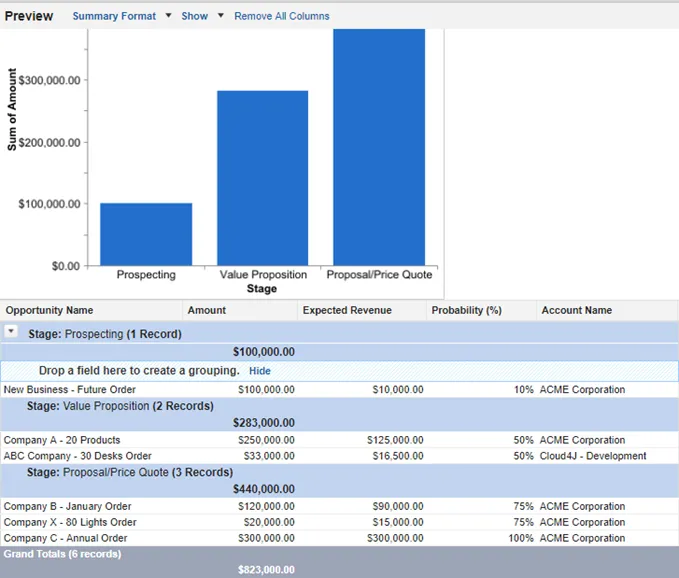
Before creating the Document Merge solution, you have to set up the source reports you want to merge in to the document template. First, create the opportunities report.
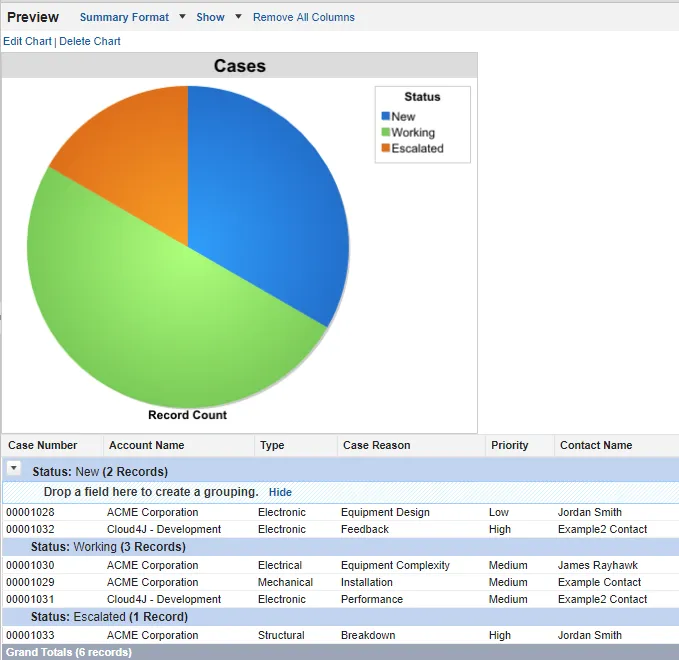
Next, create the cases report.
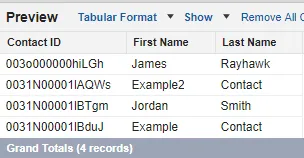
After that, create a report that has a list of contacts on it.
Last, make a report that has a list of accounts on it. This is what you will be using as burst report.

Document template setup
The second thing we want to do in preparation of making this Solution is to make a document template.
The Account Summary document will include all three Source reports on it. The document template will include 3 key components: Type 2 Tables, Aliased Variables, Burst Variables. For more info on creating Document Templates and what variables to use, see Templates.
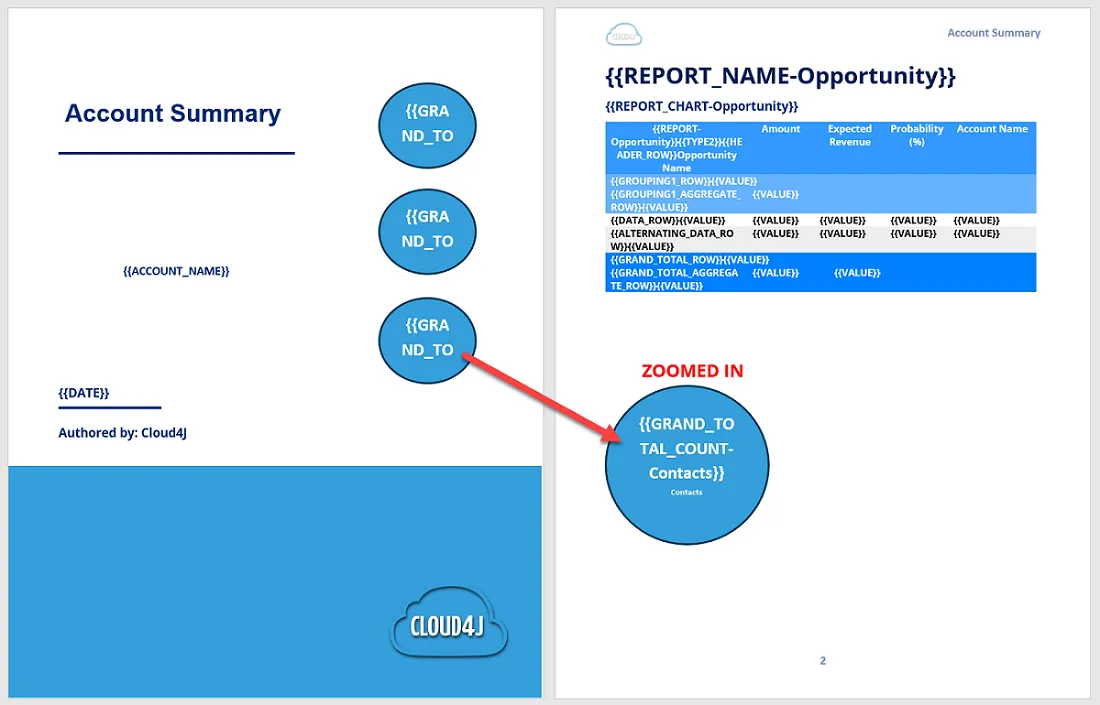
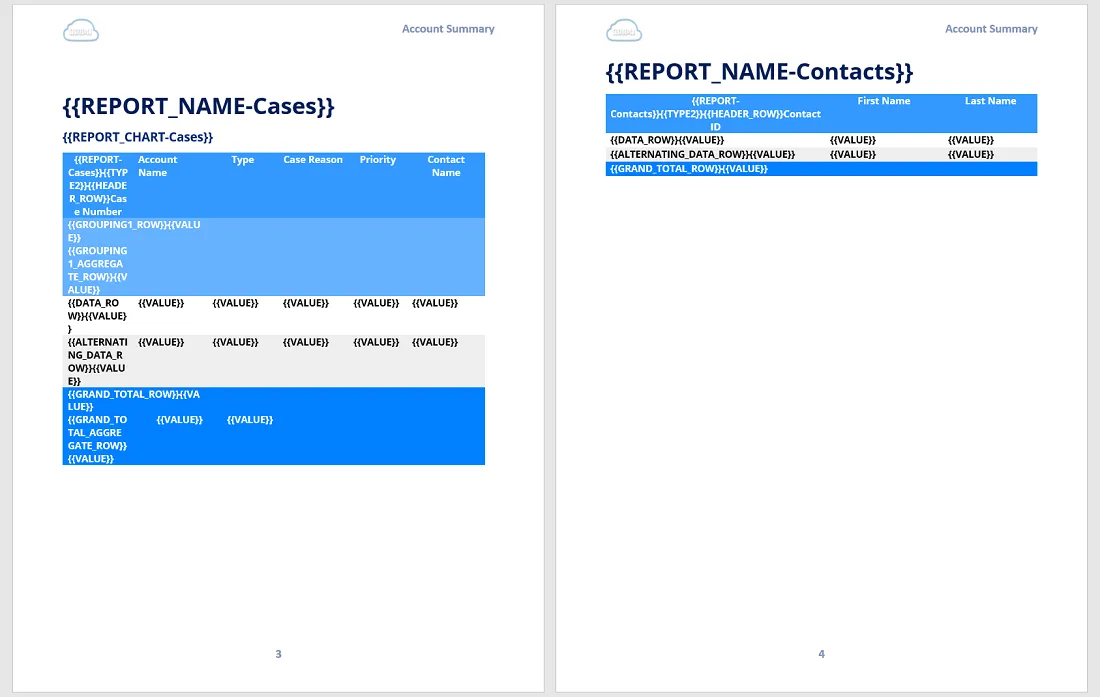
Next you will need to upload your new template to Unaric Reports.
- Navigate to Templates > Document.
- Click the Add button.

Solution creation
Now that we have completed the setup, you're ready to create the Solution.
- Navigate to Solutions and click the Add button.

- Provide a name for the Solution and preserve the default for Running User.
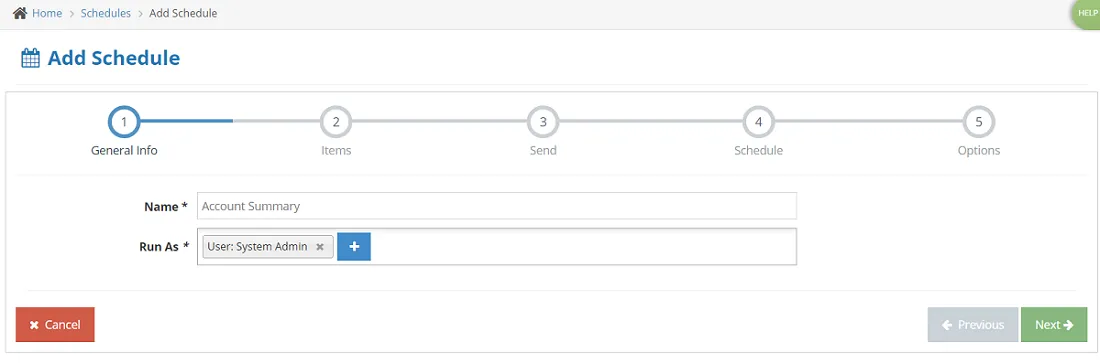
- On Items, you will need to add the following items from the reports and the template previously created:
- Accounts Report as a Burst report type. In Filter Value Field, select Account ID, and Account Name as Name Value Field.
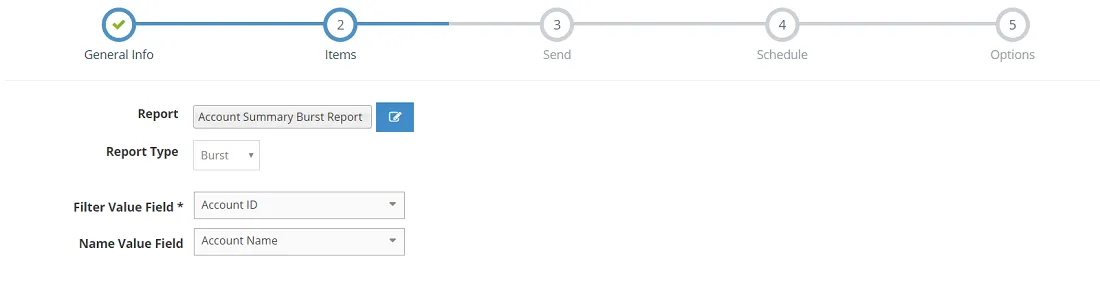
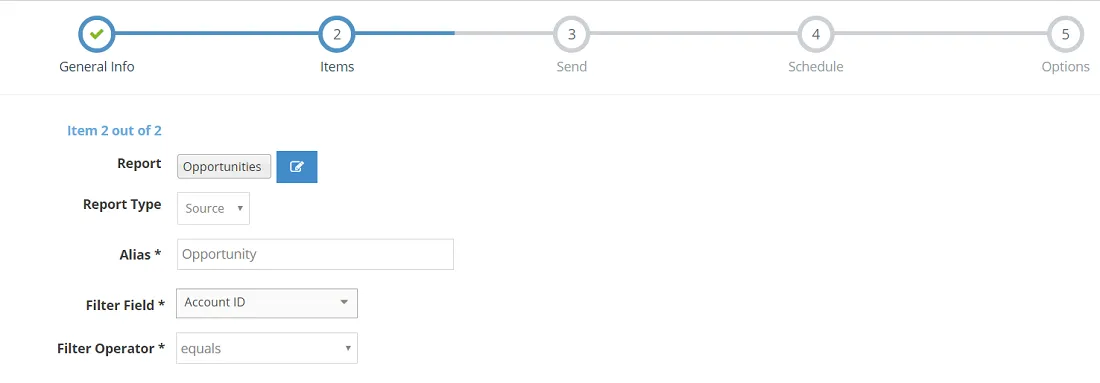
- Opportunities Report as a Source report type. In Filter Value Field, select Account ID.
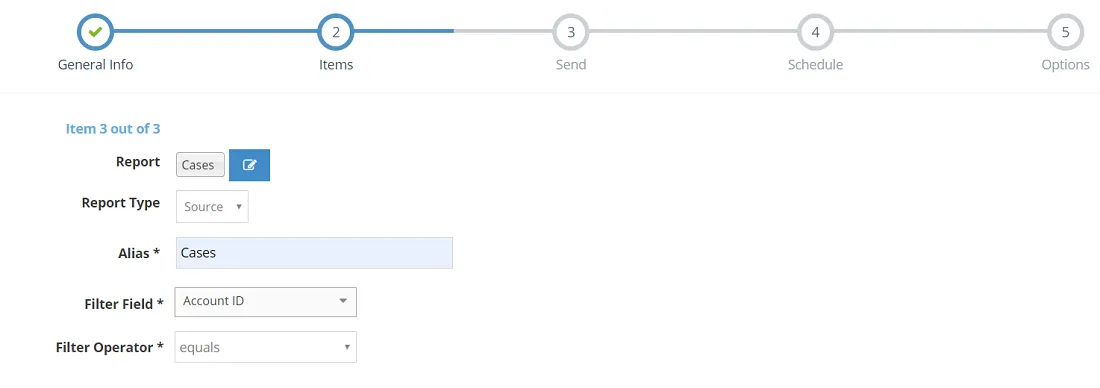
- Cases Report as a Source report type. In Filter Value Field, select Account ID.
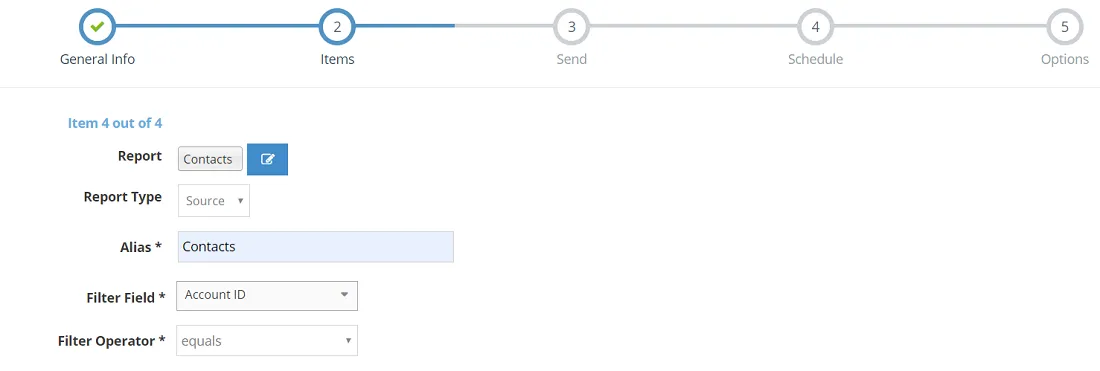
- Contacts Report as a Source report type. In Filter Value Field, select Account ID.
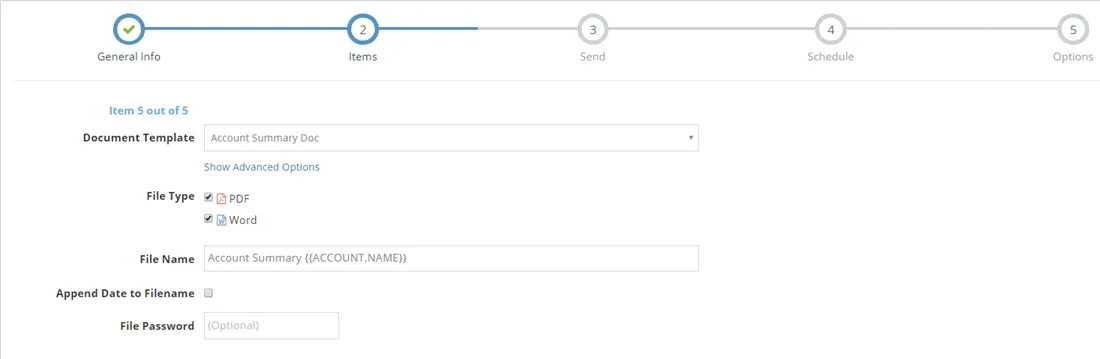
- Account Summary Template as a Document Template. Choose PDF and Word as File Type, which defines attachment file output. You can use variables from the Burst report in the file name.
- After setting up all required items, select No under Add more items? and click Next.
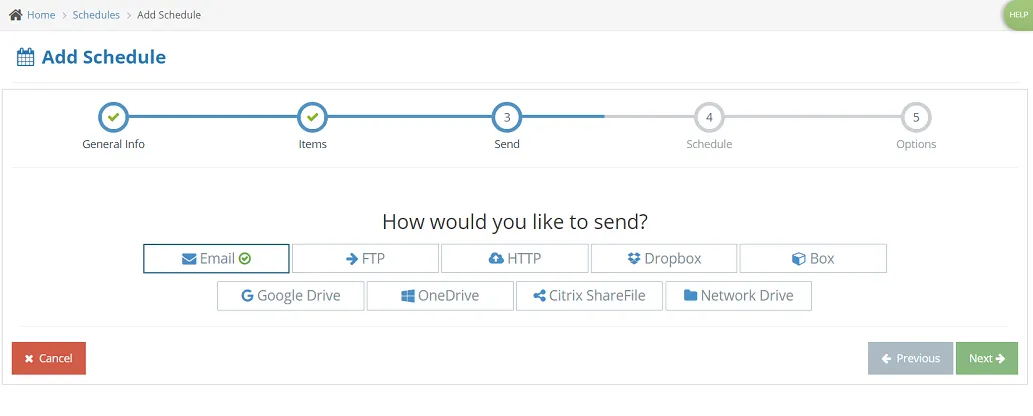
- On the Send step, select Email as delivery option and click Next.
- On the Email step, in To Fields select Account Email from the dropdown list. For the email itself, make everything static except for the subject line. You can use variables from the burst here too. On the right side of the page, you will see available variables for email composition.
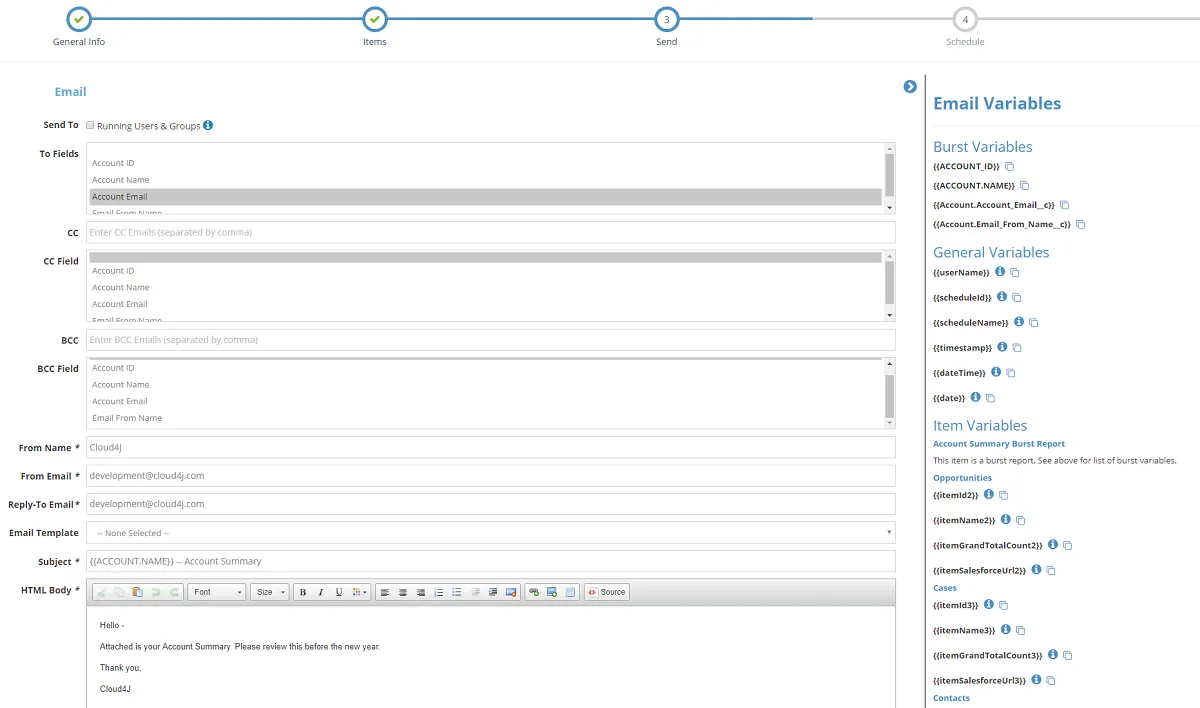
- After finishing, click Save and Next.
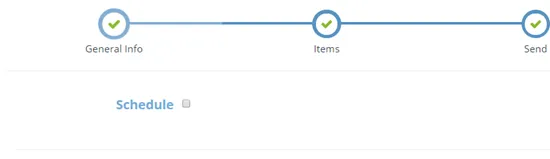
- On Schedule, to set up this Solution to be sent only once, uncheck the box next to Schedule and click Next.
- Lastly, on the Options step, leave default values and click Finish.
Solution preview
On the Solution's page, click Preview to see how the email document will look like for each recipient after merging everything into the template.
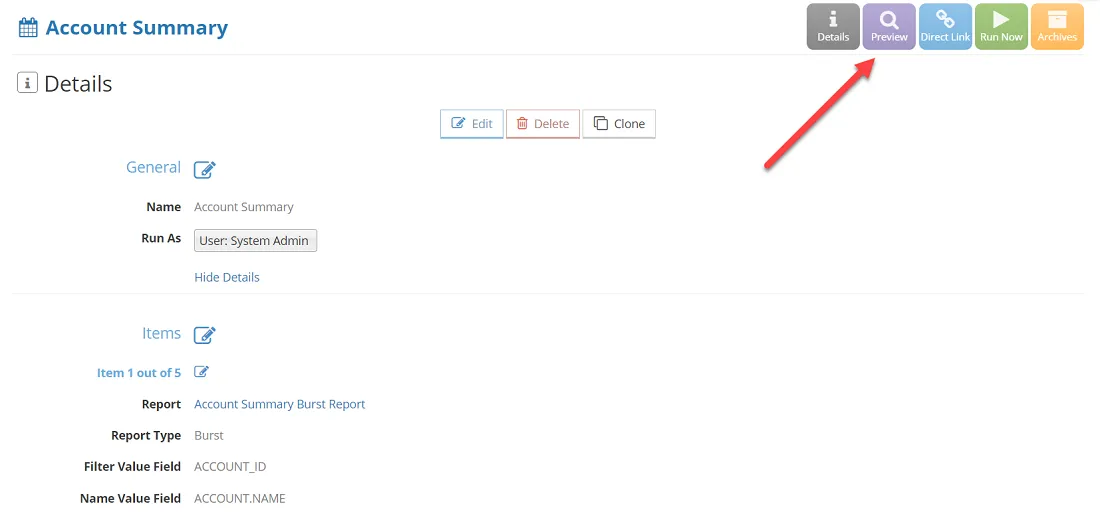
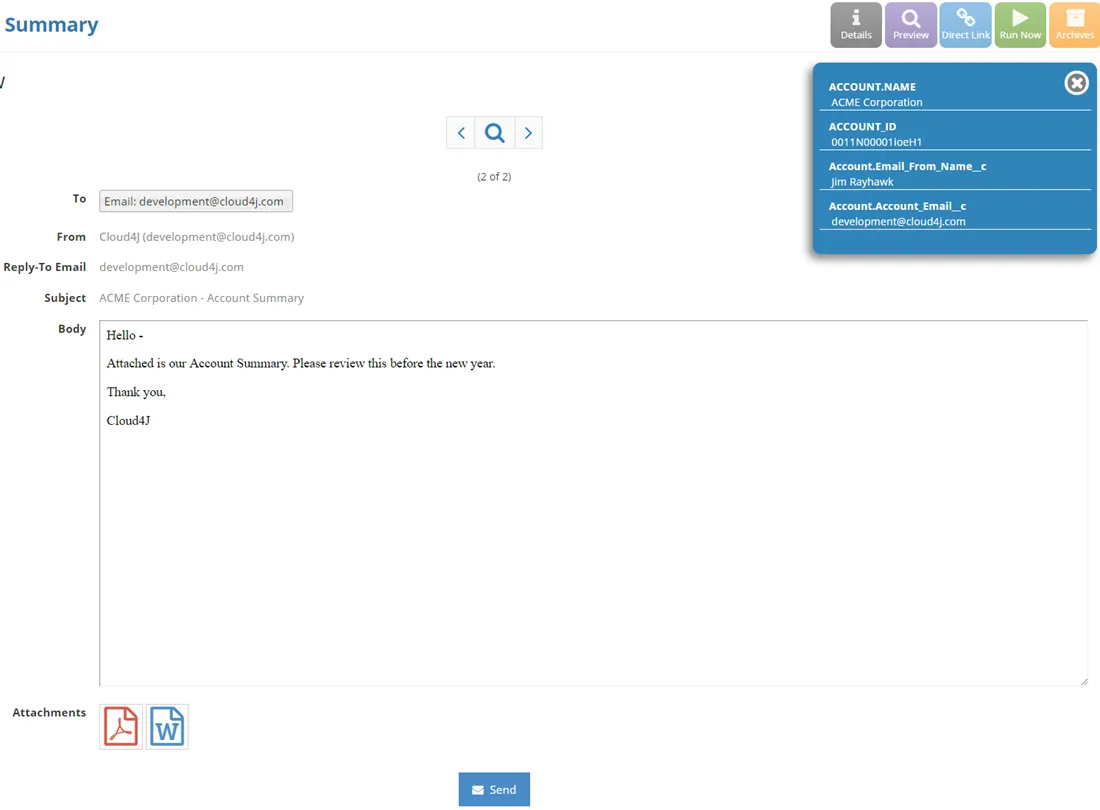
If previously added to the email subject, the {{ACCOUNT.NAME}} variable will show the name of the account in its place.
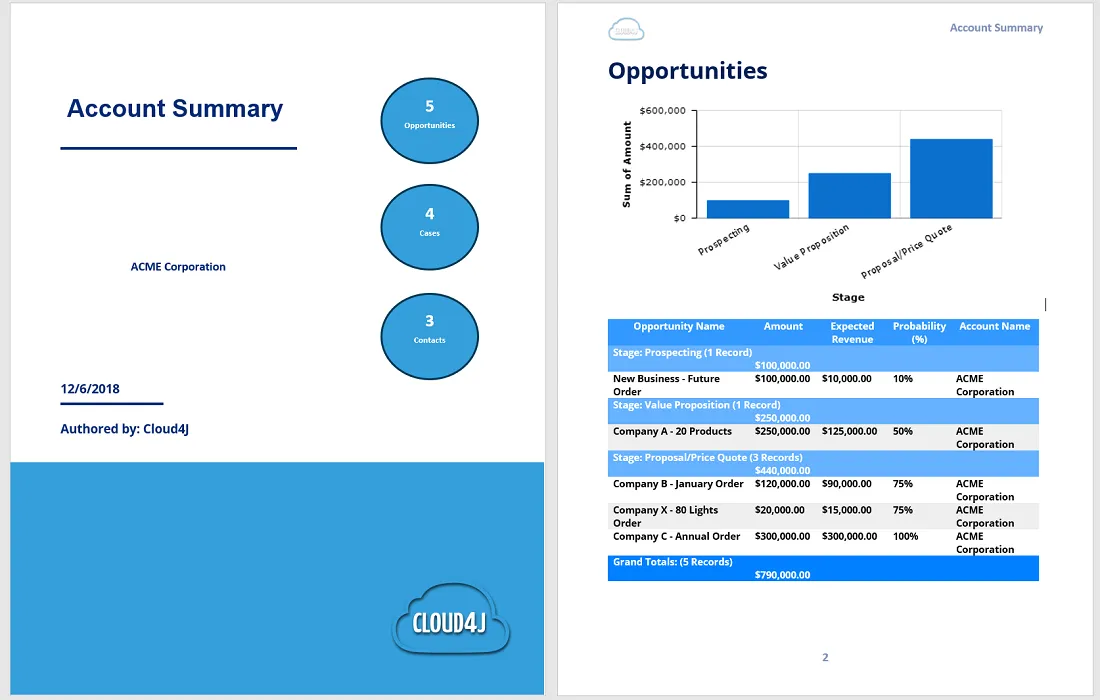
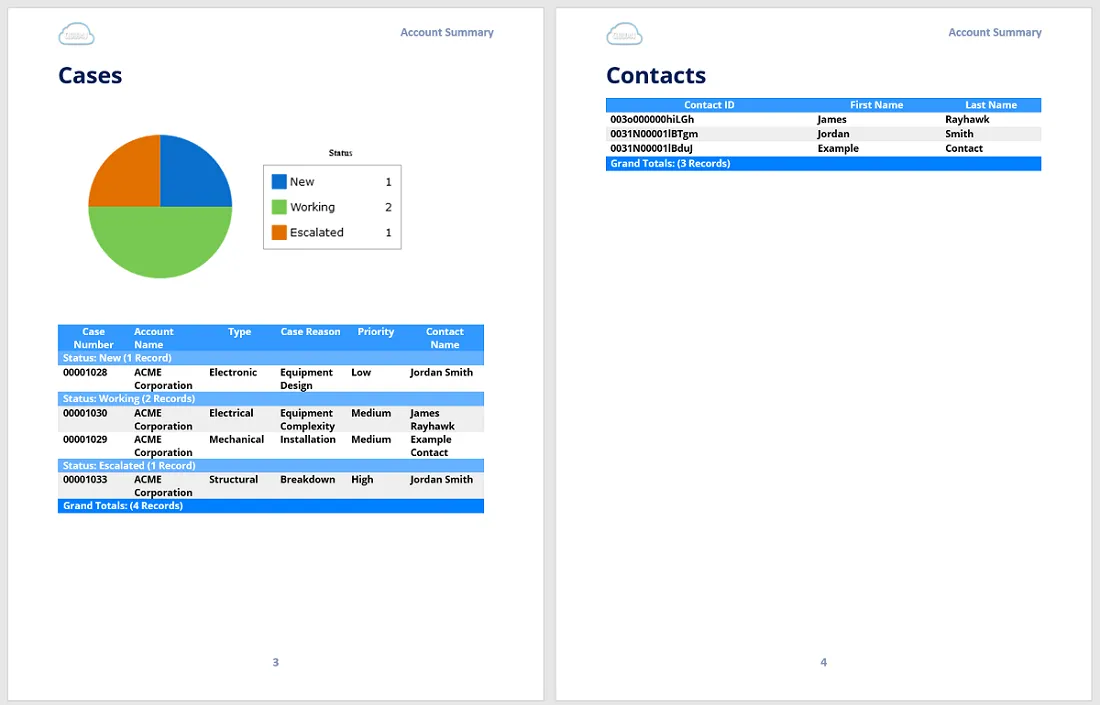
Here is what the final document looks like with all dynamically populated report data.
Run the solution
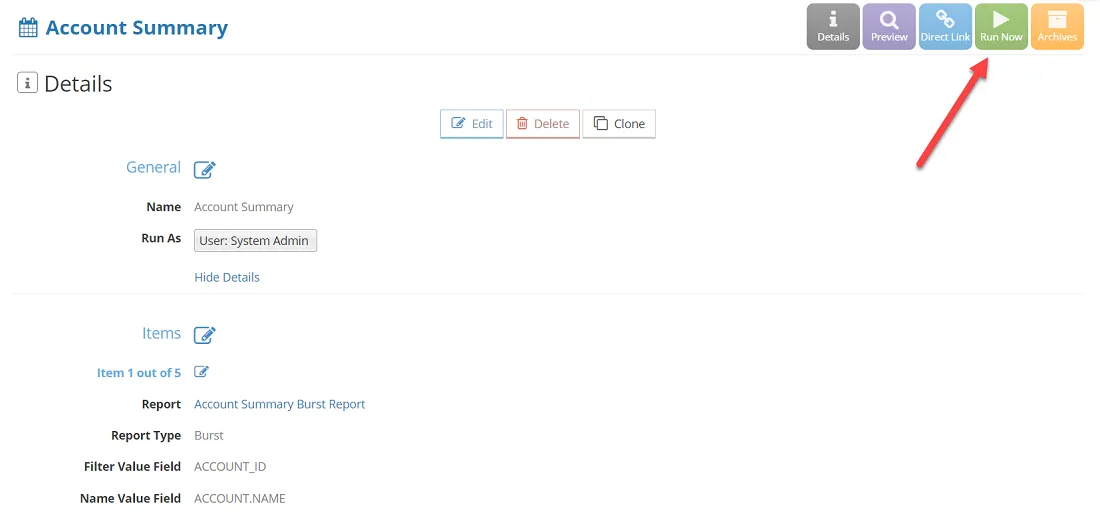
After previewing the Solution and confirming everything looks correct, run the Solution once by clicking the Run Now.
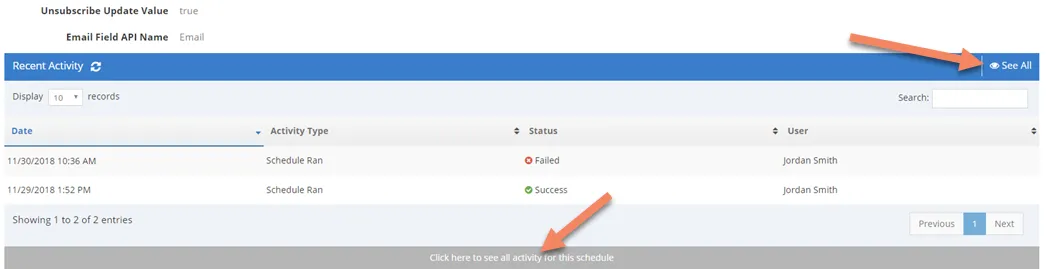
Once the Solution has run, you can review the Activity to see if there were any issues. To navigate here, scroll down to the bottom of the Solution details page and click the See All button on the Recent Activity section.