Document Merge Direct Link
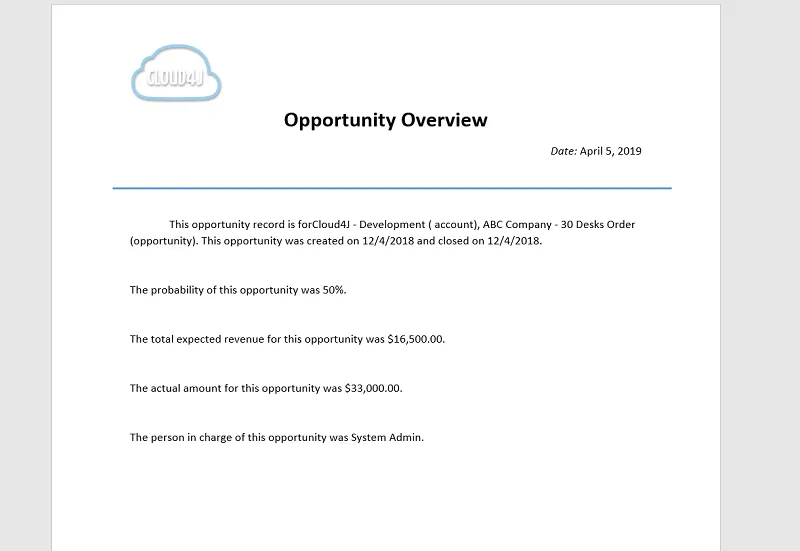
This guide will help you set up a button within Salesforce to create documents such as contracts or letters for clients.
For this example, you will create an opportunity overview document. When you are on an Opportunity page in Salesforce, you will be able to click a button to generate a document that automatically pulls in the data for that specific opportunity. This is done by filtering the document using the opportunity ID, which ensures that only the relevant information for the opportunity you are currently viewing is included.
Initial setup
Create your burst report
Creating a report for your burst. Any fields you would like to use on your document will need to be added to this report as well as the field that you plan to filter by, in this case it will be the opportunity Id. (For more info on creating a burst report, see our Burst Example)
Create your document template
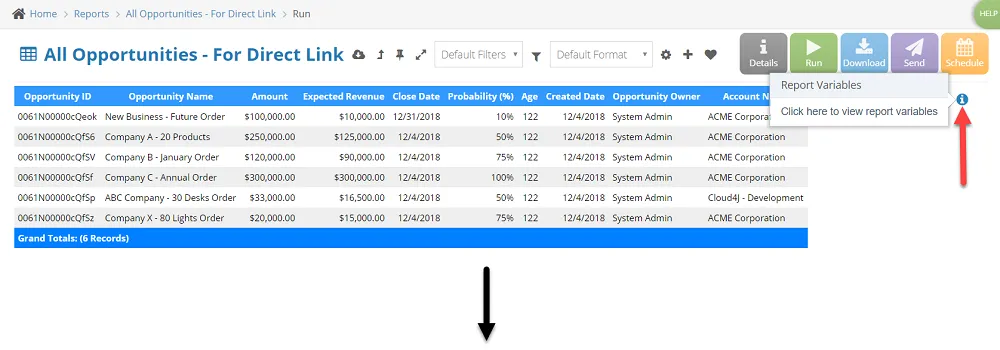
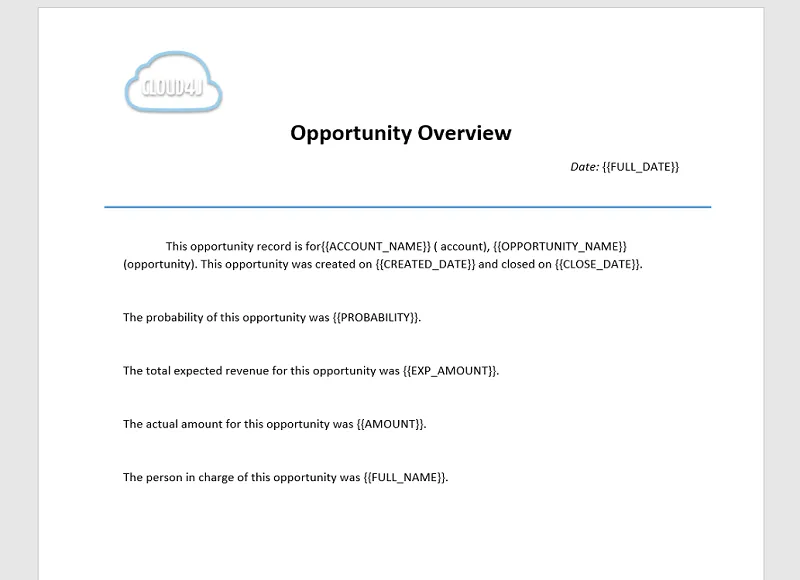
Next you will need to create your document. You can do so using any word processor, such as Microsoft Word. If you navigate to your new report in Unaric Reports you will see an icon to the right, if you click on that a list of all your variables available for this report will show. Use these variables to create your document, these variables will allow your document to be dynamic.
Unaric Reports setup
Upload your document
On Unaric Reports, navigate to Templates > Document and click the Add button.

Set up your solution
- Navigate to Solutions > Add.
- On step 2 of the Solution "Do you want to add items?", select yes and report, then Next.
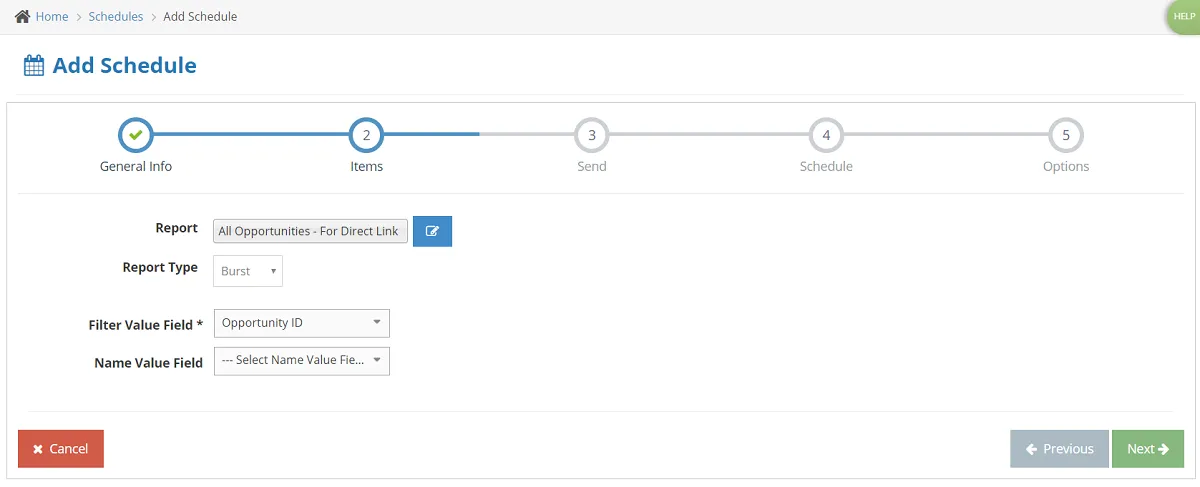
- Set up this report as follows, it will be a burst report with the filter value being Opportunity Id. The Opportunity Id needs to be a part of your report in order to be an option in the dropdown menu for Filter Value Field.
- Select next. Then on "Do you want to add more items?", select yes and document, then Next.
- Select your document template and the file type you would like. When doing a direct link, only ONE file type will be used, it will always default to the PDF if both boxes are checked.
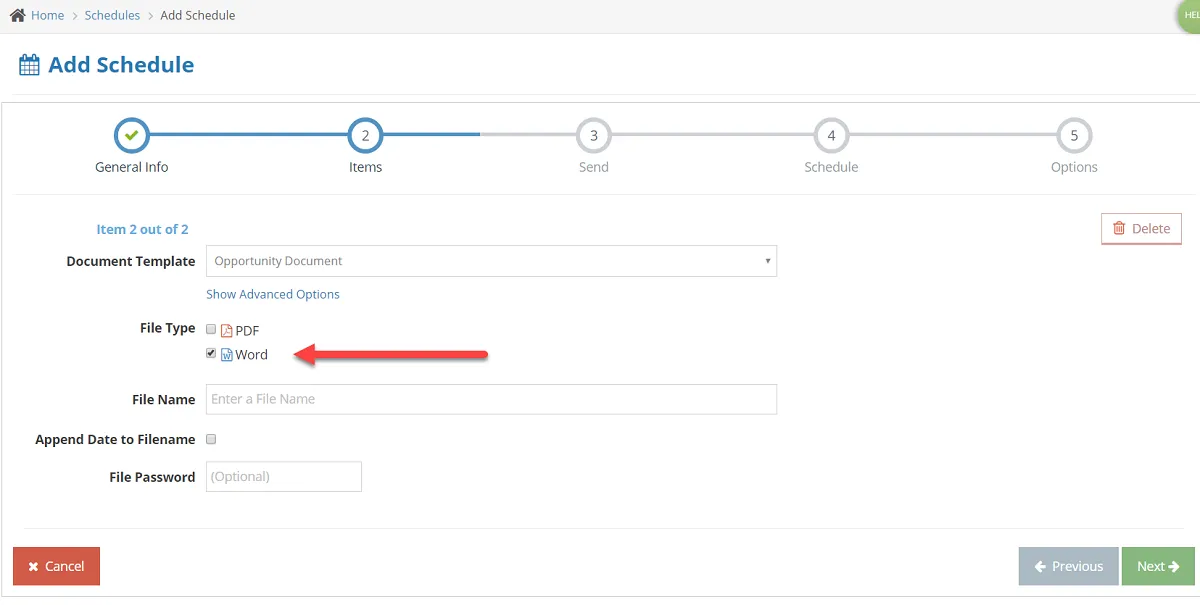
- Select Next. For send options make sure all options are unchecked. ( We do not need any send configurations since we will only be using this document merge as a direct link in Salesforce )
- Again select Next. Uncheck the Solution option. ( We do not need a Solution set up since we will only be using this document merge as a direct link in Salesforce )
- Select Next and then Finish.
Salesforce setup
Configure your Salesforce button
Navigate to the direct link for your solution.
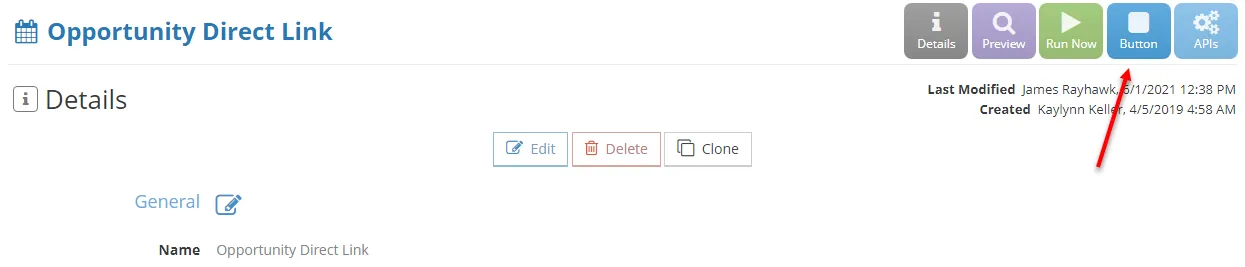
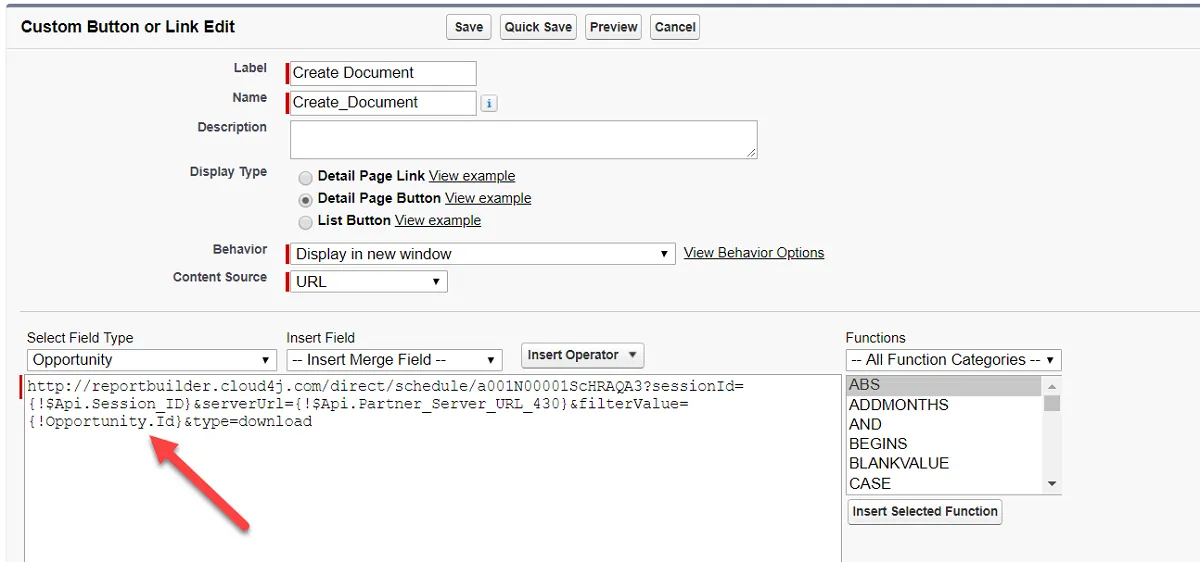
The Button page will explain the process for setting up your button in Salesforce. Follow the steps and then copy and paste the Download URL. When adding your new button in Salesforce make sure you are checking the filterValue in the URL that you paste in. It may need to change depending on what you have configured. For us, it will need to change to Opportunity.Id as shown below.
Generate your document
After you have your new direct link button set up and added to your page layout you will be able to simply just click on the button on any opportunity and your document will be downloaded.