Marketing Email
Unaric Reports allows you to send marketing emails to lists of recipients determined by a report. This example loosely follows what we do for our Unaric Reports release emails.
Report Setup
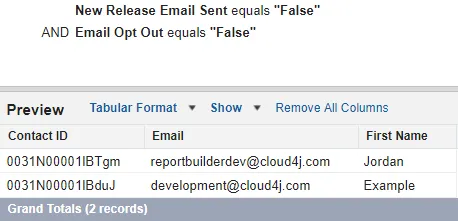
Before creating the marketing email solution, you have to set up a report in Salesforce that lists out Contacts that have not yet received the new release email and have not opted out of receiving marketing messages.
Email template setup
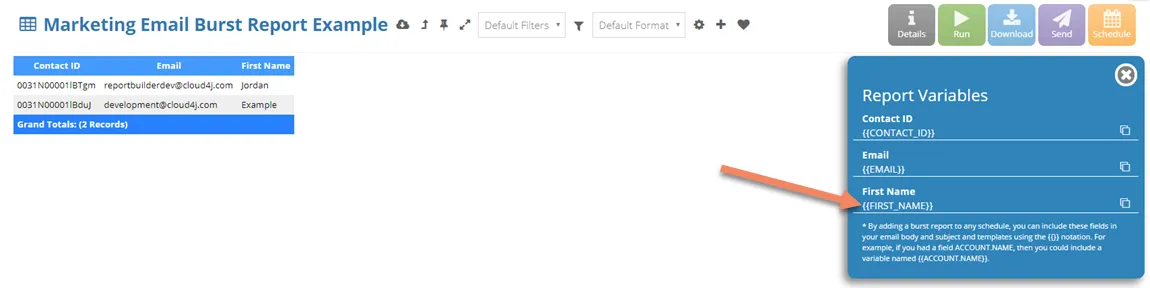
Next we need to create an email template for the marketing email. Note we want to use the fields from the Burst report as variables for our email, so we will run the report and look at the Report Variables. We are going to use the First Name variable in a couple of places.
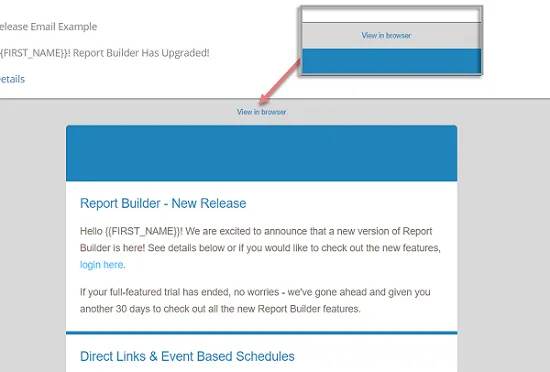
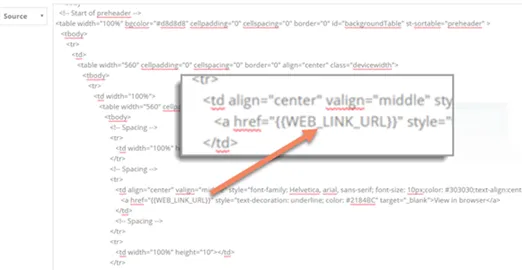
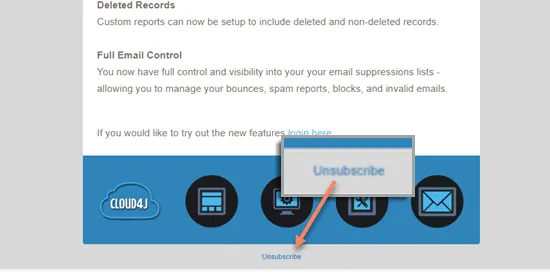
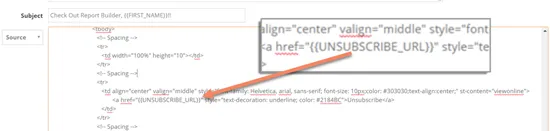
We also want to include a link to view the email as a web page and an unsubscribe link. To do this, we add the following variables to our HTML template: {{WEB_LINK_URL}}.
Solution Creation
- In Unaric Reports, navigate to the Solutions tab and click the Add button.

- Provide a name for the solution and keep the default for Running User.
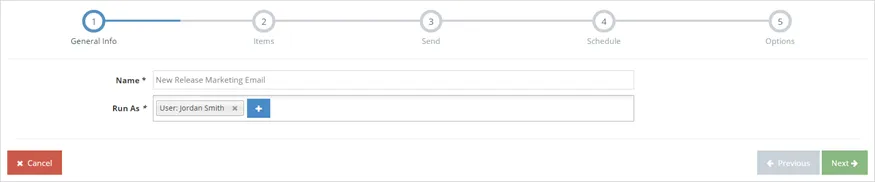
- Click Next.
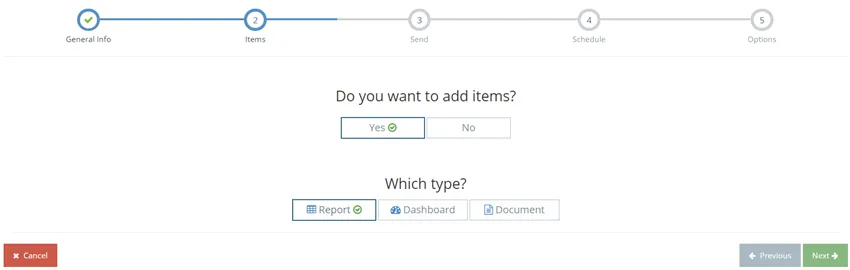
- On the Items step, click Yes under Do you want to add items?, select Report, and click the Next button.
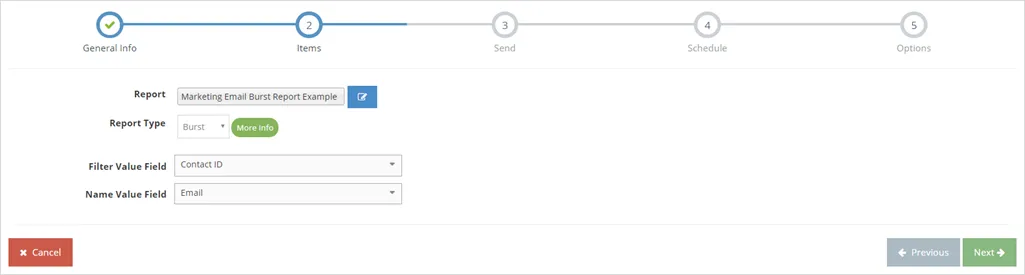
- Select the report you created earlier.
- Set Burst as the report type.
- For the Burst Filter Value Field, select to Contact ID.
Usually with a Burst report, you set the Burst Filter Value Field so that you can filter any other reports on the Solution. But since this is for marketing emails and the Burst report is the only report we will include in this Solution, technically this field shouldn't be required. Still, if you want to use a Direct Link with this Solution (which allows you to include a button in Salesforce to open a Solution), you need this field.
- Choose Email for the Name Value Field. This will help review activity after running the Solution.
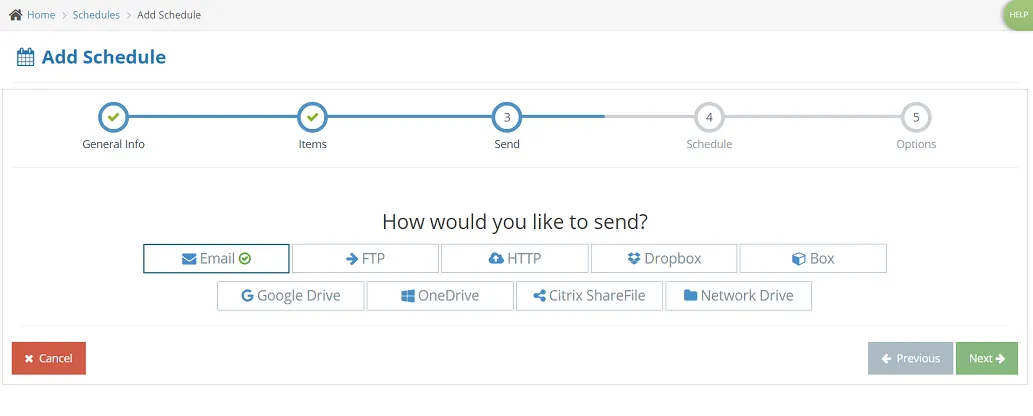
- On the Send step, select Email as delivery option and click the Next button.
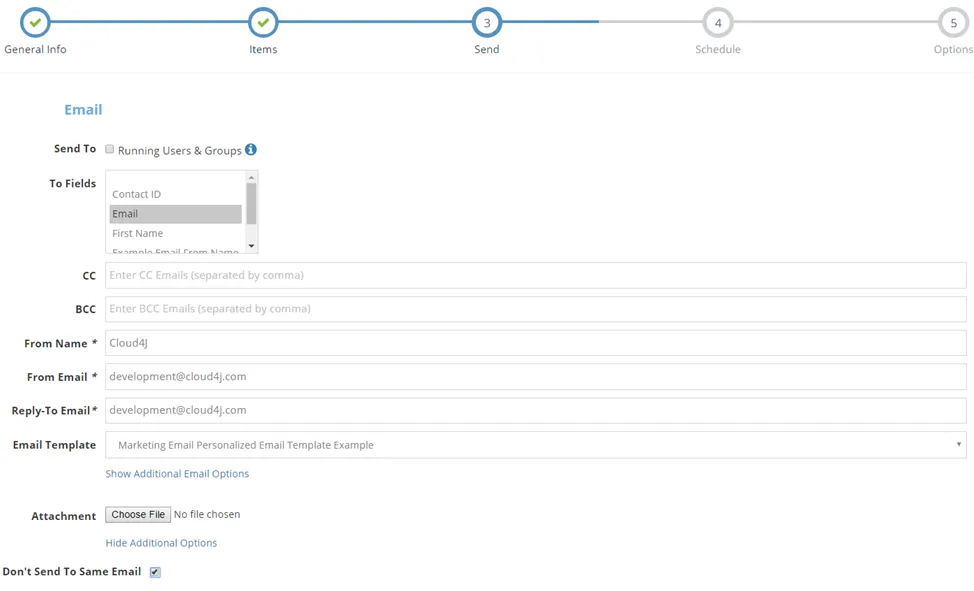
- On the Email step, set the To Fields to the Email field from your Burst report. For the email body, pick the Email Template previously created.
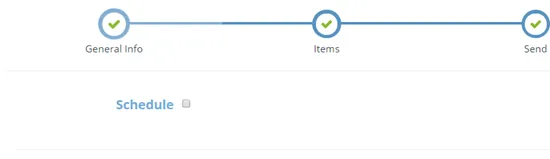
- On the Schedule step, uncheck the Schedule checkbox, since you only want to run this Solution once. Click Next.
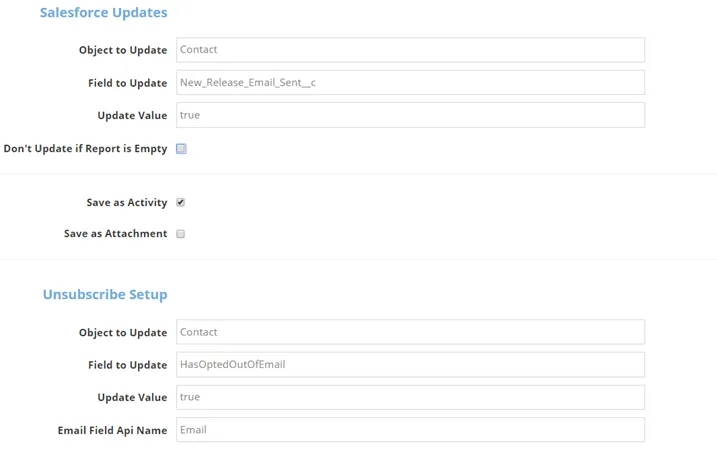
- In the Options step, configure Salesforce Updates to mark each Contact once the email is sent. This prevents duplicate sends, as your report is filtered to only include Contacts who haven't yet received the update. Additionally, configure the Unsubscribe Setup to automatically check the HasOptedOutOfEmail field on the Contact record. Under Salesforce Updates, set:
- Object to Update: Contact
- Field to Update: New_Release_Email_Sent__c
- Update Value: True
- Don't Update if Report is Empty: Unchecked
- Save as Activity: Checked
- Save as Attachment: Unchecked
- Under Unsubscribe Setup, set:
- Object to Update: Contact
- Field to Update: HasOptedOutOfEmail
- Update Value: True
- Email Field Api Name: Email
Solution preview
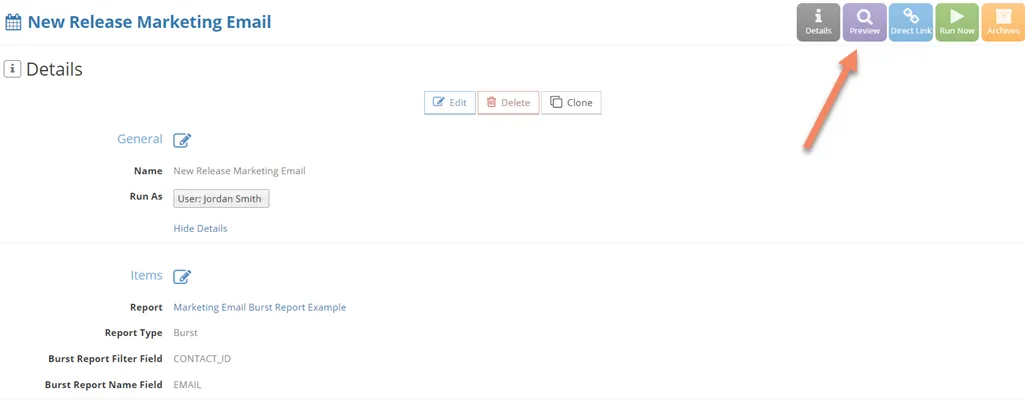
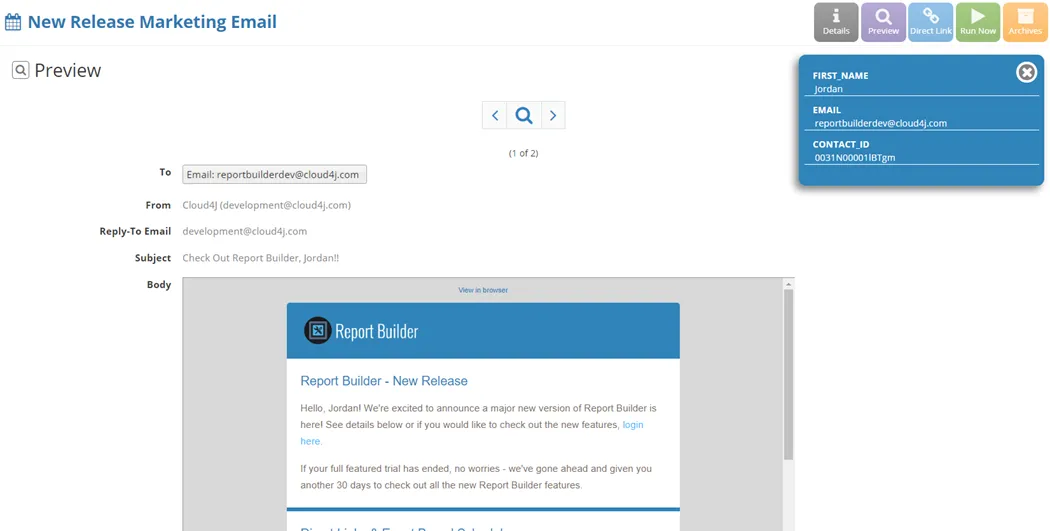
Now that the Solution has been created, click Preview to see one of the personalised emails and check everything is correct.
In this example, the {{FIRST_NAME}} variable added to the subject and body now has the first name of the contact in its place.
Solution run
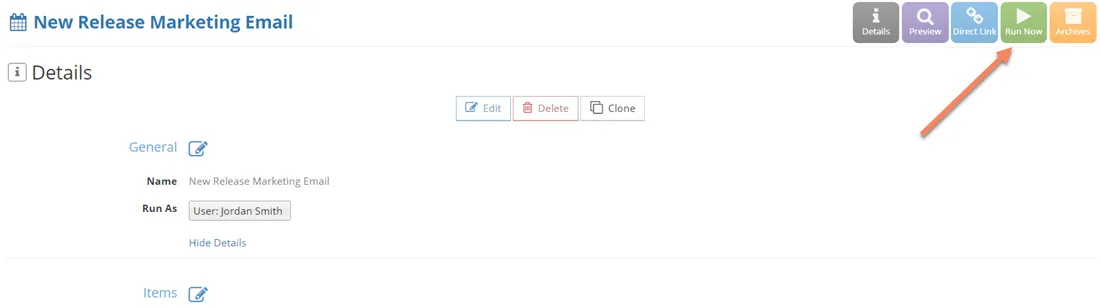
- On the Solution's page, click Run.
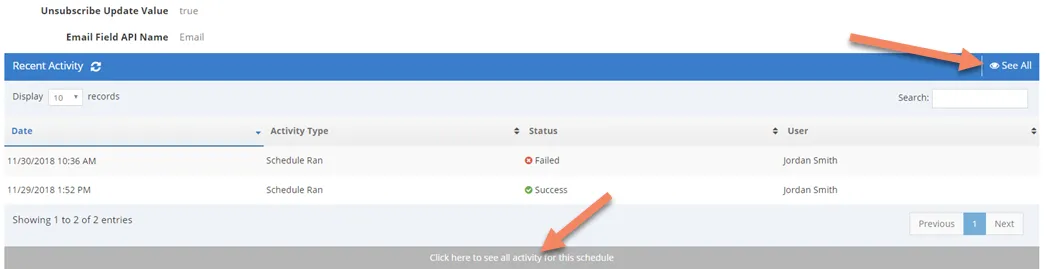
- Once the Solution has run, scroll down to the bottom of the Solution details page and click the See All button on the Recent Activity section. Here you can review the Activity to see if there were any issues.
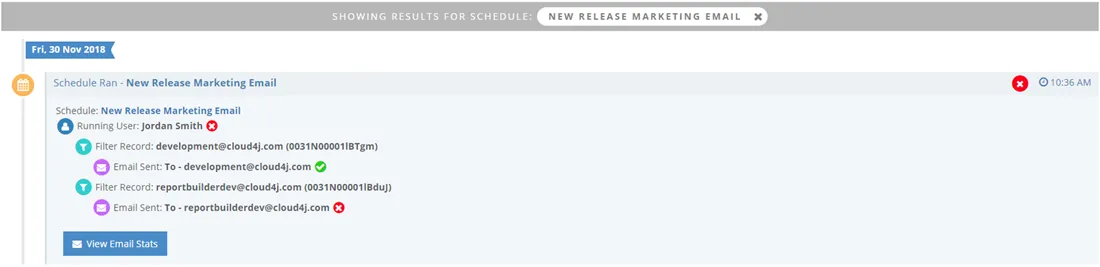
In this example, you can see that the Solution attempted to send to everyone on the Burst report. The green checkbox means that the email was successfully delivered. The red circle means there was a problem. In this example, the Solution partially failed because the second email that the Solution tried to send to does not exist. Also, note that each filter record shows the email address and the contact ID.
Activity stats
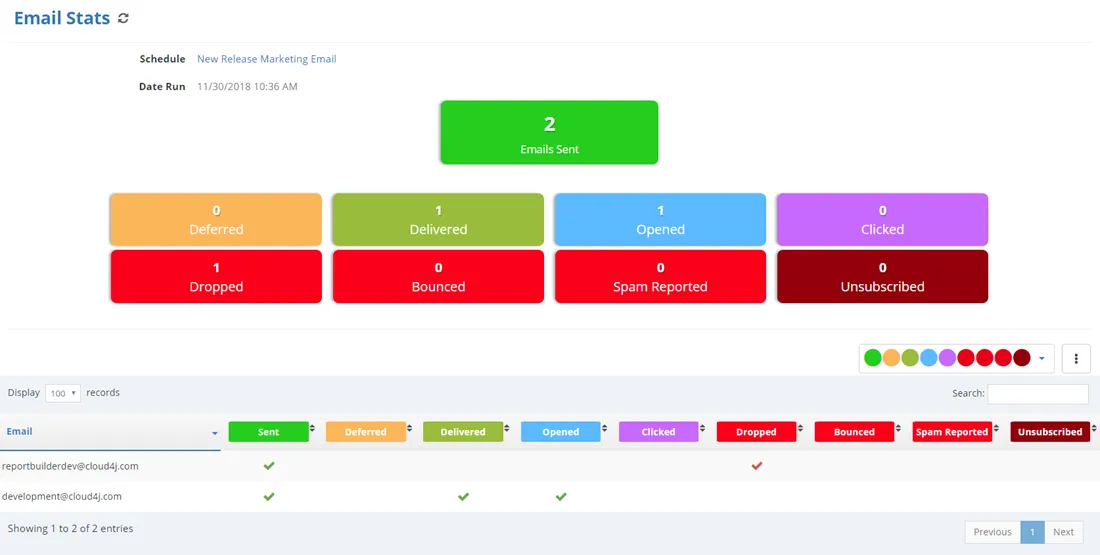
Click View Emails Stats for detailed information about the deliverability (email opened, dropped, unsubscribed, etc.).