Outbound Calls
This documentation corresponds to the legacy version of Unaric Voice for Teams. The documentation for the current version is located at Unaric Voice for Teams.
Outbound calls are calls initiated by a Microsoft Teams user through the Unaric Voice integration.
How it works
Presence state
When searching for someone to call, their presence state is shown next to the username. Outbound calls made from the Microsoft Teams app are not signalled in Salesforce.
Outbound calls are not possible if the Microsoft Teams presence state is set as Do Not Disturb or Presenting, shown by the ⛔️ icon.
Call history list
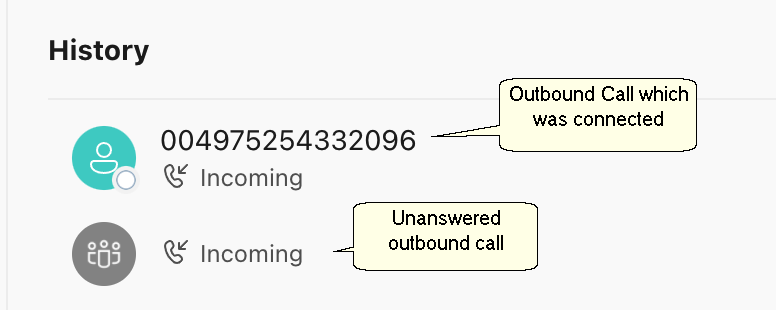
In Microsoft Teams's call history list, the caller ID will appear in the call history list as an inbound call. If the call was answered, the caller ID is displayed; if not, only Incoming is displayed.
Internal calls
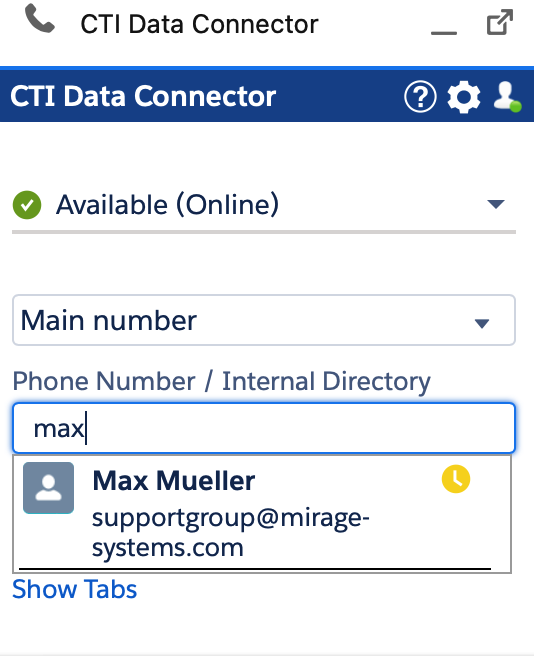
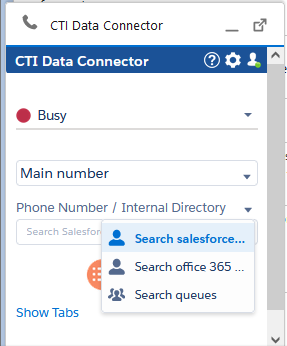
Unaric Voice uses the Salesforce user list or the Office 365 Tenant user list as phone book for internal calls. To make an internal call, the e-mail address is used. If queues are enabled, you can select to search for users or queues.
Internal calls are not logged in Salesforce.
Failed outbound call
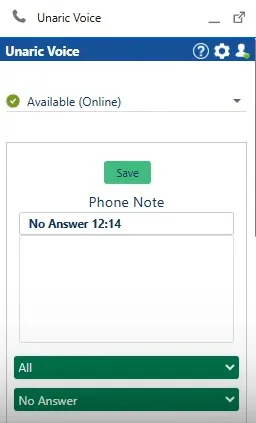
If an outbound call goes unanswered, the pop-up window will close automatically and the record will have No Answer as subject. You can add additional information to this record to specify further actions to the new created task.
If you have dialled an invalid number, Unaric Voice will immediately drop the call. However, it will not notify that the number is invalid, and will log the call as unanswered.
Make an outbound call
Outbound calls are not possible if the Microsoft Teams presence state is set as Do Not Disturb or Presenting.
- In Salesforce, navigate to the record you want to call.
- Click the phone number. The Microsoft Teams toast notification will pop up.
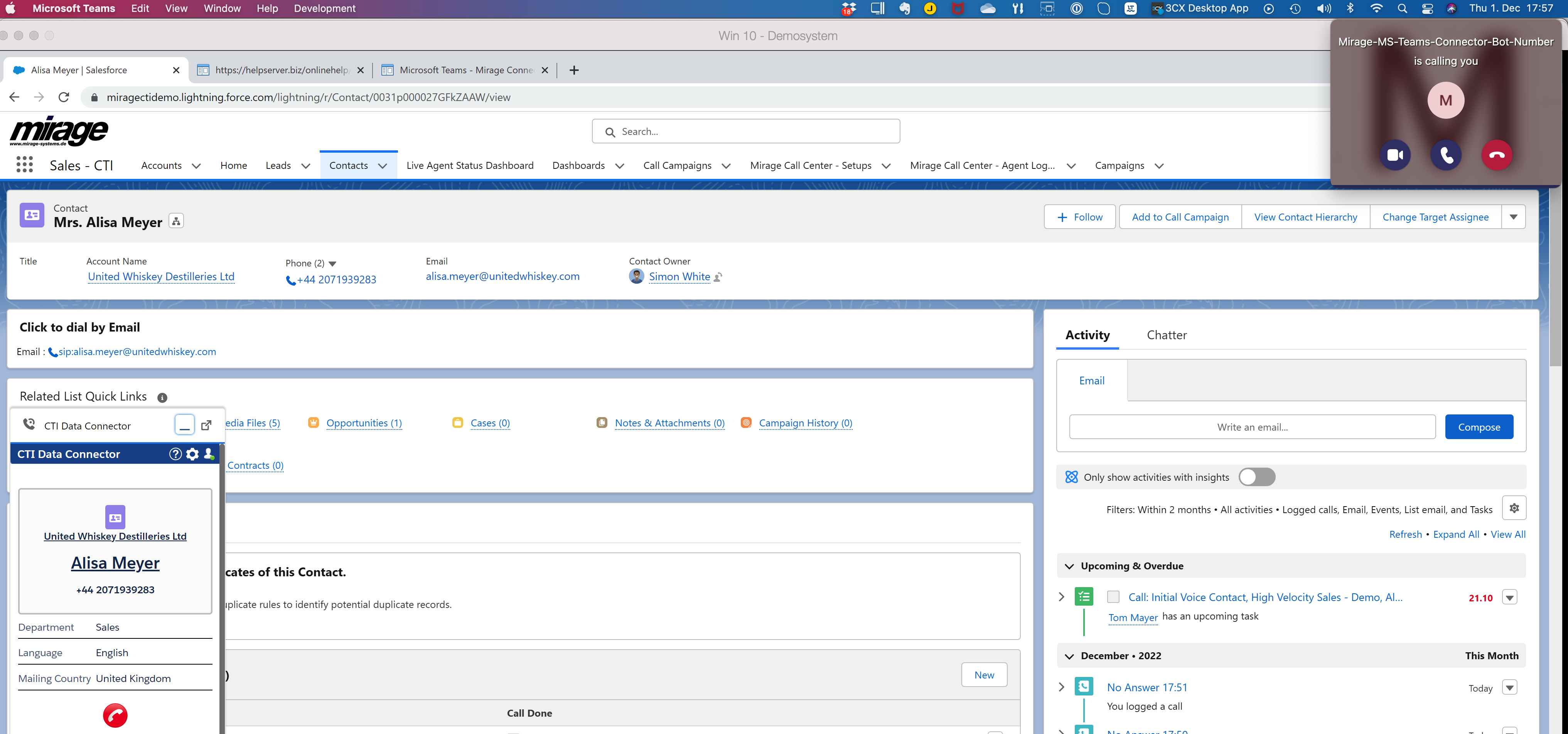
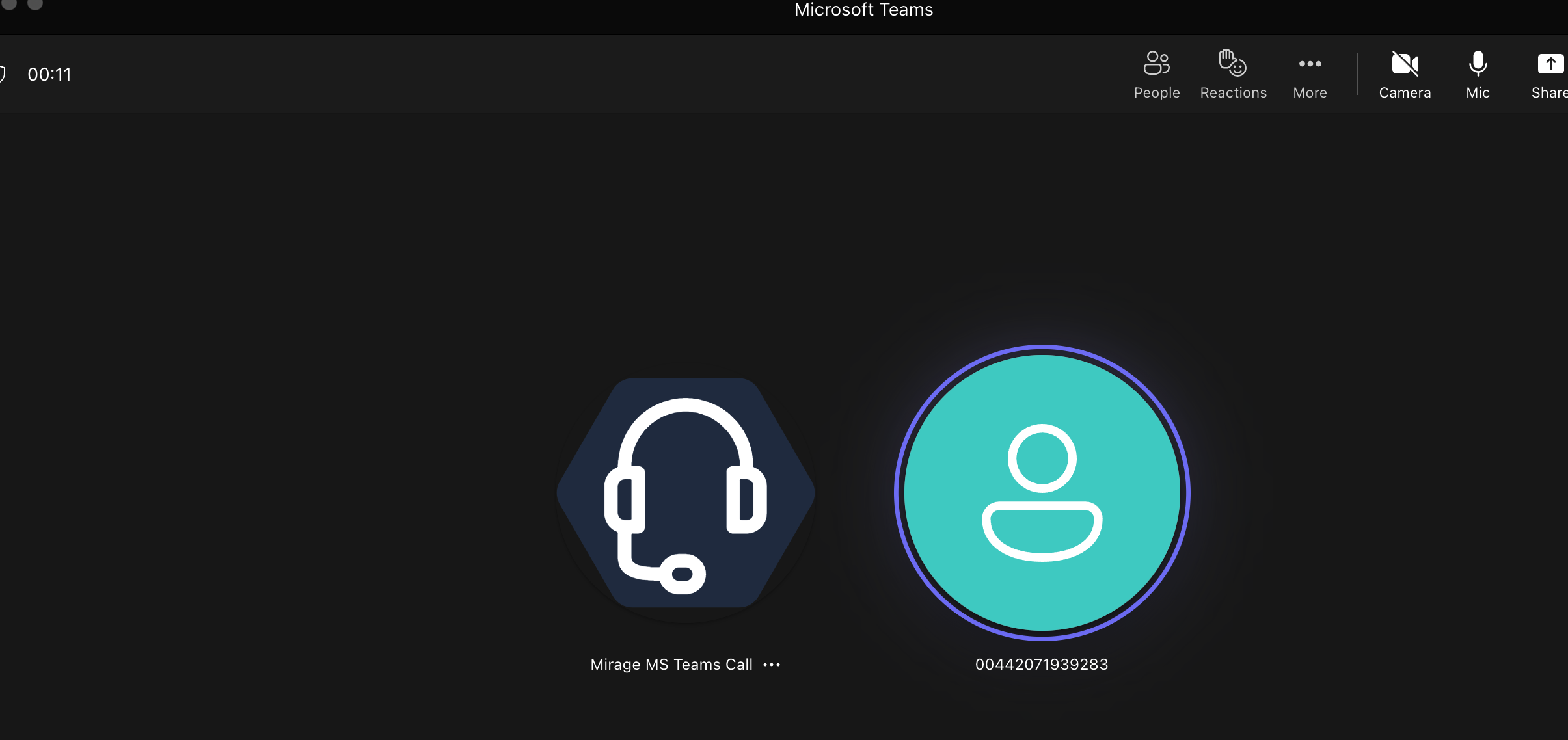
- Click on the call icon in the Microsoft Teams App. The Unaric Voice MS Teams Bot will start the call. The Bot icon will appear while the call is ringing.
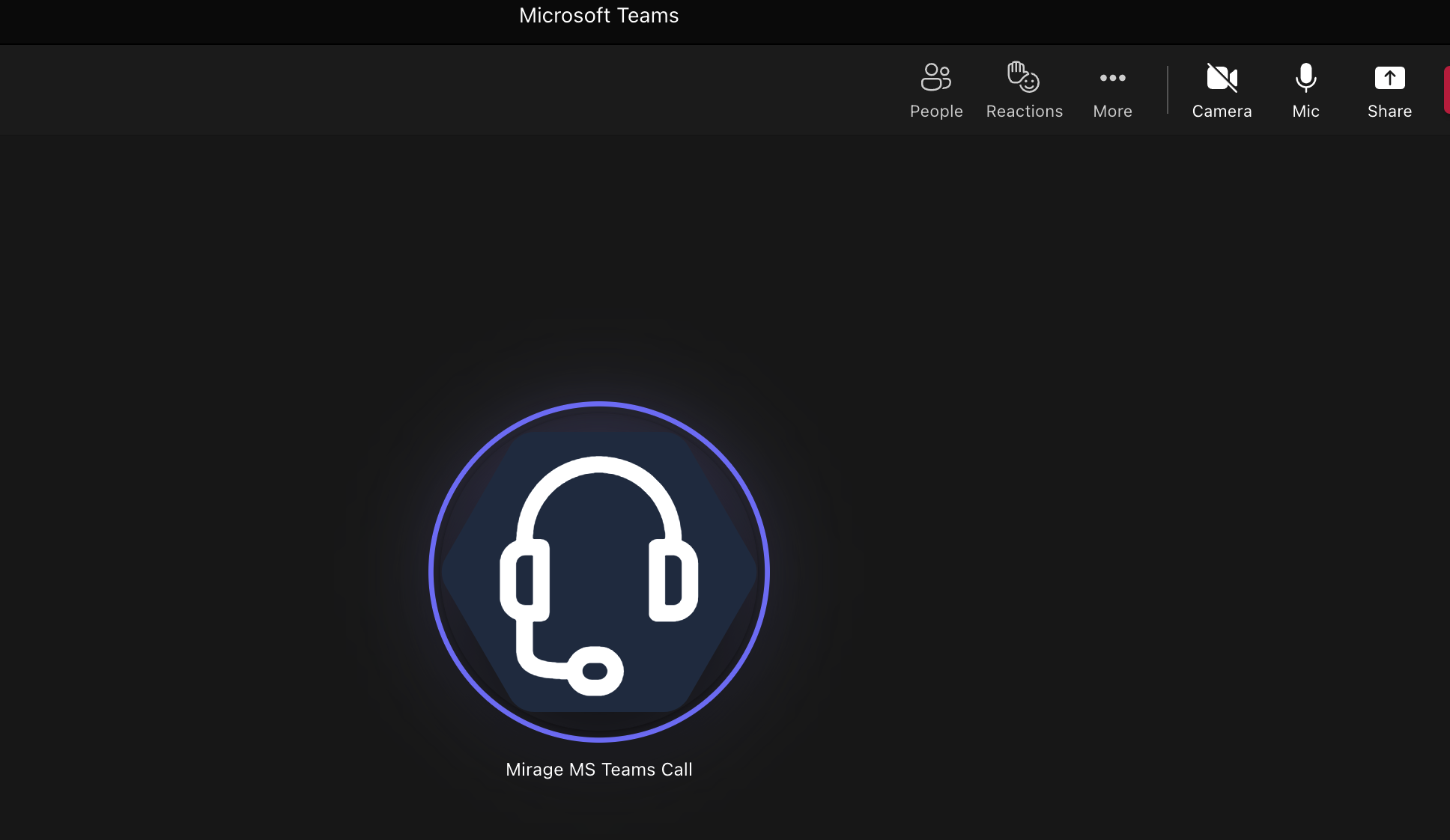
- When the call is answered, the Unaric Voice MSTeams Bot and the called ID will be shown next to each other.