Getting Started
1. Installation
Unaric User Analytics is a component of Unaric Guide. The first step is to install Unaric Guide in your Sandbox or Dev Org or Production Org.
If you already have Unaric Guide v1.58 installed, you can skip installation. If you need to upgrade, follow the instructions below.
Install Unaric Guide in a Sandbox/Dev Org first (recommended) on a few pages. Once you’re happy with it, install and set it up in your Production Org for best results.
2. Permissions
- Grant Helped User permission set to all end-users.
- Open the Improved Help for Lightning app and navigate to the Help Settings tab.
- Review Tracking options.
- To remain on the free version, you need to set the Lightning Interactions to 7 and click the Schedule Maintenance button.
By default, Unaric Analytics logs all interactions. Interactions are stored as records in the Help Interactions custom object.
3. Tracking setup
The Position Detector component is the core tracking mechanism of Unaric Analytics. It is a custom component that, when deployed on a page, logs user interactions and contextual information by creating a record in the Help Interactions object.
The component needs to be setup in Help Cue mode. In this mode, the component itself is not visible, but every time a user visits a page (or even an area of the page, such as a sub-tab) a Help Interaction record is created trapping user and contextual information.
Unaric User Analytics offers two distinct deployment options for the Position Detector component: application-wide and for specific pages. For the initial setup, we recommend application-wide deployment. This will capture all user interactions within your Org.
Deploying the Position Detector component application-wide and for specific pages together will result in double counting. We strongly recommend avoiding this setup.
If your business requirements mandate this dual deployment configuration, you can set up a Salesforce Flow to delete unwanted duplicate Help Interaction records.
These instructions correspond to the Salesforce Lightning setup and do not work on Salesforce Classic, which requires setting up a Visualforce sidebar component. For more information, see Salesforce Classic Setup.
You need to add the Position Detector component to the Salesforce Utility Bar of the application you want to track usage of.
- On Salesforce, navigate to Setup > App Manager.
- Locate the app you wish to track and click Edit.
- Go to the Utility Items tab and click Add Utility Item. Choose the Position Detector component and apply this configuration
- To hide the component from end users, set the Label as - and Panel Width & Height both to 1. Further, you can place the component at the bottom of the list.
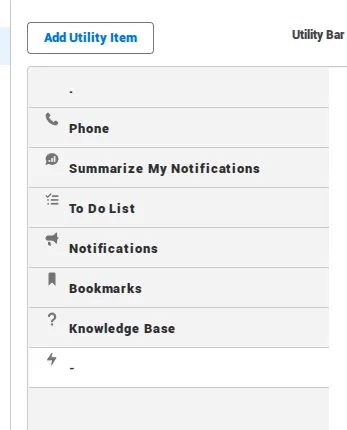
- Mark the Start Automatically checkbox.
- Set the Role attribute to Help Cue.
- Set Navigating Checking Interval to 1000.
- Click Save to finish.
Experience Cloud deployments
For Experience Cloud deployments, tracking works the same way. You need to add the Position Detector to your Experience Cloud pages, sub-pages, or Flow screens. We recommend using a clear naming convention for each Position Detector to easily distinguish data across different user communities.
For tracking your Experience Cloud Users grant these the Helped User (Experience) Permission Set.
4. Next steps
Once you're set up, explore how you can dive into your insights with Unaric User Analytics. There are three ways to access usage data:
Real-time feedback within Salesforce pages.
Organization-wide tracking and trend analysis.
Visually track help usage across the entire organization.