User & License Management
Access the Billing Page
User management is performed within the billing page, this controls how licenses are allocated, who has use of the sidebar and allows you to remove users, if a license for them is no longer required.
To access the billing page:
- Open Unaric Sidebar.
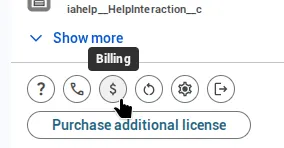
- In the bottom, click the Billing ($) icon. You will be redirected to the Billing page.
Access to the billing page can be restricted using either a password or to a specific set of email addresses, otherwise, all users will have access. If you need to configure who has access, please contact [email protected].
License allocation
To control who is allocated a license:
- Access the Billing page (as outlined above) and select the License Management tab.
- There are two fields used to determine how licenses are allocated:
- Email Domains allowed to use licenseEmail Domains allowed to use license: Grant licenses by domain matching.
- Additional unique emails allowed to use the licenseAdditional unique emails allowed to use the license: Grant licenses by mail. This is handy, for example, if you have a contractor using an email address outside of your domain)
- After entering the domains or mail addresses, click Update to save changes.
Email domains allowed to use this license
Any email domains entered in this box will qualify as a domain allowed to use your license. You can enter as many domains as you like, without the @ symbol on separate lines.
For example, you could enter domains for multiple regions, such as:
unaric.com
unaric.de
Anyone then using one of these domains will be automatically issued a license once they install and launch Unaric Sidebar, not before You do not need to approve people, license activation is automatic, providing you have spare licenses to allocate.
By licensing through email domains, you cannot individually control who can access; anyone from the domain can download Unaric Sidebar and activate the license.
Additional unique emails allowed to use the license
This field allows you to identify the exact email address of an individual user. For example, you may have a user with a gmail.com email address, but you would not want to add gmail.com to your Email domain list. Add the full email address of all users on separate lines. When they install and launch the connector, if their email address has been added, they will be allocated a license.
If you want to define who exactly uses the connector, leave the Email domains allowed to use this license blank and enter their email addresses in the Additional unique emails allowed to use the license field.
Remove users
To remove users and free up additional licenses:
- Open the Billing page (as outlined at the top of this page) and select the Activated Users tab.
- You will see a list of users who have been allocated licenses, scroll or use the search bar to find a specific user.
- Use the checkbox to mark users that you wish to remove.
- Click the Remove button.
- You will be asked if you also wish to Permanently delete these users from automatic sync also. If so, enable this toggle and click the Remove button again.
In the majority of cases, you will want to remove users altogether, so selecting to delete users from automatic sync is the preferred option. If you want to disable a user from using Unaric Sidebar, but keep sync running, you may choose to keep them as a sync user. However, sync users will require a license and will therefore not reduce the number of used licenses you have.