Retention Policy for Data Extensions
This feature is available in Unaric Segment Enable, Plus and Advanced.
Data retention policies define how long specific data remains stored before being automatically deleted or archived. For Data Extensions, data retention policies applies automatically to newly created target Data Extensions and temporary Data Extensions.
Data Extensions created when using Picklist are not applicable to the Data Retention Policy setting.
Set default Data Retention Policy
New Target Data Extensions
- Navigate to Admin Panel > Settings.
- Under Data Retention Settings, click Show Policy.
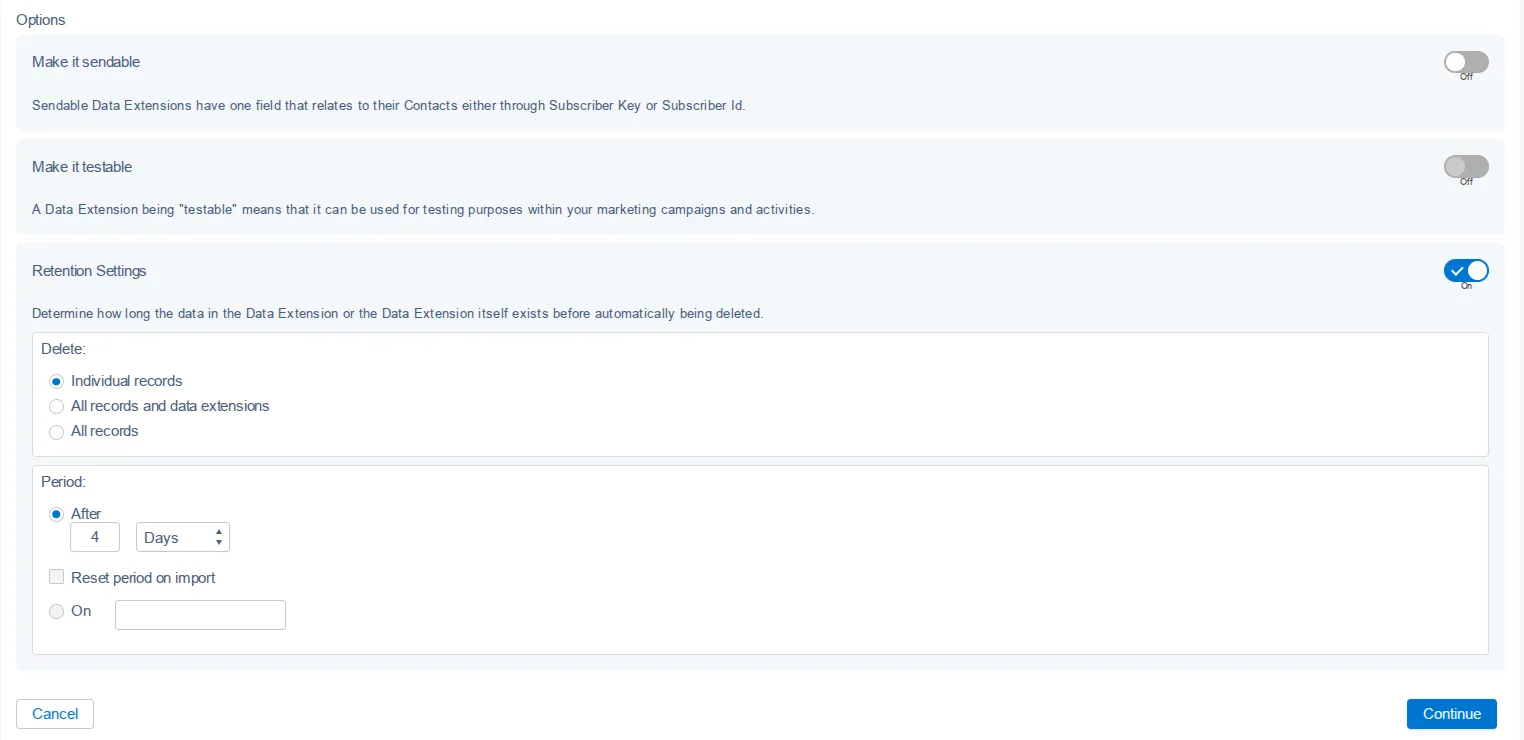
- On the Data Retention Policy for New Data Extensions pop-up, enable Retention Setting.
- Choose what data should be deleted when applying the Retention Policy and the period you would like your newly Target Data Extension to be retained.
- Click Save. After setting this up, the Data Retention Policy will be configured by default when you create a Data Extension. Nevertheless, users will still be able to update this in each Data Extension by enabling Retention Settings and changing defaults.
Temporary Data Extensions
- In the Admin Panel, open the Settings tab.
- On Data Retention Settings, click Show Policy. The Data Retention Policy for Temporary Data Extensions pop-up will appear.
- Enable Retention Setting.
- Chose the period you would like your temporary Data Extensions to be retained. Choose from Days, Weeks, Months, or Years.
- Click Save to finish.
Unaric Segment cannot detect if a temporary Data Extension is actively referenced inside SFMC. The temporary table will be deleted as scheduled once the Data Retention Policy timeframe elapses. To avoid process failures, rebuild these automated workflows as Schedule Selections or Waterfall Selection.
Modify the retention policy of an existing Target Data Extension
If you need to apply or adjust a retention policy for a Target Data Extension that has already been created:
- Go to Email Studio in SFMC.
- Locate the Target Data Extension that was created when you copied the Selection or template.
- Open the Data Extension’s Properties.
- Manually set or update the Data Retention Policy as needed.
- Save your changes.
If you do have a default retention policy configured, that default will automatically apply to the newly copied Target Data Extension. You can review Set a default Data Retention Policy for newly created Target Data Extensions for more details.