Add Solution
Add solution manually
Open the Solution Wizard
- Go to the Reports tab and click the Add button ( icon).
- Complete general information:
- Name
- Run As:
- Users: Select users you would like to use as Running Users. The Solution will be run separately for each running user. Users must first authorize Unaric Reports to run requests on their behalf. If there is a user you would like to set as a Running User that is not authorized, simply have them log in to Unaric Reports. They only have to log in one time. After that, you can set up Solutions on their behalf.
- Groups: Select groups you would like to use as Running Users. The Solution will be run separately for each user in each group.
- Description (optional)
- Click Next to continue.
Select items
You can add multiple items to the Solution. For help setting up items, see Items.
- Click Yes to choose an additional item for your Solution. Items include Report, Dashboard, Agent, and Document and HTML Template. Click No to move on to pick a mode of sending the Solution.
- Click Next to confirm.
Send items
Select one or more options for sending your Solution items. For download-only solutions, you don't have to select any option.
Available options:
- Email: This option has the ability to add custom attachments and split up multi-item Solution into multiple emails. You can still choose your recipients, customize with the Email Composer, or use an email template.
- SFTP: Send files to an SFTP server.
- Slack: Send files to a channel or user in Slack.
- Teams: Send files to a channel in your Microsoft Teams account.
- Google Drive
- Google Cloud
- OneDrive
- SharePoint
- Dropbox
- Box
- AWS S3
- Docusign
- Network Drive
- Chatter
Set schedule
Frequency: Select how often you would like your Solution to run. One Solution counts as one Solution against your account no matter how often it runs.
- Hourly: Select this option to have your Solution run every hour at specific 15 minute intervals.
- Daily: Select this option to have your Solution run every day (weekdays or every day) at a specific hour.
- Weekly: Select this option to have your Solution run every week on specific days and at a specific hour.
- Monthly: Select this option to have your Solution run every month on a specific day of the month or a specific instance of a day of the week and at a specific hour.
- Interval: Select this option to have your Solution run on specific intervals such as every two weeks starting this Friday.
- Custom: If none of the previous options meets your scheduling requirements, you can use a custom cron expression. Please refer the help documentation provided by Quartz for more detail.
- Start Date: Select a date you would like your Solution to start running on the selected schedule.
- End Date: Select a date you would like your Solution to end running on the selected schedule.
Click Next to continue.
Complete setup
Complete general options.
- Active: Mark it for the Solution to be run (either on a schedule, through the preview, or using a button in Salesforce).
- Configure Profiles: By default, all Unaric Reports Solutions can be set up by admins to run using Salesforce buttons. Note, though, that users that click these buttons must have access to everything in Salesforce that is required to run that Solution, such as reports, dashboards, objects, fields, etc. Also, when a user runs a Solution using a Salesforce button, everything is run as that user, which this means the Solution will only bring in data that the user has access to in Salesforce. Because all of this security is already built in, it is usually fine to allow all users to run Solutions from Salesforce buttons, in which case you don't need to use this feature. In fact, often times it's preferable as it enables admins to set up a single Solution that can be used by many users. However, there may be times when you only want a Solution to be run using a Salesforce button by specific Salesforce profiles. In that case, you can use this feature to set which Salesforce profiles are allowed to run Solutions and / or which Salesforce profiles are not allowed to run Solutions using a Salesforce button. For this to work, you must pass include the Profile ID on the button URL using &profileId={!User.ProfileId}:
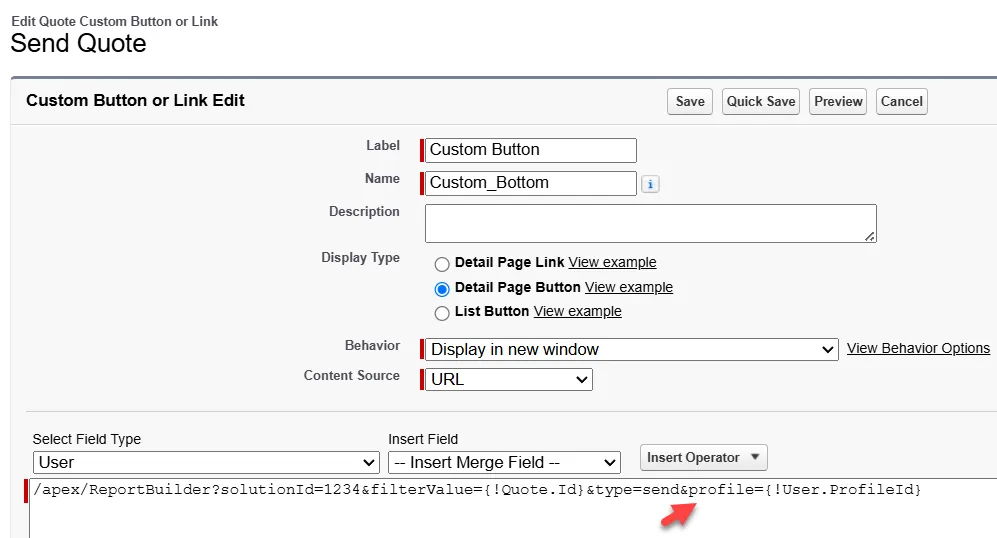
You can also control which users can see buttons in Salesforce using a combination of Record Types and Page Layouts. Doing it here ensures users cannot somehow bypass the Record Types and Page Layout setup, for example, by just changing the Solution ID on the URL that is opened when they click a button.
- Status Report: Select whether you would like to receive an email with the delivery status report. You can also specify to only receive the delivery status report when there is an issue.
- Status Report Email: By default, the status report will be sent to the Owner of the Solution. If you would like to change that, you can override it here.
- Don't Send Report if Empty: Check this box if you only want to receive the report when the report has at least 1 record of data. This is only relevant for reports.
- Save Email File: Save the Solution email as an .eml file to any connect storage service such as Google Drive.
Finish
Click Finish to complete creating the solution.
Add Solution from agent
You can also create a Solution directly from an agent if you intend to perform a comparison between multiple reports.
- Navigate to Agents.
- Select your agent.
- Click the Solution button.
- Complete the steps in the wizard to finish creating the Solution. See Add Solution.
Import report schedules from Salesforce
You can import your existing report schedules and finish configuring them as Solutions. You cannot import subscriptions as Solutions.
- On the Solutions tab, click the Import button. The page will show you a list of available Salesforce Schedules.
- Once you find the schedule, click the Import icon () next to it. You will be redirected to the Solution Wizard.
- Complete the solution creation. For more information, see Add Solution.
Clicking this link takes you to a list of schedules set up in Salesforce. You can choose specific Salesforce schedules to import to your Unaric Reports solutions list.