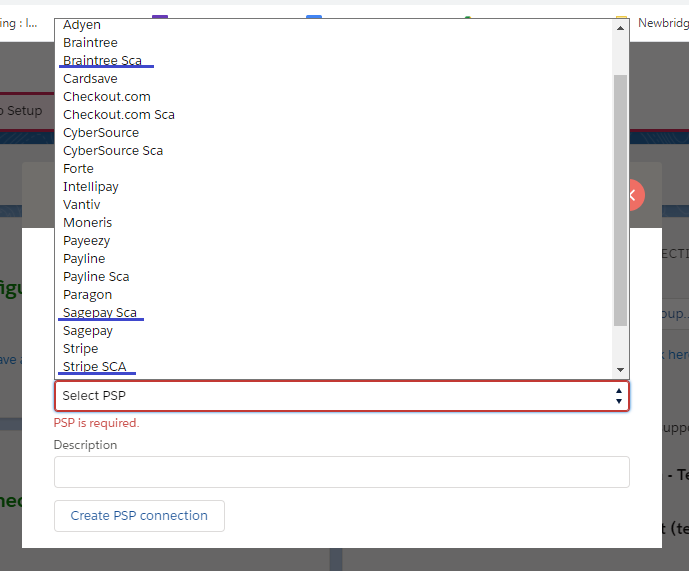
Payment Service Providers
Additional Options
Strong Customer Authentication (SCA) Support
for more information on sca, see guidance from https //www fca org uk/firms/strong customer authentication you will be able to use the sca ready connections without a package upgrade all you need to do is to create a new connection from unaric payments setup tab supported sca the following psps support sca adyen braintree (a paypal company) checkout com cybersource stripe sagepay worldpay sca behaviour for internal agents (moto vs ecom) when processing card payments internally, the sca behaviour depends on the payment route being used ecom route if an internal agent is prompted by sca, with otp or 3d secure challenges while creating an authorisation, this indicates that the payment is being processed via the ecom route the ecom route enforces sca and will require authentication when applicable moto route for internal agent workflows where sca is not required, payments should be processed using the moto route , which does not require 3d secure authentication you can initiate a moto payment in the following ways from the payment record ui use the process payment button on the payment record this automatically routes the transaction as moto see docid\ yx2a4lixsfjdyl7 klftg via flows or custom integrations if you are generating payment urls programmatically (for example, from salesforce flows or custom automation), you must explicitly route the payment as moto to do this, add the following parameter to the ecom payment url dlcnp=jdi when this parameter is present, the payment is processed via the moto route and sca (3ds / otp) is not required setup sca connection for sca support, you need to create a new connection from unaric payments setup tab for psd2 supported psps you will find a new psp in the list with sca appended to it some cards require authentication every time a transaction is made for such cards, future payments will fail below are the instructions for setting up sca on supported psps ayden navigate to the unaric payments setup tab click on new psp connection in the popup screen, complete the connection details currency, i e gbp mode as "ecom" or "moto" psp as “adyen sca” description of your choice merchant account api key generate api key as per the steps given here client key generate client key as per the steps given here url prefix enter as \[a random string of hex encoded bytes to make the hostname unpredictable] \[company name] refer adyen documentation here for more details upon save, if the connection is established successfully, you will see a green tick besides the connection just created refer here for adyen psd2 testing guidance braintree navigate to the unaric payments setup tab click on new psp connection in the popup screen, complete the connection details currency, i e gbp mode as "ecom" or "moto" psp as “braintree sca” description of your choice merchant id same as used for non sca connection public key same as used for non sca connection private key same as used for non sca connection click on "save psp connection" button upon save, if the connection is established successfully, you will see a green tick besides the connection just created refer here for braintree psd2 testing guidance cybersource navigate to the unaric payments setup tab click on new psp connection in the popup screen, complete the connection details currency, i e gbp mode as "ecom" or "moto" psp as “cybersource sca” description of your choice merchant id same as used for non sca connection security key org id click on "save psp connection" button upon save, if the connection is established successfully, you will see a green tick besides the connection just created stripe navigate to the unaric payments setup tab click on new psp connection in the popup screen, complete the connection details currency, i e gbp mode as "ecom" or "moto" psp as "stripe sca" select, use custom gateway detail description any of your choice secret api key you can get it from the stripe dashboard (via "developers" and "api keys" on left hand menu) refer help page https //dashboard stripe com/test/apikeys publishable key you can get it from the stripe dashboard (via "developers" and "api keys" on left hand menu) refer help page https //dashboard stripe com/test/apikeys upon save, if the connection is established successfully, you will see a green tick besides the connection just created refer here for stripe psd2 testing guidance sagepay navigate to the unaric payments setup tab click on new psp connection in the popup screen, complete the connection details currency, i e gbp mode as "ecom" or "moto" psp as “sagepay sca” description of your choice vendor name use same name as you have used for sagepay (without sca) connection upon save, if the connection is established successfully, you will see a green tick besides the connection just created refer here for sagepay psd2 testing guidance worldpay navigate to the unaric payments setup tab click on new psp connection in the popup screen, complete the connection details currency, i e gbp mode as "ecom" or "moto" psp as “worldpay sca” description of your choice api id (iss) from worldpay dashboard after changing to test mode, go to integration >3ds flex merchant code you will get it from worldpay dashboard under account > profile password use the xml password which can be generated by following the steps in worldpay documentation here org unit id from worldpay dashboard after changing to test mode you will get it under integration >3ds flex api key from worldpay dashboard after changing to test mode you will get it under integration >3ds flex upon save, if the connection is established successfully, you will see a green tick besides the connection just created refer here for worldpay psd2 testing guidance