Getting Started
Installing Unaric Voice for Teams Sync requires installing the product package in your Salesforce Org and configuring your users and calls.
Install the package
Install the latest Unaric Sync package in Salesforce.
Authorize the application
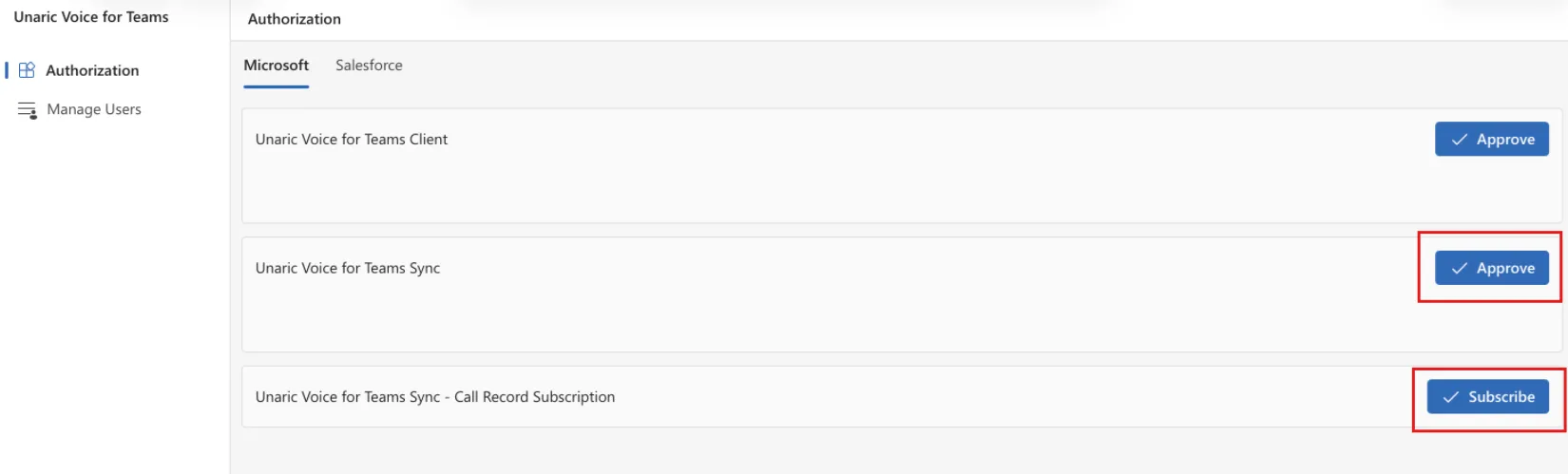
Once the package has been successfully installed, your Microsoft 365 global administrator will need to approve the Sync Enterprise Application.
- In the Admin Portal, navigate to the Authorization tab.
- Click Approve next to Unaric Voice for Teams Sync.
- Click Subscribe next to Unaric Voice for Teams Sync - Call Record Subscription.
Connect with Salesforce
You will need to connect your Salesforce org to the Unaric Admin Portal. This provides us with the API access required to create the Tasks or Voice Call records in your org.
- Open the Admin Portal,
- On the Authorization tab, select Salesforce.
- Click the Connect Salesforce button for production orgs or Connect Sandbox for sandbox orgs.

- Select Sync Connection.
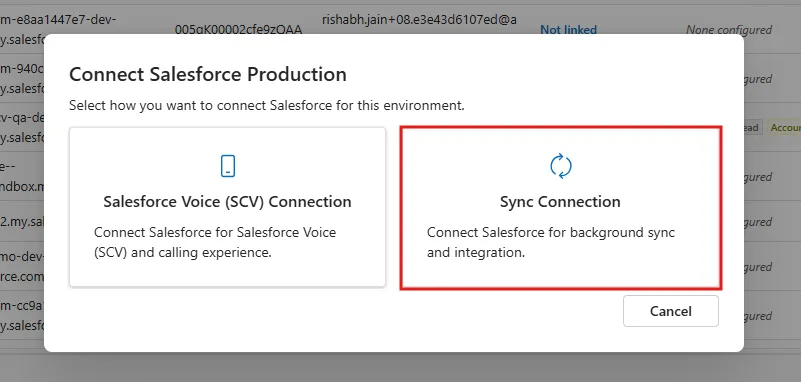
- A Salesforce admin will need to authenticate with Salesforce and approve the API connection. Once complete, the Status in the admin portal for the Salesforce org will show Sync.
