Caller Number Lookup Objects
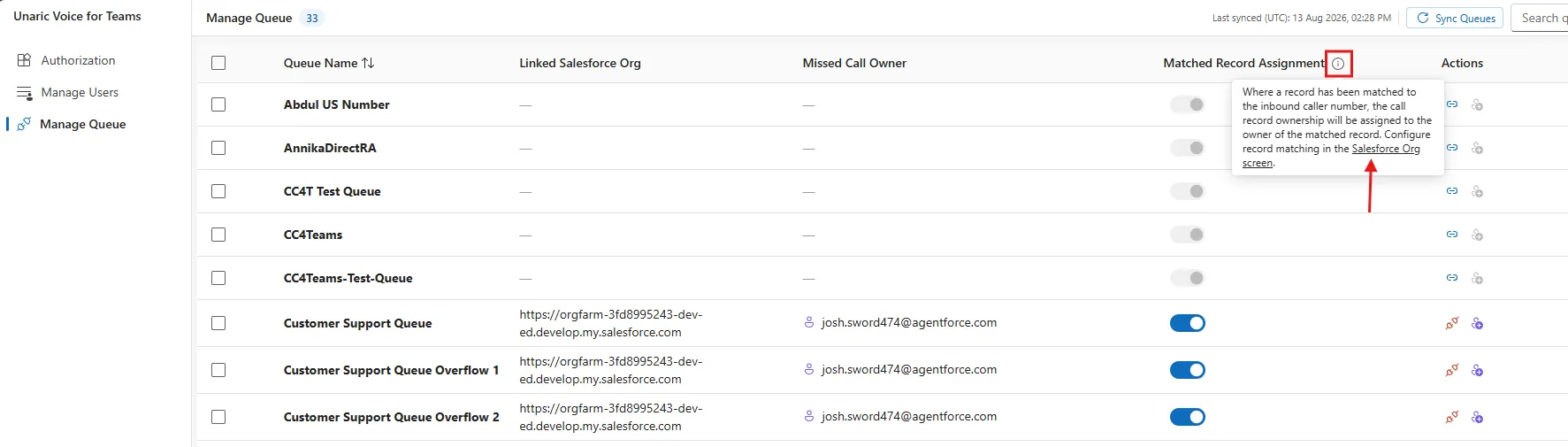
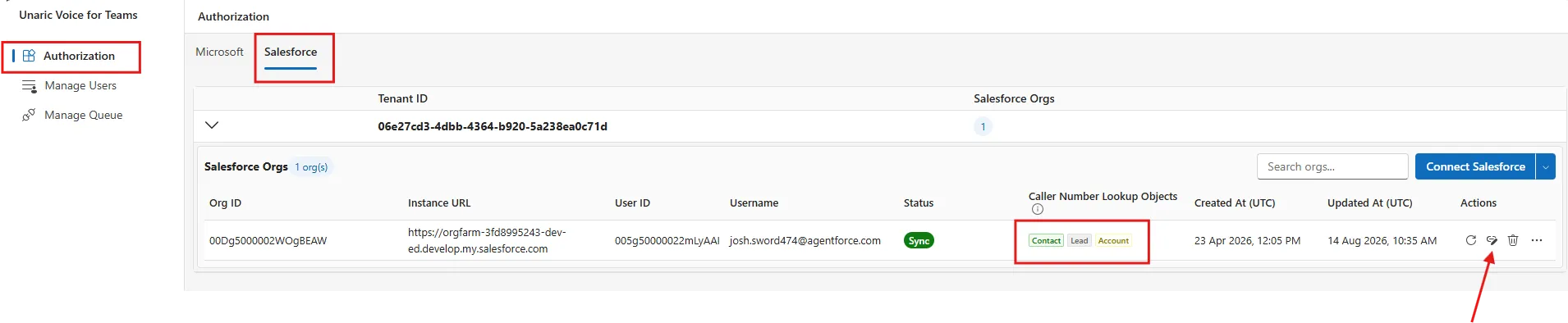
You can specify which record type you would like the Tasks associated with (either a Contact, Lead, or an Account). This configuration can be accessed in two ways:
In Manage Queues, there’s a tooltip which includes a link to the configuration location.
By default, the priority order for record association will be:
- Contact
- Lead
- Account
Hence, if the customer has a Contact, Lead, and an Account in Salesforce that all have the same phone number, they can choose which record to log the task against, in a priority order. This can be edited, by click the Edit icon under the Actions column.
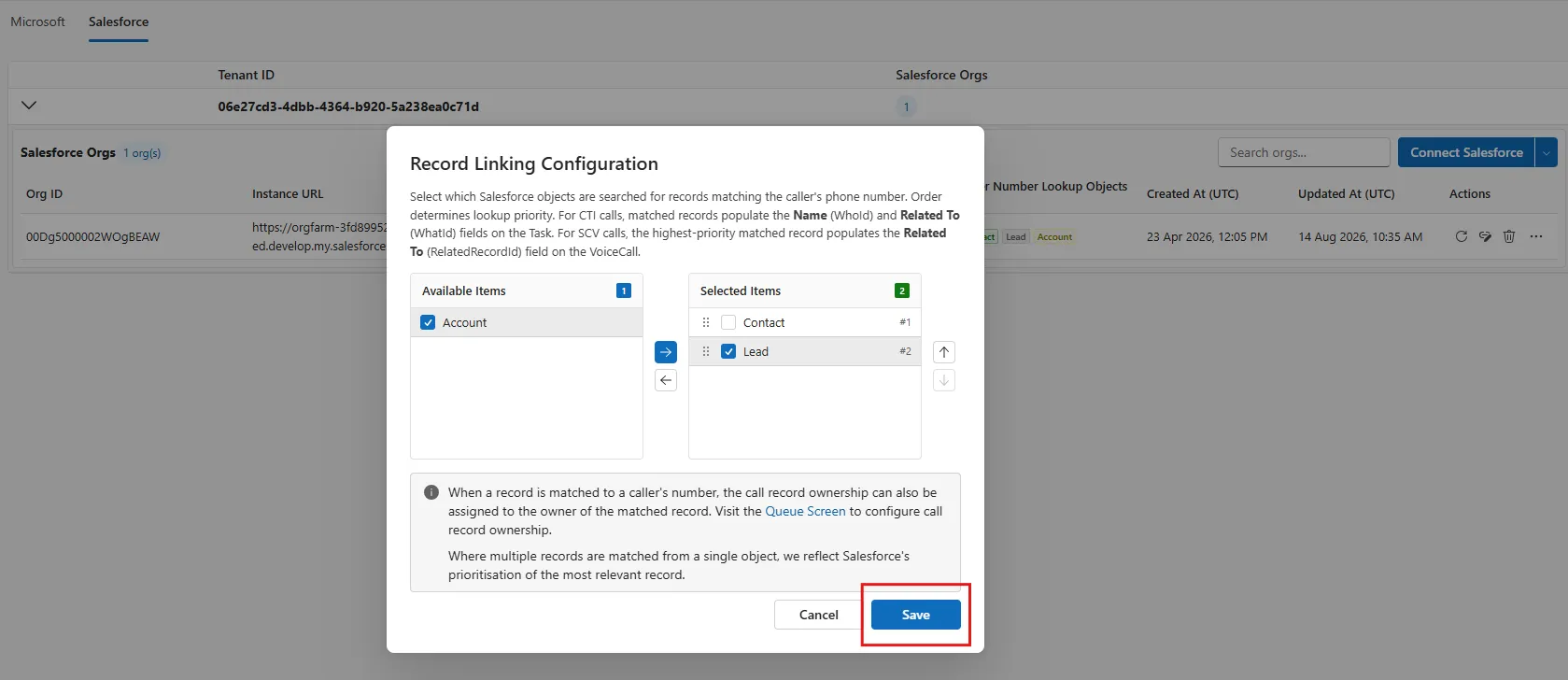
The screenshot above shows the available configurations:
- Available Items (Excluded):- Tasks will not be associated with these record type(s). You can move each of the different record type to include or exclude them, by clicking the checkbox to the left of the record type, and then the arrow to move them left or right.
- Selected Items (Included): Tasks will be associated with these record types in priority order (from top to bottom). These can be drag and dropped (higher / lower priority), or you can use the checkbox to the left of the record type and use the up/down arrows to re-prioritise.
Associate the tasks as per the priority order. For example, if a customer has a Contact, Lead, and Account record that all have the same number associated in Salesforce, you will associate the queue task with the contact record at the top of the priority list (selected items). If the top priority doesn’t have the phone number associated, but priority 2 does, you will associate the task with the Salesforce record with priority 2 (and so on).