Call Queu Configuration
Sync queues
By default, only queue and auto-attendant calls made after the integration will sync to Salesforce. To sync all your call queue and auto-attendant calls to Salesforce:
- In the Admin Portal, navigate to the Manage Queue tab.
- Click Sync Queue.

- This will now pull all your Teams resource accounts into the Manage Queue page.
If this fails with a permission error, ensure that the Sync Enterprise Application was successfully deployed in your tenant.
Link queues
Once the queues have synced, you can pick and choose which queues to sync to Salesforce. The example below links the Customer Support Queue as well as the two overflows:
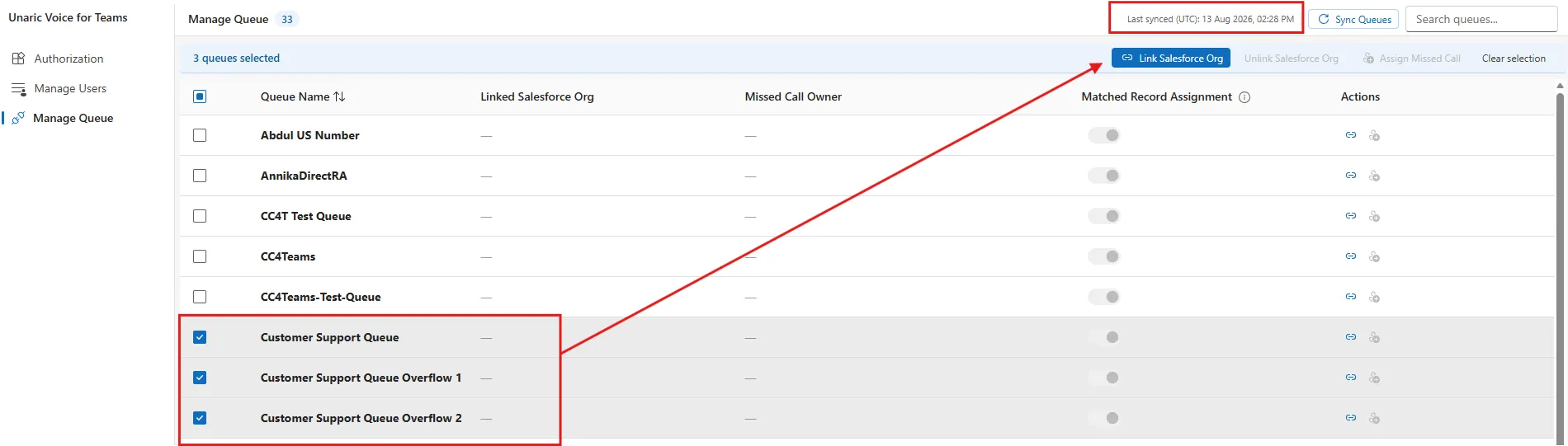
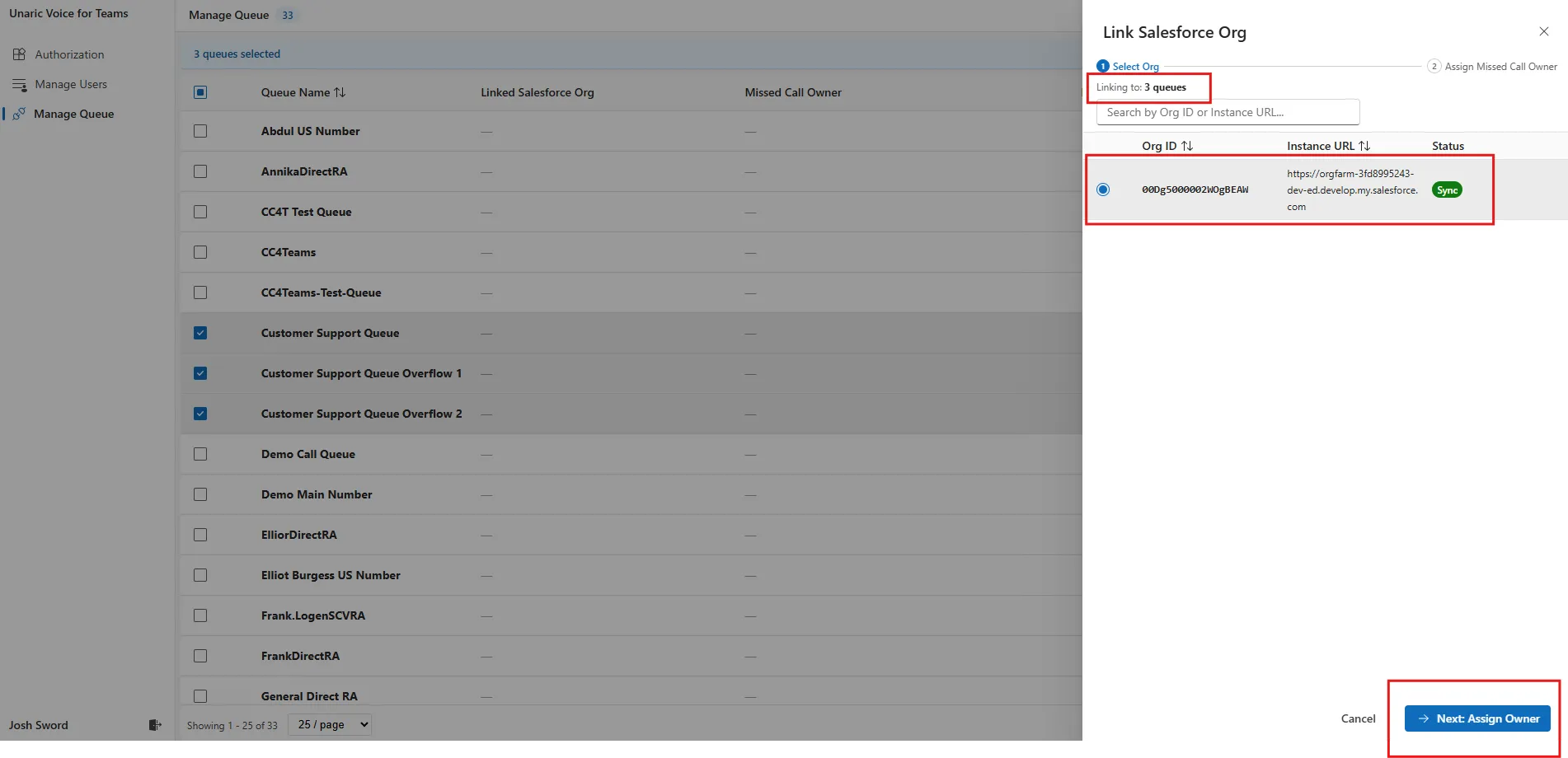
A side panel will show how many queues are being linked. Use it to select which Salesforce org to sync the queues into. If you have multiple Salesforce orgs (for example, a production and sandbox org), both will be listed here, and you can select which org to sync the queue calls into. Once selected, click Next: Assign Owner.
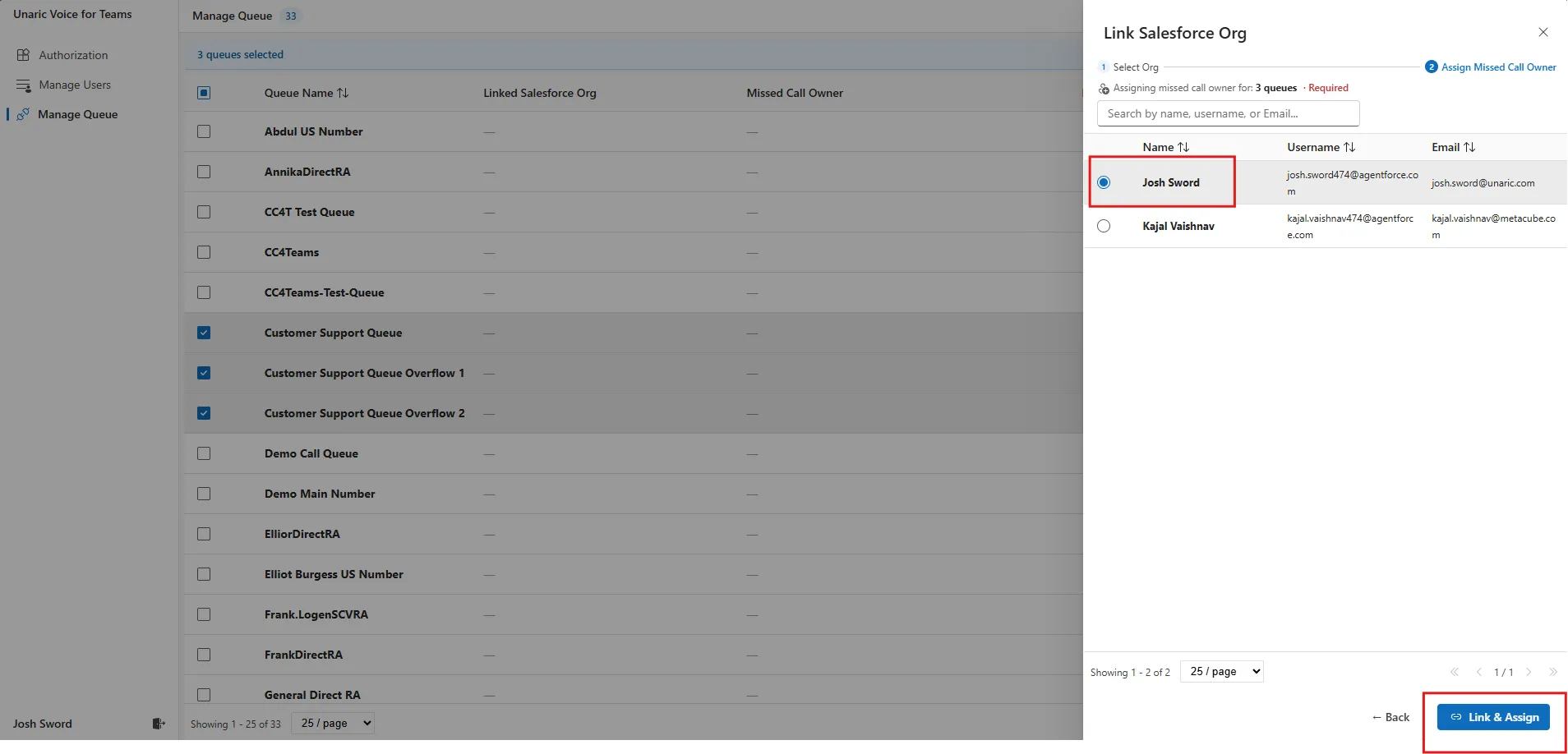
Select the Missed Call Owner. This will display the list of Salesforce users form the Manage Users screen, and click Link & Assign.
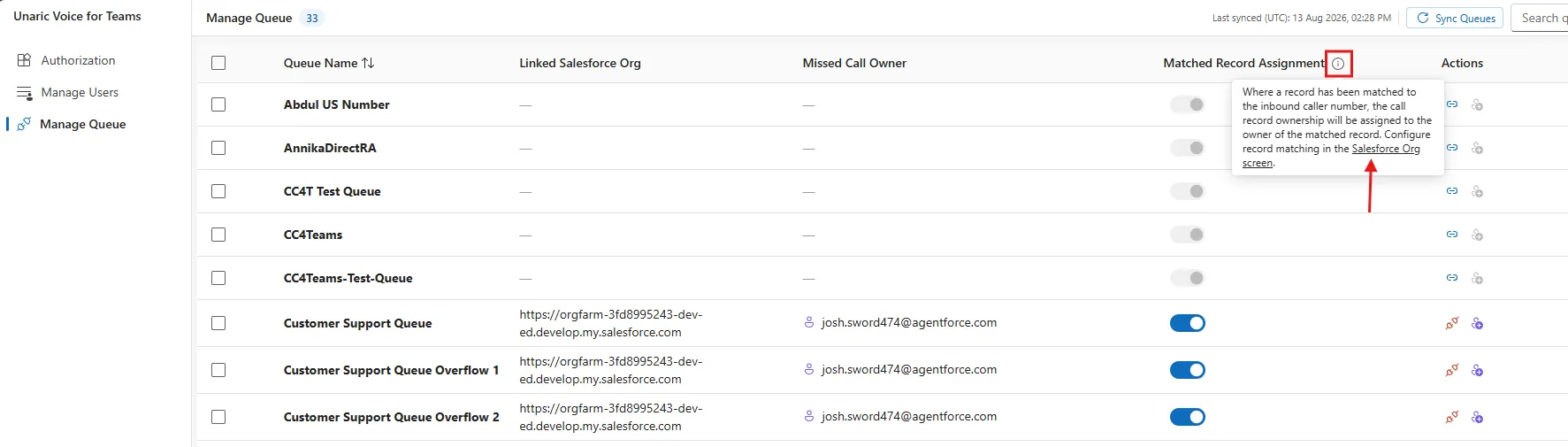
The three queues are now linked. In the screenshot below, you can see the salesforce org that the queue call will sync into, the missed call owner, and the “Matched Record Assignment” toggle:
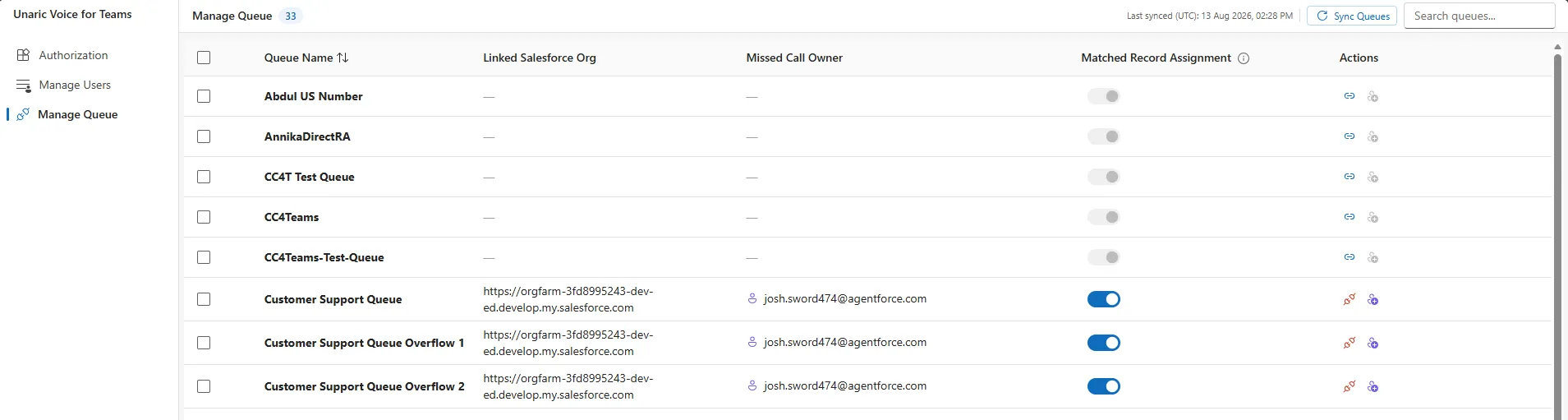
You can unlink a queue and / or reassign the missed call owner using the actions to the right of the queues:

Matched record assignment
If Matched Record Assignment is enabled, any calls will be assigned to the Salesforce agent who owns the matched caller record in Salesforce, and the Missed Call Owner will only be used as a fall-back.
For example, if the contact John Bond called into the support queue above, and the call was missed, Matched Record Assignment assigns the missed call task to the OrgFarm EPIC Salesforce user, as they own the record:
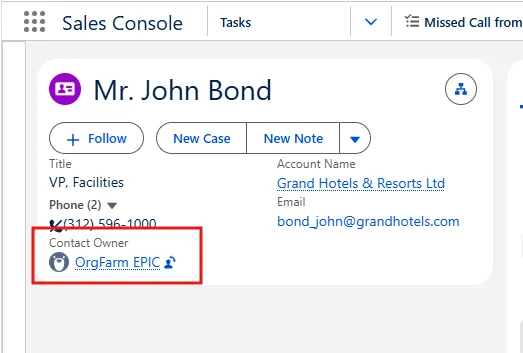
If Matched Record Assignment is disabled, then this missed call task would be assigned to Josh Sword (the Missed Call Owner in the Admin Portal).
If the queue call is answered by a Teams agent, then the call Task will be assigned to the agent that answered the call. All above settings (record owner and missed call owner) will be ignored. These settings are for missed calls only.
Caller number lookup objects
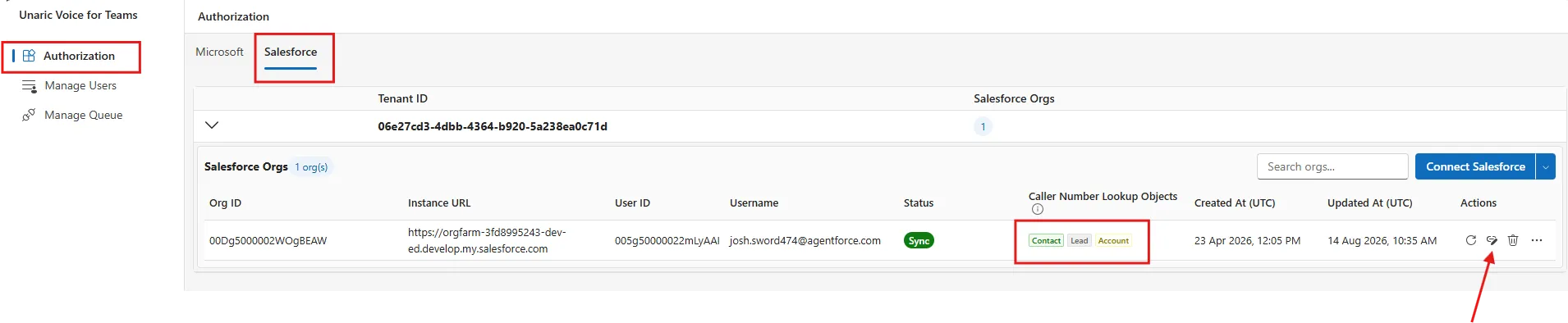
You can specify which record type you would like the Tasks associated with (either a Contact, Lead, or an Account). This configuration can be accessed in two ways:
In Manage Queues, there’s a tooltip which includes a link to the configuration location.
By default, the priority order for record association will be:
- Contact
- Lead
- Account
What the above means, is if the customer has a Contact, Lead, and an Account in Salesforce that all have the same phone number, they can choose which record to log the task against, in a priority order. This can be edited, by click the Edit icon under the Actions column.
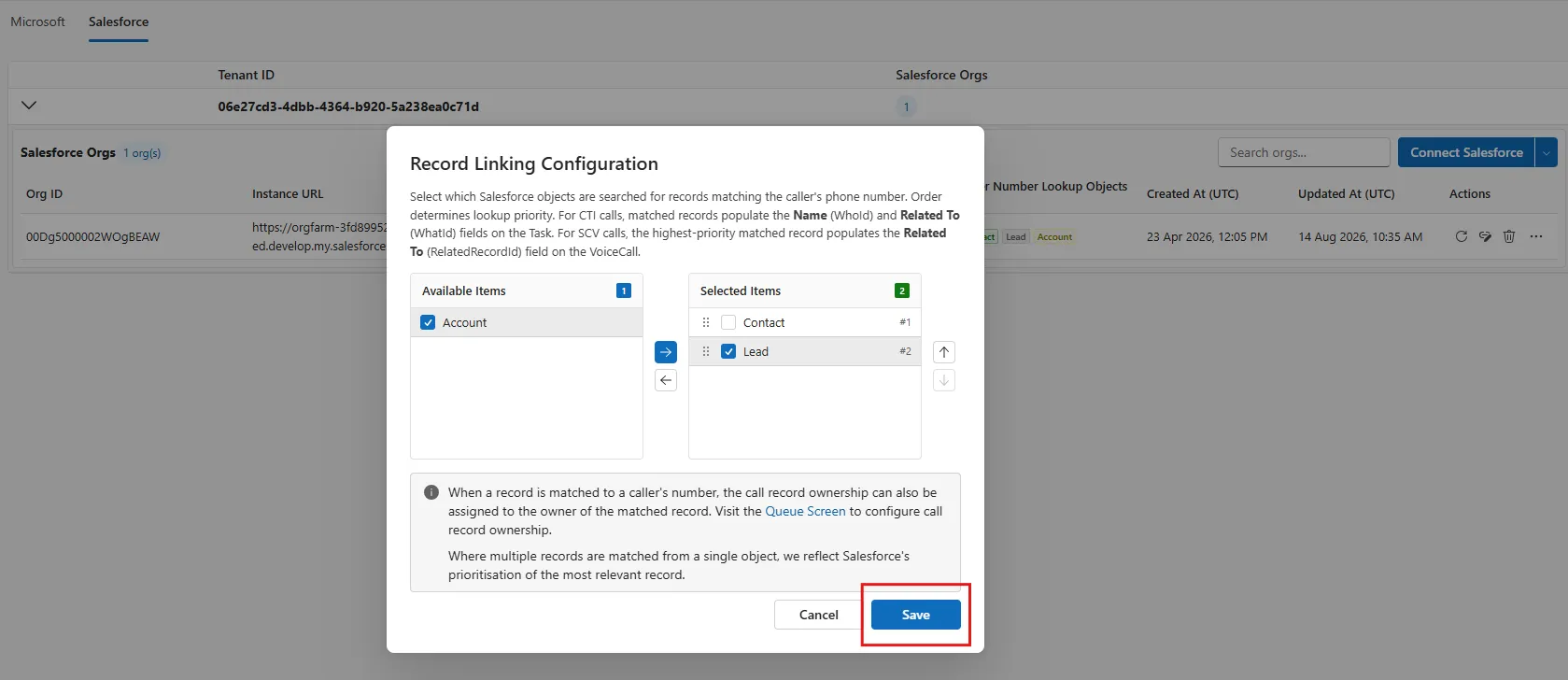
The screenshot above shows the available configurations:
- Available Items (Excluded):- Tasks will not be associated with these record type(s). You can move each of the different record type to include or exclude them, by clicking the checkbox to the left of the record type, and then the arrow to move them left or right.
- Selected Items (Included): Tasks will be associated with these record types in priority order (from top to bottom). These can be drag and dropped (higher / lower priority), or you can use the checkbox to the left of the record type and use the up/down arrows to re-prioritise.
Associate the tasks as per the priority order. For example, if a customer has a Contact, Lead, and Account record that all have the same number associated in Salesforce, you will associate the queue task with the contact record at the top of the priority list (selected items). If the top priority doesn’t have the phone number associated, but priority 2 does, you will associate the task with the Salesforce record with priority 2 (and so on).