Email Tracker
Email trackers attempt to notify you when an email has been opened, similarly to read receipts, which used to be incorporated in email clients.
How it works
To track emails, Unaric Sidebar inserts a hidden pixel containing a URL (this is known as pixel-tracking). When the email is opened, the URL in the pixel is accessed, and you will be notified by email that your email has been viewed, alongside the hostname and country location of whoever opened it.
This notification run every time that email is viewed—this means also when you view it, for example, in your Sent folder. However, once a notification has been received, you can unsubscribe from future requests.
No email tracking method is infallible. Every tracking method has its own limitations due to most email providers and email clients incorporating stricter controls on user privacy. As such, tracking capabilities might vary depending the email you're trying to track.
For a detailed overview of how pixel-tracking works, see Spy Pixel.
Insert email tracker
- On Gmail, create a new email.
- At the end of the action bar, click the More options icon and select your Unaric Sidebar connector.
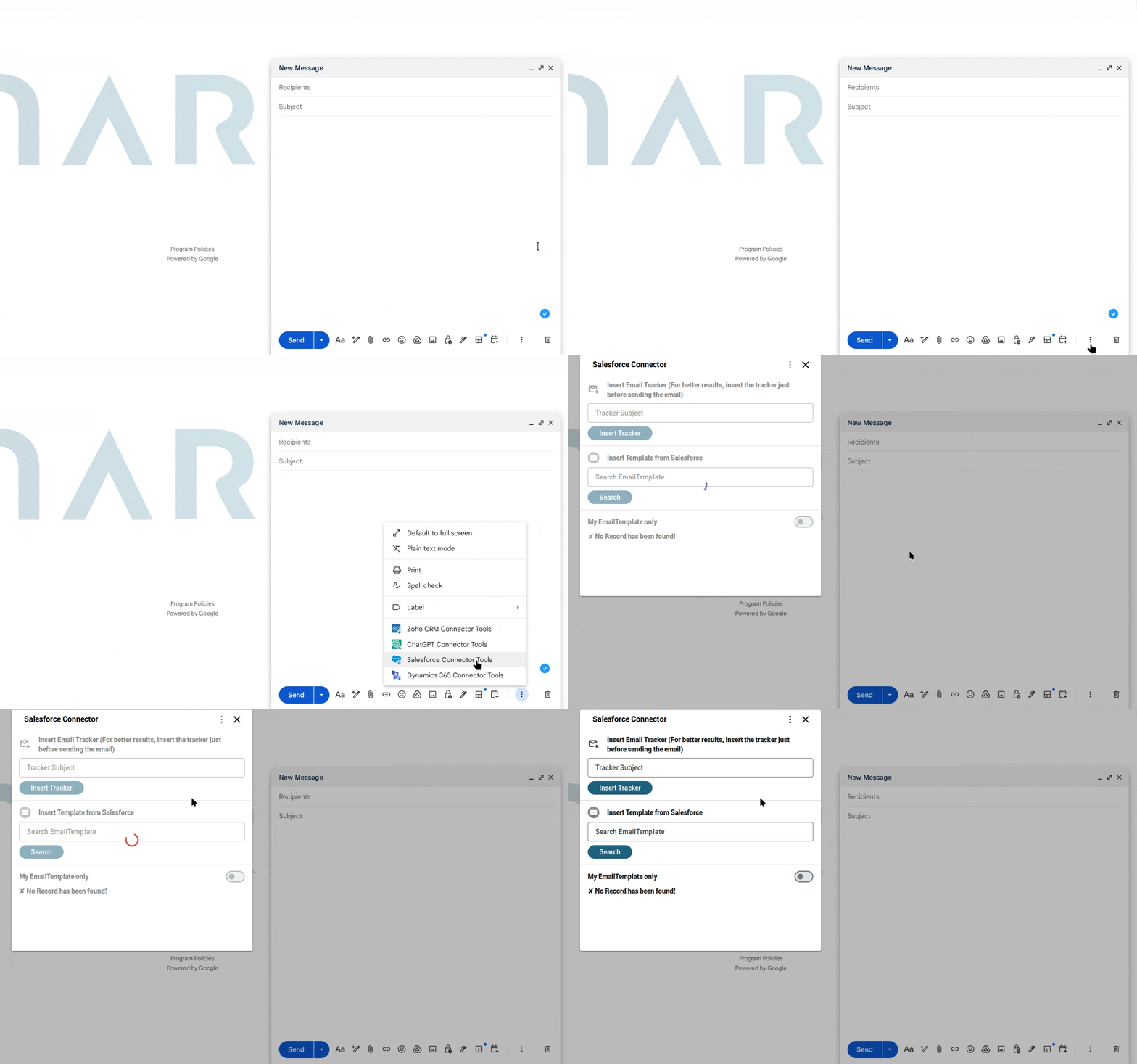
- Under Insert Email Tracker, fill in the Subject line and click on Insert Tracker. Notifications will be sent to you whenever that email is viewed.
For better results, insert the tracker just before sending the email.
Unsubscribe from Email Tracker
- In your inbox, open the Email Tracker notification email.
- Click Stop tracking this email.