Compare Fields across Data Extensions
Comparing fields across Data Extensions is supported in Filters, Custom Values, and sub-queries (In Results/Not In Results filters).
Use cases
- Selecting contacts with an email address from a domain different from the company’s website domain
- Selecting contacts with the phone number equal to the mobile phone number
- Referring to a field from the main query when using sub queries.
Compare fields
To compare the value of a field with a field of the same or another Data Extension, click the Calendar button (  icon) to switch to comparing with fields. Dropdowns appear with the available Data Extensions and fields you can compare with. Click on the
  icon to switch back to filter based on the value you enter.
When comparing the values of fields, the same operators are available as to when comparing with values entered by the user.
Example
Imagine having 2 data extensions: Products and Order Lines. In Products you find product details like the name, product family and the list price (the price for which the product normally sells). In Order Lines, you can see the quantity, product and the actual sales price.
- Select the Products and Order Lines Data Extensions, and set the relation to Order Lines with matching Products.
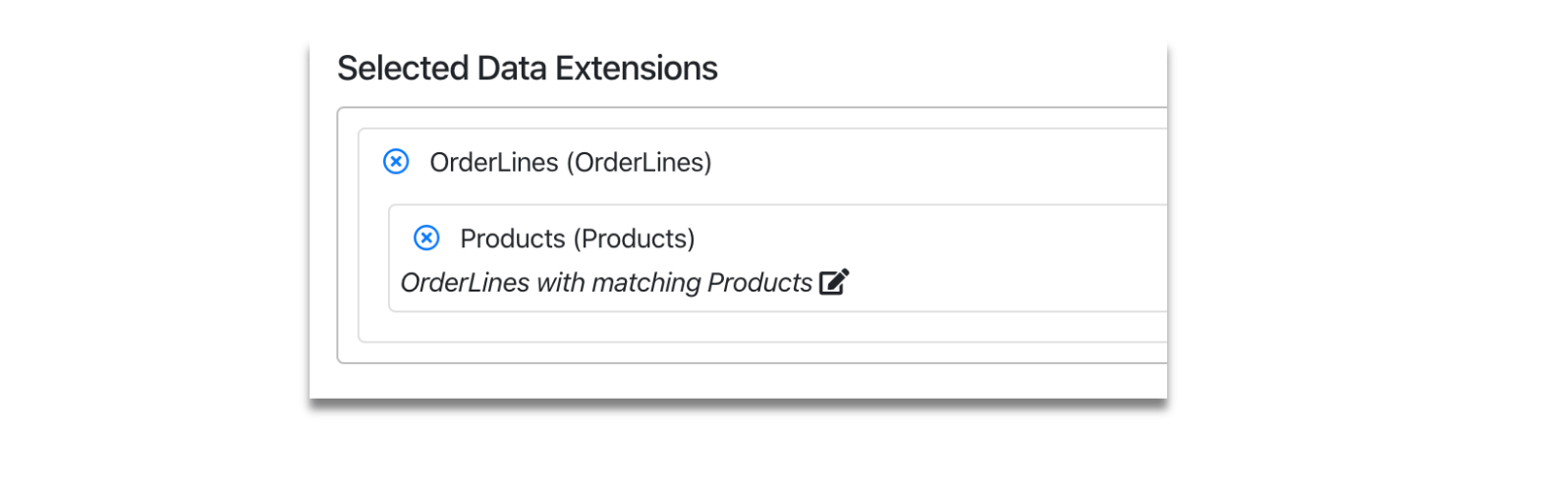
- Add in a filter for Sales Price. Click the Calendar button to switch between filtering on a fixed value and comparing with data extension fields.

- Two dropdowns will appear. In the first one, select the data extension you want to compare against. The second one is the field of the selected data extension you want to use. In this case, select the Products data extension and the List Price field. Your entire filter looks like this:

- When you run the query, you'll get all the order lines where a product was sold for less than the list price.