Common Data Views
The following are the most common Data Views and the characteristics you have to keep in mind when working with them.
_Job Data View
In the _Job Data View, you will find the overview information about the emails you send.
You can filter over a specific email using EmailName, or use it combined with the Subject or the From Name into the Target Data Extension to do further analysis.
The JobID field is going to be the matching column on almost all the relations you are going to set from here on, so this is a good starting point.
The _Sent Data View stores all the information regarding email sends done to customers.
Use this Data View to review who received a specific email and when. You are probably going to need to combine it with the _Job Data View in order to filter the email you want to review by name.
The _Open Data View stores all the open interactions a customer does with a specific email. This means that, if the customer opens the email twice, you are going to have two records in this Data View, one with each open date and time.
When working with this Data View, you need to take multiple things into account:
- Sometimes the open and click events don't match, so for example you can face that a customer doesn't appear in the open Data View for a specific email but it appears on the click one (which should be impossible, because for clicking some content you first have to open it). You can read more about the open and click behavior here.
- Some open events are duplicated, showing the same exact EventDate with millisecond precision. If you are planning to get info about how many open customers do over each email, you will have to deduplicate first before doing the aggregation field.
- IsUnique field can also have some misleading information, so if you want to get the number of opens an email got, the best way to do it is by applying the aggregation over the SubscriberKey field (so you will have the count of distinct customers that opened each email).
- The iOS 15's new feature Mail Protection Protocol is definitely going to affect the open rate and the data in this Data View for almost every Apple customer.
- You can find some extra insights regarding open information (like device used or geofences) using the Data Extract activity in the Automation Studio.
You can combine the _Open Data View with the _Sent or _Job Data View using the same matching column shown before:
The _Click Data View stores all the clicks done by customers in the content you send them through emails in Salesforce Marketing Cloud. Its behavior is similar to the _Open Data View, so if a customer clicks on the same content twice, we are going to see two records in this Data View with a different EventDate.
The content link is presented in multiple ways to simplify your work with it:
- In case you use AMPScript to enrich your URLs, you can work with the URL field to see the link before applying the personalization logic. If you have a content link like https://deselect.com/?name=%%Name%%, the URL field will show it exactly like this, without replacing the %%Name%% variable with any value.
- If you want to see the link as it was sent to the customer (with all the variables replaced with its value), you can use the LinkContent field. In the previous example, LinkContent will contain https://deselect.com/?name=Deedee (supposing Name = Deedee for this customer).
- Just like with the open events, click events can also be duplicated. Follow the same process explained before if you want to work with aggregations.
- IsUnique field also has the same problem mentioned in the Open Data View, so you would want to follow the same recommendations explained before.
You can combine the _Click Data View with any of the above using the JobID field as the matching column.
Refer to the _Bounce Data View if you want to review the bounces you are facing in each email sent.
It can be useful to do further analysis on customers having troubles with bounces, as you can review the bounce reason and apply different procedures to solve them (if applicable). You can learn more about the existing bounce reasons here.
_Subscribers Data View doesn't have behavioral data, but it's key because it keeps the updated status of each customer in your Salesforce Marketing Cloud environment.
You will find four different statuses (active, bounced, held, unsubscribed) that will mainly depend on the bounces each customer has from the emails you send them.
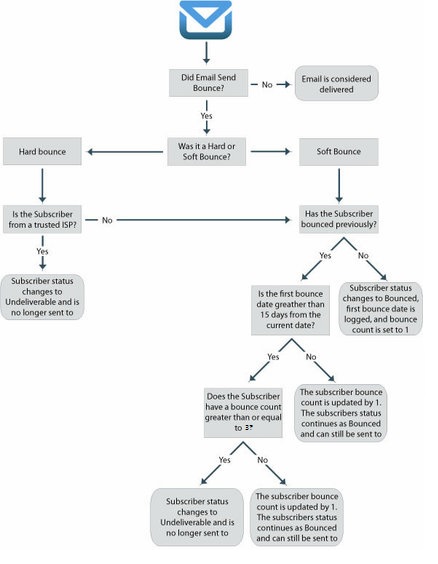
Salesforce Marketing Cloud will automatically filter out the sends to customers that are Unsubscribed (if your unsubscribe settings are based on the Salesforce's OOTB Profile Center) or Held statuses.