Additional Templates
In addition to primary document templates, Unaric Reports provides specialized templates for pulling live Salesforce data, integrating external analytics, and automating eSignature workflows.
Burst variables
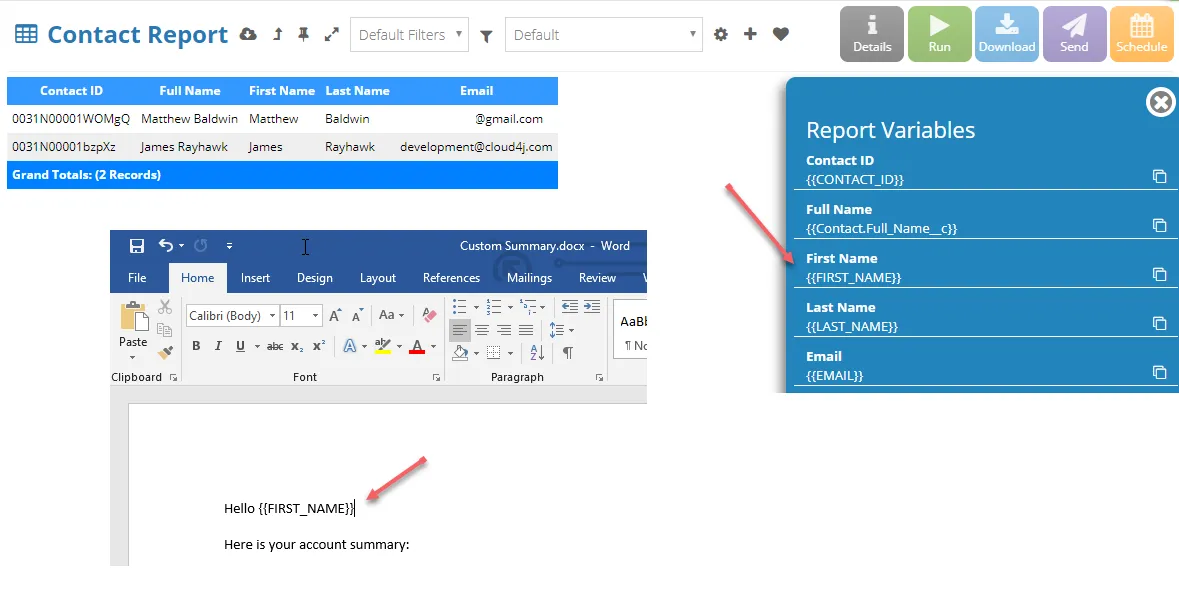
Include variables from your burst report in your documents. When you include a burst report in your Solution, all fields from that report are available as variables. The format for the variables is {{FIELD_API_NAME}}.
For example, if you had a ACCOUNT.NAME field, then the variable name would be {{ACCOUNT.NAME}}. To get a list of all variables, run the report and open the variables view:
Data record variables
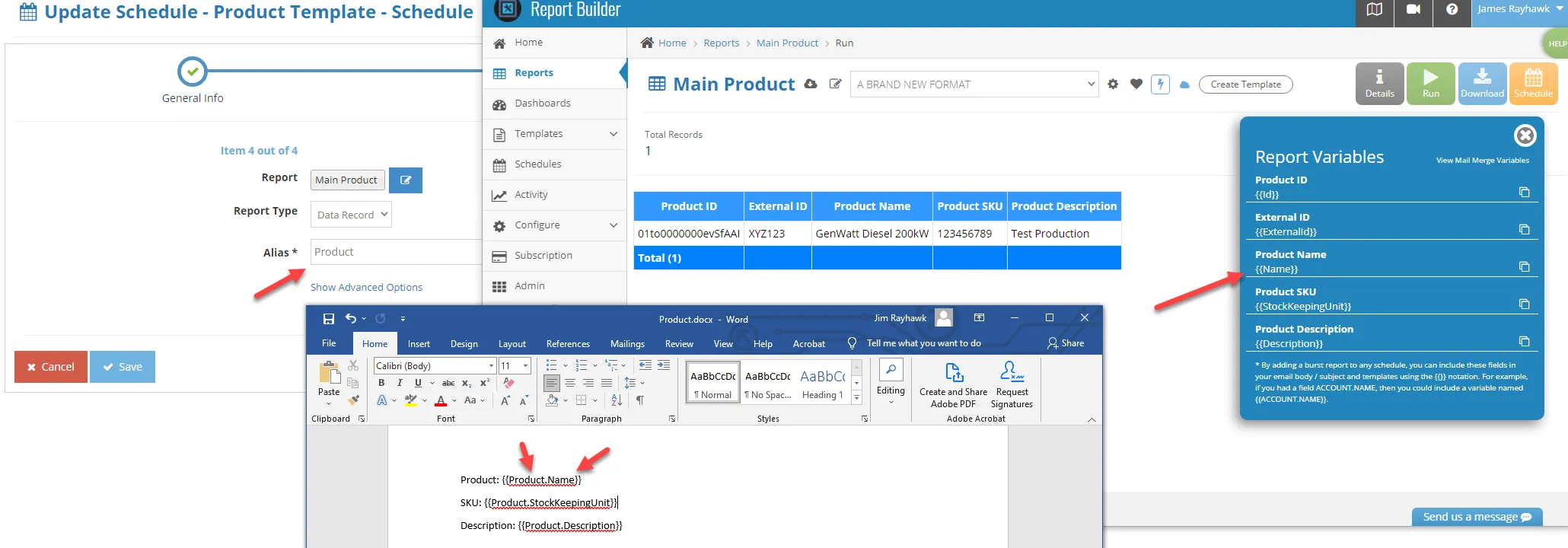
When you include a data report in your Solution, all the fields from that report are available as variables. The format for the variables is {{ALIAS.FIELD_API_NAME}}.
For example, if you had a Name field and your alias was Product, then the variable name would be {{Product.Name}}. To get a list of all variables, run your report and open the variables view:
Images
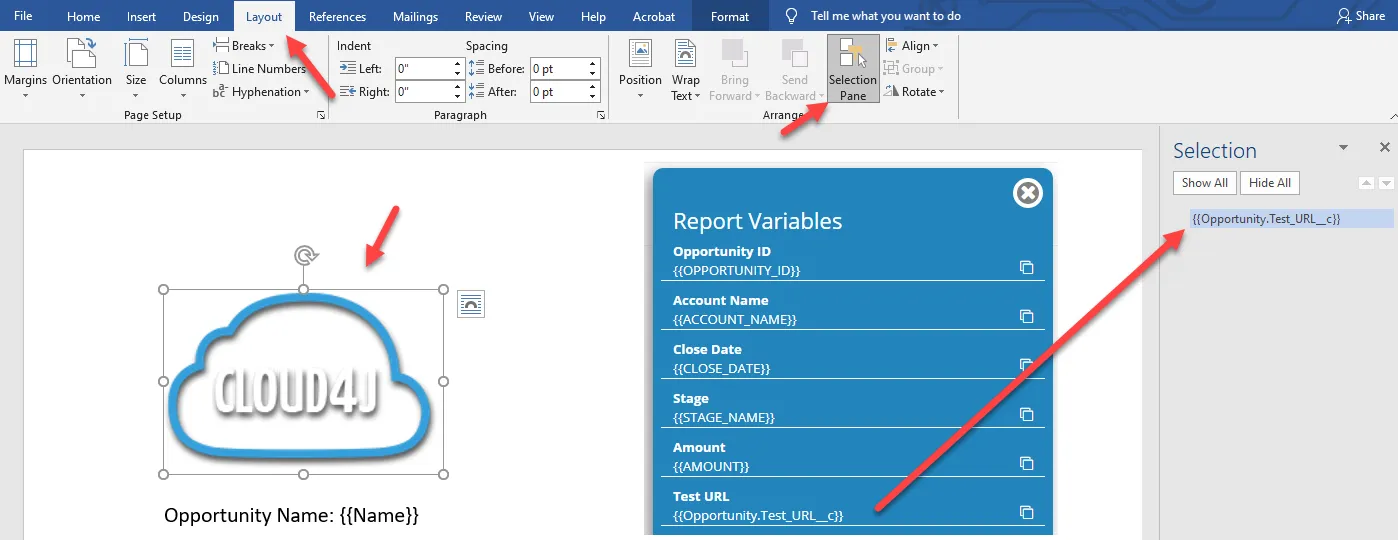
You can embed images into your documents. The image URL must be included in the burst or data report and the image must be publically accessible. To add a mergeable image, add an image to your document template and set the ID as the variable name from the burst or data record report.
For example, if you had a field Opportunity.Test_URL__c, then the variable name would be {{Opportunity.Test_URL__c}} and you would set that as the ID on the image using the Layout > Selection Pane in Word as shown in the image.
eSign
Add eSign features into your documents.
AutoPlace fields
You can add the following fields to your Document Templates:
Field Type | Signer 1 | Signer 2 | Signer 3 | Signer 4 |
|---|---|---|---|---|
Signature | \s1\ | \s2\ | \s3\ | \s4\ |
Initial | \i1\ | \i2\ | \i3\ | \i4\ |
Optional Initial | \oi1\ | \oi2\ | \oi3\ | \oi4\ |
Date Signed | \d1\ | \d2\ | \d3\ | \d4\ |
For example, this Solution and document template requires signatures from two people:
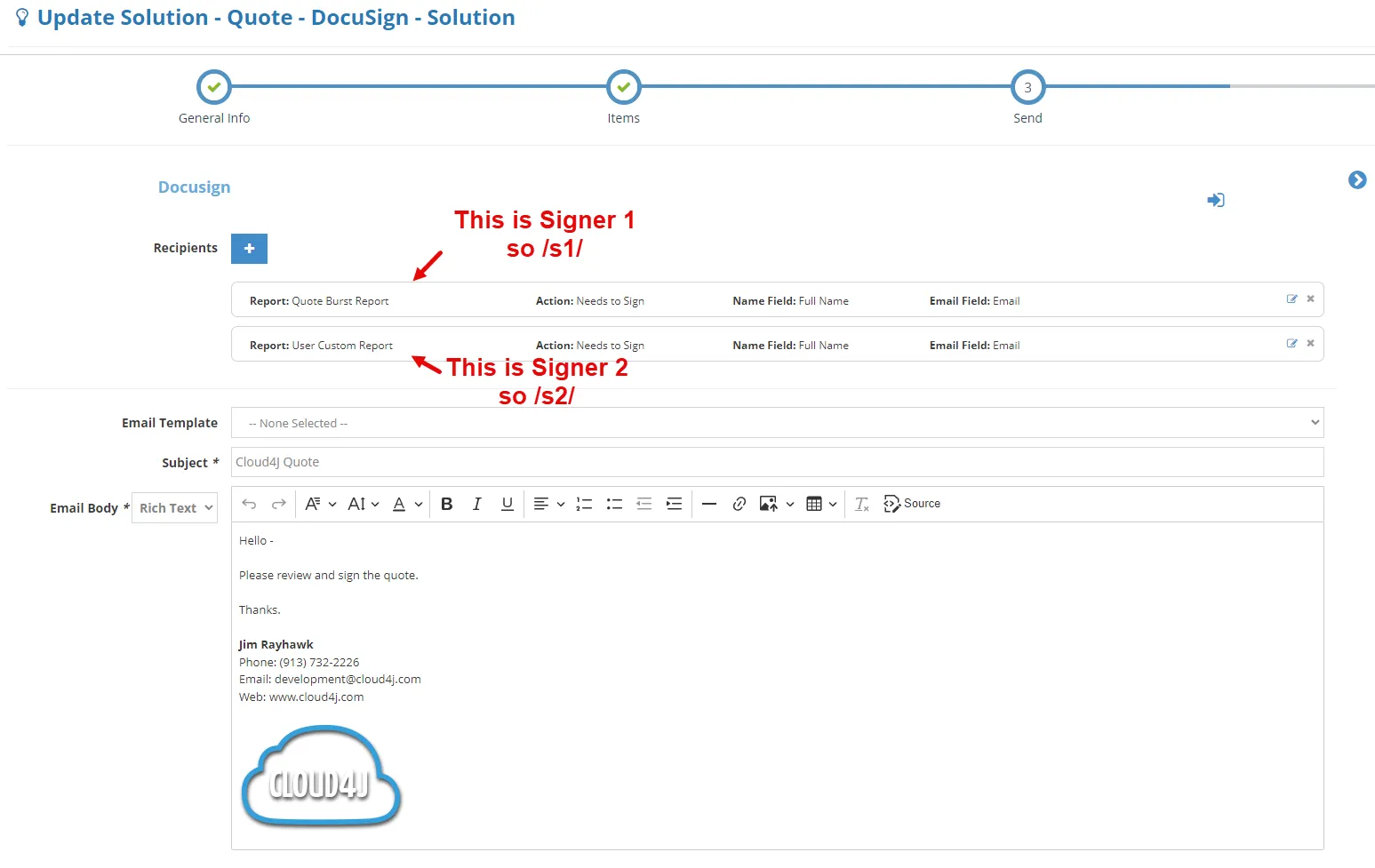
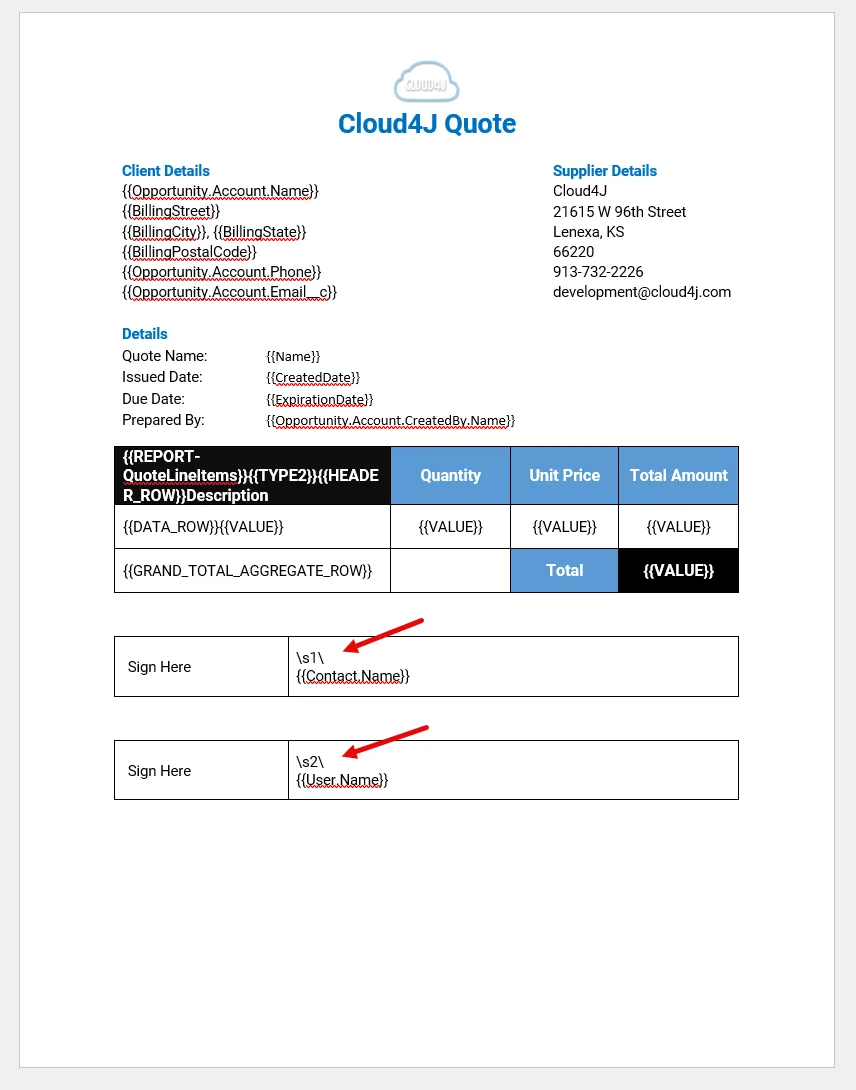
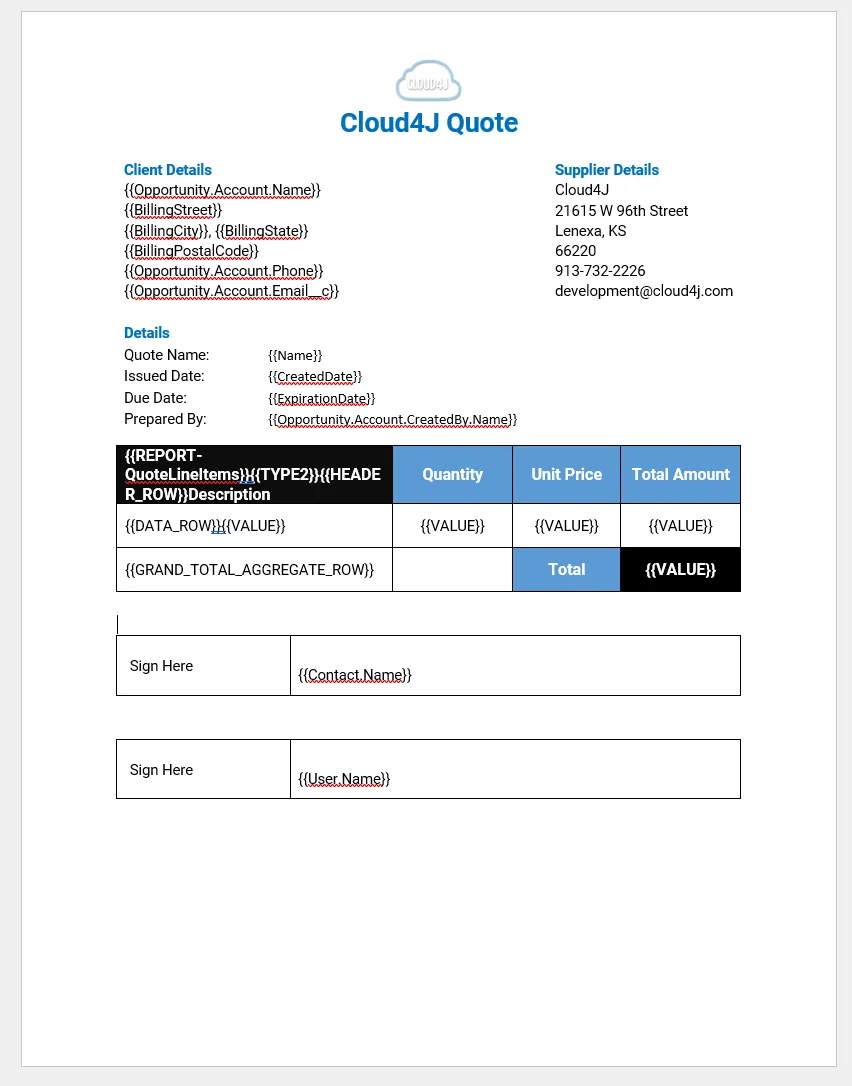
You will need to hide these variables so they don't show up on the final document. To do that, you should set the text colour to white:
Merge fields (If Statements)
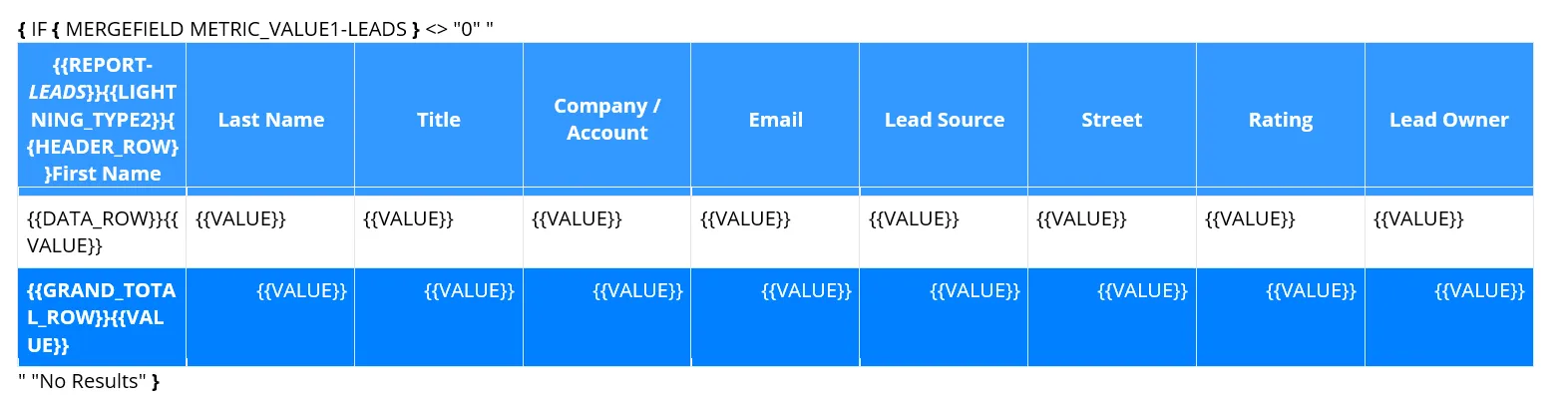
In most cases, you don't need to use merge fields in Word document templates, as you can just use the {{VARIABLE_NAME}} syntax described in these helps docs. However, if you need to add an if statement within Word, you can do that using merge fields and populate them using your variables. You can also use the metric header values as merge fields; you can do this, for example, to hide an entire section of a document if there are rows in the report.
Setup
Turn on field code view
In Microsoft Word, press Alt + F9. You will now see field codes instead of merge field results.
Insert the IF field (do not type the braces!)
- Place your cursor where the IF should go and press Ctrl + F9. Word will insert special field braces { } (typing braces manually does not work).
- Inside the braces type IF (leave space after IF).
Insert the merge field inside the IF statement
- Press Ctrl + F9 again to create nested braces { }.
- Inside braces type MERGEFIELD METRIC_VALUE1-LEADS
- Complete the IF statement so it looks like this (exact spacing): { IF { MERGEFIELD METRIC_VALUE1-LEADS } <> "0" "" "" }
Insert the conditional content
- Click between the first pair of quotes and press Enter.
- Paste or type the entire block (paragraphs, tables, merge fields, etc.). Everything between those first quotes is shown only when the condition is true.
Update the field
- Press Alt + F9 again to return to normal view.
- Press Ctrl + A, then F9. This will update all merge fields in the document.
HTML text
By default, all Salesforce Text Area (Rich) fields are merged into Word as HTML, preserving formatting. All other fields are merged in as regular text.
If you have HTML in standard text fields and you want to preserve formatting, add this token anywhere in your document: {{INSERT_ALL_TEXT_AS_HTML}}.
Lists
You can add output the data from a source report as simple list. The syntax for list is {{TableList:ALIAS:FIELD_API_NAME:DELIMITER}}.
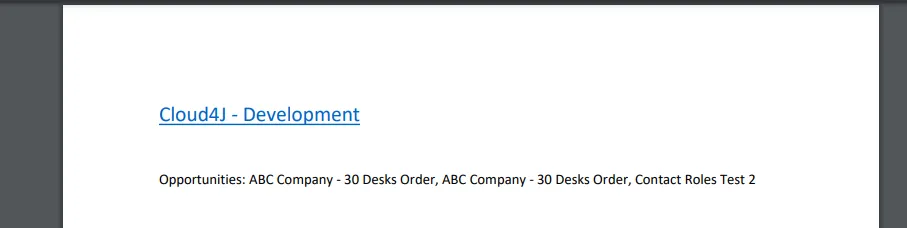
For example, say you want to burst an Account report that included a list of each Account's Opportunity names separated by commas. You would add a source report with a field OPPORTUNITY_NAME to the Solution with an alias of OPPORTUNITY. Then you would add the following token to the Document Template:{{TableList:OPPORTUNITY:OPPORTUNITY_NAME:,}}
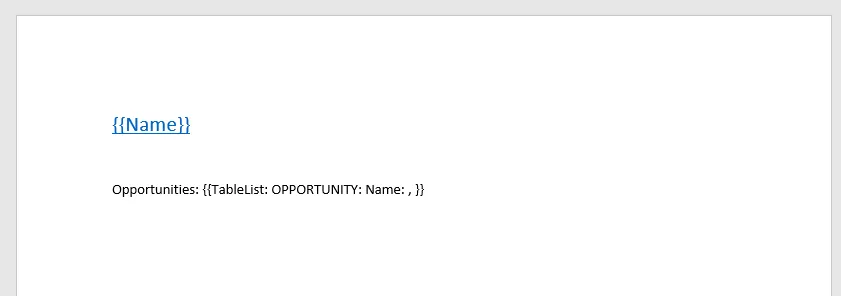
The finalized document will look like this:
Hyperlinks
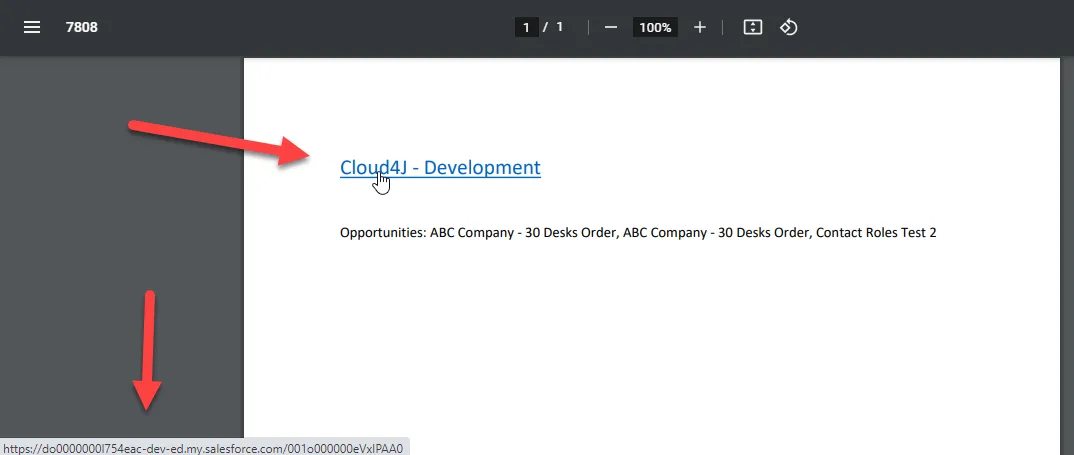
You can add dynamic hyperlinks to any text using variables from your report. The syntax for the text that is displayed is {{FIELD_API_NAME}} and for the URL is FIELD_API_NAME (no brackets).
For example, say you wanted to have a hyperlink on the Account name. You would set it up as follows (note that ID fields are special fields that contain the full Salesforce URL to the record - this is why you can use just the ID field below and it will be replaced with the full URL to the record in Salesforce):
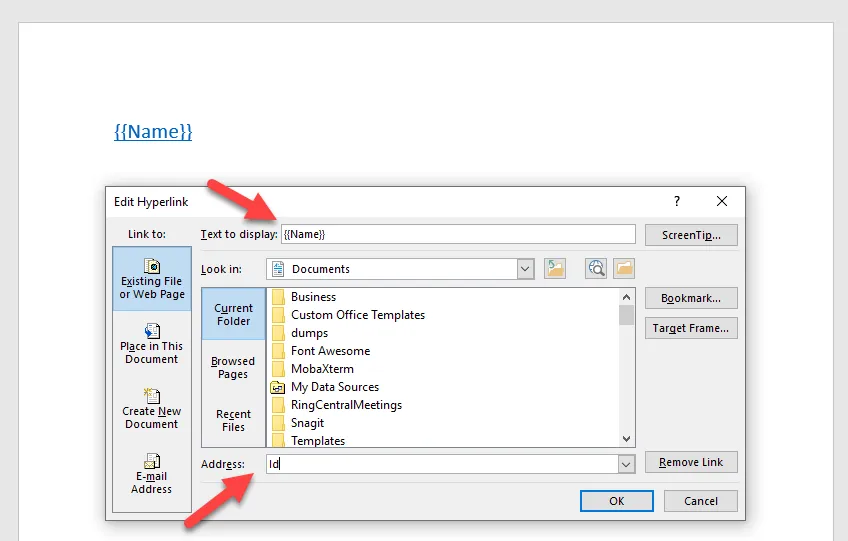
The output will look like this: