Multi-Signature Bank Accounts for GoCardless Direct Debits
Some bank accounts require two or more signatures to authorise a Direct Debit setup. When using GoCardless through Unaric Payments, a checkbox is provided for customers to indicate if their bank account has this requirement.
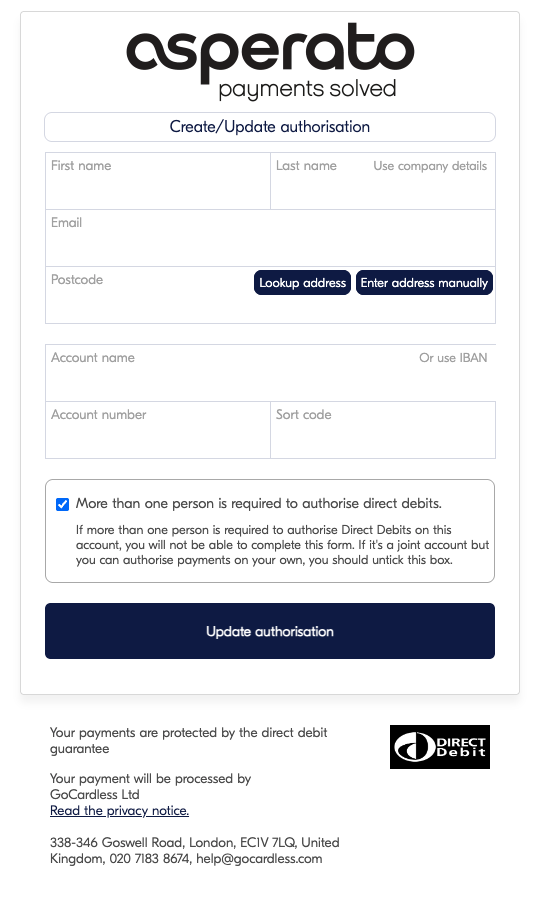
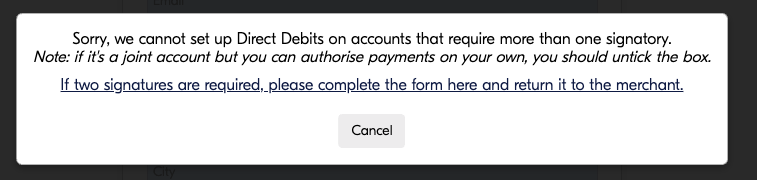
Selecting this checkbox triggers the download of a Direct Debit Mandate form, as these details cannot be collected directly through the API.
Setup
1. Customer actions
- Your customer downloads the Mandate form by clicking the link on the payment page (as shown in the screenshot above).
- Your customer can either use a PDF editor to fill in the form electronically or print the form and fill it in manually.
- The completed form must be sent to the company requesting the authorisation (your company).
2. Create Mandate with GoCardless
- Log in to your GoCardless dashboard and create a new mandate. Do not attempt to collect bank details through the standard GoCardless flow. This mandate will initially be incomplete pending receipt of the physical form.
- Email a copy of the completed PDF Mandate form to [email protected]. GoCardless requires this physical copy to complete the mandate setup.
3. Contact Unaric Payments support
- Email [email protected] with the following information:
- Salesforce Record ID: The Salesforce ID of the Authorisation record (or the alternative Salesforce record ID, such as a Contact or Opportunity ID, to which the mandate should be associated).
- Unaric Payments Repeat Reference: The repeat token reference in the format 1234-A114nnnn (where 1234 is your Customer ID and A is a fixed constant followed by a unique string of characters).
- PSP Repeat Reference: The GoCardless Mandate ID (typically starting with the prefix MD0#######).
- Unaric Payments will then import the data into Salesforce so that the two systems align.