Navigation & Hierarchy
The following components help organize and navigate content, either hierarchically or sequentially. These include content trees, selectors for switching hierarchies, paths in structures, tabbed interfaces, step-by-step wizards, and multipage guides.
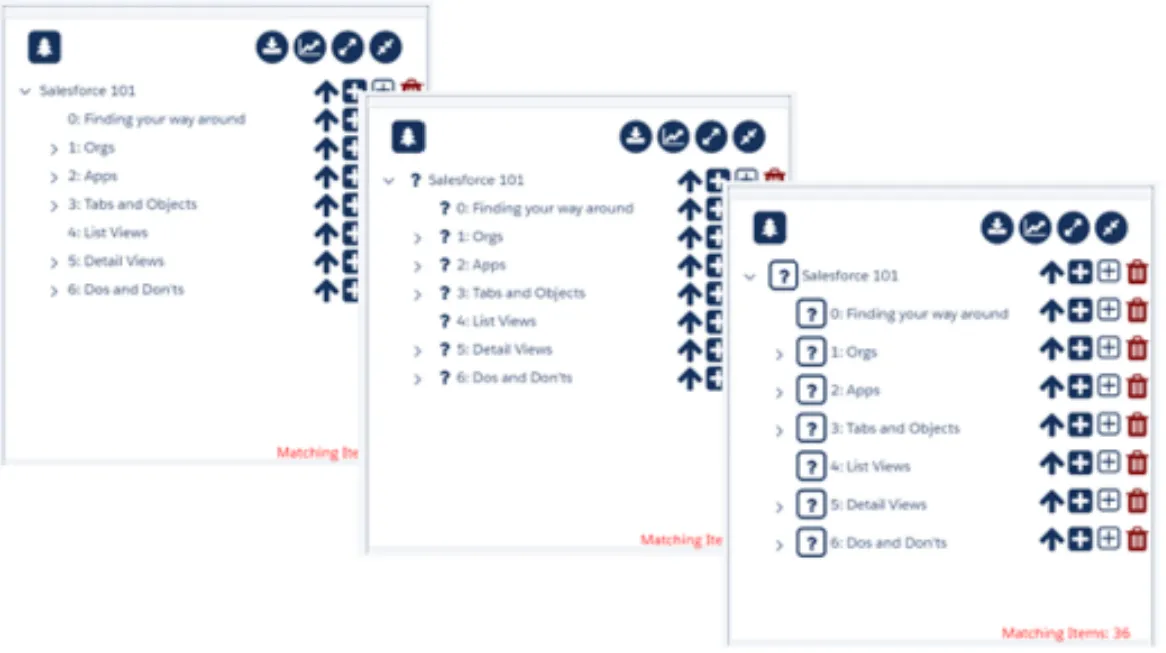
This component displays content hierarchies, such as tables of Help Topic contents or Reading Lists and their entries, similar to that often seen in file explorers or tables of contents. A root node appears at the top of the tree, with its “children” displayed in a hierarchy of branches beneath it.
Best Used For/Key Features:
- Knowledge indexes
- Onboarding maps
Admin Insights & Deployment Tips: Combine with Listing & Topic Viewer; works in Content Apps & Training tabs.
Example Use Cases: Knowledge Base table of contents
Expected Business Outcomes:
- Easier browsing
- Better adoption of help
If checked, Help Authors can amend tree structure using drag and drop operations. By adding Listing controls to Lightning pages along with a Tree View, you can create hierarchies by dragging existing Topics into the desired locations on the Tree. In addition, one can drag branches around the tree to restructure content. Once a tree of content has been produced, Lightning Page owners typically switch drag and drop off (uncheck this setting) in order to prevent Help Authors from inadvertently editing the tree.
For printable view only: Integer defining the amount of indentation in REMs to apply to each level of the Tree. Higher numbers result in greater level indentation.
If set to True, this attribute displays a version of the Tree designed for printing its contents rather than navigating content hierarchies.
The Max Depth parameter can be used to limit the number of levels of child records, counting from the root node, to display on the tree. This can help to avoid recursion, and also issues where Salesforce Governor Limits might otherwise be encountered (max. SOQL queries, CPU time, viewstate errors etc.) The default value of zero instructs the Tree to traverse the hierarchy to return all data.
Authors should be wary of creating ‘recursive’ trees that contain child nodes that are, themselves, parents of nodes appearing elsewhere in the hierarchy.
The Tree View control includes its own API that can be used to display content of various kinds—not just Help Topics. The Node Provider field can generally be left blank, but is used in conjunction with the API to tell the tree which tree implementation it should use to source its content.
In this way, you can define your own object hierarchies and display them on the tree. As a compliment, Topic Viewer can switch dynamically between displaying Help Topic information and other records (via Autoform).
Contact Support for more information on implementing this attribute.
Sets the root node to be shown on the Tree. This is usually a Help Topic Id.
Unlike Reading Lists or Guides, trees do not exist as separate entities within Improved Help. Instead, they are a representation of the Help Topic Relationships that exist between the items to be shown. As of v1.36, Help Topic Relationships now include type information to support this: traditional Help Topic Relationships were simply of type = Relative, whereas those that define trees take the form of parent:child relationships. To create a new tree, log in with suitable rights and use the Tree Builder tab of the Improved Help for Lightning App. Alternatively, proceed as follows:
- Create a new Help Topic and note its ID.
- Add a Tree View to the desired Lightning Layout and set its Default Tree to the new Topic ID.
- Use the Add child tool against the root node (the “ ” with the white background) to begin adding child Topics.
Controls how much white space to display around the nodes on this tree (akin to Salesforce’s “Comfy” and “Compact” density settings.
Check this box to offer a simplified tree presentation with node-level clickables hidden. This can be useful when space is critical, trees are deep (so node labels risk being obscured by tools) and / or the desire is to present an end product taxonomy, rather than one which users are actively engaged in creating or maintaining.
Controls the appearance of the nodes on the tree, which can be shown with or without icons.
The Tree Selector control provides a way for Lightning Page owners to provide their users with access to multiple content hierarchies.
The selector displays a Lightning badge for each available tree of content. When these are clicked, an associated Tree View can be instructed to show the relevant material.
Best Used For/Key Features:
- Multi-context knowledge bases
- Quick-start switching
Admin Insights & Deployment Tips: Pair with Tree View; ideal for 'Author vs Admin' views.
Example Use Cases: Toggle between two Quick-Start tracks in Help app
Expected Business Outcomes:
- Simplified navigation
- Time saved
For each supplied Tree Id, supply the label text to present via the selector badge.
For each supplied Tree Id, specify a Node Provider (see Tree View Specifics, elsewhere).
A comma separated list of the IDs of the root nodes to make available via this control. Clicking a tree selector badge effectively instructs any associated tree to use the clicked ID as its “Default Tree” (see Tree View Specifics, elsewhere).
This component displays the ‘path’ one has taken within a content hierarchy. The Breadcrumb control has no unique parameters of its own. Instead, its Listens To parameter should be set to the Component Id of an associated Tree View. As the user selects branches on the Tree, the Breadcrumb displays their path as a series of hyperlinks.
Best Used For/Key Features:
- Knowledge Base context
- Content navigation
- Content Apps
Admin Insights & Deployment Tips: Add to Knowledge or Toolkit tabs to orient users; links auto-generate from topic hierarchy.
Example Use Cases: Display navigation path in Sales Toolkit
Expected Business Outcomes:
- Better orientation
- Faster content navigation
6-character (HEX) colour value to use for the crumbs that form the trail.
Id of the Help Topic whose crumb trail will be sought on page load.
A tabset control component for custom app pages with broad presentational flexibility that shows a tab for each related Help Topic. Alternatively, you can define tabs in Configuration items.
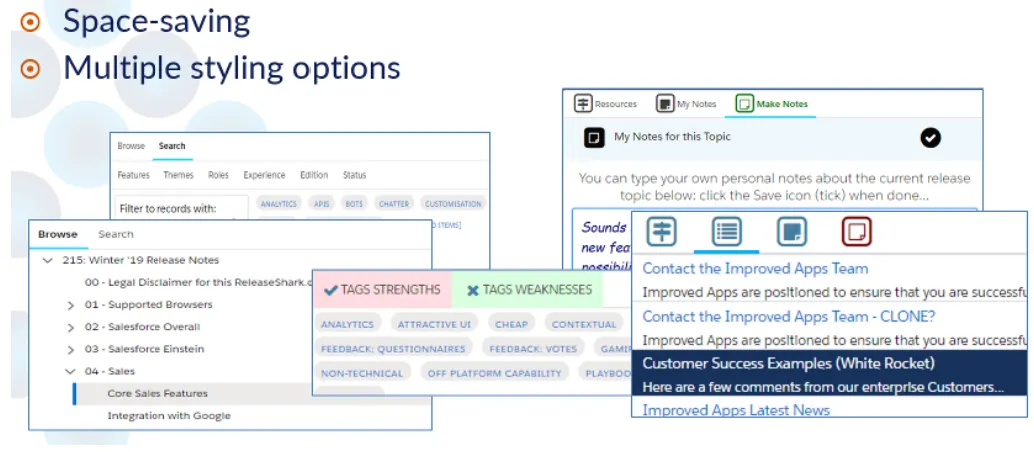
The standard Salesforce tab component is only available on record pages as at this release of Improved Help. In turn, this tabset control can also be used on custom app pages. The component has the additional benefit of greater presentational flexibility, in that:
- Each tab can feature label text and / or an icon.
- Tabs can be styled individually, for example to have differing background and font colours.
- Tabs include meaningful tool tips (not fully implemented in the Salesforce control at this stage).
Notwithstanding this flexibility, it is important to understand the limitations / strictures of our tabset implementation:
- One is not able to add tabs and control their order / content via the Lightning page editor.
- Instead, the page author adds the tabset component to the page, then specifies parameters that control the source of the tabs. The source can be one of two types.
Fixed tabs
In this scenario, the Tabset is similar to the Wizard control in that its contents are entirely defined in Configuration Item records: each tab in the collection is defined by a single record, which includes details of the label, tip text, icon and content to display.
Related tabs In this scenario, one tab is displayed for each record related to a specified Help Topic.
Best Used For/Key Features:
- Flexible tab navigation
- Configurable icons & hover text
- Author-friendly design
Admin Insights & Deployment Tips: Embed in custom pages or Experience sites; each tab can host any Help component.
Example Use Cases: 'Welcome / Resources / FAQs' on onboarding page
Expected Business Outcomes:
- Better information structure
- Fewer clicks
Parameters applicable to tabs in either fixed or related scenarios
The following parameters apply to tabs in either fixed or related scenarios:
- Suppress Tab Labels (SuppressLabels): Check this box to hide the text label accompanying each tab (setting ignored if Icon Style is 'None').
- Icon Style (NodeIconStyle): Controls the appearance of icons against the text of each tab in the tabset.
For related tabs only, this setting defines which components to include in each tab. It uses the Action Code from a Help Configuration Item record, where the type is Header and the Tool Context is set to [Template]. The Supporting Controls data in that record specifies the component(s) to add to each tab.
For related tabs only, the related Help record type to feature. Select from:
- Child Help - display a tab for each topic that is a child of the specified Help Topic.
- Reading Lists - display a tab for each Reading List to which the specified Help Topic is Related, plus one for any featured Reading Lists.
- Related Help - display a tab for each of the specified Help Topic’s related relatives.
- Resources - display a tab for each of the specified Help Topic’s related Resources.
- Unfeatured Reading Lists - display a tab for each Reading List to which the specified Help Topic is Related, but exclude any featured Reading Lists.
For related tabs only, the Id of the Help Topic whose relatives will define the tabs to display in this component.
For fixed tabs only, the name (as defined in Configuration Item records) of the collection of tabs to display in the component.
Contact Improved Apps for more details about how to define tab sets.
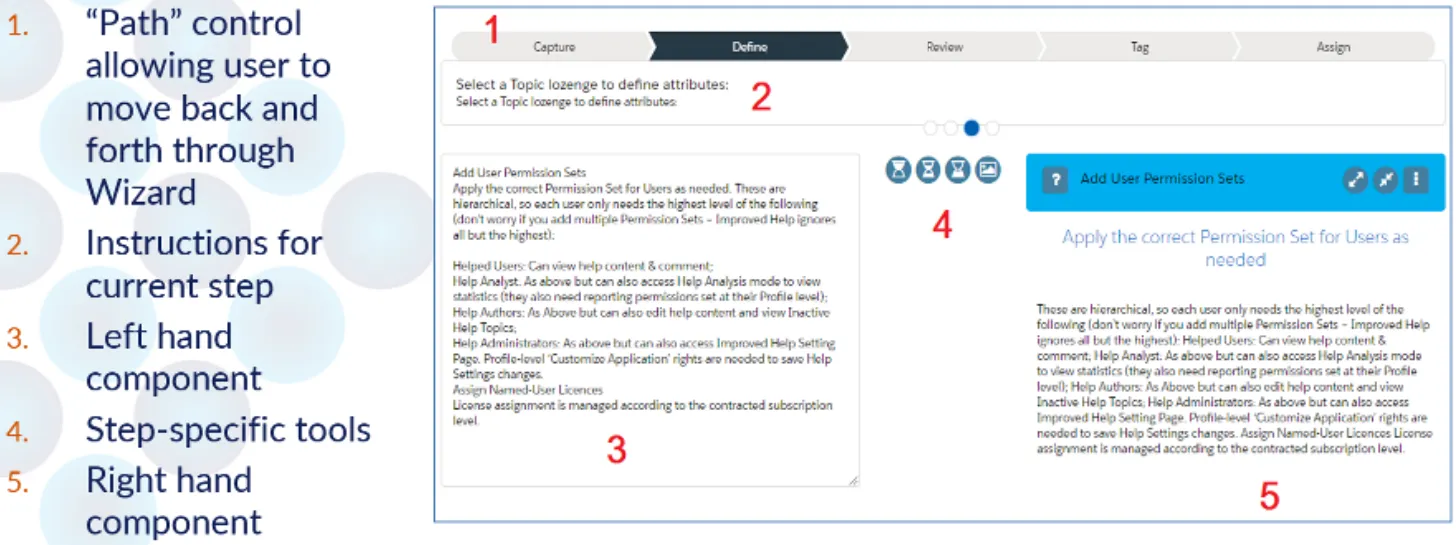
Wizards allow the user to step through a series of defined steps to achieve a specific goal. A page author adds the component to a Lightning page, then selects the Wizard that is to be offered to the user. All aspects of the Wizard are defined in the Configuration Item records that ship with Improved Help. Each step is defined by a single Configuration Item record, including step label, tool tips, instructions and the controls to present.
Best Used For/Key Features:
- Structured onboarding
- Process adherence
- Any step can contain other components
Admin Insights & Deployment Tips: Use for role-based learning journeys or data quality reviews.
Example Use Cases: 'New Hire Setup' wizard across objects
Expected Business Outcomes:
- Higher completion rates
- Standardised process execution
The name of the Wizard, as defined in Configuration Item records.
Contact Improved Apps Support for more details about the Wizards that ship with Improved Help and how to develop others.
The Page Guides component offer a sequence of related prompts that draw the user's attention to various parts of their application.
Each prompt is positioned by reference to a grid of imaginary rows and columns overlying the user's screen. The resolution of this grid - and thus the granularity with which each prompt may be positioned - is defined by the Design Rows and Design Columns attributes of the component.
The sequence of prompts can be defined directly on the component using its attributes or can be derived from the Entries in a Help Reading List. Page Guides may cover a single page or multiple screens: the latter is possible only with the Reading List option.
Depending on component settings, user's may show and hide Page Guides at will and can also close them at any point.
Best Used For/Key Features:
- General orientation
- Change management
- Simple onboarding
- Based on Reading Lists
Admin Insights & Deployment Tips: Launch from Utility Bar; each Reading List entry becomes a step; not available on mobile yet.
Example Use Cases: 'Feature Tour: What’s New in Sales App'
Expected Business Outcomes:
- Increased user confidence
- Fewer support queries post-release
The number of rows and columns into which the screen area should be divided for step positioning. Each prompt in a Page Guide is positioned by reference to a 'grid' of imaginary rows and columns overlying the user's screen. The resolution of this grid - and thus the granularity with which each prompt may be positioned - is defined by the Design Rows and Design Columns attributes of the component.
Enter a positive integer for rows and select from one of the available column number settings. Bear in mind that prompts take the form of Help Topic Viewer components positioned within the cells of the grid. As such, they are constrained by the width of each column. The higher the value selected for the Design Columns parameter:
- The greater the horizontal positioning resolution, but also...
- ... the narrower each Topic will appear.
Enter the relevant record ID to derive step order, featured prompt text (from the referenced Help Topics), prompt positioning and any page to page navigation instructions from the Entries of a Help Reading List.
Alternatively, leave this setting blank to source the above information from the Step Pages, Step Positions and Step Topics attributes of this component.
If using a Reading List, each Reading List Entry record must have the following fields populated:
- Display Row: the row position in the 'grid' overlaying the guided page layout at which to display the desired prompt.
- Display Column: similarly, the column position.
For more information on these values, please refer to the Design Columns and Design Rows attributes of the Page Guide component.
Additionally, if it is desired to navigate between screens at any point in the Guide, the relevant Reading List Entries must include:
- Navigation Type: defines the type of navigation that will occur as the user navigate to the step represented by the Entry. Options are:
- None: the Guide prompt for the entry will appear on whatever screen the user is on as they reach this step of the Guide.
- Listview: on entry, the user will be taken to a Salesforce list view page.
- Record - New: the user will be taken to a record entry screen.
- Record - Edit: the user will be taken to a record editing screen.
- Record - View: the user will be taken to a specified record in view mode.
- Standard Tab: used for navigation to certain common Salesforce pages not based on lists or records, such as Home screens.
- Custom: used for navigation to custom Lightning page layouts.
- Navigation Details: provides the specific information required to undertake page-to-page navigation:
- For Listview types, this is.
- For new records, the object API name of the record to be created.
- For record views and edits, the ID of the specific record to feature.
- For Standard tabs, a particular layout name, such as 'home' for the Home page of an app. Contact support for more information.
- For Custom types, the API name of the desired page layout.
When no Guide Id is specified, define which page navigations are to be used, if any, for each step of the Guide
If no Guide Id is set, this attribute decides where each step of the Page Guide appears on the screen grid. It uses a comma-separated list of row and column positions on an imaginary grid overlay. Each position is written as Rn:Cn
- R stands for row number,
- C stands for column number,
- n is the specific number (starting at 0).
Example: for a two step guide on a grid of 3 rows and 4 columns, to position the first step in the top left cell and the second step in the bottom right cell, enter: R0:C0,R2:C3.
The number of comma separated values supplied for Step Topics, Step Pages and Step Positions must match.
When no Guide Id is specified, define which Help Topics are to be used for each step of the Guide, entering a comma separated list of Help Topic IDs.
The number of comma separated values supplied for Step Topics, Step Pages and Step Positions must match.
Sizes the Page Guide component in a way suited to use in the Utility Bar. To navigate between pages, the Page Guide component should be used in the Utility Bar: this is the only way for the component and knowledge of its steps to 'persist' as one navigates.
When used in the Utility Bar, one should launch the Guide from a Help Button positioned in the body area of the entry / start page of the Guide. The Utility Bar Mode attribute can be used to facilitate this:
- When this attribute is unchecked (set to false), the component features a 'header' area with buttons that can be used to launch the Guide.
- When this attribute is checked (set to true), the component header and its buttons are hidden. This makes the component suited for use in the Utility Bar (which is required for page-to-page navigation).
In Utility Bar mode, add a Help Button to the relevant page layout and ensure that the Page Guide component is listening (set its Listens To parameter to the Positioning Group attribute of the button).