Context Help Wizard
Use the Context Help Wizard to create contextual Help content for use in your Salesforce Lightning Apps. From the Helped User's point of view, this is presented via the Utility 1 component, which is added to the Salesforce Utility bar and showing the application Help Index tree.
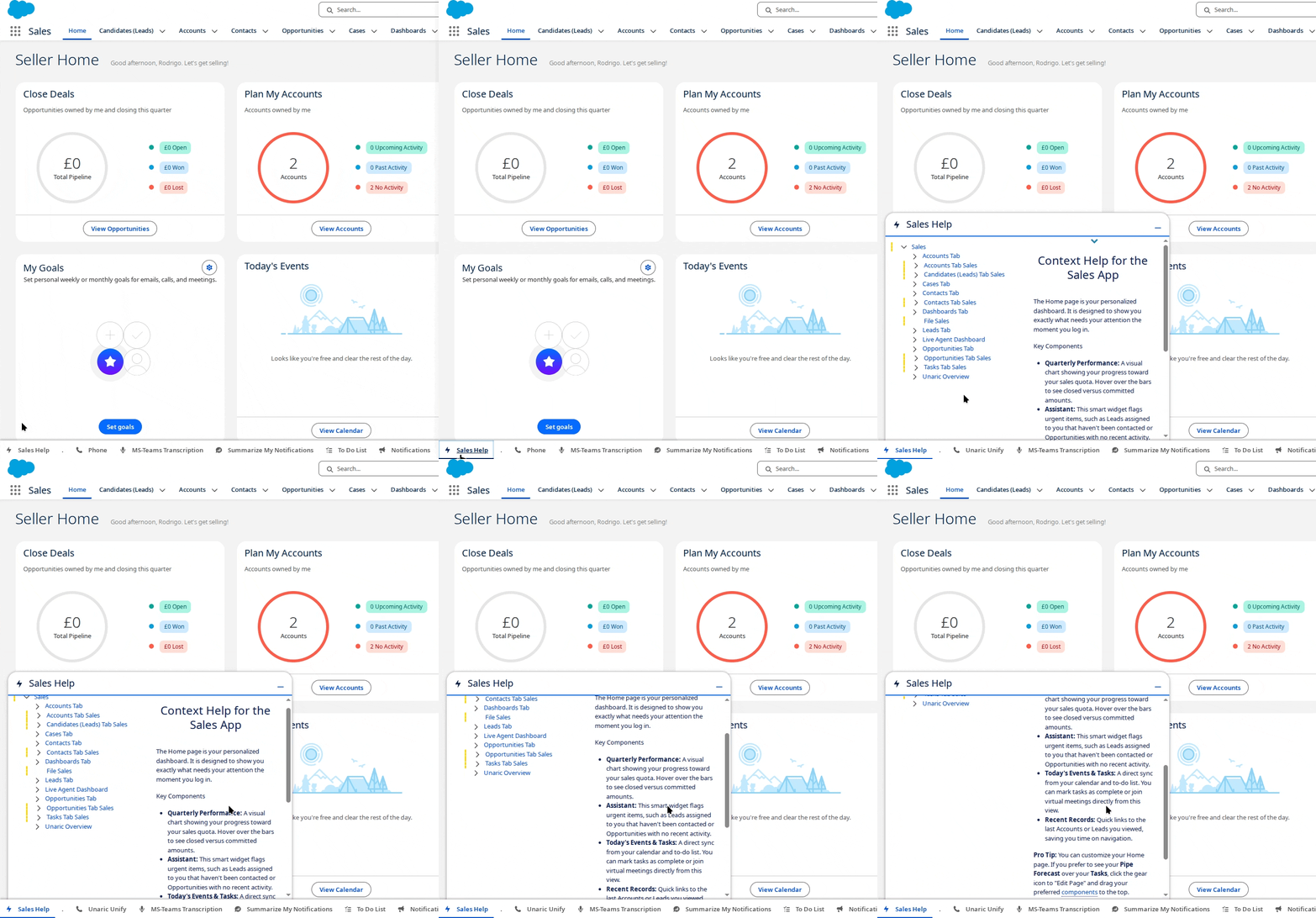
Once set up, the tree will contextualise as you navigate to the tabs you have selected in the Wizard.
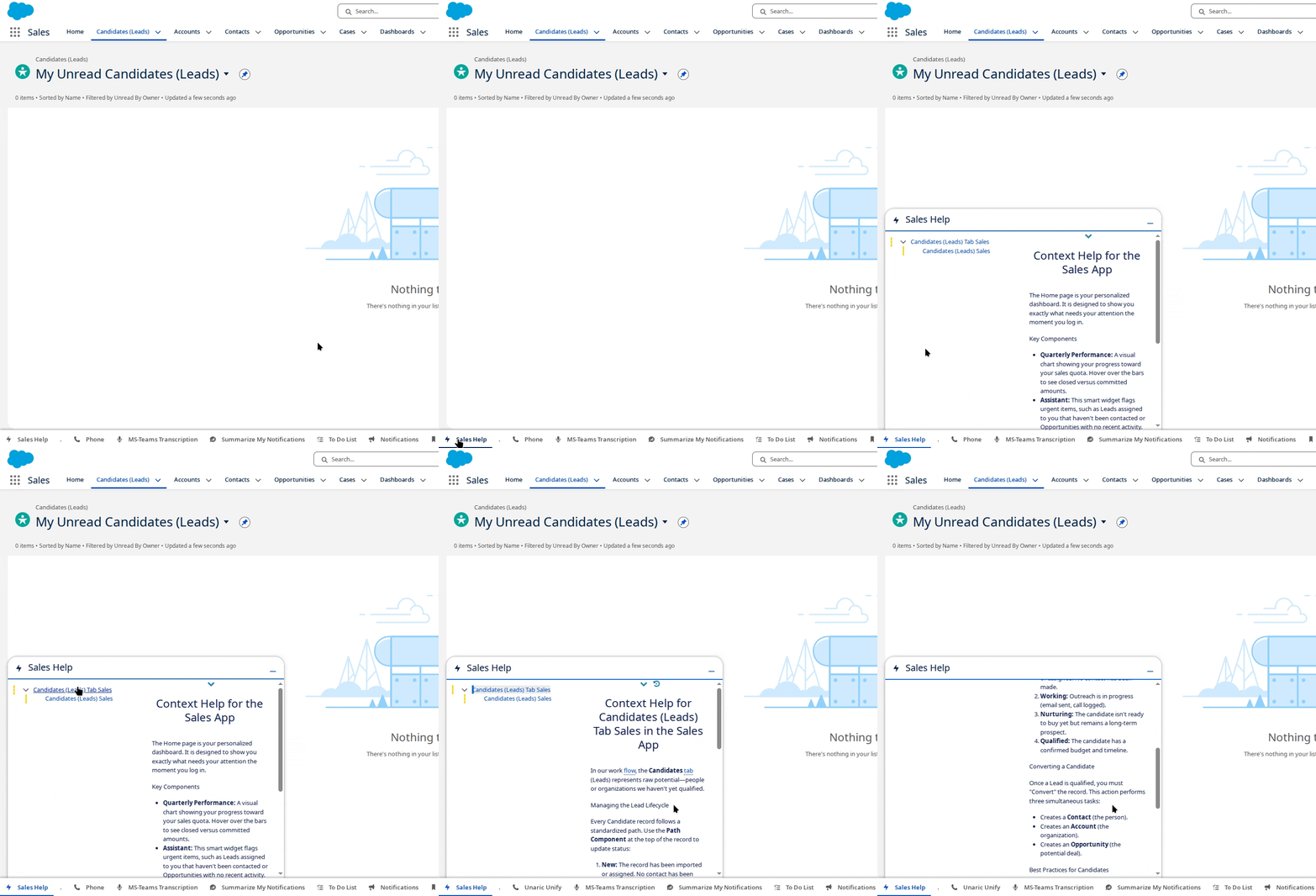
How it works
Select App
Selecting the App for which you wish to provide contextual Help from the list by clicking its name.
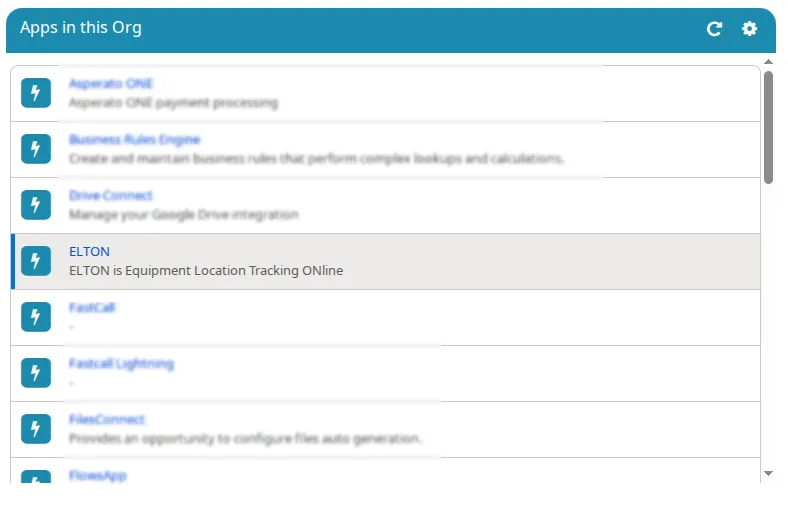
If apps are missing in the listing:
- Click the icon above the listing to obtain App information from Salesforce metadata. You should see a message confirming that the data has been retrieved.
- Close the message, then use the icon above the listing to re-generate its contents.
Select Tabs
Select the tabs within the selected App for which you wish to create context Help. To do this, click the Select Tabs step. The listing below will show the tabs in the App you selected. Use the ticks to select those for which you wish to create context Help.
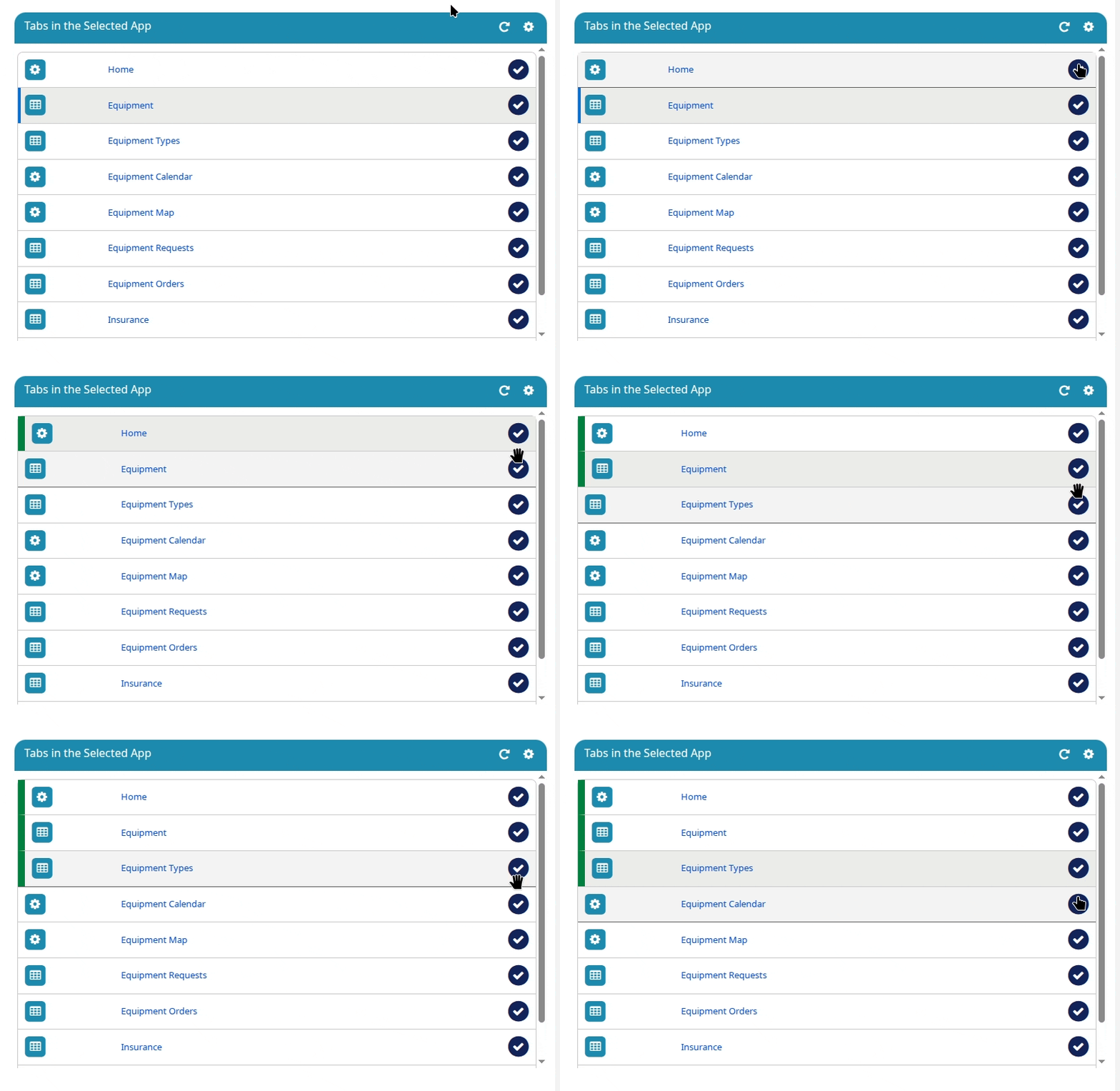
If tabs are missing in the listing:
- Click the icon above the listing to obtain App information from Salesforce metadata. You should see a message confirming that the data has been retrieved.
- Close the message, then use the icon above the listing to re-generate its contents.
Next Steps
- Click the icon to confirm selection. This will create:
- Help Topics and a Helped Page Layout for the App and each selected Tab
- Help Relationships to form the new Topics into a Tree of content
- A default 'tree context' Helped Element for each Tab that will cause re-contextualisation to occur as a user navigates to it
- Copy the ID of the newly created root Help Topic (the one created for the App) shown at the left.
- Click the Resource attached to this Help Topic below to open the Salesforce App Manager.
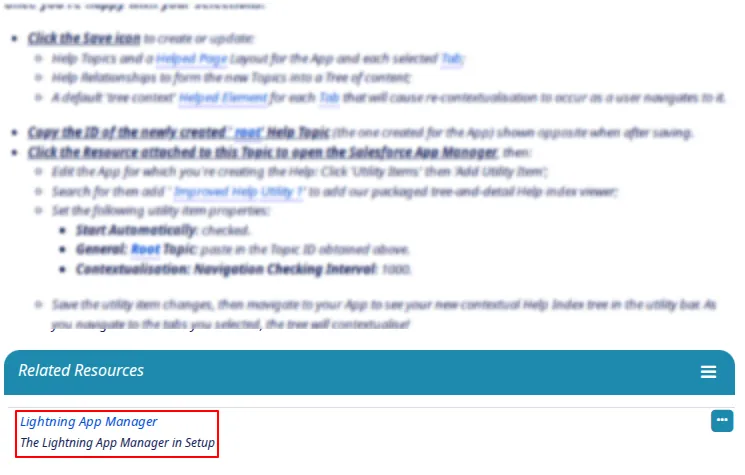
- In the Salesforce App Manager, find the app for which you're creating the Help and click Edit.
- Move to the Utility Items tab and click Add Utility Item.
- Add Improved Help Utility 1. This will add your packaged tree-and-detail Help index viewer.
- Set the following utility item properties:
- Start Automatically: checked
- General: Root Topic: Paste the Topic ID previously obtained
- Contextualisation: Navigation Checking Interval: 1000
- Save the utility item changes. Navigate to your App to see your new contextual Help Index tree in the utility bar. As you navigate to the tabs you selected, the tree will contextualise.
Select an App from the listing opposite to begin