Advanced Configuration
Phone number requirements
Unaric Voice is flexible with how phone numbers are stored in Salesforce. While the formatting may vary, the key requirement is that all phone numbers must follow the international phone number format for accurate dialing and caller identification.
Key guidelines
- Unstructured formatting is accepted. You can store numbers with spaces, dashes, parentheses, or slashes.
- Special characters like #, *, and + are allowed. These characters are not stripped because they may carry functional meanings (e.g., for phone systems or extensions).
- Avoid including a leading zero after the country code. This may cause issues with inbound caller identification, even if outbound calls work.
Valid examples
Format Style | Example (Germany) | Example (USA) |
|---|---|---|
E.164 format | +49 7525 5293-39 | +1 646.257.3801 |
International prefix with slashes | 0049/752593-39 | 011 1 646.257.3801 |
Mixed with parentheses | +49 (0) 7525529339 | +1 (1) 646.257.3801 |
Slashes and zero after country code | 0049(0) 7525/529339 | 0111 (1) 646.257.3801 |
Fully numeric | 004907525/529339 | 0111 1 646.257.3801 (not ideal, but still works) |
Local number only | 07525/529339 | 257.3801 |
Do not include a zero after the country code. For example: 0044(0)2089481345. This would be converted to 00442089481345 for outgoing calls, but inbound caller identification will fail.
Call times
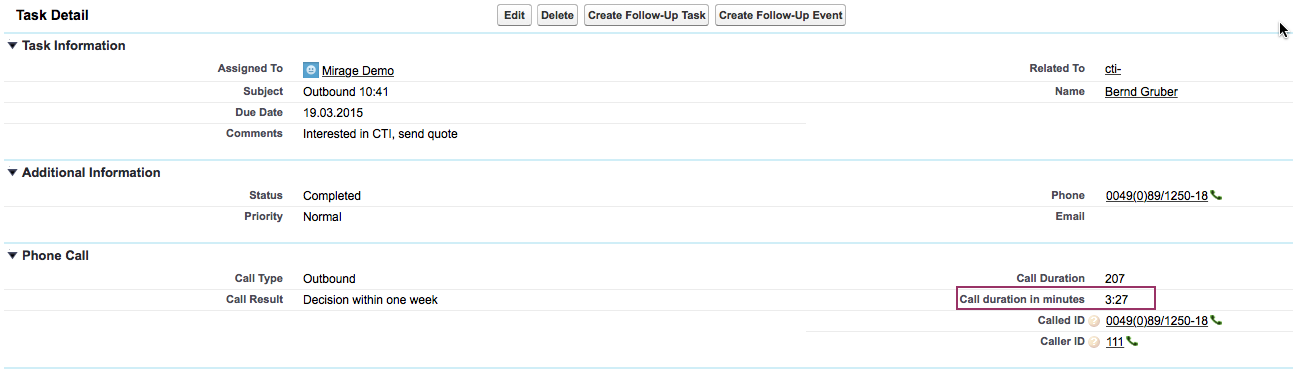
Call duration (active) in minutes
By default, Unaric Voice logs call duration in seconds as part of the activity record. If you prefer to display the duration in minutes, you can create a custom formula field in Salesforce. To display call duration in minutes
- Go to Salesforce Setup → Object Manager → Task → Fields & Relationships.
- Create a new formula field:
- Type: Formula
- Return Type: Number
- Decimal Places: Optional (e.g., 2)
- Use the following formula to convert seconds to minutes: CallDurationInSeconds__c / 60. (Replace CallDurationInSeconds__c with your actual API field name if different.)
- Add the new field to the Task page layout where needed. The call duration will now be displayed in minutes alongside the original value in seconds.
Call duration fields
Unaric Voice tracks call duration using standard and optional fields in Salesforce. These fields help distinguish between the actual time spent on a call and the total time from call initiation to end. The Call Duration (in seconds) field reflects only the time the call was active: starting when the call is answered and stopping when the call ends.
The Call Ring Time is the length of time the phone rings until the call is answered. If you want to include ring time (i.e., time before the call was answered), you can configure an additional custom field to capture the total duration of the call. This total may include:
- Ringing time (before answer)
- Active call time
- Possible post-call wrap-up if included in your setup
Log Caller ID & Called ID
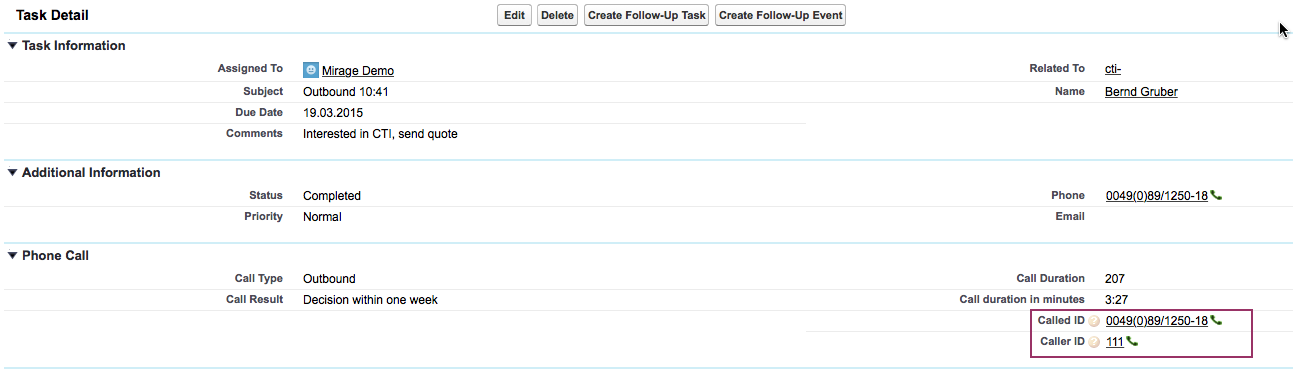
The number of the caller (Caller ID) and the number which was dialed (Called ID) can be logged.
Validation rules
If you need a task validation or workflow rule to identify, if an activity was created by Unaric Voice, use the custom field Internal Call ID (API name: Mirage__Mirage_Call_ID__c). This field is a unique ID for a phone call and is empty if the activity was manually created.
System icon
By default, the icon is not visible on Vista and Windows 7 in the notification area. To show the icon for CTI Data Connector for Salesforce® in the system tray, click on the up arrow. Click on Customize.
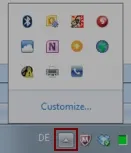
This will open the Notification Area Icons control panel item. Select the icon for CTI Data Connector for Salesforce® and in the pick list select: Show icon and notification.
