Granular Syncing
By default, external missed calls and calls answered or initiated from Microsoft Teams Phone are synced in Salesforce as Task records (Open CTI) or Voice Call records (SCV). Admins can choose which Salesforce org the queue's calls sync to and specify how the call gets assigned in Salesforce.
Unaric Sync only applies to external calls. Internal (Teams-to-Teams) calls are not synced.
How it works
Unaric Voice for Teams syncs every Microsoft Teams Phone PSTN call for users listed in your customer list within the Admin portal, whether missed, answered on another device, or handled via Teams Call Queues. Syncing automatically matches incoming phone numbers to existing Accounts, Contacts, or Leads in the designated Salesforce org.
Sync behaviour will vary depending on the type of call:
- Direct calls: Sync to the Salesforce organization the user most recently accessed via the softphone. The tasks for direct calls (initiated or received) will be assigned to the Salesforce agent that made or received the call.
- Queue calls: Sync to specific Salesforce orgs mapped by an admin. Answered calls are always assigned to the agent who answered.
- Missed queue calls: Follow fallback assignment rules based on matched record ownership, assigned queue owners, or the admin who linked the org.
Setup
You need to be an administrator to apply this configuration.
- In the Admin Portal, select Manage Queue. Super admins will find this option in the Manage Customer > Actions column.
- You will find a list of queue items, listed along their Queue Name, Queue Object ID, and linked Salesforce org. Click Sync Queues to automatically pull all active call queues and auto-attendants into the portal.
- Search for or locate the queue or auto-attendant you wish to map and click Link to a Salesforce org.
- Select the destination Salesforce Organization.
- Assign a Missed Call Owner (this serves as the assigned fallback user for missed calls if matched record assignment is enabled).
- Set your Matched Record Assignment preference:
- Enabled (On): Assigns missed calls to the owner of the matched Salesforce record.
- Disabled (Off): Assigns all missed calls on this queue directly to the designated Missed Call Owner.
- Click Link and Assign.
Sync queues
For Teams call queue and auto-attendant calls to sync into Salesforce, you will first need to pull your Microsoft Teams resource accounts into the Unaric Voice for Teams Admin Portal. To do this, click Manage Queue and Sync Queues.

Queue linking
By default, no queues are linked, however, you can choose exactly which queues sync to Salesforce and map individual queues to different Salesforce orgs. This is helpful for controlling which call data enters Salesforce and route specific queues to specific orgs or owners.
Queue links require owners that serve as a fallback for missed calls. Hence, when a call goes unanswered, they are the Salesforce user assigned the resulting Task record.
Link queues
- Open the Manage Queue tab.
- To use the checkbox to select your queues and click the Link Salesforce Org button.
- Select the orgs you want to link and click Next Assign Owner.
- Select the owner.
- Click Link & Assign to finish.
Nested auto-attendant handling
Linking a parent auto-attendant automatically syncs all child queues beneath it. To sync specific queues while excluding others (such as HR or Legal), leave the main auto-attendant unlinked and selectively link only the target child queues.
For example, if you have a Main Line auto-attendant with Sales, Support, HR, and Legal nested beneath it, linking the Main Line will sync all four child queues.
graph TD
    A[Main Line Auto-Attendant <br/> 🟢 LINKED] --> B[Sales Queue <br/> 🟢 Synced]
    A --> C[Support Queue <br/> 🟢 Synced]
    A --> D[HR Queue <br/> 🟢 Synced]
    A --> E[Legal Queue <br/> 🟢 Synced]

    style A fill:#56FFDD,stroke:#003052,stroke-width:2px,color:#003052
    style B fill:#DBF5FF,stroke:#003052,stroke-width:1px,color:#003052
    style C fill:#DBF5FF,stroke:#003052,stroke-width:1px,color:#003052
    style D fill:#DBF5FF,stroke:#003052,stroke-width:1px,color:#003052
    style E fill:#DBF5FF,stroke:#003052,stroke-width:1px,color:#003052
If you want to sync Sales and Support but exclude HR and Legal, leave the Main Line unlinked and link only the Sales and Support queues directly
graph TD
    A[Main Line Auto-Attendant <br/> ⚪ UNLINKED] --> B[Sales Queue <br/> 🟢 LINKED - Synced]
    A --> C[Support Queue <br/> 🟢 LINKED - Synced]
    A --> D[HR Queue <br/> ⚪ UNLINKED - Not Synced]
    A --> E[Legal Queue <br/> ⚪ UNLINKED - Not Synced]

    style A fill:#EDF5F7,stroke:#003052,stroke-width:1px,color:#003052
    style B fill:#56FFDD,stroke:#003052,stroke-width:2px,color:#003052
    style C fill:#56FFDD,stroke:#003052,stroke-width:2px,color:#003052
    style D fill:#EDF5F7,stroke:#1E8AAE,stroke-width:1px,color:#003052
    style E fill:#EDF5F7,stroke:#1E8AAE,stroke-width:1px,color:#003052
Matched record assignment
Matched Record Assignment determines how missed call tasks are routed in a queue when a call comes from a recognized contact in Salesforce.
- When Enabled: If an incoming missed call matches an existing Account, Contact, or Lead in Salesforce, the task is automatically assigned to the Salesforce user who owns that matched record. If that record owner is inactive or no longer in Salesforce, the assignment automatically falls back to the queue's designated Missed Call Owner.
- When Disabled: Bypasses the record owner logic entirely. All missed calls for that queue are assigned directly to the queue's designated Missed Call Owner, regardless of whether the caller matches an existing Salesforce record. Hence, disable this option if you want all calls on the queue to be assigned to the missed call owner.
You can enable and disable matched record assignment in the Manage Queu tab, using the toggle next to each queue in the Matched Record Assignment column.
If a missed call comes in and all other routing attempts fail (no record match, no active matched record owner, and no valid queue owner), the task will be assigned to the user who linked the Salesforce org to the admin portal.
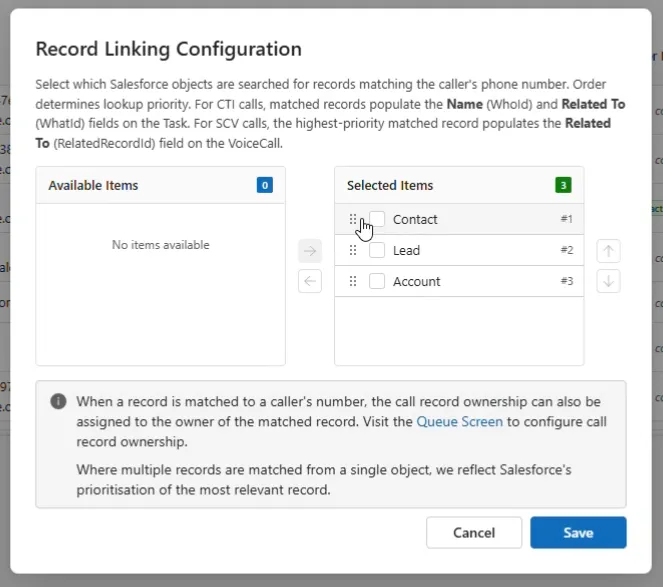
Caller number lookup objects
You can choose which record to associate calls, for example Accounts, Contacts, or Leads. Further, you can choose the order,
- Open the Authorization tab.
- Choose Salesforce. You will see a list of available Salesforce orgs. In the Caller Number Lookup Objects column you will find the objects already setup for each org.
- Click the Edit button in the Actions column to configure the Salesforce org lookup objects.
- Move the objects from Available Items to Selected Items. You can also set the priority for object matching in case there's a match in more than one object by changing their order.