Getting Started
This page will walk you through installing Unaric Equipment Track from the Salesforce AppExchange in either your sandbox or production environments and accessing the app after installation. Lastly, it will show you how to set permissions to your org users.
This guide assumes you are familiar with navigating Salesforce but may be new to installing Salesforce applications and setting permissions.
1. Install the package into your org
- Visit the Unaric Equipment Track AppExchange listing.
- Click Get It Now. You will be asked to log in with your Salesforce or Trailblazer.me account if you are not logged in.
- Choose your installation environment:
- Sandbox environment
- Click Install in Sandbox.
- Review the installation details and confirm you agree to the terms. Click Confirm and Install.
- Log in to your Salesforce Sandbox with your sandbox credentials.
- Production environment
- Click Install in Production.
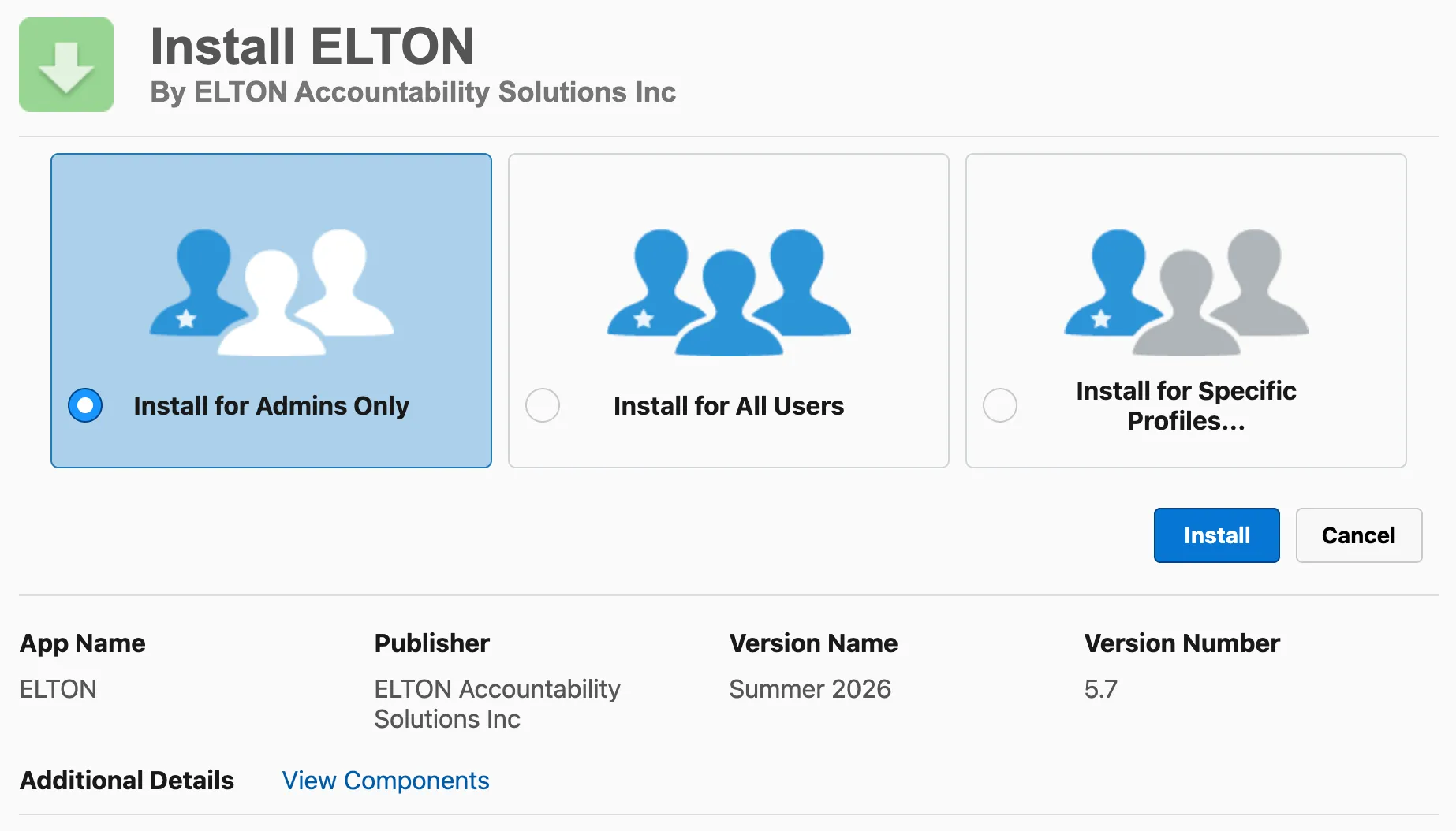
- Review the installation details, confirm terms, and choose which users should have access. Click the checkbox next to "Install for All Users" for the License Manager to control access.
- Click Install. You'll receive an email confirmation from Salesforce once the installation is completed.
2. Open Unaric Equipment Track
- Click the App Launcher and type "ELTON".
- Click the ELTON result under Apps.

3. Add permissions set
Lastly, you need to add the ELTON Full User permission set to your users.
- From Setup, go to Users > Users.
- Select a user.
- Scroll down to the Permission Set Assignments related list and click the Edit Assignments button.
- Select ELTON Full User on the Available Permission Sets list and click Add. To remove a permission set assignment, select it under Enabled Permission Sets and click Remove.
- Click Save to finish.

4. Manage licences
- On Setup, navigate to Apps > Packaging > Installed Packages.
- Find the ELTON package and click Manage Licenses.
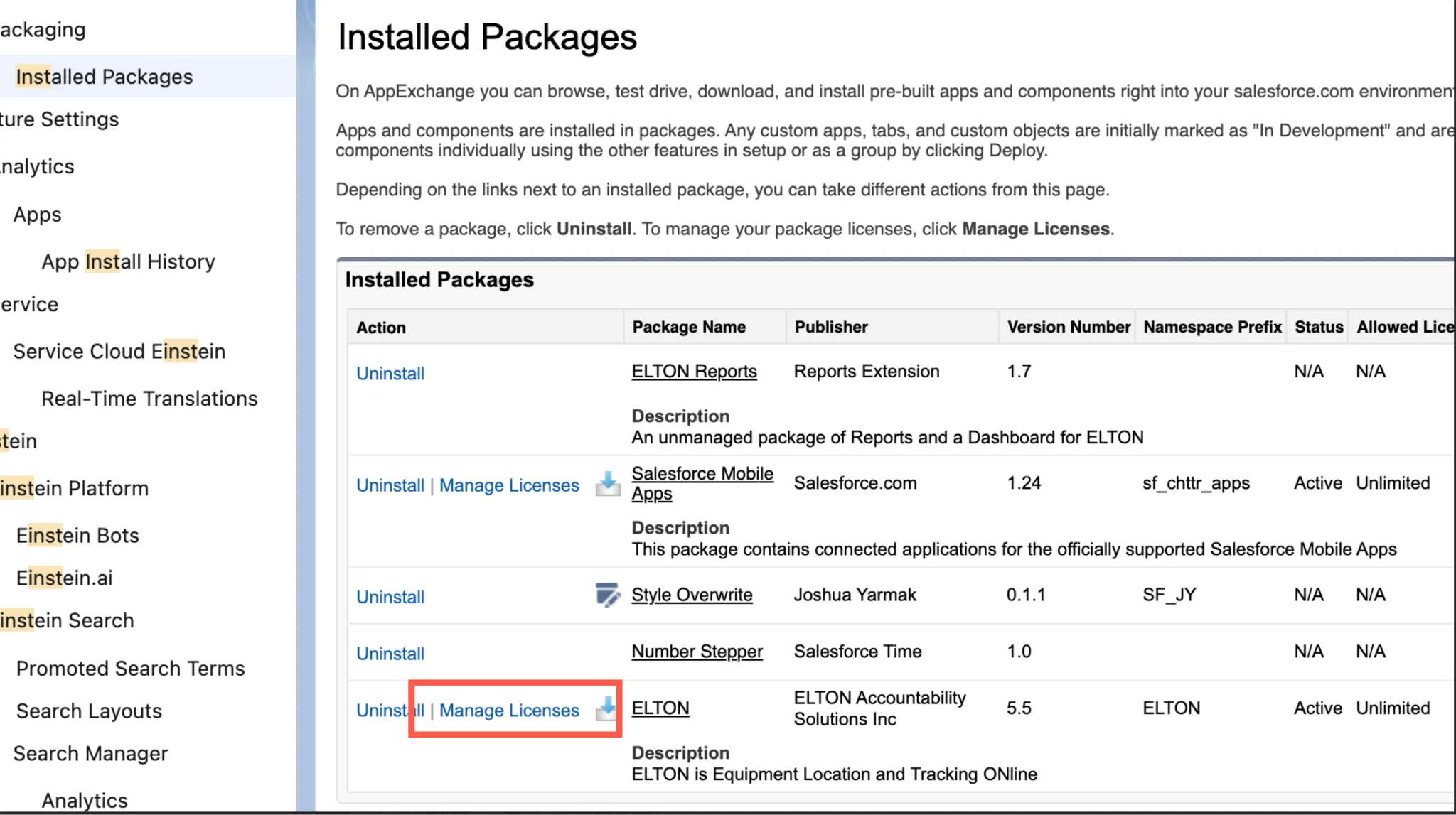
- In this page, you will find the number of your Unaric Equipment Track available and used licences. To add users, use the Add Users button on Licensed Users.